
In this Areopa Academy webinar, Milan Milinčević — Business Central Tech Lead at Visma in Norway — walks through six practical techniques for writing faster and more efficient AL code. Moderated by Luc van Vugt, the session covers built-in data types, the Event Recorder, async programming with page background tasks, included fields (covering indexes), partial records, and the tri-state locking model introduced in Business Central 23. Demo code for all examples is available on GitHub.
Built-in Data Types Optimized for Performance
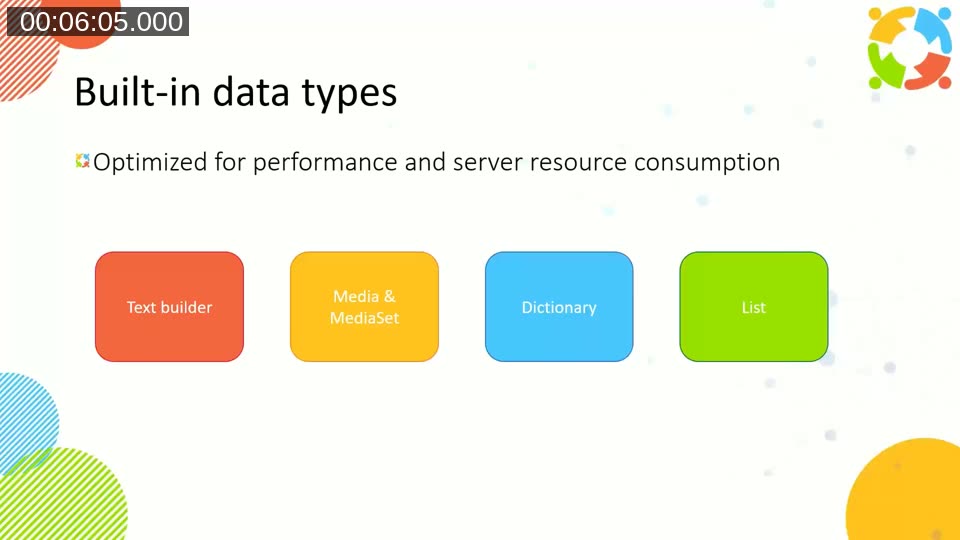
AL ships with several built-in data types that are designed with performance and server resource consumption in mind. Milan highlights four: TextBuilder, Media / MediaSet, Dictionary, and List.
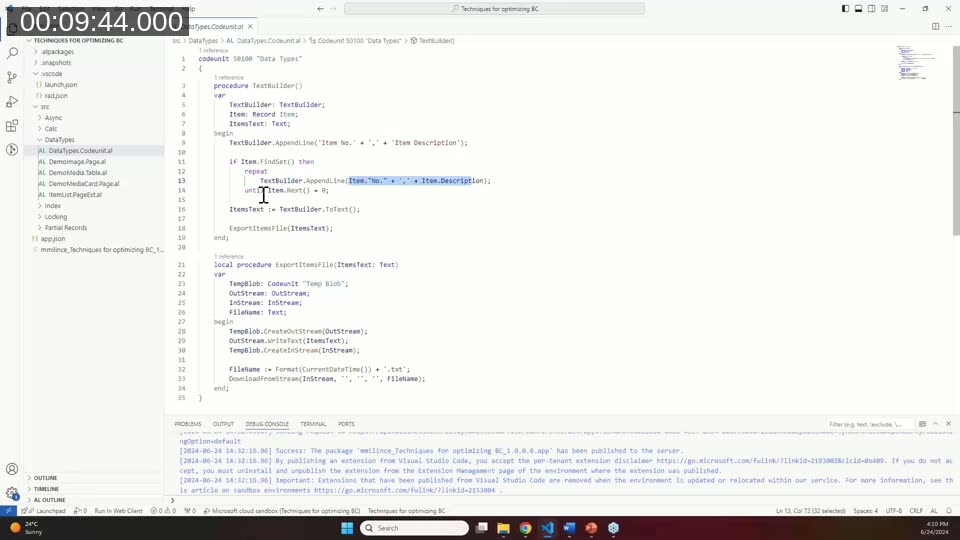
TextBuilder is a wrapper around the .NET StringBuilder implementation. When concatenating more than roughly five strings in a loop, using TextBuilder.AppendLine() and converting the result with .ToText() at the end is significantly faster than repeated + concatenation. For fewer than five strings, the overhead of allocating a TextBuilder instance negates the benefit, so plain concatenation remains appropriate there.
Media and MediaSet should be used instead of Blob when working with images. The Media type stores a reference to the system table Tenant Media, generates a thumbnail automatically, and caches the image on the client. Blob data is never cached — it is fetched from the database on every access. A useful consequence of the reference model is that deleted records can leave orphaned media entries in the system table. Microsoft’s Media.FindOrphans() method returns a list of unreferenced entries, and the built-in Data Administration page includes a Delete Detached Media action. Milan recommends creating a recurring job queue entry running the standard Media Cleanup Runner codeunit rather than cleaning up manually.
Dictionary and List are reference types. Assigning a Dictionary or List variable to another variable, or passing one by value, does not create a copy — both variables point to the same memory location. To work with an independent copy, iterate the collection and copy entries one by one.
📖 Docs: Performance articles for developers — AL performance patterns — covers data type selection, including when to preferDictionary,List,Media, andTextBuilderover their alternatives.
Event Recorder
The Event Recorder is a built-in Business Central tool for discovering which events are raised during a given business process, without having to read through the full base application source. It is particularly useful when extending existing functionality and looking for a safe integration point.
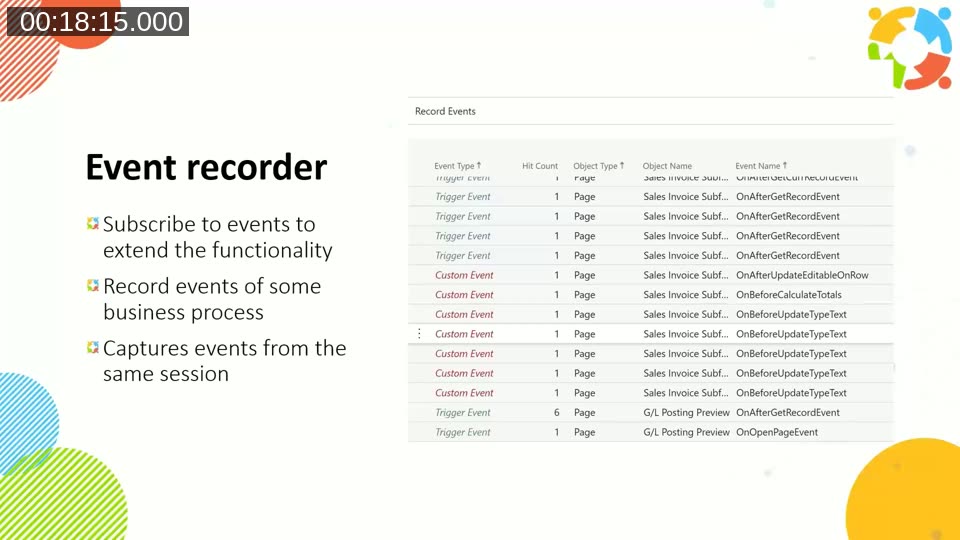
To use it, search for Event Recorder in Business Central, start recording, perform the process you want to extend, then stop. The resulting list shows each event in the order it was raised, along with the object type, object name, and event name. A Get AL Snippet button generates a subscriber stub for any selected event. Note that the snippet does not include parameter names — you still need to inspect the event publisher to confirm parameter signatures.
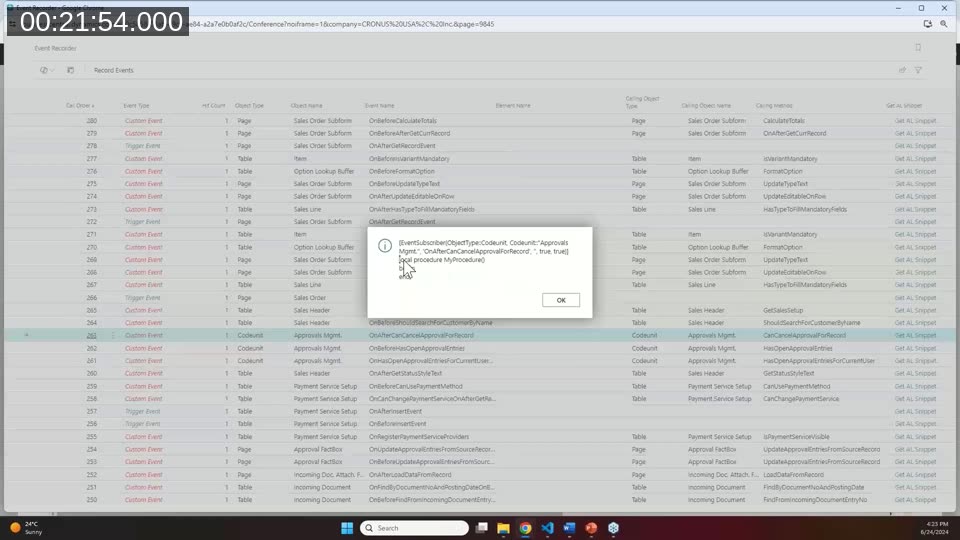
One important limitation: the Event Recorder captures only events raised in the current session. Events triggered by another user’s session are not included. For complex processes like posting a sales invoice, the list can exceed 4,000 events, so it works best for narrow, targeted interactions.
Async and Parallel Programming in Business Central
Business Central offers four mechanisms for moving work out of the UI session and into the background. Each has different characteristics:
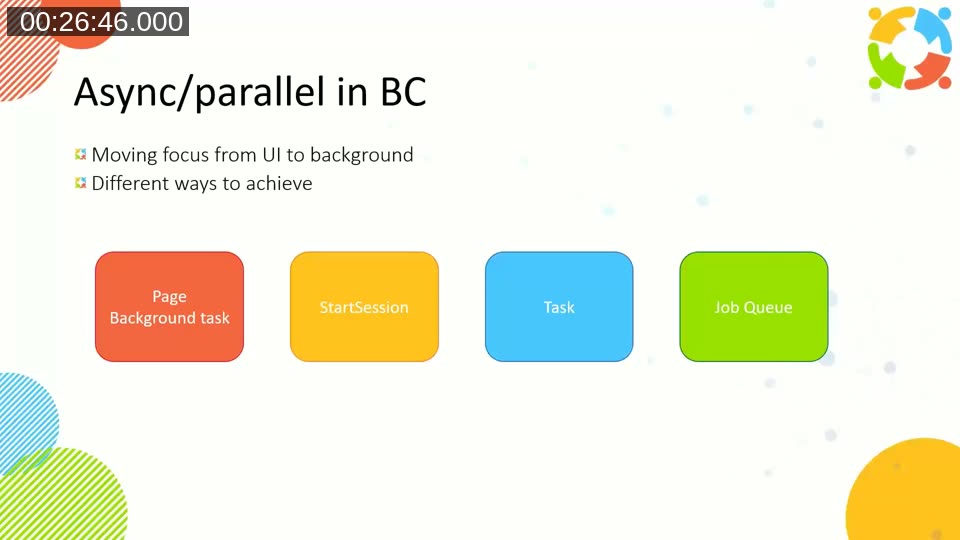
- Page Background Task — runs in a child session bound to the parent page, read-only, cancelled automatically if the user closes the page.
- StartSession — starts a full background session with write access on the same server, using the same user credentials.
- Task (TaskScheduler) — queued, can run on any server in the cluster, survives server restarts.
- Job Queue — scheduled, supports recurrence, logs results in Business Central.
Because each background session carries the same resource cost as a regular user session, Milan advises against using StartSession for small, frequently triggered tasks. The operational limits for Business Central Online are: 10 concurrent background sessions per environment (queue depth 100), 5 concurrent child sessions per parent session, and 5 simultaneously running scheduled tasks per user.
Page Background Task Demo
The demo shows two role centers, each with two cues displaying counts of posted sales invoices and posted sales credit memos. One role center calculates those counts synchronously — the page is blocked until the calculation finishes. The other uses a page background task: the page opens immediately, and the cue values populate once the background calculation completes.
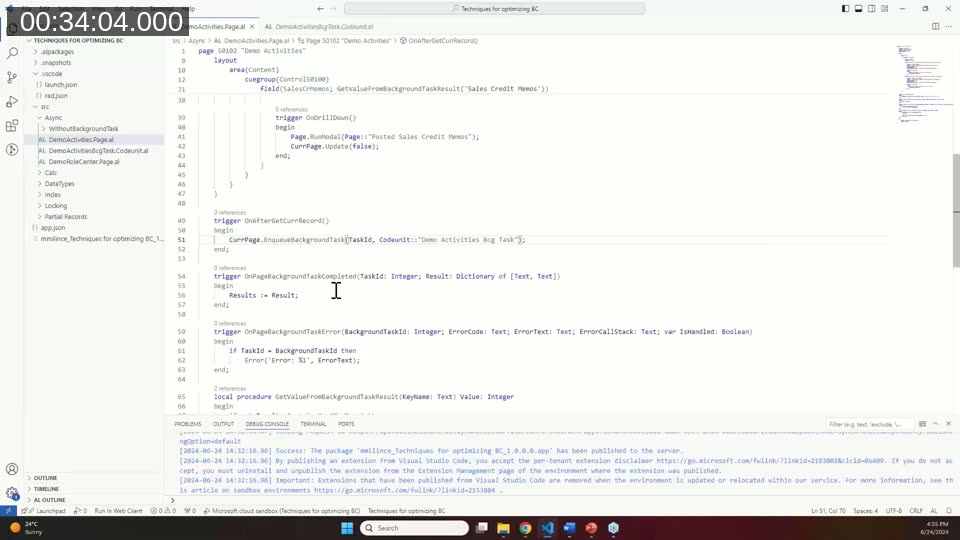
The implementation pattern uses CurrPage.EnqueueBackgroundTask(TaskId, Codeunit::"Demo Activities Bcg Task") in the OnAfterGetCurrRecord trigger, a background codeunit that populates a Dictionary of [Text, Text] and calls Page.SetBackgroundTaskResult(Result), and the OnPageBackgroundTaskCompleted trigger on the page to read the result dictionary. The OnPageBackgroundTaskError trigger handles exceptions without blocking the user.
📖 Docs: Page Background Tasks — full reference including triggers, limits, testing with TestPage.RunBackgroundTask, and debugging child sessions.
Included Fields (Covering Indexes)
Available from Business Central version 20, the IncludedFields key property allows extra fields to be stored in the leaf nodes of a non-clustered index. This is what SQL Server calls a covering index: because all columns needed by a query are present in the index itself, the database engine does not need to perform an additional lookup into the clustered (base) table.
This is particularly useful as an alternative to SIFT indexes. SIFT indexes provide fast FlowField lookups but must be maintained on every insert, modify, and delete — which can be expensive on high-write tables. An index with IncludedFields is lighter to maintain while still serving read queries efficiently from the index alone. The trade-off is that the lookup will be somewhat slower than SIFT, but write performance is significantly better.
The syntax in AL is straightforward:
keys
{
    key(Key2; "Car No.")
    {
        IncludedFields = Amount;
    }
}
In the demo, a table with 5 million records is queried via a FlowField that totals amounts per car number. The page without IncludedFields takes over a minute to load the first 50 rows. The page backed by the covering index loads the same data in approximately 2 seconds.
📖 Docs: IncludedFields Property — syntax reference and guidance on which keys support this property.
Partial Records
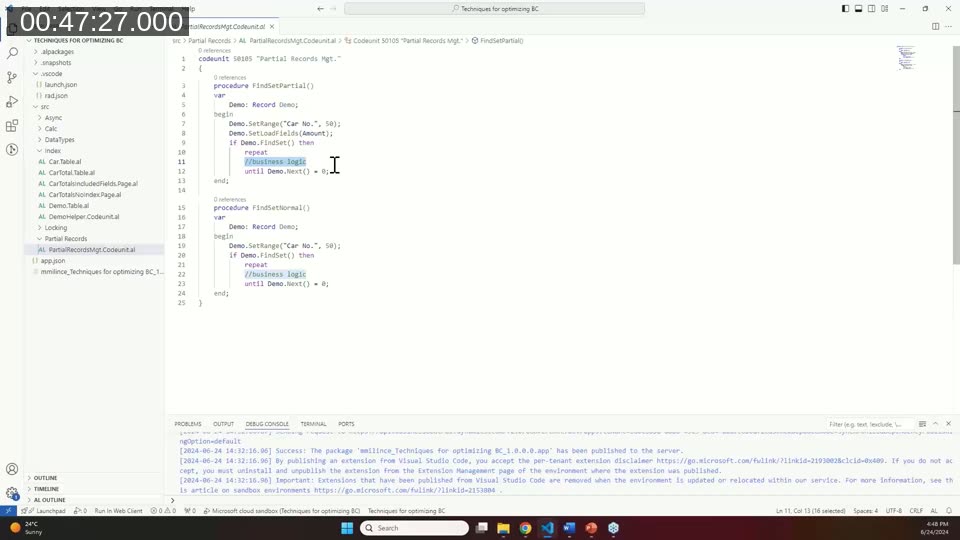
Partial records let you specify exactly which fields to load when querying a table, rather than having the runtime fetch every normal field. Fewer columns in the SELECT statement means less data transferred and a better chance of the SQL optimizer choosing an appropriate index — including a covering index defined with IncludedFields.
The primary method is Record.SetLoadFields(), called before the data access operation:
Demo.SetRange("Car No.", 50);
Demo.SetLoadFields(Amount);
if Demo.FindSet() then
    repeat
        // business logic using Amount
    until Demo.Next() = 0;
Microsoft’s own platform applies partial records in four places automatically: reports, all data pages, and list or list-part pages (loading only the fields displayed). From Business Central 23 release wave 2, all table extensions on a given table are consolidated into a single companion table in SQL, so the maximum JOIN cost is one. SetLoadFields can still eliminate that one join if all required fields reside in the base table.
An important pitfall is Just-In-Time (JIT) loading: if code accesses a field that was not included in the initial load, the runtime issues an additional GET statement for that record. In event subscribers where you cannot control what fields were loaded before your code runs, use Record.IsFieldLoaded() (or AreFieldsLoaded() on a RecordRef) and call Record.LoadFields() explicitly to avoid implicit JIT penalties.
📖 Docs: Using Partial Records — full guidance including JIT loading, usage guidelines for reports and pages, and FAQ.
Calc-Based Methods: CalcFields vs. SetAutoCalcFields
When working with FlowFields in a loop, prefer SetAutoCalcFields() over CalcFields(). Calling CalcFields() inside a repeat loop issues a separate SQL statement on every iteration. SetAutoCalcFields() is called once before FindSet() and instructs the runtime to calculate the specified FlowFields automatically when each record is retrieved — resulting in far fewer round trips to the database.
// Preferred pattern
Customer.SetAutoCalcFields(Balance);
if Customer.FindSet() then
    repeat
        // Customer.Balance is already calculated
    until Customer.Next() = 0;
Tri-State Locking
Tri-state locking is one of the most significant platform changes Microsoft has introduced in Business Central 23 (2023 release wave 2). It changes how the server manages SQL isolation levels after a write operation within a transaction.
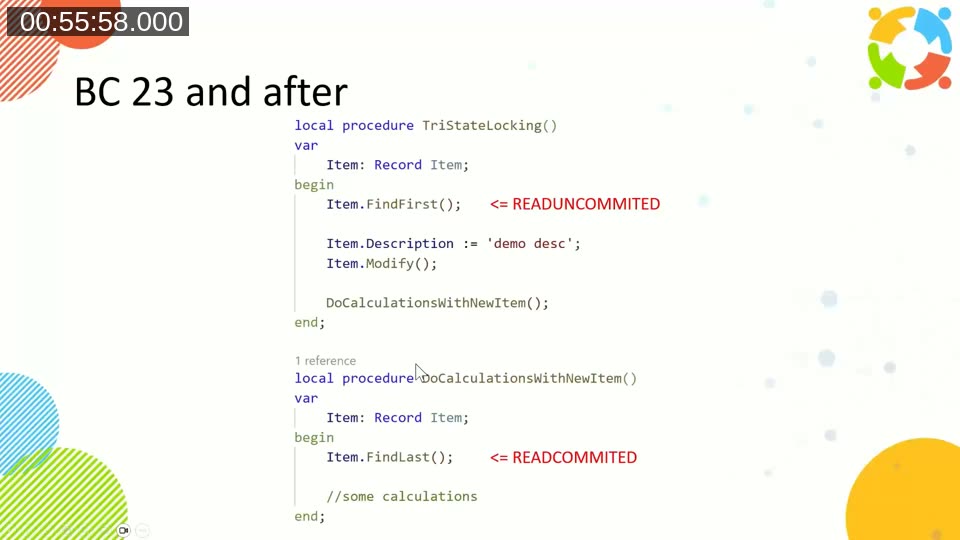
Under the legacy two-state model (version 22 and earlier), every read operation following a write within the same transaction was automatically escalated to UPDLOCK — applying to the entire table, not just the modified record. This caused contention when other sessions tried to access the same table concurrently.
With tri-state locking, subsequent reads after a write use READ COMMITTED instead of UPDLOCK. Other sessions can continue reading and writing to the same table as long as they don’t touch the specifically locked rows. The three isolation states are: READUNCOMMITTED (the default for all reads at the start of a transaction), READCOMMITTED (reads after a write with tri-state enabled), and UPDLOCK (when Record.LockTable() is called explicitly).
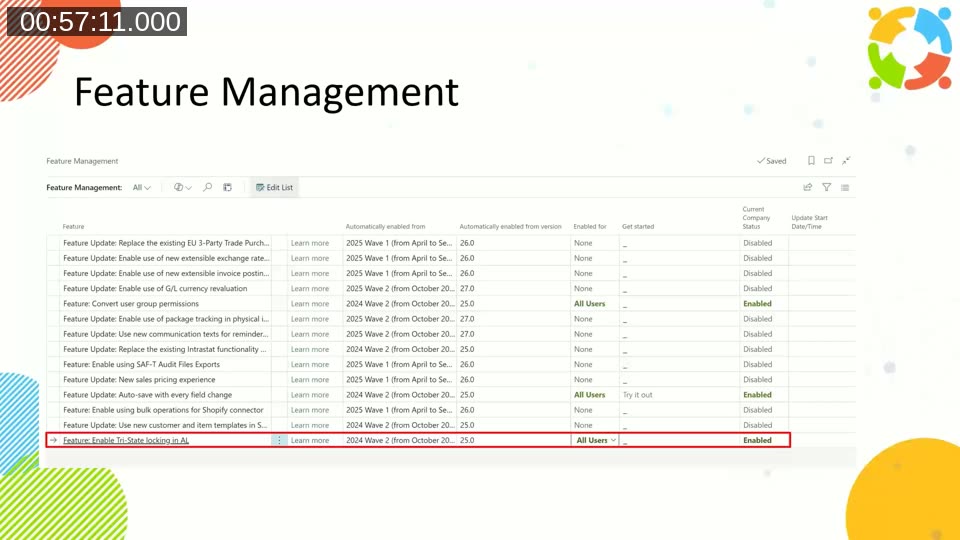
To enable tri-state locking, go to Feature Management in Business Central and enable Feature: Enable Tri-State locking in AL. From version 26 onwards it will be mandatory and enabled by default for all environments.
📖 Docs: Tri-state locking in database — detailed comparison of locking behavior before and after BC 23, and how to enable or disable it per tenant.
Demo Code on GitHub
All code samples from this session are published in Milan Milinčević’s GitHub repository: github.com/mmilince/techniques-for-optimizing-bc. The repository is organized by topic (DataTypes, Async, Index, Partial Records, Locking) and includes the role center comparison, the 5-million-row included fields demo, and the partial records codeunit shown in the session.
This post was drafted with AI assistance based on the webinar transcript and video content.