
Areopa’s Visual Studio Code AL extension series covered the extensions built specifically for AL development. In this follow-up webinar, Jeremy Vyska walks through a different category: general-purpose VS Code extensions that are not AL-specific but are still genuinely useful for Business Central developers. Luc van Vugt moderates. You’ll see quality-of-life tools for code readability and screenshots, extensions for working with Excel files and diagrams, Git tooling that goes beyond the built-in source control view, and utilities for tracking time and onboarding new developers to a codebase.
All of the extensions Jeremy demos are collected in his Spare Brained AL Pack, which also bundles the AL-specific extensions covered in Areopa’s earlier series.
A quick detour: AL Structure Creator
Before getting into the planned list, Jeremy mentions an extension he only learned about that same day via the Business Central Discord: AL Structure Creator. It lets you define a folder structure once and apply it to new repositories with a single command, useful if you find yourself manually recreating the same source, logo, and permission set folders on every new project.
Getting more out of the Extensions view
Jeremy opens with a couple of habits worth building around the built-in Extensions view itself. Clicking an extension’s name (not just its icon) opens its Marketplace page in the browser, which is where you’d go to file an issue, leave a rating, or find the author’s other work. The Feature Contributions tab on an extension’s page also lists every command, setting, and menu item it adds, which is a fast way to trace an unfamiliar command back to the extension that introduced it.
Quality-of-life extensions
Several small extensions add polish without changing your workflow:
- VSCode Icons adds distinct file-type icons in the explorer, including an AL icon contributed by Kauffmann in 2019.
- Create GUID is a single command that generates a random GUID straight to the clipboard, useful when copying an
app.jsonbetween projects. - Bracket Pair Colorizer 2 highlights matching brackets and the code between them, which also helps make sense of AL’s
begin/endblocks.
Todo Tree: never lose a reminder in code
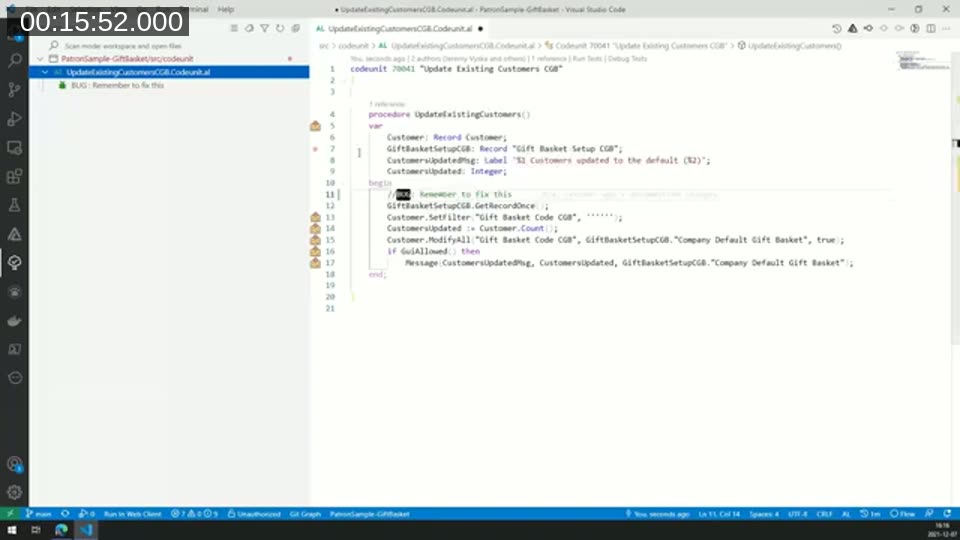
Jeremy uses Todo Tree to leave inline reminders such as TODO: fix this or BUG: fix this directly in code comments. The extension scans the workspace and lists every occurrence in a dedicated tree view, letting you jump straight to the line. It supports custom tags so teams can distinguish, for example, a quick TODO from a known bug. These comments are checked into source control along with the rest of the file, which he considers a feature rather than a drawback — the reminder travels with the code.
Banner Comments: navigating large code units
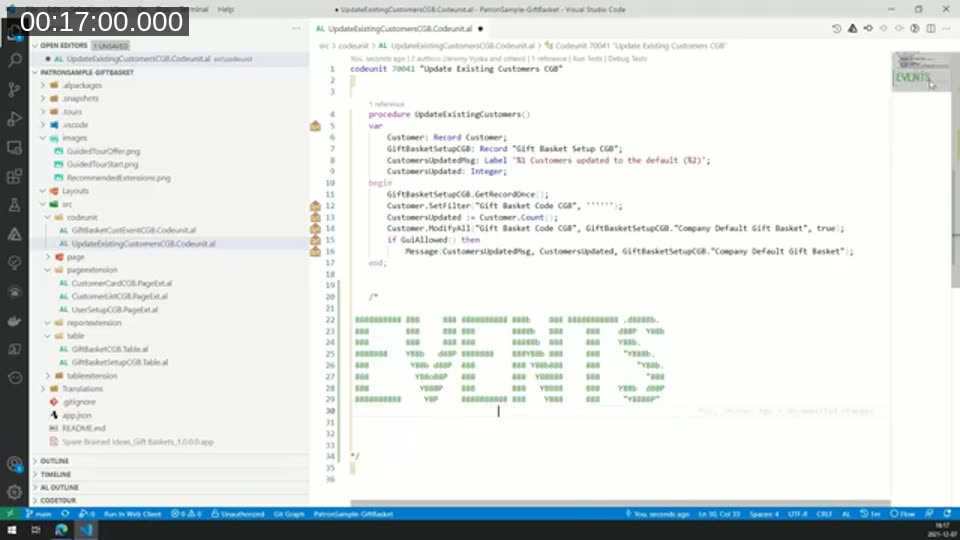
Banner Comments + converts a short piece of text into a large ASCII-art banner comment. In a large code unit with many unrelated procedures, dropping in a banner for each logical section (for example “Events”) makes the section boundaries visible both in the code and in the minimap on the right, which makes it much faster to orient yourself — or to point a colleague to the right area — in a long file.
Polacode: clean code screenshots
Polacode generates a clean PNG screenshot of a selected block of code, stripped of line numbers, minimap, and other editor chrome, with a soft shadow and optional transparent background. It respects your current color theme, so a light or dark screenshot is just a matter of switching themes before capturing. It’s aimed at blog posts and documentation where a plain editor screenshot looks cluttered.
Working with Excel files and diagrams
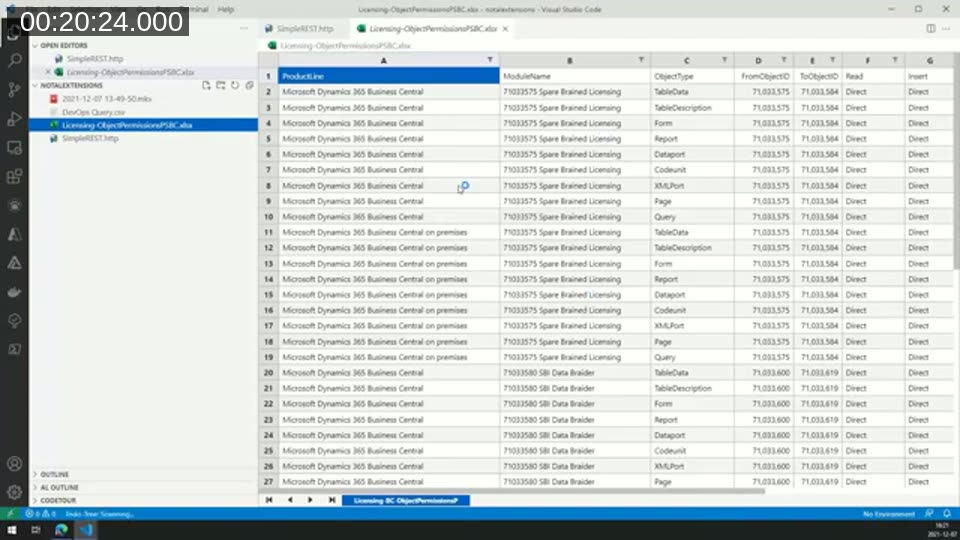
Excel Viewer opens .xlsx and .csv files directly inside VS Code, with sorting and filtering comparable to Excel itself, so there’s no need to switch to an external application when a partner sends over an integration data file.
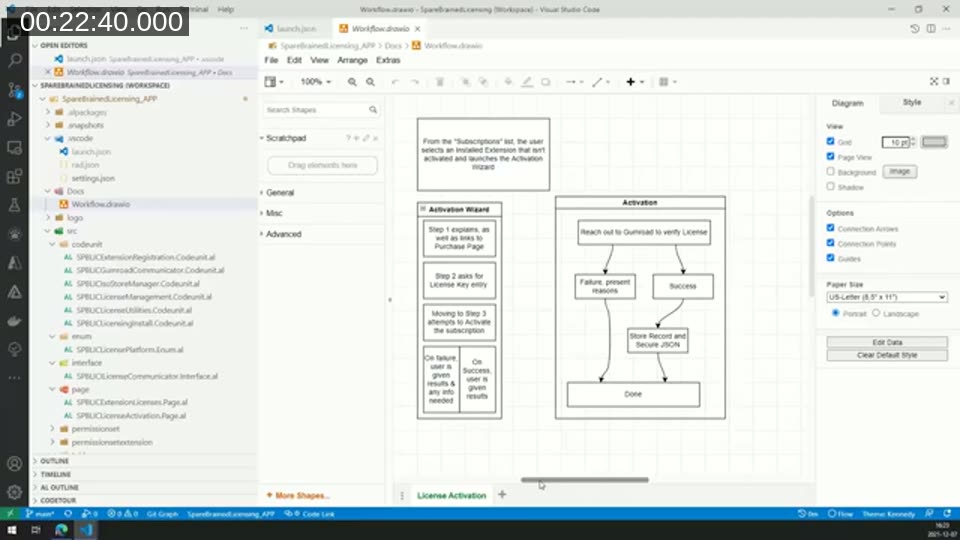
Draw.io Integration embeds a lightweight version of diagrams.net directly in the editor. Diagrams are saved as .drawio files (plain XML under the hood), so they check into source control cleanly and can be used to leave process documentation for the next developer working on the same extension. Jeremy notes draw.io also supports linking diagram nodes to code spans, though he hadn’t tried that functionality himself.
Markdown editing and previewing
For repos that include Markdown documentation, Jeremy uses two extensions together: Markdown All in One for editing shortcuts (bold, italics, and other formatting via a quick pick menu), and Markdown Preview Enhanced for a closer-to-final preview, including exporting a document to PDF and checking how the page reads in a browser’s dark mode.
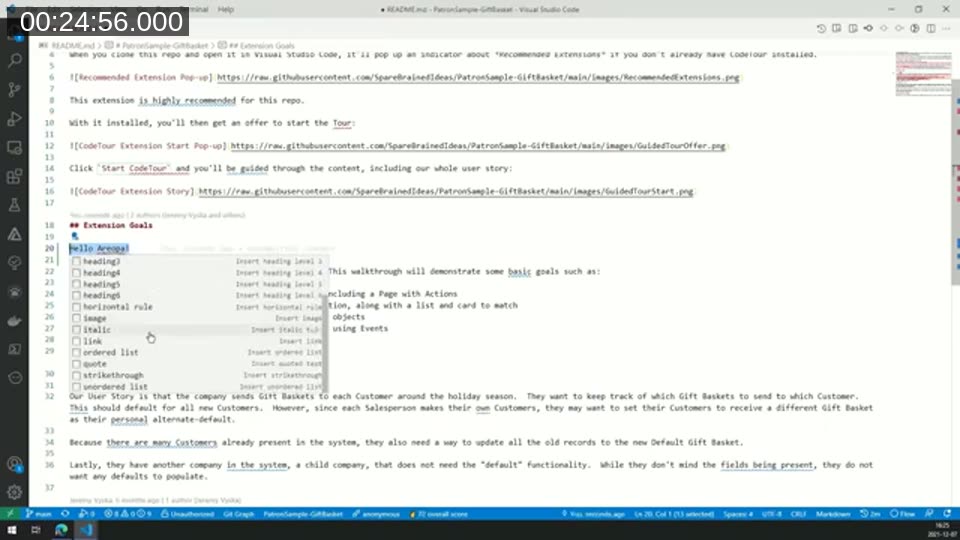
Viewer tip: during the webinar, an attendee pointed out Paste Image, an extension that pastes an image from the clipboard directly into a Markdown file — useful for quickly dropping screenshots into documentation without a separate save-and-link step.
REST Client: testing APIs without leaving VS Code
REST Client lets you write and send HTTP requests from a plain .http file inside VS Code, and view the response — status, headers, and body — right next to the request. It supports variable substitution, so a script can reference a token or base URL once and reuse it across requests. Jeremy uses it against a local Docker container to quickly verify that a Business Central API endpoint returns the expected data after a code change. It’s not a full replacement for a tool like Postman, but it’s convenient for quick checks without leaving the editor.
📖 Docs: Business Central API basics on Microsoft Learn — background on the REST endpoints REST Client is typically used to call.
Git superpowers: GitLens, Git History, and Git Graph
GitLens and Git History cover overlapping ground, and Jeremy keeps both installed. Git History adds a file-history view accessible from the editor’s top-right corner, letting you browse every commit that touched a file and jump to actions like cherry-picking or merging. GitLens goes further: inline blame annotations show who last changed a line and when, the Source Control panel gains a richer commit history and branch comparison view, and you get visibility into stashes, remotes, and branches without leaving VS Code.
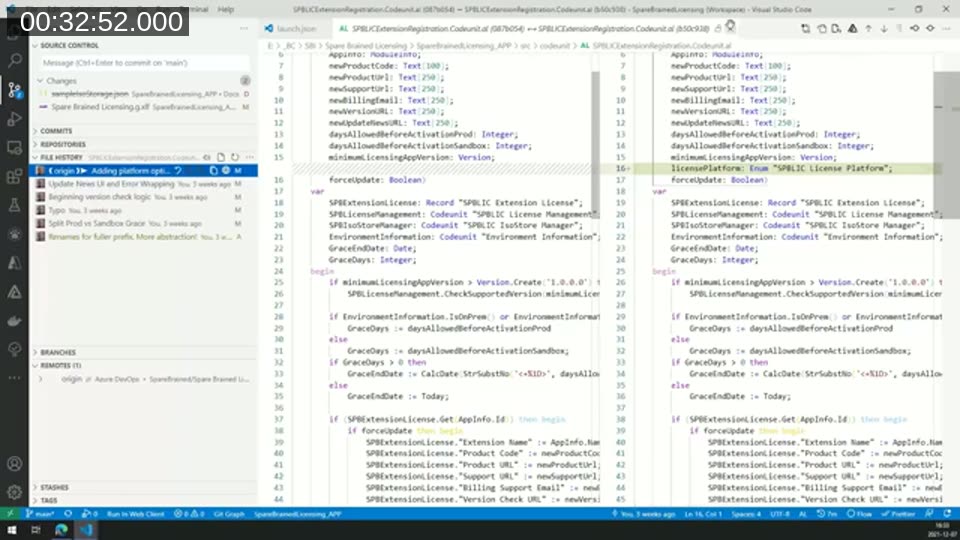
📖 Docs: GitLens documentation — full feature reference for blame annotations, file history, and the Source Control integrations shown in the demo.
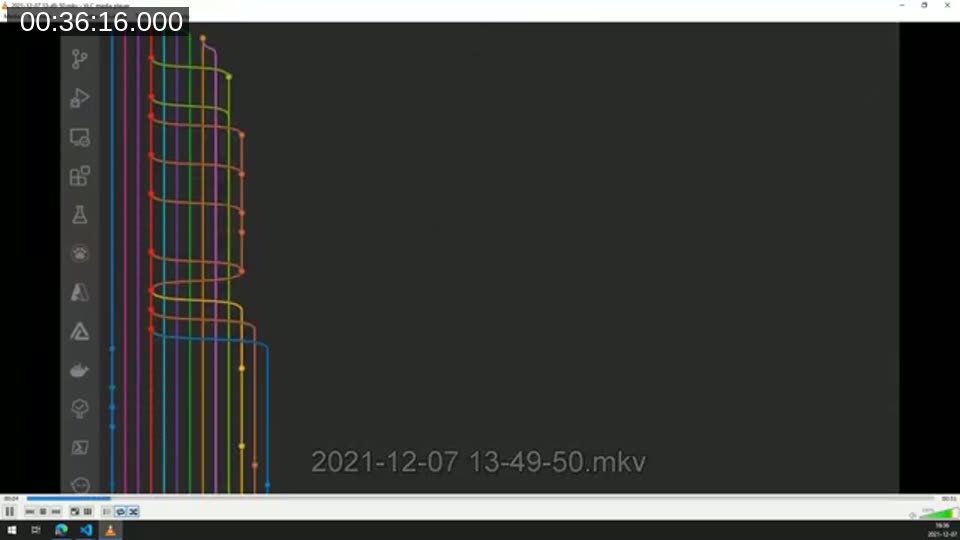
Git Graph visualizes the full branch and merge history of a repository. Jeremy contrasts a simple single-branch project with a client repository involving six developers and multiple features in flight at once, where the branch graph gets visibly complex. He suggests this visualization can help explain to project managers or clients why approvals and merges need to happen quickly — the longer changes sit unmerged, the more the branch graph (and the risk of conflicts) grows.
GitHub Repositories: browsing without cloning
GitHub Repositories (formerly Remote Repositories) opens a GitHub or Azure DevOps repository directly in VS Code without cloning it locally. Jeremy demonstrates opening the AL Guidelines repository this way, then using VS Code’s full search functionality against the remote content — a fast way to explore a large repository, such as the Business Central base application history, when you only need to look, not edit.
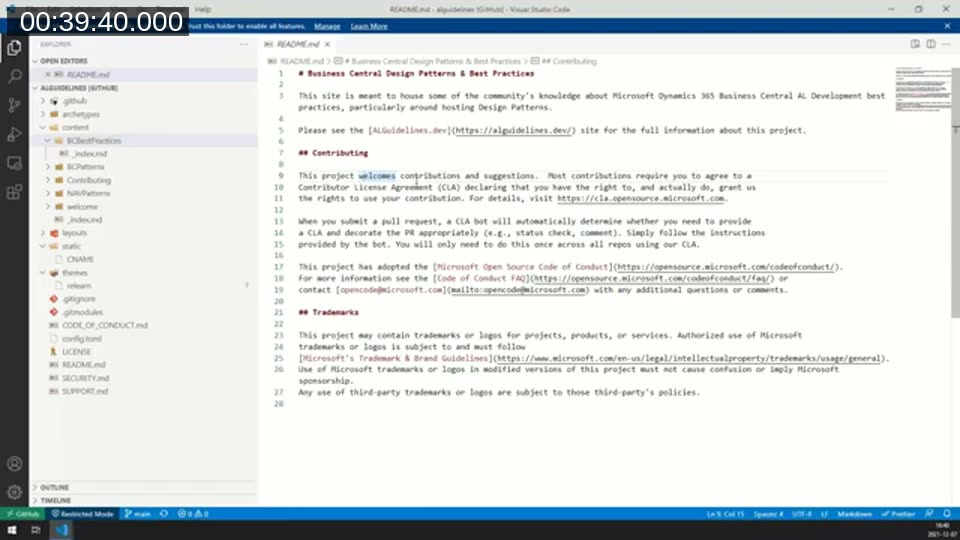
📖 Docs: alguidelines.dev — the Business Central Design Patterns & Best Practices site backed by the repository Jeremy opens live in the demo.
Code Time: tracking how you spend your day
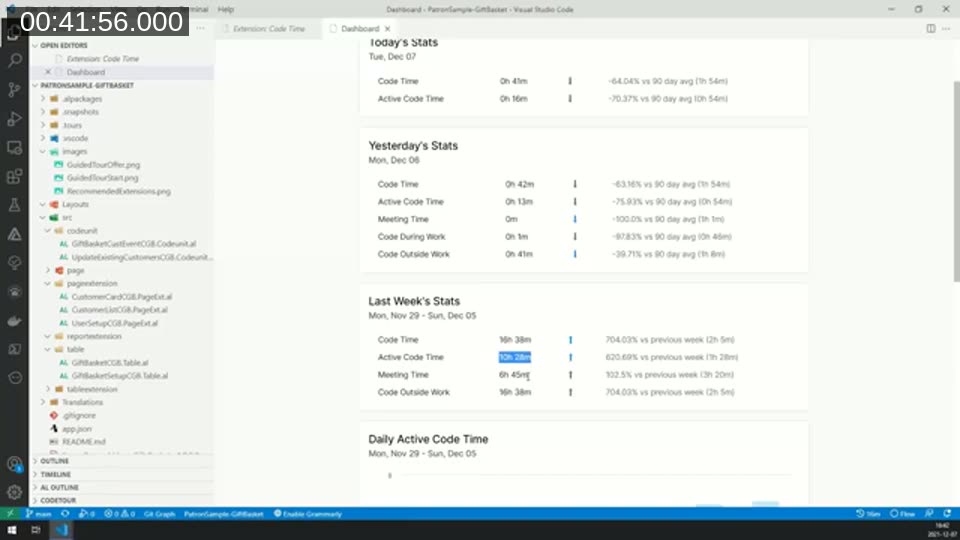
Code Time connects to software.com and tracks coding metrics: active coding time versus idle time, and — with an Outlook integration enabled — how coding time compares to time spent in meetings. A “flow mode” button can mark your calendar as busy for a set period to protect focus time. Free-tier tracking is per-profile; deeper analytics and organization-level tracking sit behind a paid plan.
CodeTour: guided walkthroughs of a codebase
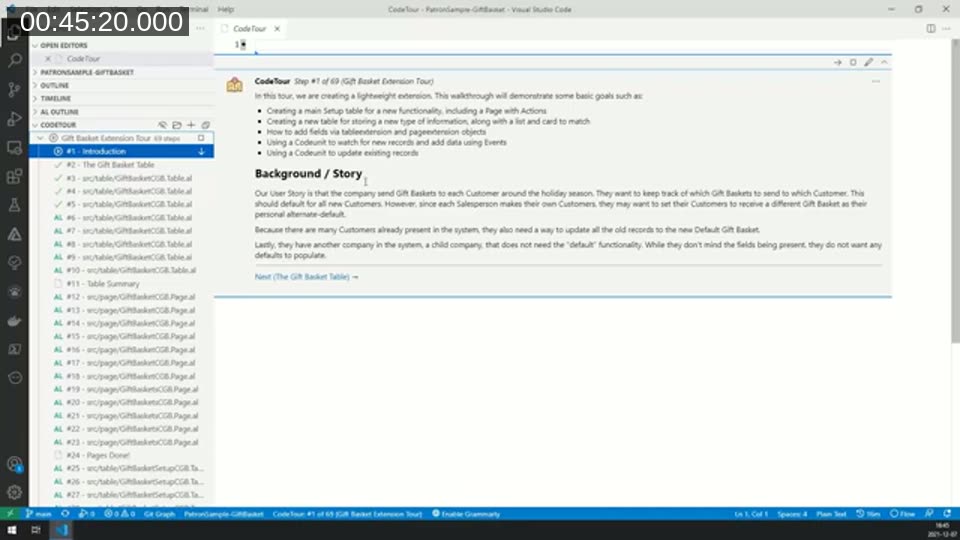
CodeTour lets you record a step-by-step guided tour through a repository: each step points to a specific file and line, with descriptive text attached. The first time someone opens a repository with a tour defined, VS Code offers to start it automatically. Jeremy demonstrates this on his public “Gift Basket” sample extension, a 69-step tour that walks through tables, pages, and events for people new to AL development. Tours are stored as Markdown-backed .tour files in a .tours folder, so they check into the repository alongside the code and stay available to anyone who clones it.
📖 Docs: CodeTour on GitHub — official repository, including guidance on recording and exporting tours.
Q&A: managing extension overload
The Q&A focused on a practical concern several attendees raised: installing too many extensions, especially large ones, can slow VS Code down. Jeremy agrees this is a real tradeoff, particularly when working against the base application or other large codebases with a thousand or more objects — smaller repositories of a few hundred objects rarely show a noticeable difference.
Extensions can be disabled per workspace rather than globally, which helps when a specific project doesn’t need a heavier extension. That per-workspace setting is local to each developer, though — VS Code does not currently support checking a “disable this extension for this workspace” preference into source control for the whole team. What a project can check in is a recommendations list: adding an extension’s identifier (visible in its Marketplace URL) to the workspace’s extensions.json prompts anyone opening the project to install the recommended extensions, without forcing or disabling anything.
This post was drafted with AI assistance based on the webinar transcript and video content.