In this Areopa webinar, Arend-Jan Kauffmann of Kauffmann IT Services explains OAuth 2.0 authentication for Business Central APIs, moderated by Luc van Vugt. Basic Authentication (web service access keys) was on its way out for Business Central SaaS, so Kauffmann walks through every configuration option involved in setting up OAuth: the four OAuth roles, single-tenant versus multi-tenant apps, public versus confidential apps, redirect URIs, scopes and permissions, and client secrets. He closes with a live demo in Postman and Azure Active Directory, followed by a short .NET/MSAL code example.
Why OAuth, and why now
Business Central SaaS was set to drop support for Basic Authentication (the web service access key) starting with the 2022 release wave 1. After that, OAuth becomes the only supported authentication mechanism for the SaaS APIs. On-premises environments could still use the web service access key at the time of recording, though Kauffmann noted that could change in a future release.
📖 Docs: Deprecation of Basic Auth for SaaS has been postponed to 2022 — Arend-Jan Kauffmann’s own write-up of the Basic Auth removal timeline for Business Central SaaS.
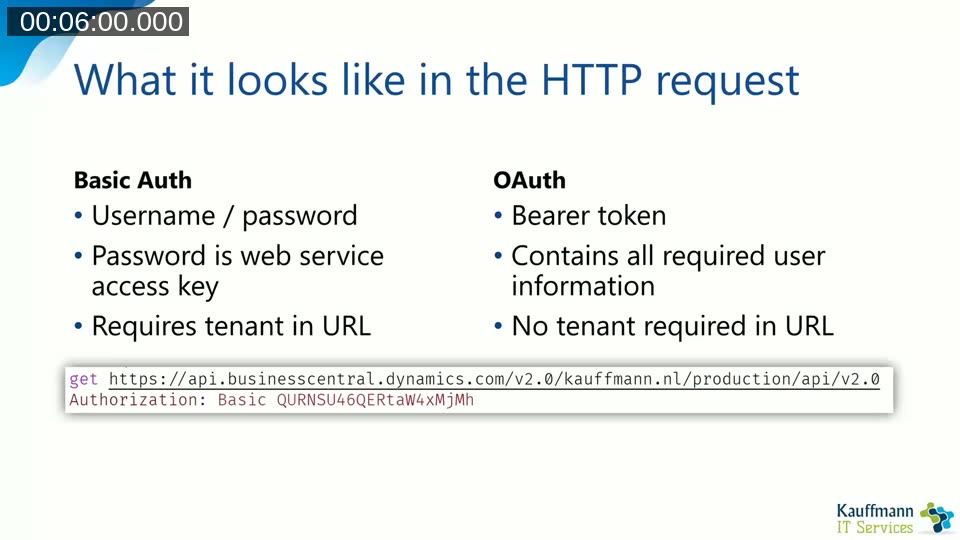
Basic Auth vs. OAuth in the HTTP request
With Basic Authentication, the request carries a username and password (the web service access key) as a Base64-encoded value in the Authorization: Basic header, and the Azure AD tenant has to be included in the URL so Business Central knows which environment to check. With OAuth, the header becomes Authorization: Bearer followed by an access token. The token itself carries the user and tenant information, so the tenant no longer needs to be part of the URL.
The access token
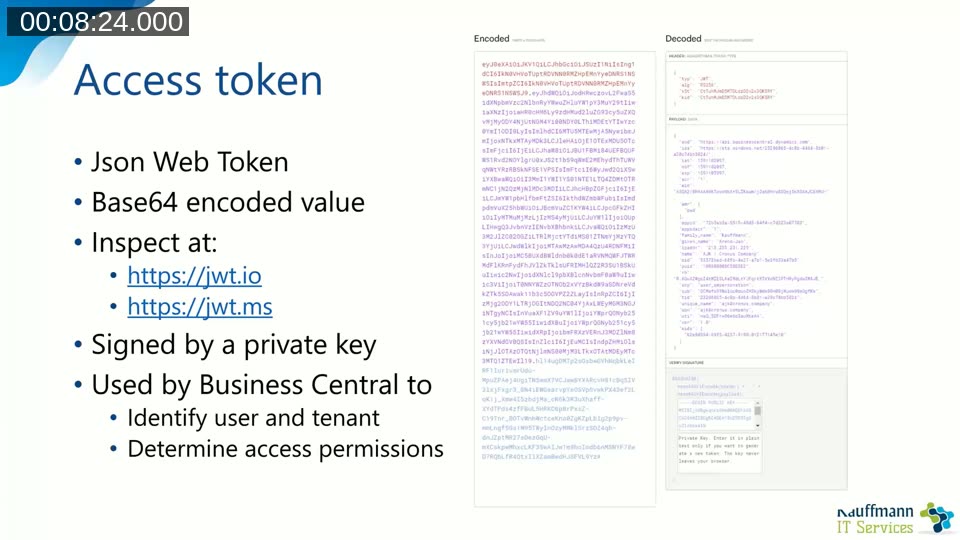
The access token is a JSON Web Token (JWT) — itself a Base64-encoded, digitally signed value. Kauffmann showed how to inspect a token’s contents at jwt.io or jwt.ms (the Microsoft-hosted equivalent). A token cannot be composed by hand because it’s signed with a private key on the authorization server, but anyone can decode and read its payload, which includes the audience (the resource the token is for), the user, and the scope. Business Central uses that payload to identify the caller and determine access.
The four OAuth roles
Every OAuth flow for Business Central involves four parties:
- Resource server — Business Central itself, where the data lives.
- Client application — any external application that wants to call the API (a C# app, an Azure Function, or a tool like Postman). The Business Central web client itself is not a client application in this sense.
- Resource owner — the Business Central user who owns the data and consents to (or configures) access for the client application.
- Authorization server — Azure Active Directory, which all three other parties trust. The client application asks the user for consent through Azure AD; once granted, the client can prove its access to Business Central, and Business Central verifies that with Azure AD.
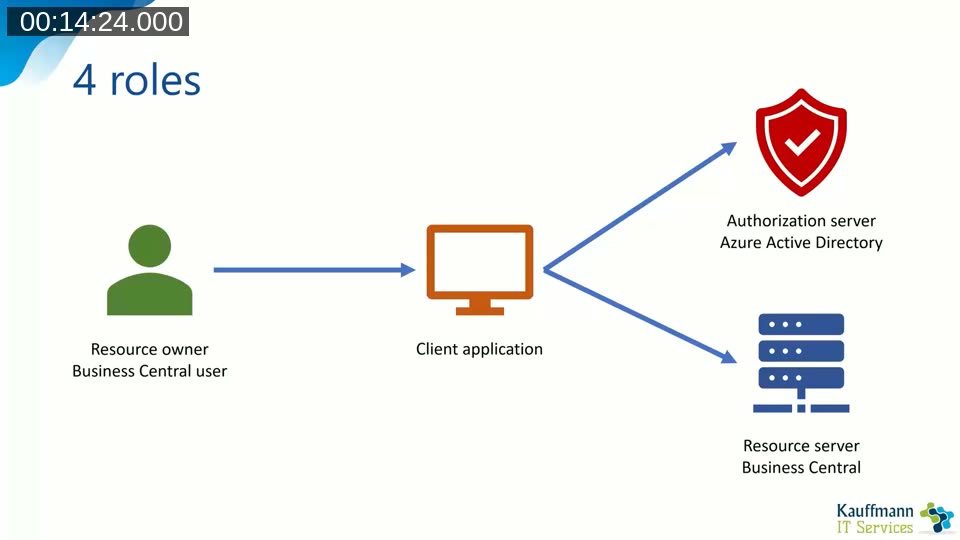
Business Central (the resource server) and the Business Central user (the resource owner) are already present in Azure AD. The piece that needs to be registered is the client application, done in the Azure Portal under Azure Active Directory > App registrations > New registration.
Configuration options when registering the app
Kauffmann walked through the options that come up during app registration and why each one matters.
Single tenant or multi-tenant
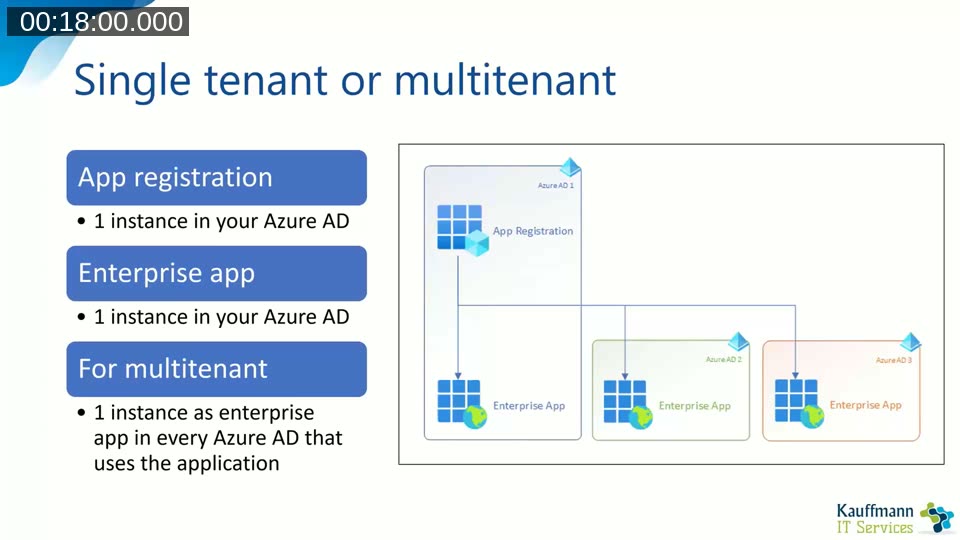
An app registration always produces two objects in Azure AD: the app registration itself (the blueprint — its ID and settings) and an enterprise application (also called a service principal), which represents the installed instance and records what a user has actually consented to. With a single-tenant app, both objects live in the same Azure AD; with a multi-tenant app, other organizations’ Azure AD tenants can create their own enterprise application instance from the same app registration. Single tenant should be the default for apps used only inside one company. Multi-tenant only applies to ISV-style scenarios — for example, a website that connects to many customers’ Business Central environments.
Public or confidential app
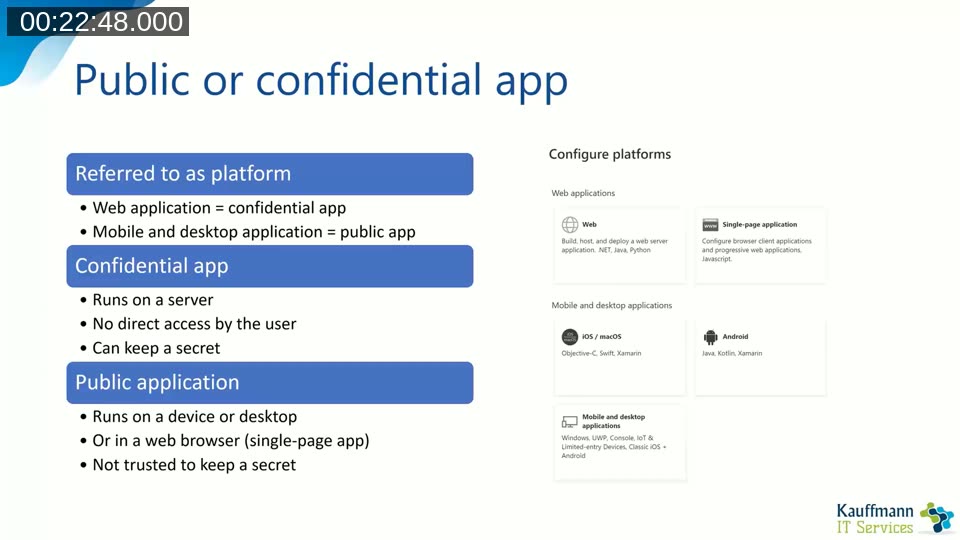
This maps to the platform type chosen for the app registration. A web application is a confidential app; a mobile/desktop application (and a single-page application) is a public app. A confidential app runs on a server the user can’t directly access, so it can safely hold a secret. A public app runs on a device or in a browser the user (or a determined attacker) does have access to, so it can’t be trusted with a secret — and a refresh token stored by a public app is just as exposed, since it can be used to mint new access tokens.
📖 Docs: Public and confidential client apps (MSAL) — Microsoft’s reference on the distinction and why it determines whether an app can hold a secret.
Redirect URI
The redirect URI is registered under the platform type and determines whether Azure AD treats the app as public or confidential. For a web application, it should point to a page you own; desktop and mobile apps can use one of the preconfigured redirect URIs Microsoft provides (or http://localhost), which Kauffmann used in the demo.
Scopes and permissions
A scope combines a resource (an identifier such as https://graph.microsoft.com or https://api.businesscentral.dynamics.com) with a permission on that resource (for example, Calendars.Read or API.ReadWrite.All). Two independent choices apply here:
- Delegated vs. application — delegated scopes impersonate a signed-in user; application scopes let the app call the API under its own application account, with no interactive user.
- Static vs. dynamic — static permissions are pre-configured in the app registration in Azure AD (required for application permissions, and what admin consent applies to); dynamic permissions are requested at sign-in time and never need to be listed in the app registration itself.
Client secret
A secret is just a password, valid for at most 24 months, and it’s the most sensitive part of the app registration. Because it expires, it has to be rotated before it does, with the application updated to use the new value.
Demo: registering an app and calling the API from Postman
Kauffmann registered a new single-tenant app (“Postman”) in Azure AD and walked through several flows against a Business Central sandbox from Postman’s built-in OAuth 2.0 authorization tab.
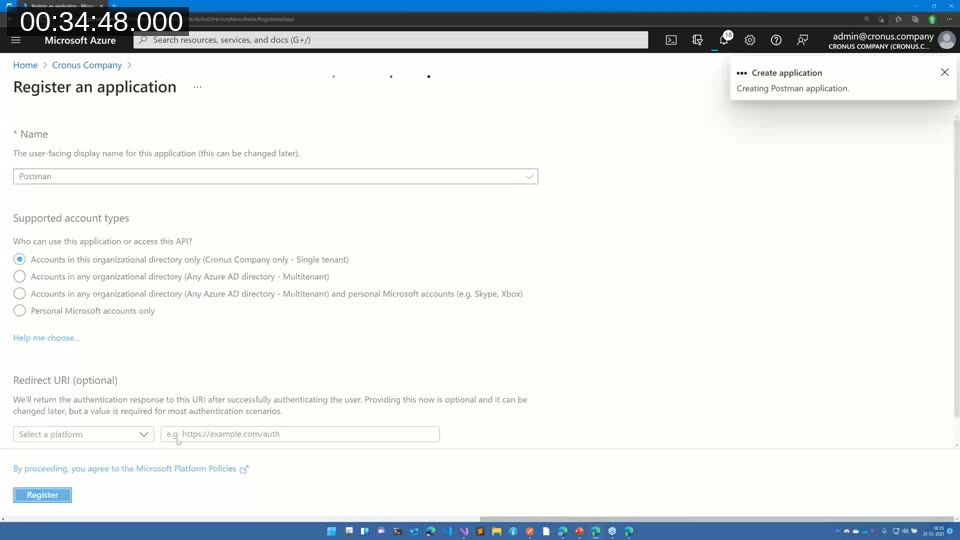
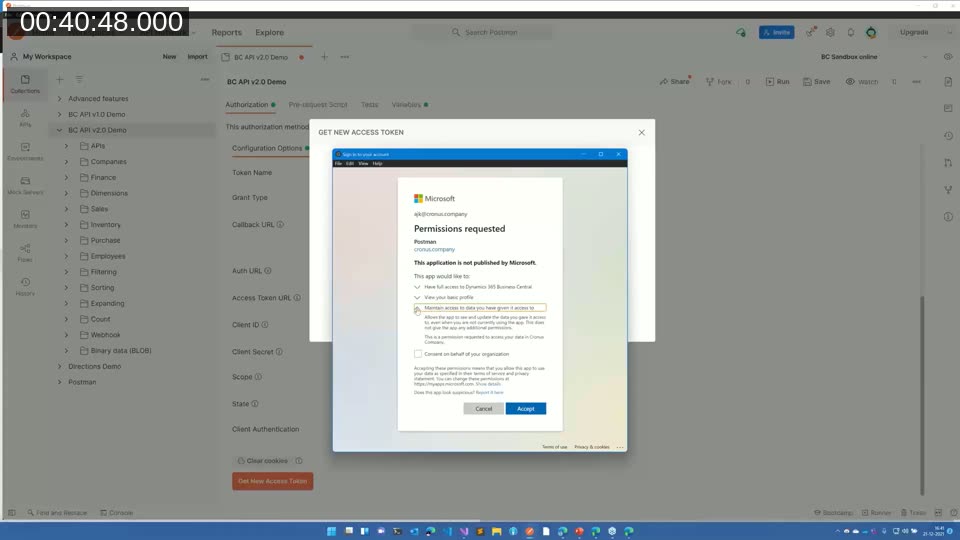
With only the application ID and a preconfigured native-client redirect URI, an authorization code grant already worked: Postman opened a Microsoft sign-in prompt, asked the user to consent, and returned an access token — no client secret required, and no permissions configured in the app registration, since the requested scope (user_impersonation) was granted dynamically at sign-in.
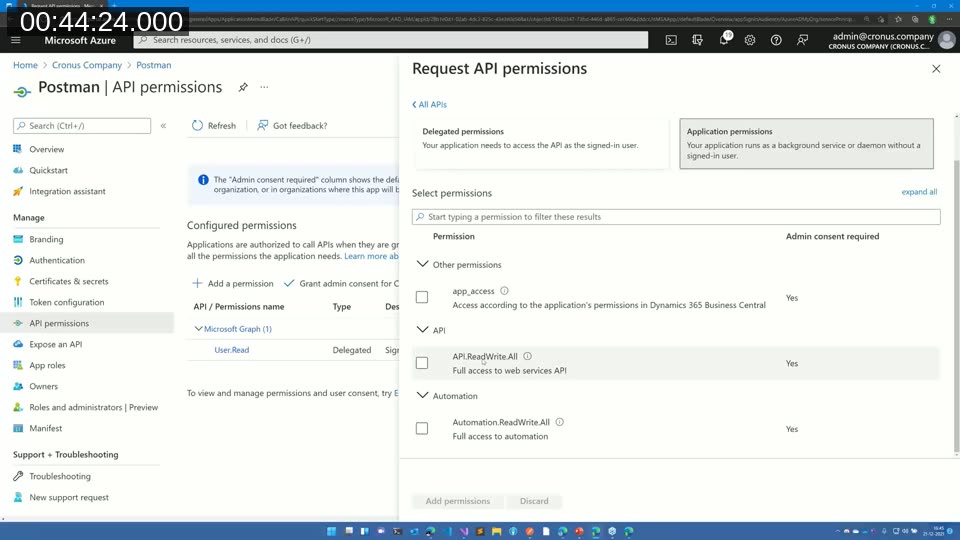
He then switched to the client credentials grant to call the API as the application itself rather than as a signed-in user. That flow needs a client secret, and it also needs the requested permission (API.ReadWrite.All) both added under API permissions and granted admin consent on the enterprise application — the app registration alone isn’t enough.
Even with a valid token and the right scope, the call still failed until an Azure AD application user was created inside Business Central (Azure Active Directory Applications, in the sandbox), because an application account needs its own Business Central user record just like a human user does.
📖 Docs: Walkthrough: Creating a console application that uses OAuth to authenticate Business Central web services — Microsoft’s step-by-step for the same registration and consent flow shown in the demo.
Acquiring the token from code
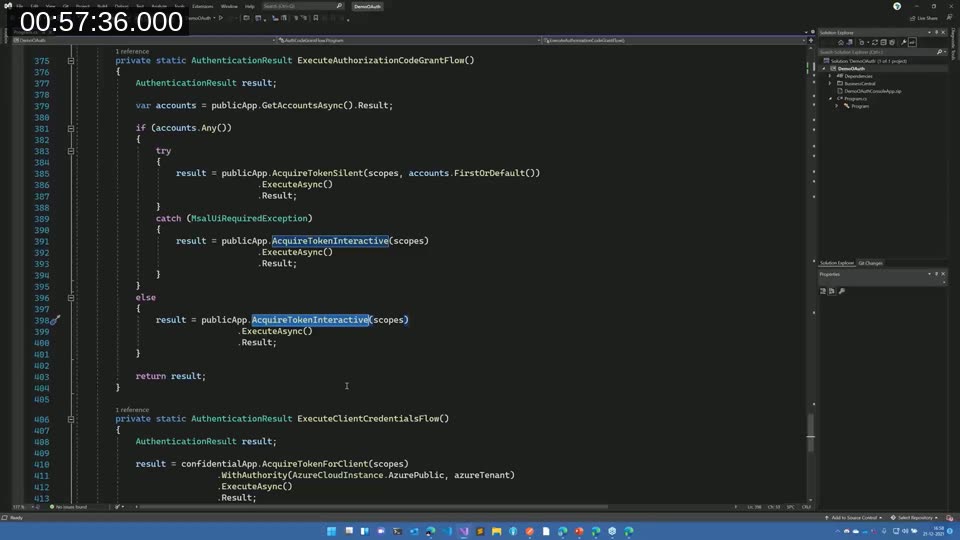
Composing the authorization and token URLs by hand and issuing the HTTP calls yourself is possible, but Kauffmann recommends the Microsoft Authentication Library (MSAL) instead — available for .NET, JavaScript, Android, and other platforms. In a small .NET console app, he used PublicClientApplicationBuilder with AcquireTokenInteractive for the delegated, signed-in-user flow, and ConfidentialClientApplicationBuilder with AcquireTokenForClient for the client credentials flow — the same two flows demonstrated in Postman, now driven from code.
📖 Docs: Overview of the Microsoft Authentication Library (MSAL) — official documentation for the library used in the code demo, with links to the .NET, JavaScript, and mobile implementations.
Q&A
During the Q&A, Kauffmann noted that implementing OAuth from Power Apps works similarly to the Postman flow, with Power Apps acting as a confidential client; he pointed out that the AL OAuth2 module offers comparable functionality, though with some room for improvement. The session recording was made available on the Areopa YouTube channel.
This post was drafted with AI assistance based on the webinar transcript and video content.