
In this Areopa Academy webinar, Microsoft MVP Kristen Hosman, moderated by David Singleton, covers how to set up and process sales and use tax in the US version of Microsoft Dynamics 365 Business Central. Using a hands-on demo built around a real ZIP code, she walks through tax jurisdictions, tax areas, tax groups, assigning tax to customers, vendors, and items, processing use tax on purchases, and pulling the reports needed for filing.
Hosman opens with a disclaimer: she is not a CPA, and the session covers how to configure the system, not tax advice. For actual filing questions, viewers should consult a CPA or tax accountant.
Tax Jurisdictions vs. Tax Areas
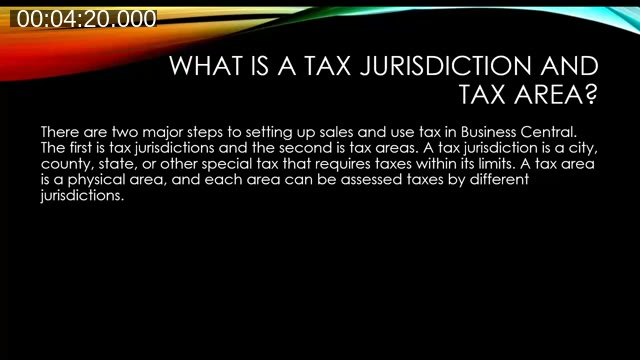
Business Central’s US sales tax setup rests on two concepts. A tax jurisdiction is a city, county, state, or special district that requires tax within its limits. A tax area is a physical location — typically a ZIP code — that groups together every jurisdiction that applies there.
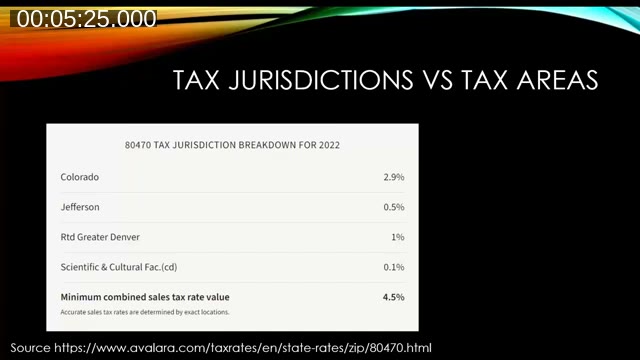
Hosman illustrates this with ZIP code 80470 (Conifer, Colorado), which sits inside four overlapping jurisdictions: the state of Colorado (2.9%), Jefferson County (0.5%), the RTD Greater Denver special district (1%, which funds regional bus service), and the Scientific & Cultural Facilities district (0.1%) — a combined rate of 4.5%. She notes that some US cities also levy special stadium taxes to fund sports venues, so the number of jurisdictions stacked on a single address can add up quickly.
Keeping this data current is a manual process — rates and jurisdictions change, and someone needs to monitor that. Hosman mentions that larger organizations with Nexus in many states often turn to third-party ISV tax engines that plug into BC to automate the process instead of maintaining it by hand. Today’s demo covers the manual setup.
Setting Up Tax Jurisdictions
The first configuration step is the Tax Jurisdictions page. Each jurisdiction gets its own code and a Report-to Jurisdiction, which tells the system where the collected tax ultimately gets remitted — in this example, Jefferson County, RTD, and the Scientific & Cultural district all report to Colorado.
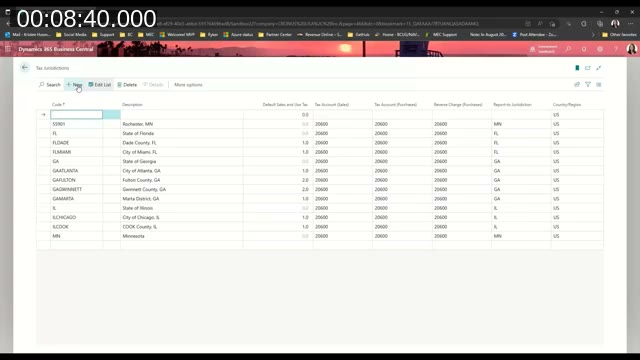
Hosman recommends matching the jurisdiction code to whatever code the state itself assigns, when one exists. That makes it much easier to reconcile the system’s totals against the state’s filing form later, since many states list jurisdictions by their own numeric or alphanumeric codes.
📖 Docs: Sales tax in the US version — Microsoft’s reference on how tax groups, tax areas, tax jurisdictions, and tax details fit together, including the built-in Set Up Sales Tax assisted setup guide.
Once the jurisdictions exist, each one needs a Tax Details line per tax group — one row for every combination of jurisdiction and tax group code, with the applicable rate. Group codes that shouldn’t be taxed (like “Nontaxable”) are left at 0%. Fields for maximum taxable quantity, tax above/below a maximum amount, and Expense/Capitalize are only relevant in specific state scenarios and can otherwise be left blank.
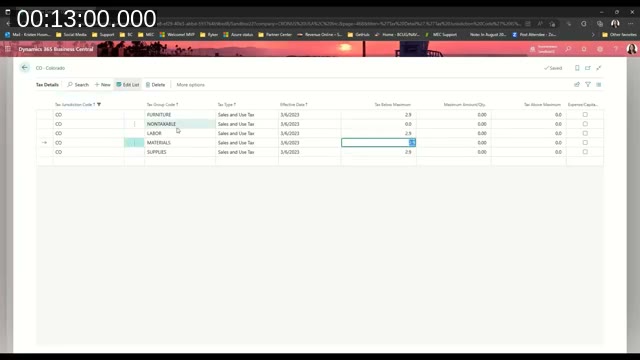
Because this table can grow large, Hosman points out it also supports bulk loading via a configuration package, Edit in Excel, or copy-paste directly into the grid — useful once you’re managing dozens of jurisdictions rather than four.
Tax Types: Sales and Use, Excise, or One-Sided
Each tax detail line also carries a Tax Type. The default is Sales and Use Tax, which applies to most scenarios. Excise Tax covers cases like imported goods where an additional tax applies on top of standard sales tax — Hosman gives the example of an excise tax charged on tourniquets imported for resale at a previous employer. Sales Tax Only and Use Tax Only are available for jurisdictions or scenarios where just one side applies.
Tax Areas: Grouping Jurisdictions by Location
With jurisdictions and their rates in place, the next step is the Tax Area itself. A tax area is created per physical location (Hosman uses the ZIP code as the area code for clarity) and its Lines section lists every jurisdiction that applies there — in this case, all four Colorado jurisdictions tied to 80470.
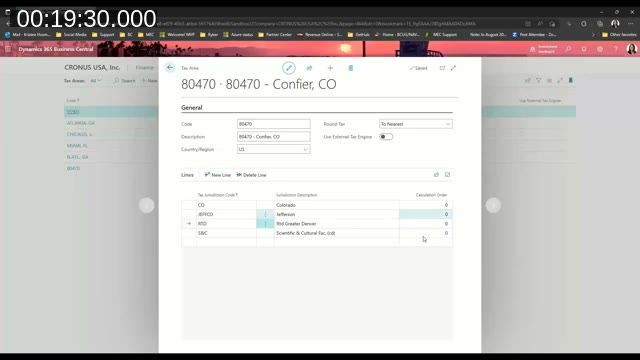
If a state requires tax to be calculated in a specific order — for example, state tax always calculated before county or special district tax — the jurisdiction lines on the tax area can be numbered to control that calculation order. None of the Colorado jurisdictions in this demo required that.
Assigning Tax to Customers, Vendors, and Items
Tax areas and tax groups only take effect once they’re assigned to master data:
- On the customer card, the Tax Area Code determines which jurisdictions apply, and the Tax Liable toggle must be turned on for tax to calculate at all.
- On the vendor card, the same Tax Area Code and Tax Liable fields control whether tax is expected on purchases from that vendor.
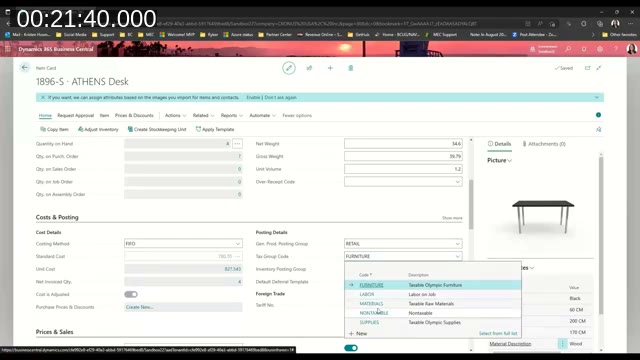
- On the item card, the Tax Group Code (under Posting Details) determines which rate from the Tax Details table applies to that item. If it’s left blank, tax won’t calculate on that item regardless of the customer or vendor setup.
David Singleton adds an important caveat during the Q&A: if you use ship-to addresses on customers, make sure sales tax is also set up there. A ship-to address’s tax settings override the customer’s default settings, and forgetting to configure it can cause tax to calculate incorrectly.
Sales Tax on a Sales Invoice
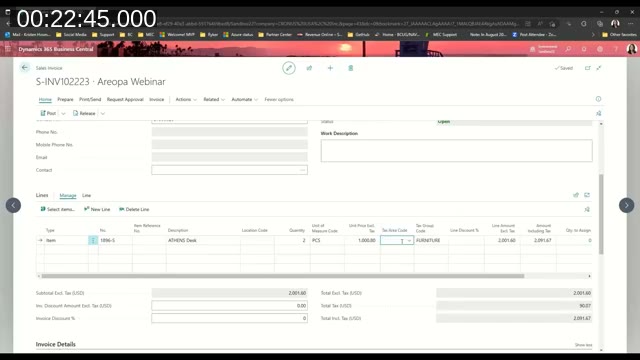
With setup complete, Hosman creates a sales invoice for a customer in ZIP code 80470 ordering an Athens Desk. As soon as the tax area code populates on the line, the invoice recalculates — landing at $90.07 in total tax across the four stacked jurisdictions. Removing the tax area code drops the tax back to zero, demonstrating how directly the calculation depends on that one field.
Use Tax on Purchases
Use tax applies when a company purchases goods and the vendor doesn’t charge sales tax — commonly because the vendor has no Nexus in the buyer’s state. The buyer still owes that tax to the state, so it must be accrued and reported as use tax rather than paid to the vendor.
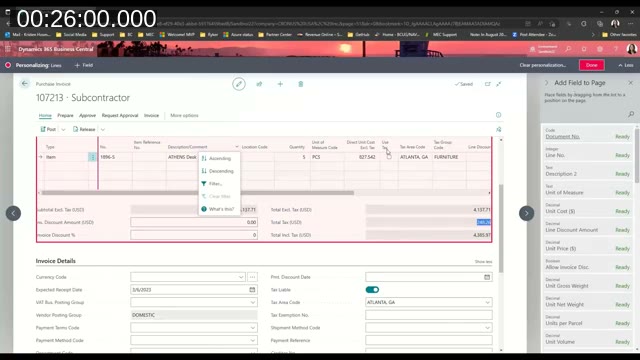
On a purchase invoice, turning on Tax Liable for the vendor triggers tax calculation on the lines. A separate Use Tax checkbox then tells the system that this tax is being accrued for the buyer to remit, rather than paid to the vendor. That field isn’t shown on the page by default — Hosman adds it live using Personalize, dragging it from the field picker onto the purchase line. She notes that a page personalized this way only affects the logged-in user; to roll it out for everyone, it should be added at the profile/role level instead.
📖 Docs: Set Up Use Tax and Purchase Tax [US] — Microsoft’s step-by-step for enabling the Tax Liable, Tax Area Code, and Use Tax fields on purchase documents, company information, and locations.
Reporting Sales Tax
To close out a filing period, Hosman runs the Sales Tax Collected report, filtered to Detail level with both sales tax and use tax included (purchases excluded, since those are covered separately by use tax accrual). Filters are available by tax jurisdiction, report-to jurisdiction, and date range.
The resulting report groups everything by report-to jurisdiction — Colorado, Florida, Georgia, Illinois, Minnesota in the demo data — and within each, breaks out taxable sales and tax collected per jurisdiction. For states where nothing was sold, the section is simply blank. For Georgia, the report shows two use-tax purchase invoices where the vendor didn’t charge sales tax, representing the amount now owed to the state.
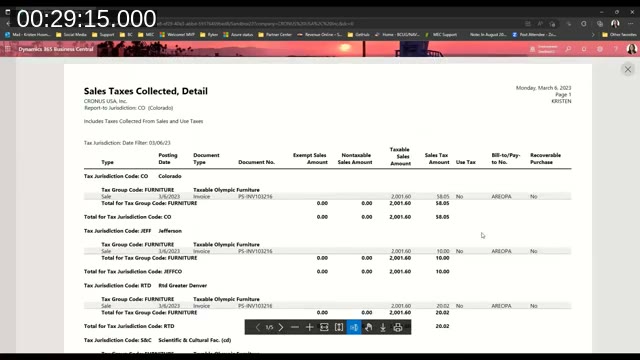
Hosman reiterates that matching jurisdiction codes to the state’s own filing codes (mentioned earlier in the setup step) pays off here — it makes it much faster to map the report’s totals to the numbers a filer needs to enter on the state’s return.
Further Resources
Hosman has published a companion blog post covering this same setup in writing, in the same order as the webinar.
📖 Blog: Setting up Sales and Use Tax in Microsoft Dynamics 365 Business Central — Kristen Hosman’s written walkthrough of tax jurisdictions, tax areas, and use tax setup.
📖 Docs: Sales tax in the default version — Microsoft’s overview of how sales tax works in Business Central, noting that sales tax (as opposed to VAT) is only supported for the United States and Canada localizations.
Her closing recommendation: before relying on this setup for real filings, build out a couple of representative scenarios in a test or sandbox company first. Getting the configuration right from the start matters, both for accurate filing and because sales tax is a common audit target for US state tax authorities.
This post was drafted with AI assistance based on the webinar transcript and video content.