
In this webinar, David Feldhoff (moderated by Luc van Vugt) covers regular expressions from the ground up. He starts with the basic tokens used to build a pattern, then moves into more advanced scenarios such as greedy versus lazy quantifiers, lookaheads, lookbehinds, backreferencing, and named groups. The session closes with a look at how regular expressions show up in different tools, including the Regex codeunit in AL.
What are regular expressions?
A regular expression lets you search for a pattern instead of a fixed, hard-coded piece of text. Instead of searching for hello Luc, a pattern can say “the word hello, followed by a name” and match any name. Parts of that pattern can also be captured into groups, so a search-and-replace can reuse the matched text rather than a hard-coded value. Regular expressions are not tied to one language or tool — the same concepts apply in VS Code, PowerShell, text editors, and AL.
How a regular expression is built
A regular expression consists of two parts: the pattern itself, and a set of flags (also called options) that modify how the pattern is applied. Both are compiled and executed by a regex engine, and different engines can behave slightly differently for the same pattern.
The basic building blocks
David demonstrates the fundamentals live in VS Code, searching across the Base App’s AL source using the table and sales line objects as test data. He introduces the core tokens step by step:
- . (dot) — a wildcard that matches any single character
- Character classes — square brackets like
[0-9]define which characters are allowed; a caret at the start, e.g.[^A-Z], negates the class - Shortcuts —
\dfor any digit,\wfor any word character (letters, digits, underscore),\sfor any whitespace character - Quantifiers —
?(0 or 1),*(0 or more),+(1 or more), and{min,max}for an explicit range - Anchors —
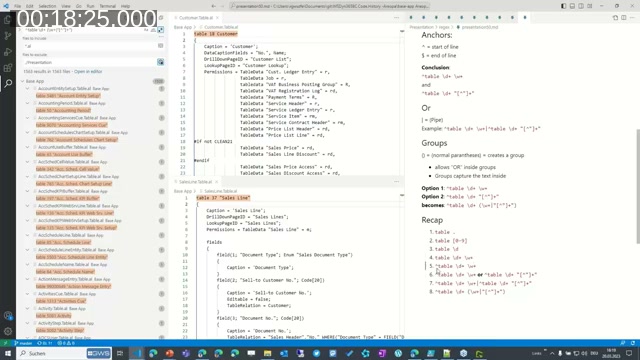
^to anchor the match to the start of the line,$for the end - Or — the pipe
|combines two alternative patterns - Groups — parentheses
()scope part of the pattern, so alternation or repetition only applies inside the group
Working through the base app, David builds up a pattern that matches all AL table object definitions: starting from a plain wildcard search, adding character classes to isolate the object ID, anchoring to the start of the line to exclude unrelated matches like obsolete reasons, and finally combining a blacklist-style character class with alternation and groups to correctly match both quoted and unquoted table names.
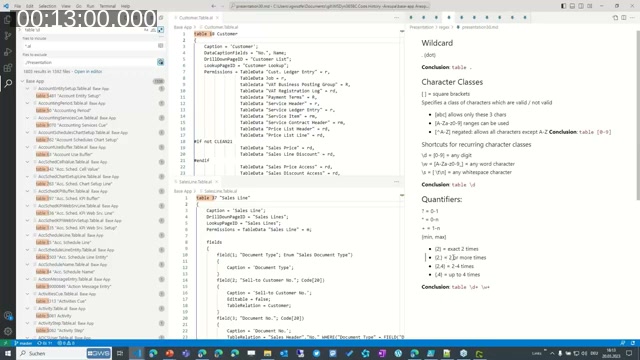
He points out a common pitfall along the way: a whitelist approach (allowing only specific characters) can miss valid names, such as table names containing slashes or hyphens. A blacklist approach — matching everything except a delimiter like a closing quote — is usually more robust for this kind of search.
Flags
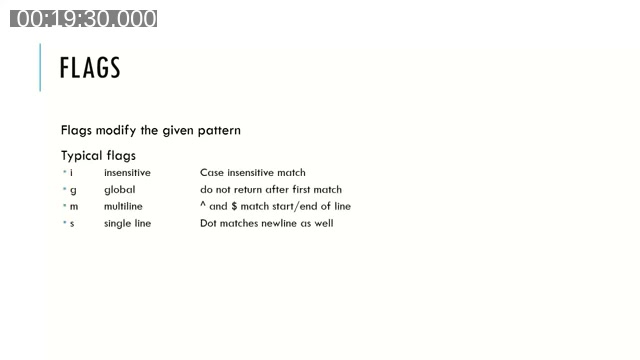
Flags modify how the pattern as a whole is applied. The four typical ones covered are:
- i — insensitive: case-insensitive matching
- g — global: return all matches instead of stopping after the first
- m — multiline:
^and$match the start/end of each line rather than the whole text - s — single line: the dot also matches newline characters, not just any character except a newline
Advanced scenarios with regex101.com
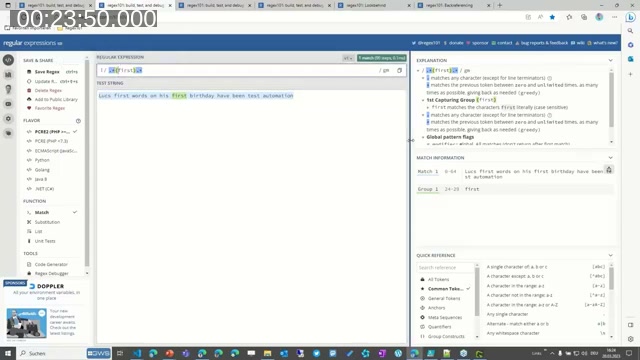
For the more advanced material, David switches to regex101.com, which shows a live explanation panel, match information, a regex debugger, and a searchable token cheat sheet alongside the pattern editor.
🔧 Tool: regex101.com — an online regex tester with a built-in debugger that steps through how the engine evaluates a pattern, useful for understanding why a match is (or isn’t) what you expected.
Greedy vs. lazy quantifiers
Quantifiers are greedy by default: they try to match as much text as possible before backing off. Using the test string “Luc’s first words on his first birthday have been test automation” with the pattern .*first.*, the greedy quantifier matches the second occurrence of “first” rather than the first one, because it consumes the whole string first and then backtracks. Adding a question mark after the quantifier (.*?) makes it lazy — it takes as little as possible, matching the first “first” instead, and does so in far fewer evaluation steps.
Capturing and non-capturing groups
Groups are capturing by default, and their content can be referenced in a replacement using $1, $2, and so on — $0 always refers to the whole match. When a group’s captured value isn’t needed, it can be marked non-capturing by adding ?: right after the opening parenthesis, which keeps larger patterns easier to reason about when there are many groups.
Lookahead and lookbehind
A lookahead lets a pattern match text only if it is (or isn’t) followed by something else, without including that something else in the match. David’s example finds who is organizing a party — \w+(?=\sorganizes the party) — matching just the name, not the trailing phrase. Replacing the = with ! turns it into a negative lookahead. Combined with a word boundary (\b), the pattern can be made precise enough to exclude a name that happens to be a substring of surrounding text.
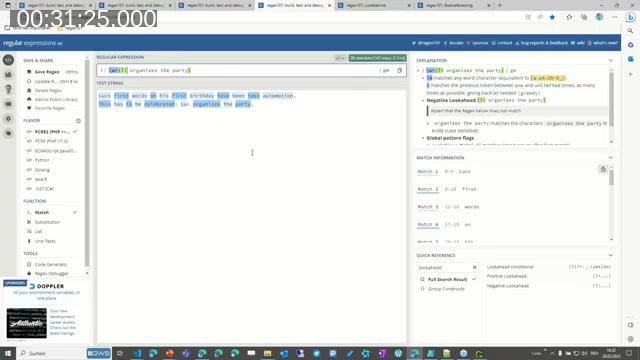
Lookbehind works the same way but checks what precedes a match instead of what follows it, for example confirming a sentence is only valid if a specific name appears right before “is the organizer”.
Backreferencing
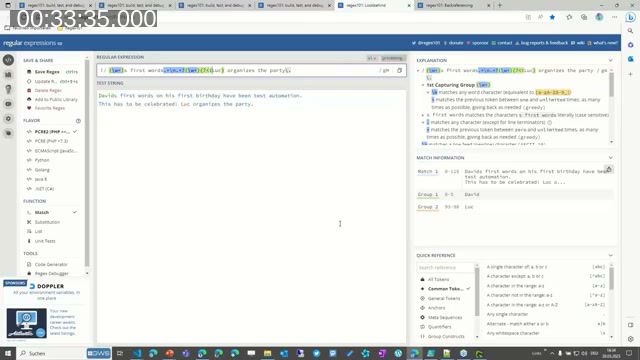
A backreference lets a pattern refer back to an earlier capturing group within the same pattern, using \1 for the first group, \2 for the second, and so on. David’s example requires the person celebrating and the person organizing to be the same name, by capturing the name once and then requiring \1 to reappear later in the string.
Named groups
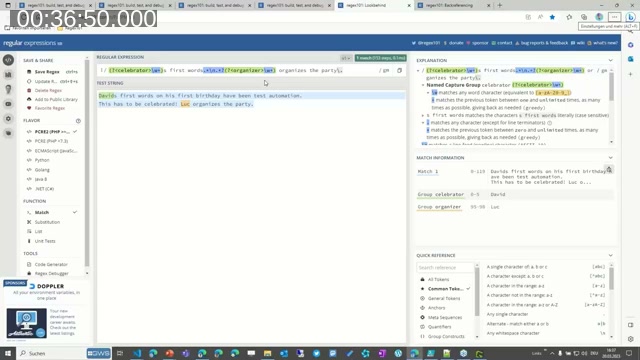
Groups can be given a name instead of being referenced by number, using (?<name>pattern). This makes both the pattern and its match results easier to read — instead of “group 1” and “group 2,” the results show “celebrator” and “organizer.” A named group can also be backreferenced with \k<name> instead of \1. The tradeoff is a longer, more verbose pattern, but the readability gain is often worth it, especially when the captured values are later accessed by name in code.
Regex engines
Not every regex engine supports every feature. David checks the pattern support on Wikipedia’s engine comparison page, and demonstrates a practical case on regex101.com: a named-group lookbehind fails under the PCRE2 (PHP) flavor because that engine requires lookbehind to be fixed-length, but the same pattern works after switching the flavor to ECMAScript — even though the pattern itself is syntactically correct.
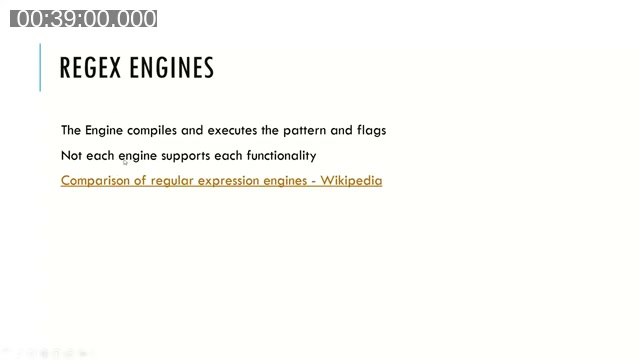
📖 Docs: Comparison of regular expression engines — Wikipedia — a feature matrix across regex engines and languages, covering quantifiers, character classes, groups, recursion, lookahead/lookbehind, and backreferences.
Regex in different programs
To show that regular expressions aren’t tied to a single tool, David runs the same ideas in three places:
- Notepad++ — a plain text editor with a regex search/replace mode, including the same flags (like single-line matching) and
$0replacement syntax shown earlier - PowerShell — using named capturing groups with
-matchand the built-in$matchesvariable to access named groups likeIDandnamedirectly - VS Code / AL — the search panel’s regex mode, and the
Regexcodeunit that ships with the System Application, which David shows via its test codeunit
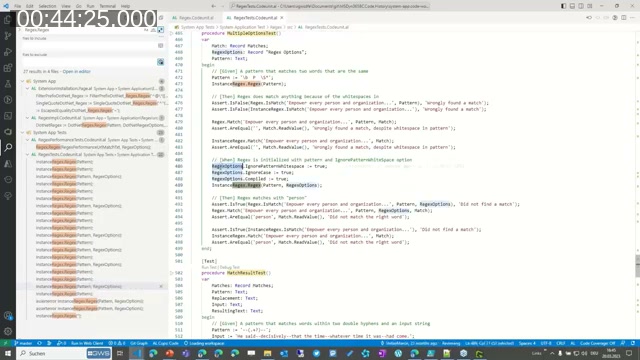
In the AL test code, David points out the Regex Options table used to configure flags such as IgnorePatternWhitespace and Compiled, and how IsMatch and Match are used to evaluate a pattern against input text and return a Matches record.
📖 Docs: Codeunit Regex — Microsoft Learn — the full method reference for the System Application’sRegexcodeunit, includingIsMatch,Match,Replace,Split, and named-group helpers likeGetGroupNamesandGroupNumberFromName.
Q&A
During the live Q&A, David extends the base app search example on request — searching for all tables with “entry” in their name, and finding empty triggers in AL code by combining anchors with a fixed indentation pattern across lines. Both examples reinforce the session’s central point: once the basic tokens are second nature, most real-world search problems come down to combining a handful of them.
This post was drafted with AI assistance based on the webinar transcript and video content.