Business Central’s user interface changed significantly around the BC21 release, and those changes affect how AL developers build and extend pages. In this Areopa Academy webinar, Jan Veenendaal (Partner Technology Strategist) walks through what’s new, with Luc van Vugt moderating. Using a live demo app on both a Business Central 20 (previous) and Business Central 21 (current) environment, Jan shows how the “modern action bar” replaces the old process-and-actions structure, how the new views construct is meant to replace legacy views generated from role center tiles, and a handful of smaller changes that make life easier for developers without necessarily being visible to end users.
BC20 vs. BC21: setting the stage
Jan starts with a small demo app that adds a “customer level” field to the customer card, with actions to move a customer up or down through a set of levels (Not Boarded, Member, Associate, Partner, VIP). He installs the same app first into a Business Central 20 environment and then into a Business Central 21 environment, so the two action bar styles can be compared side by side.
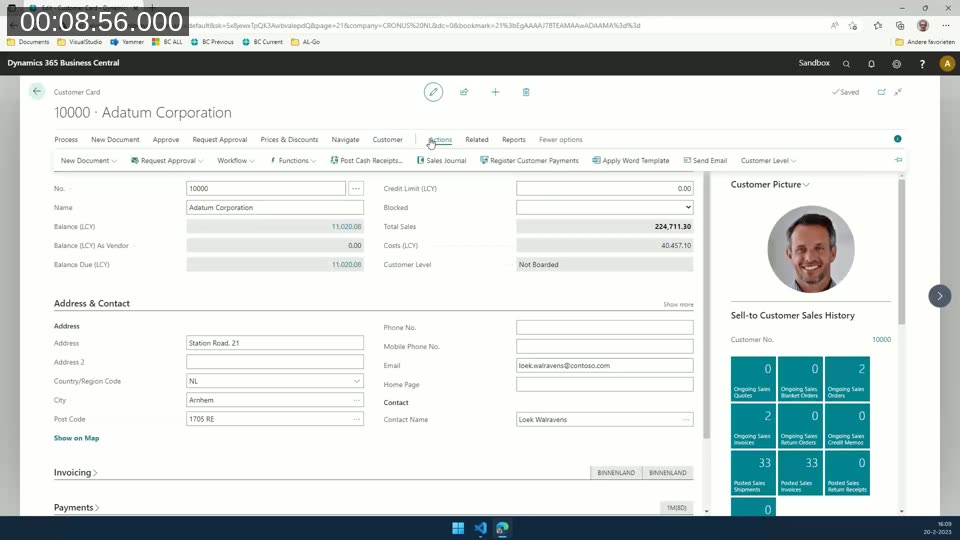
In BC20, the customer card action bar follows the classic layout: a Process group holds promoted actions, and anything not promoted sits under the Actions menu. The Level Up and Level Down buttons Jan created for the demo app show up as promoted actions inside the Process group, with the underlying actions also reachable from the Actions menu.
Legacy views in BC20
Before views existed as an explicit AL construct, Business Central still generated something similar at runtime. Opening a list page through a role center tile — for example a “VIP” tile that filters customers to a specific level — creates what Jan calls a legacy view: a view generated automatically because the page was opened via a drill-down or lookup, not because a developer defined it in code.
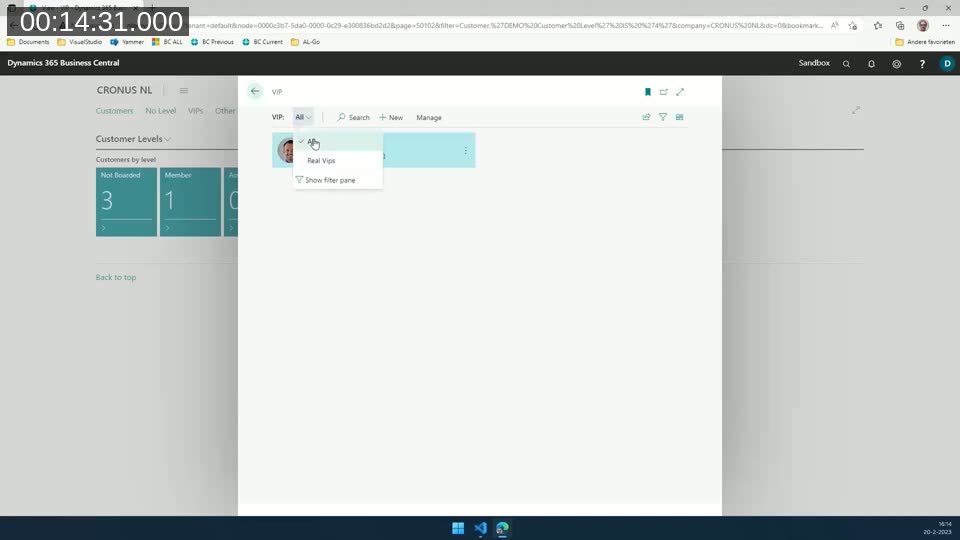
These legacy views can be confusing for users. The same underlying page and filter can show up under different names depending on how it was opened — a drill-down from a cue might label it “Customer Level”, while a role center tile opening the same filtered set might label it “VIPs”. Jan’s guidance: don’t rely on legacy views. Define the views your users need explicitly in your list page code, using the views construct, so the naming and behavior stay consistent no matter how the page is reached.
The views construct
Business Central has supported the views element on list pages since around April 2019, but Jan notes that many partners either don’t use it yet, or use it without realizing it’s the modern replacement for legacy views. A view is defined with a name, a caption, an optional filter, and an optional sort order:
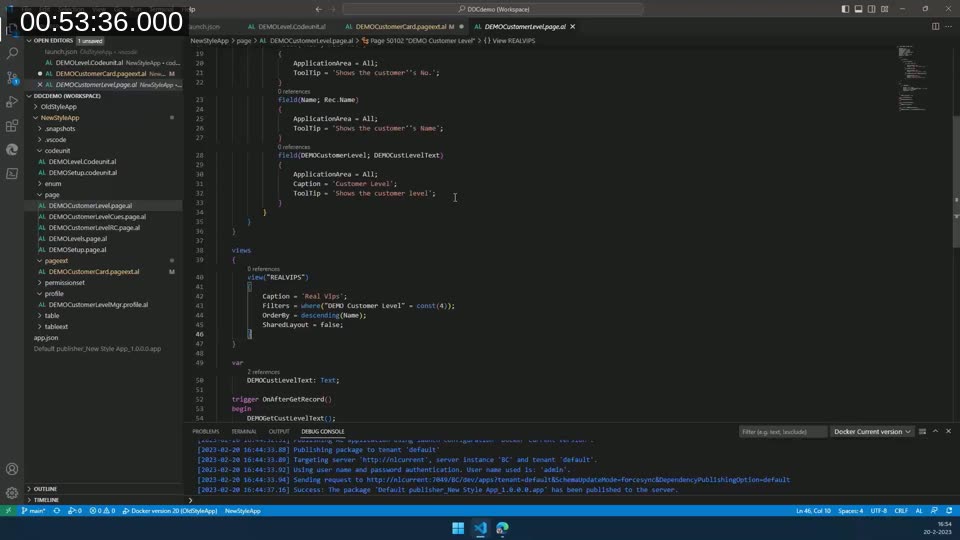
views
{
    view("REALVIPS")
    {
        Caption = 'Real Vips';
        Filters = where("DEMO Customer Level" = const(4));
        OrderBy = descending(Name);
        SharedLayout = false;
    }
}
📖 Docs: Views – Business Central — the full reference for the views construct, including filtering, sorting, and layout options on page, page extension, and page customization objects.
Jan also points out that behavior around legacy views is not fully consistent across Business Central versions — he’s tested it across several releases and seen slightly different results each time. A new environment-level feature, “Legacy list views are hidden”, can be enabled under Feature Management to suppress the auto-generated legacy views, but since the underlying behavior varies by version, the safe approach is still to define your own views in code rather than depend on what the platform generates at runtime.
The modern action bar
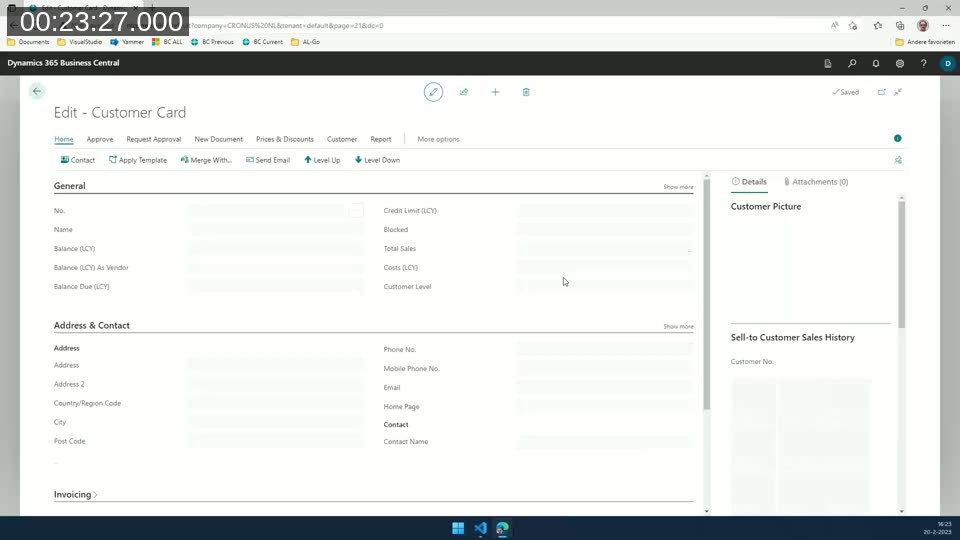
In BC21, the old Process group is renamed to Home, and any action promoted to that group is automatically hidden from the rest of the action bar — including from the Actions menu — to avoid duplication. Pages using the modern action bar also automatically get an Automate group, where users and developers can attach Power Automate flows without any extra AL code.
Promoting actions with actionref
The modern action bar introduces a new way to promote actions directly to the top of the page, above the Home group, using actionref. An actionref is a reference to an existing action rather than a new action definition, so the underlying logic stays in one place:
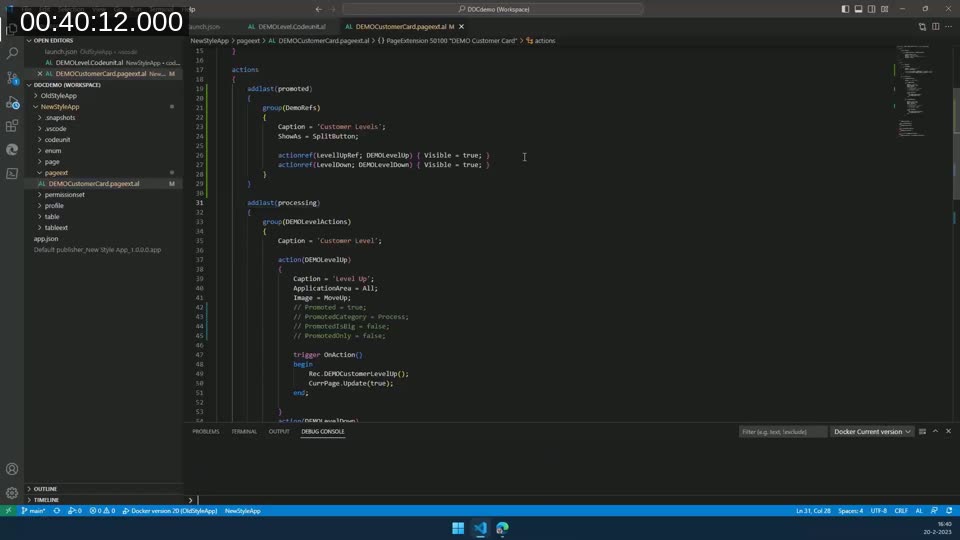
addlast(promoted)
{
    group(DemoRefs)
    {
        Caption = 'Customer Levels';
        ShowAs = SplitButton;

        actionref(LevelUpRef; DEMOLevelUp) { Visible = true; }
        actionref(LevelDown; DEMOLevelDown) { Visible = true; }
    }
}
Two settings control whether an action ends up visible in the action bar: the Visible property on the action itself, and the Visible property on the actionref. Both need to be true for the action to actually show — an easy detail to trip over when adapting an existing app.
Grouping multiple actionref entries together also unlocks a new ShowAs property on the group, which currently supports two options: Standard, which lists the actions individually, and SplitButton, which combines them into a single button with a default action and a dropdown arrow for the alternatives.
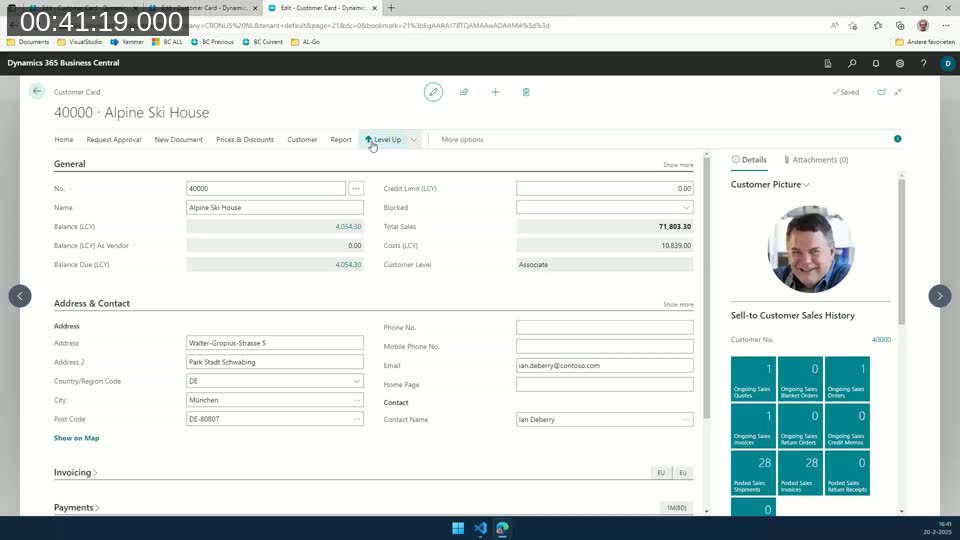
With ShowAs = SplitButton, Level Up and Level Down collapse into one button in the top action bar, with a small arrow exposing the second option. Because this now lives in the modern action bar rather than the Home group, end users can personalize the page and move the action further up in their own layout, and even change which of the two actions is the default by reordering them.
📖 Docs: ShowAs property – Business Central — reference for rendering an action group as a split button, including personalization behavior and mobile client limitations.
Custom actions and Power Automate
Beyond regular actions, the modern action bar supports custom actions, which currently support one type: Flow. A custom action of type Flow links a button directly to a Power Automate flow by its flow ID and environment ID, without requiring an OnAction trigger in AL:
customaction(DEMOCustomAction)
{
    CustomActionType = Flow;
    Caption = 'DEMO FLOW';
    FlowId = '<flow-id>';
    FlowEnvironmentId = '<environment-id>';
}
Because the Automate group is available on every page using the modern action bar, access can also be controlled centrally: an administrator can turn Power Automate buttons on or off for all users from the Automate setup page, or scope access using the dedicated Automate permission set instead of a blanket toggle.
ApplicationArea as a page-level default
Every field and action in Business Central has traditionally needed its own ApplicationArea property to be visible. In BC21, you can set ApplicationArea once at the page level as a default for every field and action on that page, and only override it where an individual field or action needs to differ:
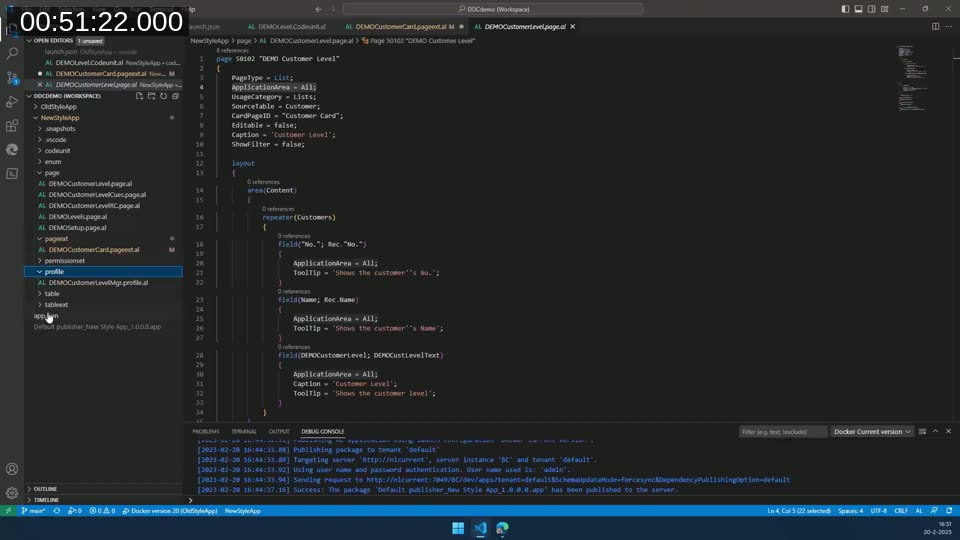
page 50102 "DEMO Customer Level"
{
    PageType = List;
    ApplicationArea = All;
    ...
}
This removes a fair amount of repetitive boilerplate from pages with many fields, since the property no longer has to be repeated on every single one.
📖 Docs: ApplicationArea property – Business Central — confirms that, from Business Central 2022 release wave 2 (BC21) onward, fields without an explicit ApplicationArea inherit the value set on the parent page, and notes this inheritance does not extend to page or report extensions.
Extension setup from Extension Management
Extensions with a setup page can now expose that setup directly from the Extension Management page, instead of requiring users to search for the setup page by name. From the three-dot menu next to an installed extension, a Setup action opens the app’s setup page directly — as long as the extension links itself to it.
That link is made by subscribing to the OnRegisterManualSetup event published by the Guided Experience codeunit, from a codeunit in your extension. Once that subscription is in place, Business Central automatically wires the Setup action on the Extension Management page to your app’s setup page.
Q&A highlights
During the Q&A, Luc asked about an IntelliSense issue Jan ran into while typing an actionref definition live. Jan confirmed it was inconsistent — IntelliSense worked in some contexts and not others for the same statement, without a clear pattern, but the code itself compiled and ran correctly regardless.
On legacy views, Luc noted he’d seen inconsistent behavior in his own testing — sometimes role center tiles do show up as separate views in the list, sometimes they don’t, depending on the Business Central version. Jan’s recommendation stands: don’t depend on the platform’s runtime behavior for this. Create the views you need explicitly in your list page code so they’re available consistently regardless of version or entry point.
This post was drafted with AI assistance based on the webinar transcript and video content.