
In this Areopa Academy webinar, Tobias Fenster (Managing Director at 4PS Hilty, Microsoft MVP for Azure and Business Applications) and Arthur van de Vondervoort (developer at CompanyFUI and active contributor to the Business Central community) walk through the BC Artifact URL Proxy — an Azure Function that caches artifact URL lookups — and the companion Azure DevOps extension that integrates it directly into CI/CD pipelines. Moderator Bert Verneek opens the session and hosts the Q&A.
Why the BC Artifact URL Proxy Exists
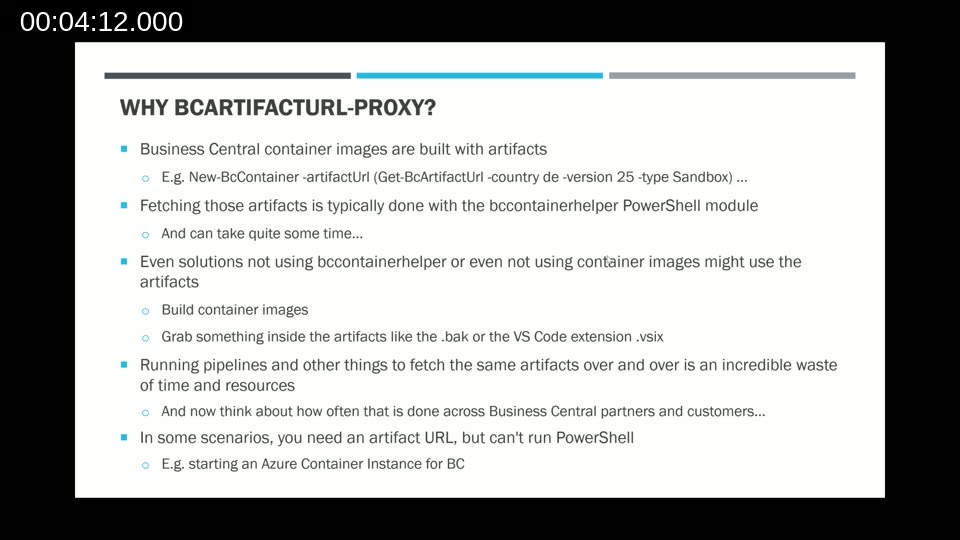
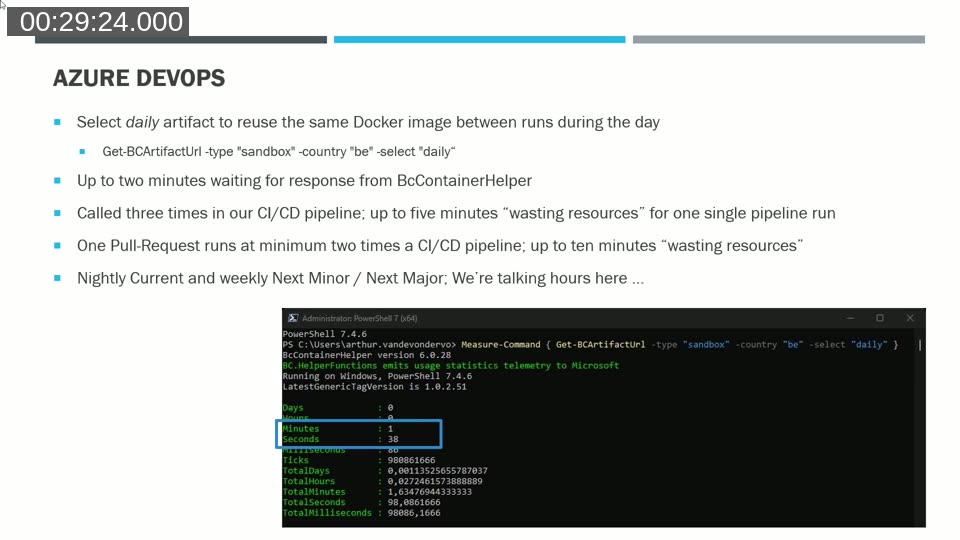
Business Central containers require artifact URLs to build images. Fetching those URLs is done through the Get-BCArtifactUrl cmdlet from the BcContainerHelper PowerShell module — and it can take anywhere from 30 seconds to over a minute, particularly for sandbox artifacts.
The cost adds up quickly. A single pipeline run at Arthur’s company calls the cmdlet three times (once to generate a base translation file, once to compile the app, and once in the test stage). Each pull request triggers the pipeline at least twice. For teams running nightly builds or next-minor/next-major checks across dozens of projects, the cumulative wait time can stretch into hours.
There are also scenarios where PowerShell simply isn’t available — for example, when spinning up an Azure Container Instance through the Azure portal. The proxy solves both problems: it provides a plain HTTP endpoint that returns artifact URLs, and it caches results so subsequent requests are served in milliseconds rather than minutes.
📖 Docs: Running a container-based development environment — Microsoft Learn — official guidance on using BC containers for local and pipeline-based development.
How the Proxy Is Built
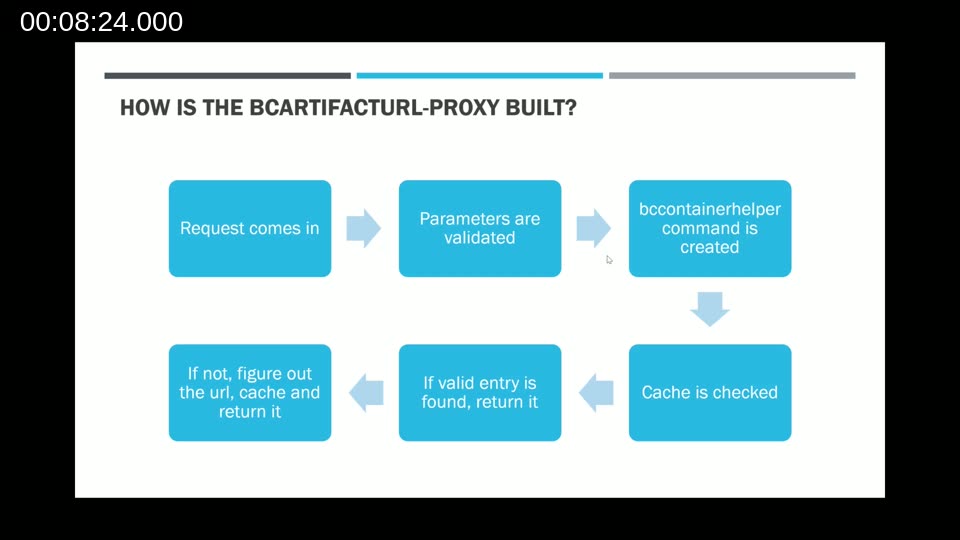
The proxy is a .NET 8 Azure Function with a single HTTP trigger. When a request arrives, it validates the parameters (type, country, version, and optional flags such as select, before, after, cacheExpiration, and accept_insiderEula), constructs the equivalent Get-BCArtifactUrl command, and checks an in-memory cache before running anything.
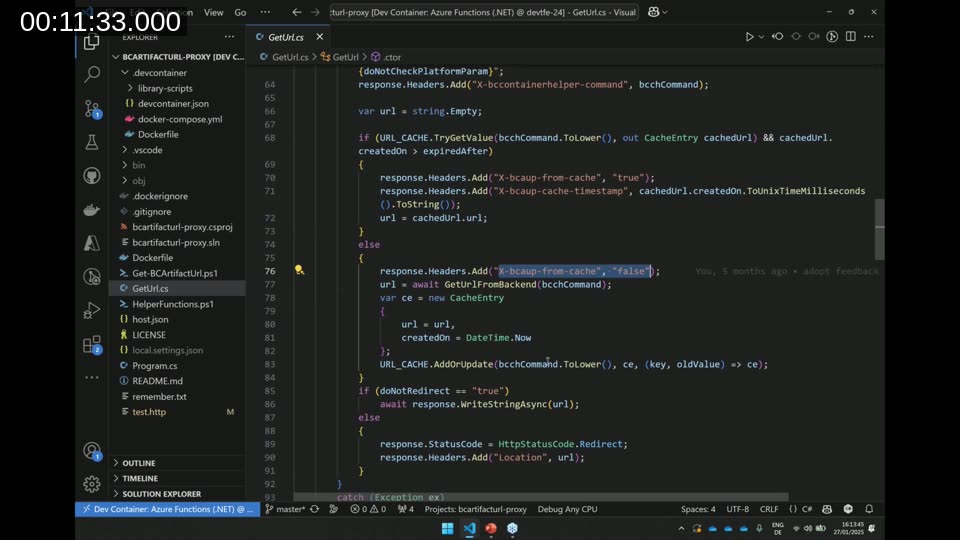
If a matching cache entry exists and falls within the allowed expiration window, the URL is returned immediately with response headers indicating a cache hit and the timestamp of the cached entry. If there is no valid cache entry, the function runs the PowerShell command, stores the result, and returns it. The default cache lifetime is one hour; callers can shorten it to a minimum of 15 minutes via the cacheExpiration parameter.
By default, the function redirects the caller directly to the artifact URL. Setting the doNotRedirect=true query parameter returns the URL as a plain text response body instead — useful when you want to capture the URL as a pipeline variable rather than follow the redirect.
Behind the scenes, the proxy does not include a full BcContainerHelper installation. It downloads only the two scripts it needs — Get-BCArtifactUrl.ps1 and HelperFunctions.ps1 — directly from the navcontainerhelper GitHub repository at container startup. This keeps the image lightweight while ensuring that the exact Microsoft-provided script logic is used without modification.
Source Code Walkthrough
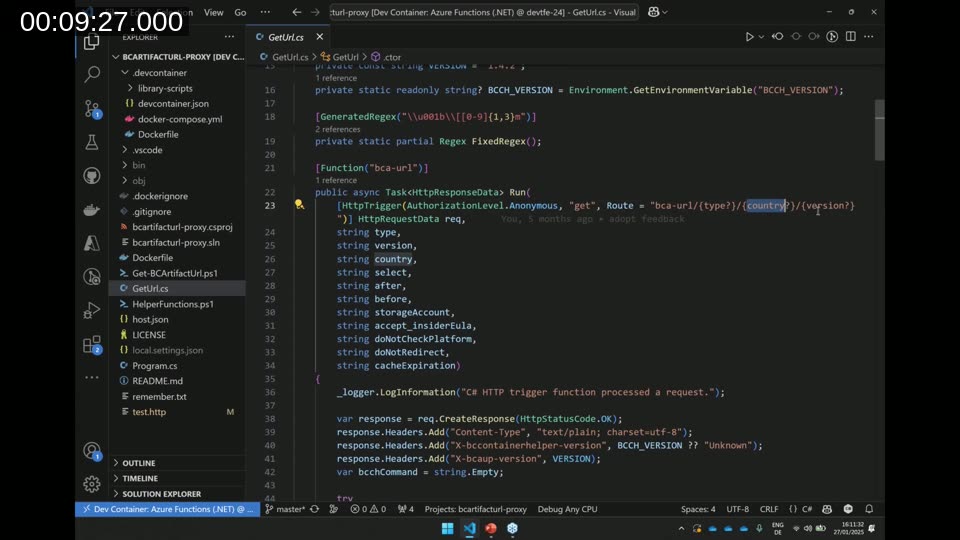
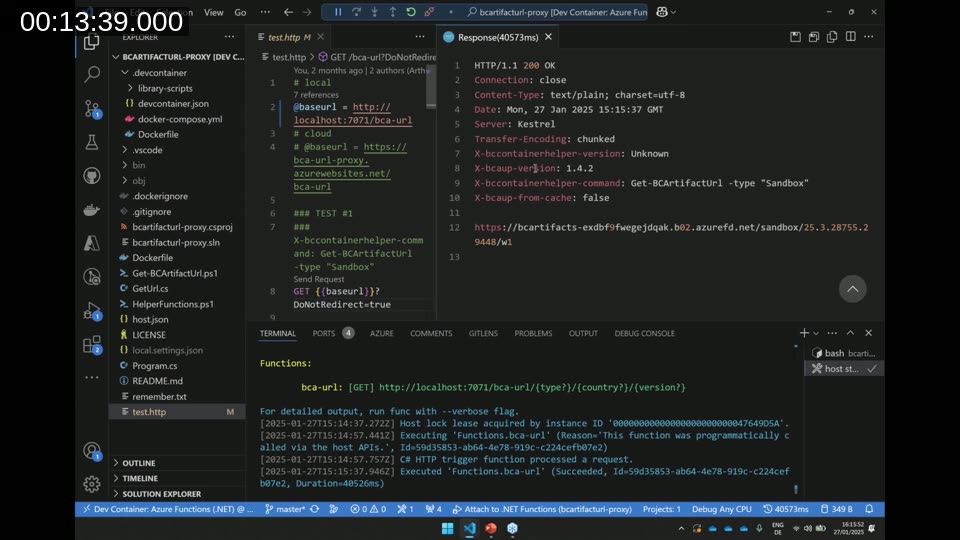
The core logic lives in GetUrl.cs. The HTTP trigger is registered at the route bca-url/{type?}/{country?}/{version?}, which means the type, country, and version can be provided as path segments or as query string parameters. Tobias showed this during the live demo by running the function locally with F5 from inside a dev container.
The response headers expose the BcContainerHelper version in use (X-bccontainerhelper-version), the full PowerShell command that was executed (X-bccontainerhelper-command), whether the result came from the cache (X-bcaup-from-cache), and the cache entry timestamp (X-bcaup-cache-timestamp). These headers make it easy to audit what the proxy did and how fresh the cached data is.
The demo showed a first request taking 40.5 seconds with a cache miss. A second identical request returned in 62 milliseconds from the cache — illustrating the core benefit in a single before-and-after comparison.
Development Setup with Dev Containers
The repository ships with a fully configured dev container. To contribute or explore the code, install Docker Desktop and the Dev Containers extension for VS Code, then use Clone Repository in Container Volume. The container starts in around five to ten minutes on first run (image pull included) and pre-installs the Azure Functions Core Tools, Azure CLI, Docker-outside-of-Docker, PowerShell, and a set of recommended VS Code extensions.
The Dockerfile downloads the configured version of BcContainerHelper at build time, extracts just the two required scripts, and patches the Export-ModuleMember call so the scripts can be used outside of a module context. Hitting F5 starts the function host locally so you can send test requests immediately.
📖 Docs: Develop Azure Functions using Visual Studio Code — Microsoft Learn — covers local development, debugging, and deployment of Azure Functions from VS Code.
Running the Proxy on Azure
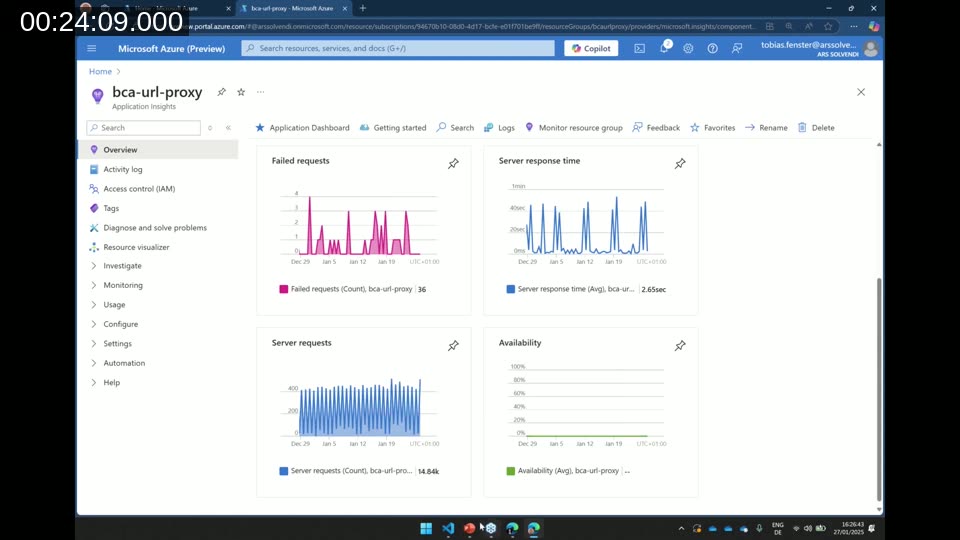
The production instance is hosted as a containerized Azure Function App. Tobias builds the Docker image locally, pushes it to Docker Hub, and then updates the image tag in the Azure Portal’s Deployment Center. Application Insights is configured automatically and provides visibility into request volume, response times, and failures.
Over the 30-day window shown in the demo, the proxy received approximately 14,000 server requests with near-100% availability. Response time peaks coincide with cache misses where the underlying PowerShell command takes 40–60 seconds, but the vast majority of requests are served from cache in milliseconds.
Tobias noted that CI/CD for the proxy itself is not in place today — releases are infrequent enough that a manual build-push-update cycle is sufficient. He flagged this as something that may change as the project evolves.
📖 Docs: Work with Azure Functions in Containers — Microsoft Learn — explains how to build, push, and deploy custom container images to an Azure Function App.
The Azure DevOps Integration Problem
Arthur described how his company’s pipelines were structured: a build stage (compile app twice for translation file generation, then compile with language files), a test stage (Docker image, container, publish apps), and a publish stage. The build stage called Get-BCArtifactUrl to fetch the daily sandbox artifact URL — and that single call could take up to two minutes.
With three calls per pipeline run and two runs per pull request (once for the PR itself, once after merge to main), the team was spending up to ten minutes per pull request just waiting for artifact URLs. Nightly and weekly next-minor/next-major builds across dozens of projects pushed the total into hours.
The fix started as a few lines of PowerShell making an HTTP call to the proxy and setting the result as a pipeline variable. With the proxy’s cross-pipeline cache, a second run that needs the same URL returns in under a second — even if the cache was populated by a completely different pipeline or project earlier in the day.
The Azure DevOps Extension
Arthur packaged the PowerShell approach as an open-source Azure DevOps extension published to the Visual Studio Marketplace: BC Artifact URL Proxy. The extension source is available at github.com/Arthurvdv/bcartifacturl-proxy-vss.
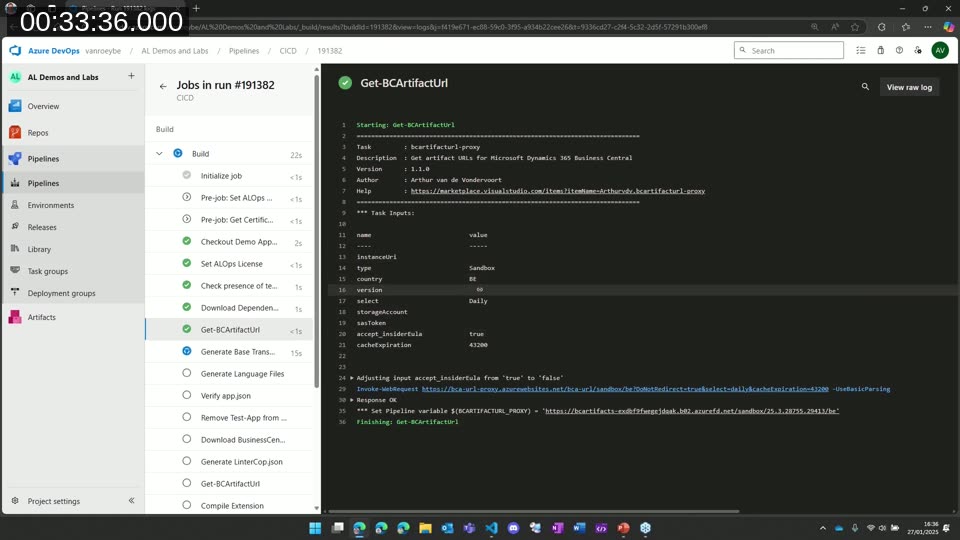
The extension has a single task with a set of familiar inputs: instanceUri (defaults to the community-hosted proxy), type, country, version, select (Latest, Daily, Weekly, NextMinor, NextMajor), accept_insiderEula, and cacheExpiration. Arthur’s team typically sets cacheExpiration to 43200 seconds (12 hours) so the URL is cached for the entire working day.
The task writes the resolved artifact URL to the pipeline variable $(BCARTIFACTURL_PROXY), which subsequent steps can reference directly — for example, when passing it to BcContainerHelper or another tool that accepts the URL as an input parameter.
Pipeline Demo
Arthur ran a live demo using a small pull request against an AL project in Azure DevOps. The Get-BCArtifactUrl step completed in under one second, having retrieved a cached result from the proxy. The build stage finished in about 1 minute 20 seconds total — roughly half the previous duration — before surfacing a compiler warning as the intentional failure point.
📖 Docs: Add a Custom Build or Release Task in an Extension — Microsoft Learn — describes the structure of Azure DevOps extension tasks, including the task manifest and PowerShell handler pattern used in this extension.
Extension Source Code
The extension PowerShell script reads all task inputs via Get-VstsInput, logs them for diagnostics, and applies a few normalisation rules before calling the proxy. One important rule: if accept_insiderEula is true but the selected artifact type is not an insider build, the flag is silently set to false. This maximises the likelihood of a cache hit, since a request with accept_insiderEula=true and one without it are cached as separate entries.
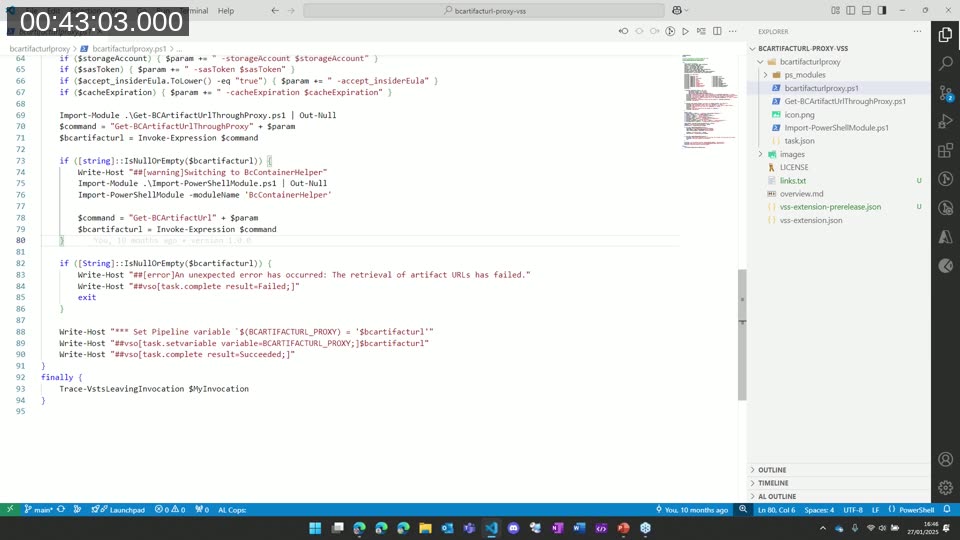
The script includes a fallback: if the proxy call fails or returns no URL, it installs BcContainerHelper from the PowerShell Gallery and calls Get-BCArtifactUrl directly. This means pipeline reliability is not dependent on proxy availability — the fallback adds a few minutes but keeps the pipeline functional.
Lessons Learned Building the Extension
Arthur shared a few takeaways from building his first Azure DevOps extension:
- The extension task handler (
PowerShell3) runs PowerShell 5.1. Upgrading to PowerShell 7 is not straightforward in the current Azure DevOps extension model — Arthur noted this is a known challenge that other extension authors face as well. - Automated testing for extension tasks is not yet in place. The PowerShell scripts can be run and validated standalone, but end-to-end automated tests for the extension as a whole are a future goal.
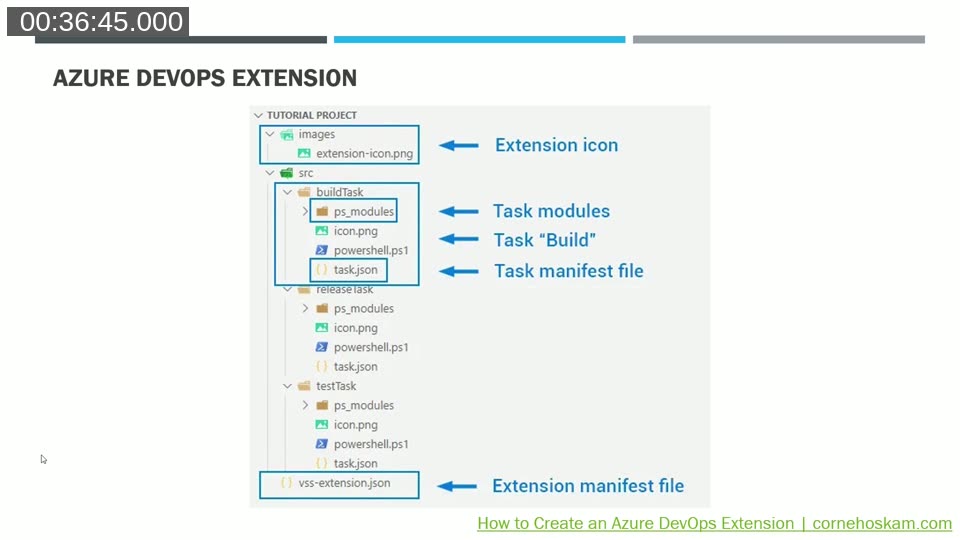
- The extension structure is simpler than it initially appears: a
vss-extension.jsonmanifest at the root, a folder per task, and within each task folder atask.json, a PowerShell script, and aps_modulesfolder. Arthur recommended Corne Hoskam’s blog post on creating Azure DevOps extensions as a helpful starting reference.
Q&A Highlights
How long does the cache live? By default, entries expire after one hour. The minimum is 15 minutes. After one hour and one minute, any request will always fetch a fresh URL regardless of what is in the cache.
Why would you host your own instance instead of using the community URL? Tobias identified two reasons: privacy (avoiding any external party knowing which BC versions you are targeting) and resilience (removing a dependency on a community-hosted service that could be discontinued). The extension makes it easy to point at a self-hosted instance by changing a single input value.
How long does it take to add the proxy to an existing pipeline? Arthur estimated around 30 minutes to an hour. The extension adds a step before the BcContainerHelper call, captures the URL as a pipeline variable, and passes it forward. Most BC pipeline tooling already supports accepting a pre-fetched artifact URL as an input.
Resources
- BC Artifact URL Proxy — GitHub (tfenster)
- BC Artifact URL Proxy — Azure DevOps Marketplace (Arthurvdv)
- BC Artifact URL Proxy VSS Extension — GitHub (Arthurvdv)
- BcContainerHelper PowerShell Module — GitHub (microsoft)
- Tobias Fenster’s blog — tobiasfenster.io
This post was drafted with AI assistance based on the webinar transcript and video content.