
In webinar #98 of the Areopa Academy series, Bartosz Rudzinski — a Business Central and Power Platform developer from Poland — explains how to build offline-capable canvas apps that read and write Business Central data via virtual tables. The session covers every layer of a custom offline implementation: when to use it, how to detect connectivity, how to store data locally on a device, how to log changes made while offline, and how to synchronise back to Business Central when a connection is restored.
Why offline mode?
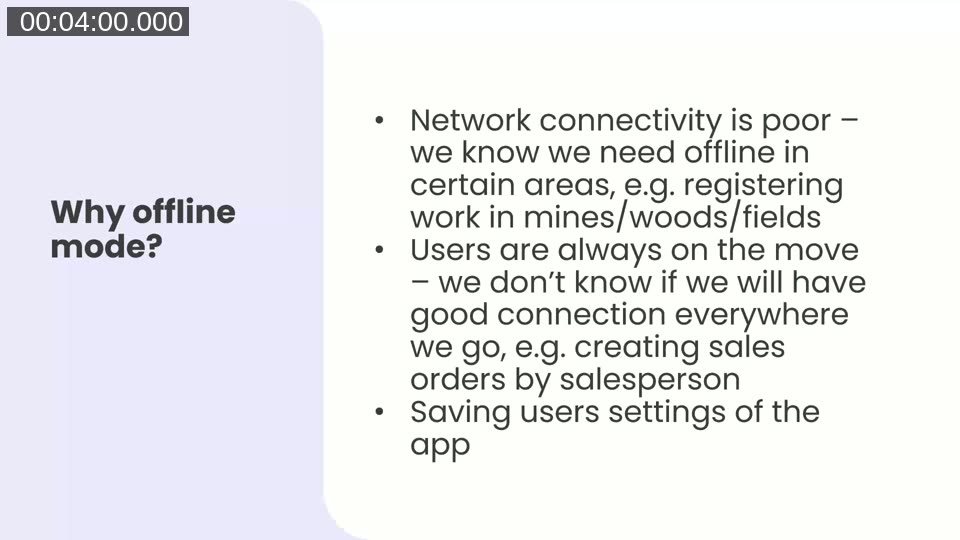
Bartosz opens by identifying three realistic scenarios that drive the need for offline capability. Field workers in mines, warehouses, or agricultural areas frequently operate in locations with poor or no mobile coverage. Sales personnel travelling across regions cannot guarantee a reliable connection when they need to create orders or register customers. And any app that stores user preferences — language, company context, scanner behaviour — benefits from having those settings cached locally so they do not need to be re-entered each time the app starts.
Two approaches to offline in Power Apps
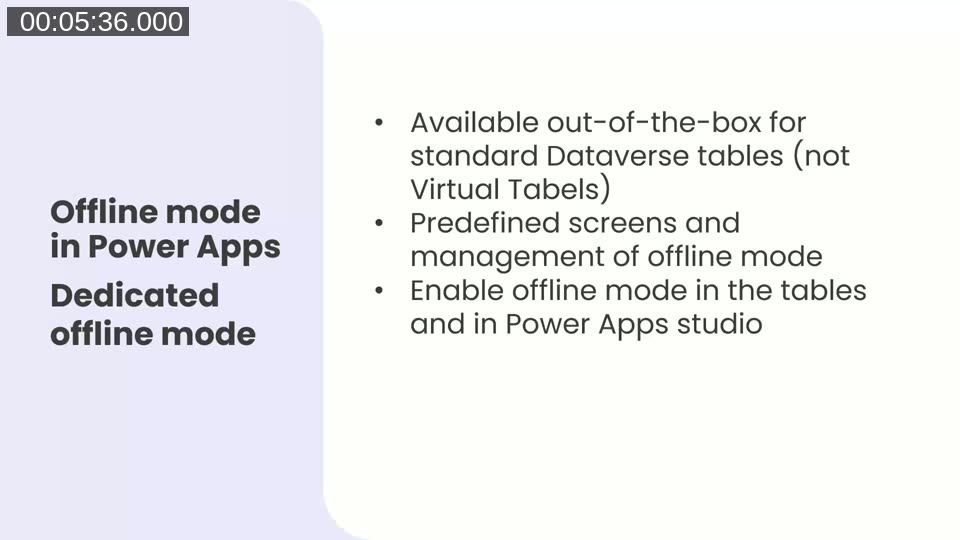
Power Apps currently offers two paths for offline support. The first is Microsoft’s dedicated offline mode, introduced in autumn 2023. It ships with predefined sync screens and built-in management tooling, and is straightforward to enable: mark the relevant Dataverse tables as offline-capable in the table settings, then check the “can be used offline” option in Power Apps Studio. However, it only supports standard Dataverse tables — Business Central virtual tables are explicitly excluded from this feature.
The second approach is a custom solution, which is what Bartosz chose. It requires the developer to manage everything manually — data collection, local storage, change tracking, and synchronisation — but it is the only option when the data source is BC virtual tables.
📖 Docs: Mobile offline for canvas apps overview — Microsoft’s comparison of built-in offline vs. LoadData/SaveData, including data size limits, conflict resolution, and delta sync capabilities.
BC virtual tables: a refresher
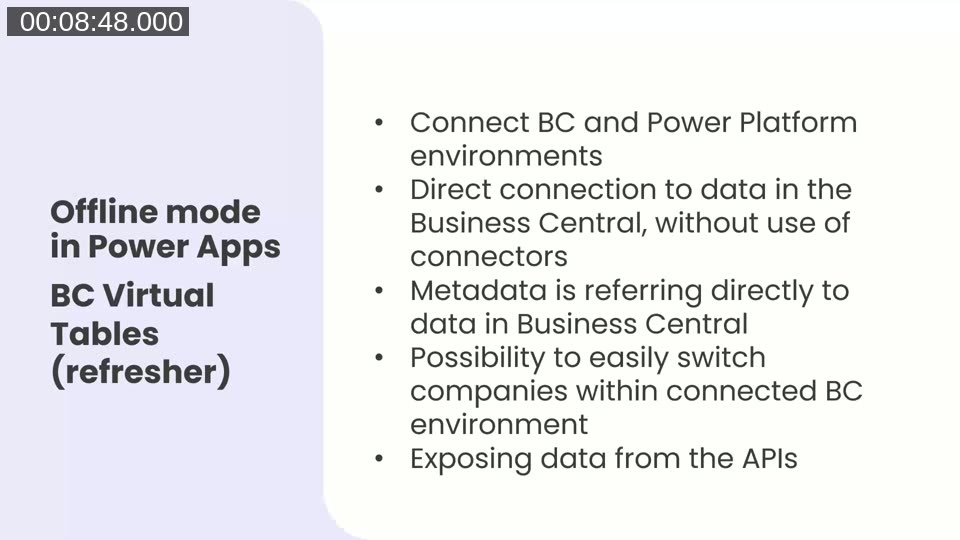
Business Central virtual tables expose BC API data directly inside Dataverse without copying it. You set up the connection via the Dataverse Connection Setup assisted setup in Business Central, enabling virtual tables as part of the process. Once configured, any BC API page — standard or custom — becomes queryable as a Dataverse table, and from there, as a data source in Power Apps.
Key characteristics relevant to offline work: the tables expose only the fields defined on the underlying API page (not the full BC table), you can switch companies within the same connected environment, and the data always lives in BC — Dataverse holds no copy. This last point is precisely why the dedicated offline mode does not support them: there is nothing in Dataverse to cache.
Bartosz also flags that BC enums are surfaced as Dataverse option sets, not as separate virtual tables. When you need to save enum values for offline use, you must find the corresponding option set (visible in the column settings of the virtual table in Dataverse) and store its values in a collection alongside your other offline data.
📖 Docs: Microsoft Power Platform integration with Business Central via virtual tables — covers full CRUD capability, known limitations (no chart support, no BLOB fields), and how OData queries are translated at runtime.
Development: which data is needed offline?
The planning step is straightforward in principle: any table or collection that the app reads or modifies in offline mode must be downloaded to the device before connectivity is lost. Bartosz recommends making this a deliberate architecture decision from the start of a project, rather than retrofitting it later. He also highlights the App.OnStart property as the right place to load all required data into in-memory collections, because it runs when the app opens and sets up the state that every screen depends on.
Detecting connectivity
Power Apps provides the Connection.Connected signal, a boolean that reflects whether the device currently has internet access. Bartosz shows two practical uses: as a condition in If() statements (so that data-loading or sync logic only runs when online), and as the value of a control’s Visible property (to show or hide UI elements based on connection state). Most of the offline logic in a custom solution is built around this signal.
Saving data to the device
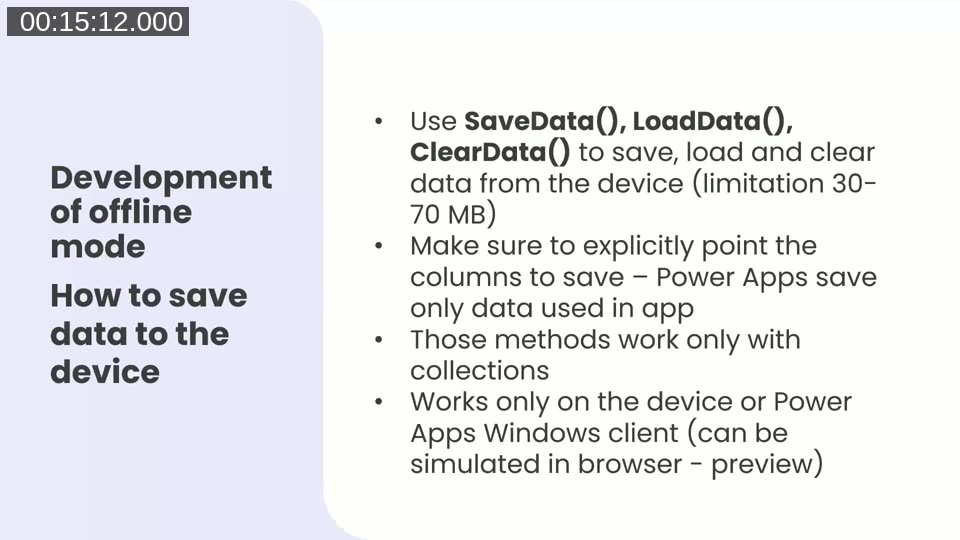
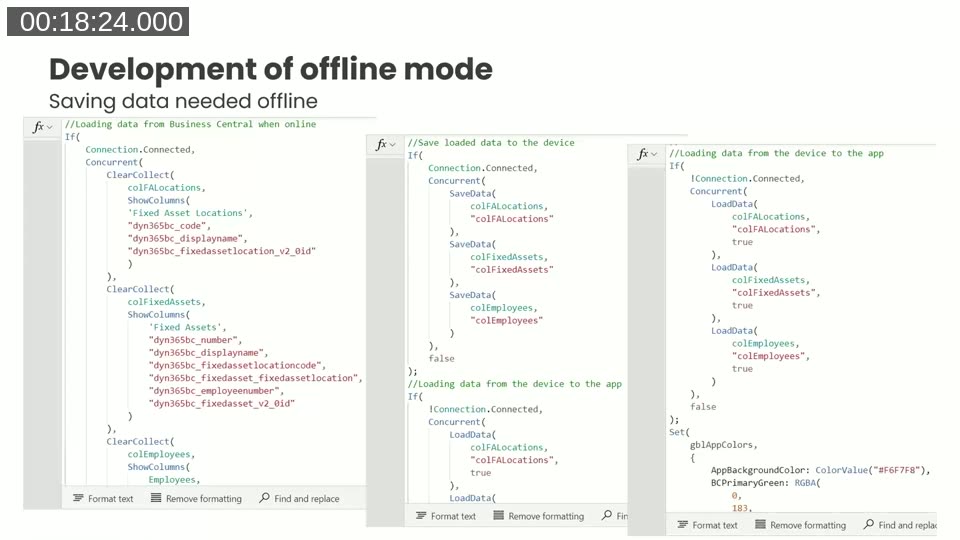
The three functions at the core of any custom offline solution are SaveData(), LoadData(), and ClearData(). All three operate on in-memory collections — they cannot save simple variables. The storage limit is approximately 30–70 MB depending on device and OS, which Bartosz notes is sufficient for most field-service scenarios but worth testing under realistic data volumes.
A subtle but important detail: if you do not explicitly specify which columns to include when creating the collection (using ShowColumns()), Power Apps will only save the columns that appear somewhere in the app’s UI code. Columns used only in back-end logic may be silently omitted, leading to missing fields when the collection is loaded back from storage. Always use ShowColumns() to be explicit.
Bartosz uses Concurrent() to build multiple collections simultaneously on app start, reducing the total wait time when the user first opens the app online. The code structure is: if connected, run ClearCollect() with explicit columns, then SaveData() to persist to device; if not connected, run LoadData() with the third parameter set to true (which tells the function to silently ignore a missing file rather than stalling the app).
Saving enum/option-set values requires an extra step: create a dedicated collection (e.g. colEnums) with one column per option set, store the option set value in that column, and then use SaveData() on the collection. On reload, use LoadData() and extract the value from the first row of the relevant column.
📖 Docs: SaveData, LoadData, and ClearData functions — full function reference including naming rules, browser limitations, and the distinction between appending and replacing collection data on load.
Tracking changes made offline
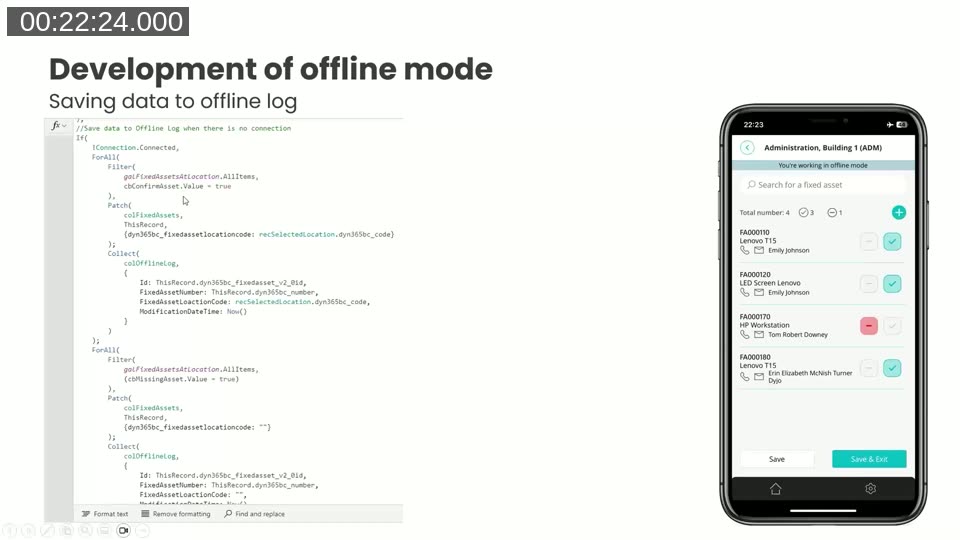
When a user makes changes while offline, those changes need to be written to the local BC virtual table collection and also logged so that the app knows what to sync later. Bartosz uses a dedicated colOfflineLog collection for this. Each entry records the record ID, the relevant field values that changed, and a modification timestamp. This log is also saved to the device with SaveData() after every write operation.
One key constraint: SaveData() always overwrites the file on the device rather than appending to it. The entire collection must be saved each time a change is logged.
In the Fixed Asset Counting demo app, the save-on-change code filters the on-screen gallery by assets marked as confirmed or missing, patches the local virtual table collection, and then appends a row to colOfflineLog with the fixed asset ID, location code, and Now(). Assets marked as missing have their location code set to blank. After all rows are processed, SaveData(colOfflineLog, "colOfflineLog") persists the updated log to the device.
Synchronising back to Business Central
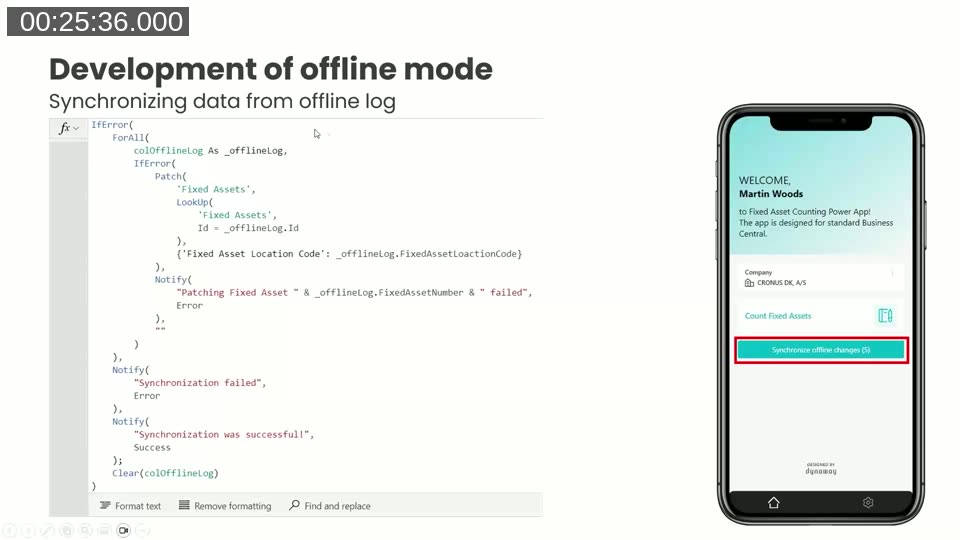
When the device comes back online, the app iterates through colOfflineLog using ForAll() and patches each record to the BC virtual table. Because patching goes directly through the virtual table to Business Central, no additional connector or API call is needed. Bartosz wraps the entire loop in IfError() so that a failed patch on a single record generates a notification without stopping the rest of the sync. After a successful sync, Clear(colOfflineLog) resets the log.
For apps with multiple document types or operation types in the offline log, the sync logic needs to branch depending on what kind of change each row represents — a more complex scenario, but the same pattern applies.
Synchronisation can be triggered manually (by a button the user taps when they know they are back online) or automatically via a Timer control. Bartosz notes that automatic sync via timers is straightforward in single-screen apps but becomes complicated in multi-screen apps because Power Apps timers only run on the screen where they are placed — a separate timer would be needed on every screen.
Testing offline mode
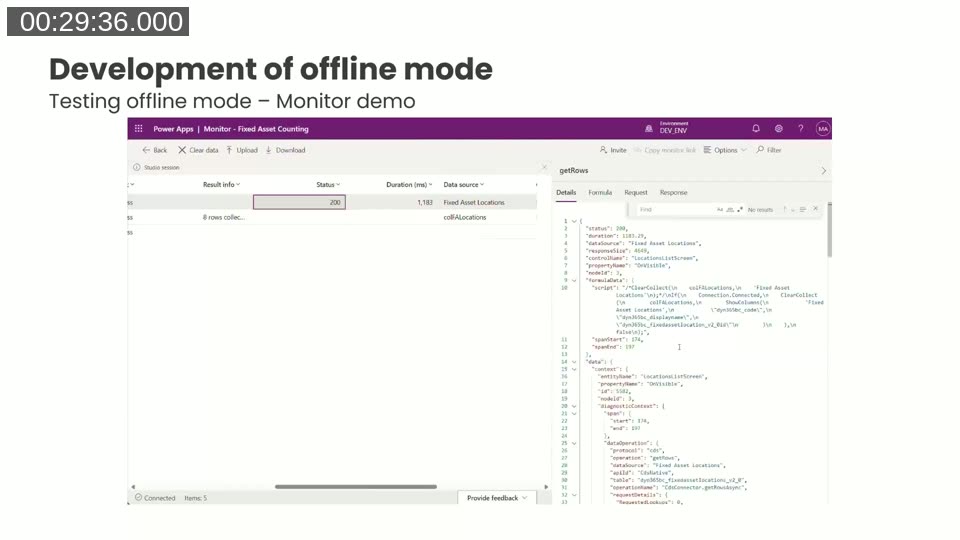
Testing offline behaviour on a device requires deliberately exercising failure scenarios: exit the app without saving, switch the device to flight mode, restart the device, reopen the app offline, make changes, restore connectivity, and confirm that the sync produces the expected results in BC. Bartosz recommends treating this as a manual test script.
For debugging, the Power Apps Monitor tool (accessible from Advanced Tools in Power Apps Studio) provides a live feed of every operation the app executes — request details, HTTP status codes, response data, durations, and the formula that triggered each call. It runs in a separate browser tab alongside the studio session and is the most efficient way to identify missing columns, slow queries, or failed patches.
Demo: Fixed Asset Counting app
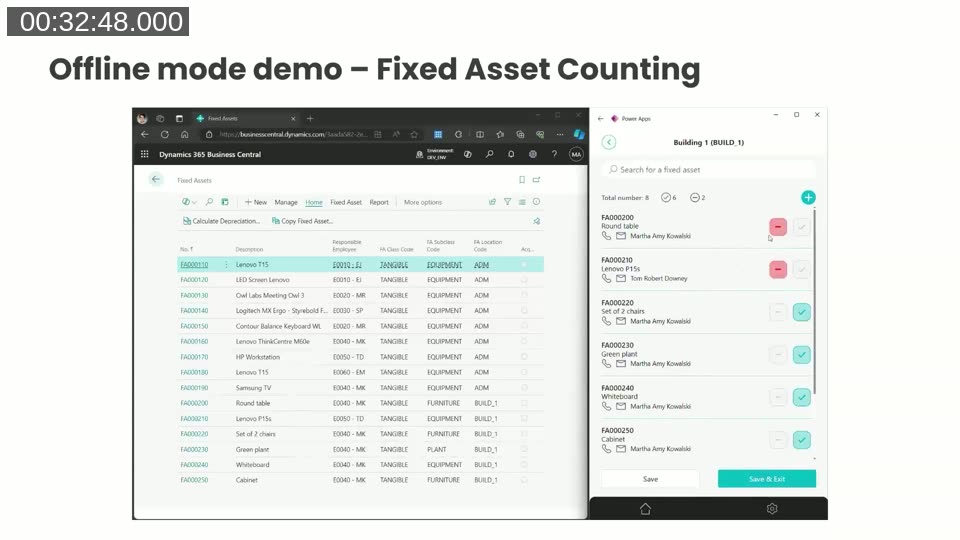
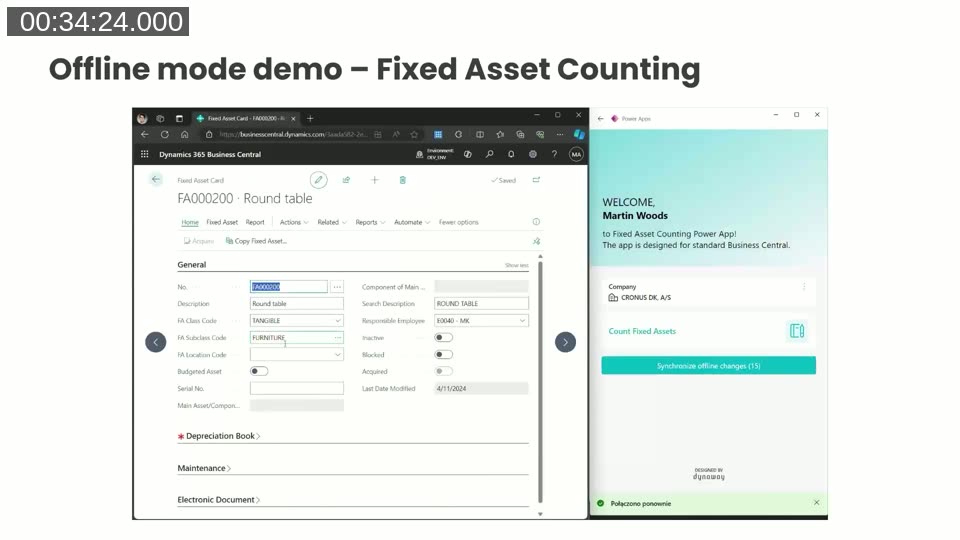
The demo uses a community-built Fixed Asset Counting app, available free from AppSource for standard Business Central environments. Bartosz extended a version of it with offline capability for the session. The demo (recorded rather than live, to avoid losing connectivity during the webinar) shows the full cycle:
- Opening the app while online, navigating to a building location, and confirming or marking assets as present or missing.
- Saving the changes — which immediately sync to BC via the virtual table.
- Switching the device offline (shown by a “brak internetu” — “no internet” — message in Polish on the device).
- Making further asset count changes in another building location while offline, with the changes stored locally.
- Coming back online and tapping the “Synchronise offline changes” button, which shows a count of 15 pending changes.
- After sync, refreshing Business Central to confirm the location codes updated correctly.
The app ran in Power Apps Windows client for the recording, which supports SaveData/LoadData and allowed side-by-side capture with the BC browser window.
Things to remember
Bartosz closes the development section with three design reminders worth highlighting:
- Plan your collections from the beginning of the project. Retrofitting offline support into an app that was not designed for it is significantly harder than building for it from day one — especially when delegation limits on large tables are involved.
- Disable company switching while the app is offline. If a user switches company when offline, the cached data belongs to the previous company and will be incorrect for the new one. The company selector should be hidden or disabled whenever
Connection.Connectedis false. - When company switching is allowed and the user switches online, clear all saved device files and re-download data for the new company before saving again. Company data is not shared.
Tips and tricks
The session ends with a set of general Power Apps development recommendations from Bartosz:
- Always start development inside a solution. It makes the app portable, easier to manage across environments, and avoids problems during ALM.
- Address delegation early. For tables with thousands of rows, design your data access patterns around delegation-compatible functions from the start.
- Use
App.OnStartto set global colour variables, language settings, and initial data loads. Centralising colours in variables means you only change a value in one place rather than across every screen. - Use loading screens or modal dialogs to communicate sync and load progress to users. Silent background operations can appear broken to a user who does not know what is happening.
- Use SVG images in Image controls instead of PNG/JPEG where possible — SVGs can have their colour changed dynamically from code, eliminating the need to maintain multiple versions of the same icon in different colours.
📖 Docs: Develop offline-capable canvas apps — Microsoft’s end-to-end guide for building canvas apps with offline support, including the Connection signal, LoadData/SaveData patterns, and handling reconnection.
This post was drafted with AI assistance based on the webinar transcript and video content.