
In this May 2024 Areopa Academy webinar, Niall McGovern — product manager at 4PS and a speaker at Days of Knowledge Birmingham that same month — takes a practical look at where Microsoft Copilot and AI capabilities fit real business scenarios, with a focus on Dynamics 365 Business Central. Moderated by Luc van Vugt, the session covers what is available in BC today, how to evaluate whether AI is the right solution for a given scenario, seven worked example scenarios, and a plain-language breakdown of costs and licensing. Note: this recording is from May 2024; some feature availability details and pricing information may have changed since then.
What Is Microsoft Copilot?
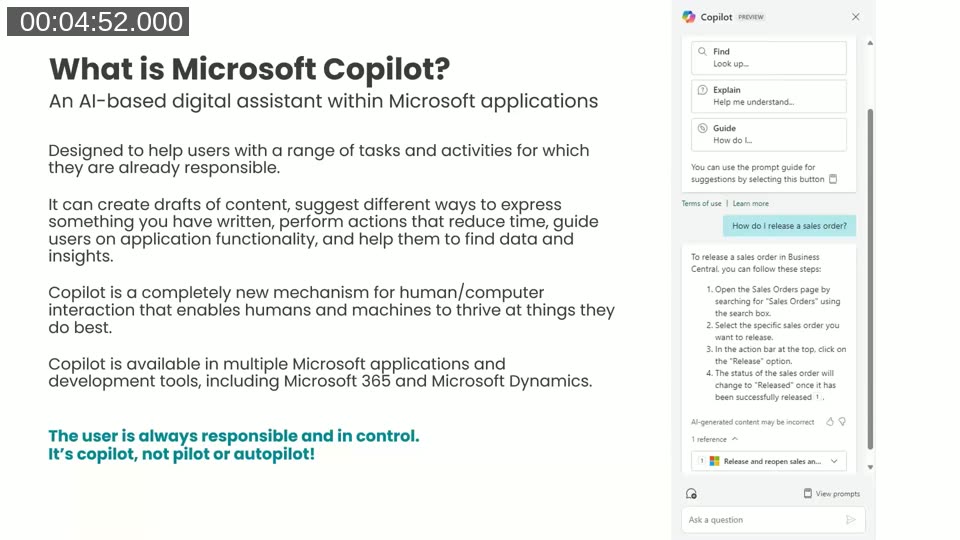
Niall opens by grounding the audience in a core principle: Copilot is an AI-based digital assistant that operates across Microsoft applications — Business Central, Microsoft 365, Power Platform, Copilot Studio, and Edge — to help users be more productive, reduce laborious tasks, and interact with business software in new ways through natural language.
The phrase he returns to throughout the session is: “It’s Copilot, not pilot or autopilot.” The user is always responsible for reviewing and accepting or discarding any AI-generated suggestion.
📖 Docs: Configure Copilot and agent capabilities — Microsoft Learn — Explains how to activate or deactivate individual Copilot features for your Business Central environment from the Copilot & AI Capabilities page.
Copilot and AI Capabilities in Business Central
Niall organises the available BC Copilot features into three categories that he uses as a consistent framework throughout the webinar:
- Generate — Take existing data from a BC entity and produce natural language text from it. The main example at the time: marketing text suggestions for items.
- Act — Take an AI-assisted action at the user’s request to reduce time or increase accuracy. Examples include bank account reconciliation, e-document matching to purchase order lines, sales line suggestions, and generating analysis views from a typed query.
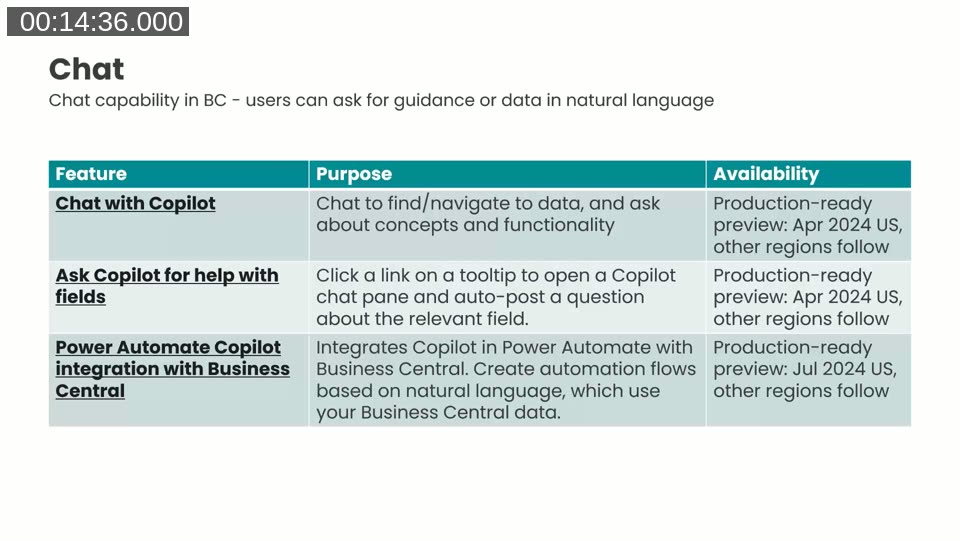
- Chat — Accept natural language input from the user and return data, guidance, or navigation results. Examples include Chat with Copilot, Ask Copilot for help with fields, and the Power Automate Copilot integration with BC.
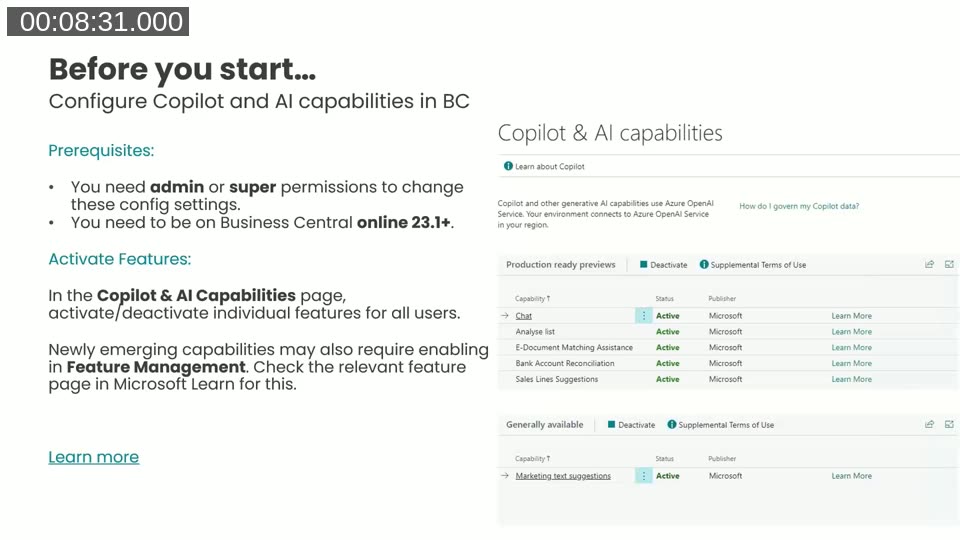
Before You Start: The Copilot & AI Capabilities Page
Before using any Copilot feature, an administrator must activate it on the Copilot & AI Capabilities page. This page lists all available AI-powered features, their status (Active or Inactive), and whether they are in production-ready preview or generally available. Some features may also require enabling in Feature Management when they are first released.
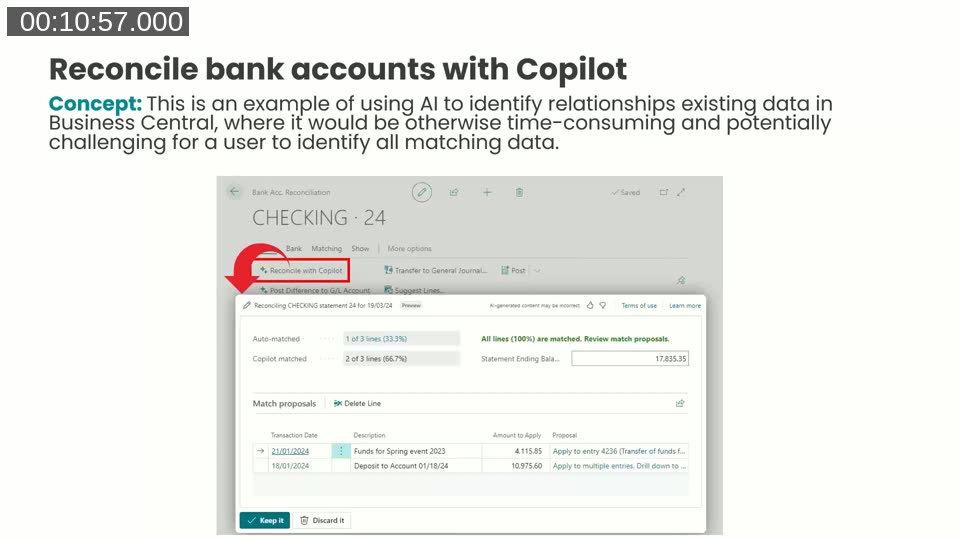
Act: Bank Reconciliation and Data Matching
Niall demonstrates the bank account reconciliation feature, which uses AI to identify relationships between bank statement transactions and open entries in BC — a task that would otherwise require time-consuming manual matching. He highlights that the core concept here is AI identifying connections in data where the relationships are not obvious.
Chat: Three Capabilities
The Chat category covers the features that received the most public attention at the time of recording. Chat with Copilot lets users ask questions in natural language to find data or get step-by-step guidance on BC processes. Ask Copilot for help with fields opens the chat pane from a field tooltip. Power Automate Copilot integration allows natural language prompts in Power Automate that reference Business Central data directly.
As of the recording date, Chat with Copilot and the field help feature were in production-ready preview starting in the US region (April 2024), with other regions following. The Power Automate integration was expected in preview in July 2024 in the US first. Niall recommends the Microsoft Dynamics 365 Copilot availability report for checking regional rollout status.
Building Your Own AI Capabilities: The PromptDialog Page Type
Although the session is primarily functional, Niall covers the developer tooling briefly because it is directly relevant to the custom scenarios discussed in the next section. The key building block is the PromptDialog page type introduced in BC runtime 12.1. It provides a consistent Copilot look and feel for custom generative AI experiences, with three areas:
- Prompt area — Accepts the user’s input (typed text or data selection) and builds up the prompt for the Azure OpenAI Service call.
- Content area — Displays the AI-generated response for the user to review.
- System actions — Always includes options for the user to keep, discard, or regenerate the response — a required responsible AI control.
Custom PromptDialog-based solutions require an Azure OpenAI Service subscription that you manage separately. The standard out-of-the-box BC Copilot features are hosted by Microsoft and included in the BC licence; custom solutions are not. The PromptDialog page type can be used in both Business Central Online and on-premises, unlike the standard features which are cloud-only.
📖 Docs: The PromptDialog page type — Microsoft Learn — Full reference for the PromptDialog page type properties, layout areas, and system actions for building custom Copilot experiences in AL.
CentralQ Chat: A Third-Party Option for Custom Data Sources
Niall also highlights CentralQ Chat, an independent app by Dmitry Katson available on AppSource. Unlike the standard BC chat (which is limited to Microsoft Learn documentation and standard table data), CentralQ Chat allows users to upload their own PDF, Word, or text files and then ask questions about that content from within Business Central. It is useful for ISVs and resellers who need users to be able to ask questions about custom functionality. The CentralQ website also exists independently as an AI-powered knowledge base built on BC community content.
A Framework for Evaluating Business Scenarios
The main substance of the webinar is a framework for deciding whether a given scenario is a good fit for Copilot or AI. Niall presents four guiding questions:
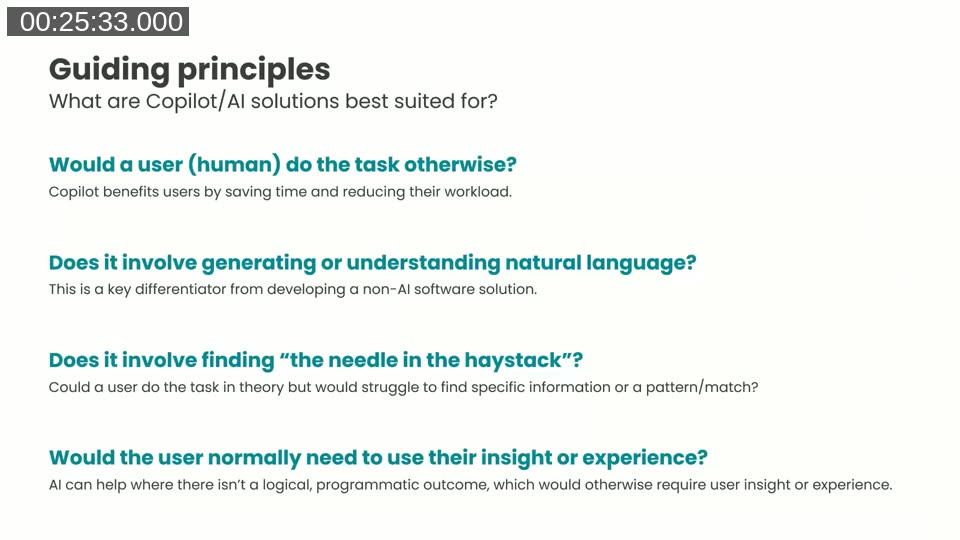
- Would a user (human) do the task otherwise? AI is at its most powerful when it saves time and reduces workload that a user would otherwise carry out manually.
- Does it involve generating or understanding natural language? This is the key differentiator from conventional code — either producing text from data, or interpreting user input in natural language.
- Does it involve finding “the needle in the haystack”? Finding a connection or pattern in data that would be difficult or time-consuming for a human — bank reconciliation is the canonical example.
- Would the user normally need to use their own insight or experience? Scenarios where the outcome is not purely programmatic — where there is some ambiguity or prior-knowledge dimension — are good candidates for AI assistance.
When to Avoid AI
Equally important is knowing when not to use Copilot. Niall identifies three areas to avoid:
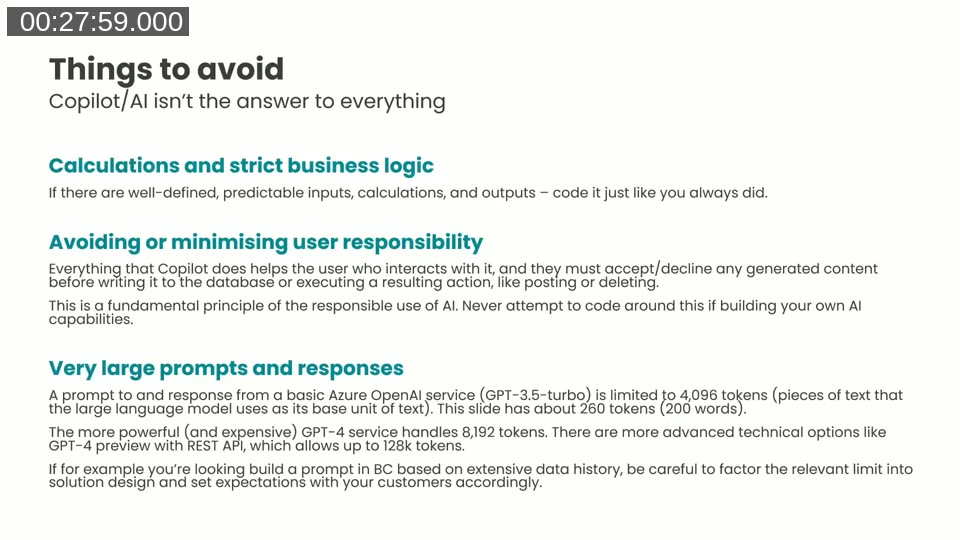
- Calculations and strict business logic — If inputs are well-defined, predictable, and the output can be coded deterministically, use standard AL code. There is no benefit to introducing AI.
- Avoiding or minimising user responsibility — Every Copilot interaction must give the user the option to accept or discard generated content before it is written to the database. Never attempt to code around this principle.
- Very large prompts and responses — Token limits apply to the combined prompt and response. At the time of recording, GPT-4 Turbo handled 8,192 tokens; designs that require iterating over large volumes of historical data may exceed this limit.
Generic Use Cases in Business Central
Before moving to specific scenarios, Niall summarises where custom AI solutions could generally be built, mapped back to the Generate / Act / Chat framework:
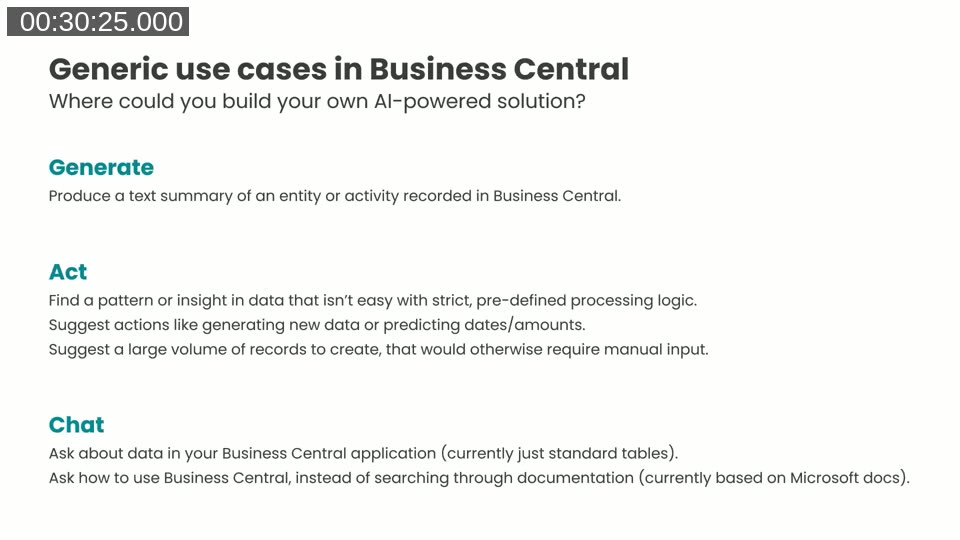
- Generate — Produce a text summary of an entity or activity recorded in BC.
- Act — Find a pattern or insight in data that is not easy with strict pre-defined logic; suggest actions like generating new data, predicting dates or amounts, or suggesting a large volume of records to create that would otherwise require manual input.
- Chat — Ask about data in BC (currently standard tables only at the time of recording) or ask how to use BC functionality instead of searching documentation.
📖 Docs: Build the Copilot capability in AL — Microsoft Learn — Step-by-step guide to registering a Copilot capability, connecting to Azure OpenAI Service, and generating structured output in AL code.
Seven Example Business Scenarios
Niall works through seven concrete scenarios, each structured with a business situation, a possible AI-powered solution, and key considerations. The scenarios are illustrative rather than production blueprints — “food for thought” for consultants evaluating customer opportunities.
Scenario 1 — Service completion summary (Generate)
A service engineer completes a repair visit and needs to send the customer a written sign-off summary. Using a PromptDialog page, the system generates a natural language closing statement based solely on the data already in the service order — technician, date, work performed, time — without requiring the engineer to type anything. Users can adjust emphasis before submitting (for example, exclude per-task time breakdowns).
Scenario 2 — Predicting payment dates for open invoices (Act)
Based on an example built by Bert Verbeek at 4PS, this scenario demonstrates a PromptDialog page where the user selects a range of closed (historical) invoices and one or more open invoices, then generates a prediction of expected payment dates. The user’s selection is assembled into a structured prompt in the background; the response is returned in natural language and must be confirmed before any data is updated. This illustrates how the PromptDialog page type can accept data selection rather than typed text as its primary input.
Scenario 3 — Permission set suggestions for new users (Act)
When onboarding a new BC user, suggest appropriate permission sets by modelling from existing users with similar roles. Niall notes a key limitation: unless you first profile the new user meaningfully, the AI lacks context to make good suggestions. He proposes two mitigations — letting the user select one or more existing users to model from, or reframing the use case as a permission set audit across all users to find inconsistencies or unused assignments at scale.
Scenario 4 — Natural language test reports from page scripting (Generate)
BC version 24 introduced page scripting, which records and replays test steps. Niall submitted an idea to Microsoft: use AI to generate a formal written test report in natural language from the steps recorded in page scripting — useful for customer-facing UAT documentation. He notes that Dmitry Katson may have already built something in this space.
Scenario 5 — Universal “explain this” shortcut across all UI controls (Chat)
An idea for a future BC enhancement: a single keyboard shortcut or click combination that opens the chat pane and automatically prompts it to explain whatever UI control the user is currently focused on — fields, action buttons, menu items. The existing “Ask Copilot for help with fields” requires hovering over a tooltip first; this would make explanation universally accessible.
Scenario 6 — Executive summary narrative added to reports (Generate)
Add a short AI-generated executive summary to report headers — for example, a Customer Top 10 report could automatically include an insight such as “the top three customers account for 50% of revenue in the period, up from 30% in the same period last year.” Niall flags that the prompt would need to send comparative data (not just the report’s own dataset), which may approach token limits, and that Power BI Copilot is also a natural fit for this type of data narrative scenario.
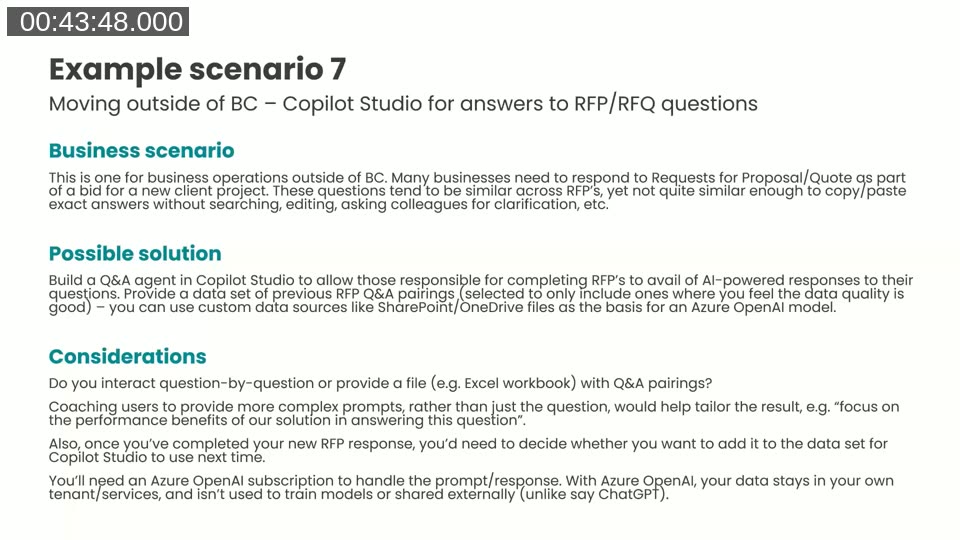
Scenario 7 — Copilot Studio agent for RFP/RFQ responses
Moving outside of BC entirely, this scenario targets a common pain point for Microsoft partners: responding to Requests for Proposal or Quote, where questions are broadly similar but never identical enough to copy-paste. The proposed solution is a Q&A agent built in Copilot Studio, trained on a curated set of historical RFP question-and-answer pairings stored in SharePoint or OneDrive. Users can provide additional context in the prompt (“focus on the performance benefits of our solution”) to tailor the response for a specific bid.
Key considerations Niall raises: your Azure OpenAI subscription keeps data within your own tenant and it is not used to train public models. Over time, good new responses should be fed back into the data set to improve future results.
📖 Docs: Transparency note: Developer tools for Copilot in Business Central — Microsoft Learn — Explains the intended use cases, responsible AI controls, and data governance model for partner-built Copilot capabilities using the AL toolkit.
Costs and Licensing
Niall closes with a licensing overview relevant as of May 2024. The key point for BC practitioners:
- Standard Copilot features in BC (marketing text suggestions, bank reconciliation, sales line suggestions, chat, analysis views, etc.) are included in the BC Essentials and Premium licence at no additional cost.
- Custom solutions using Azure OpenAI require a separate Azure OpenAI Service subscription. At the time of recording, GPT-4 Turbo was approximately $10 per million input tokens — relatively low cost for incidental use in a business application.
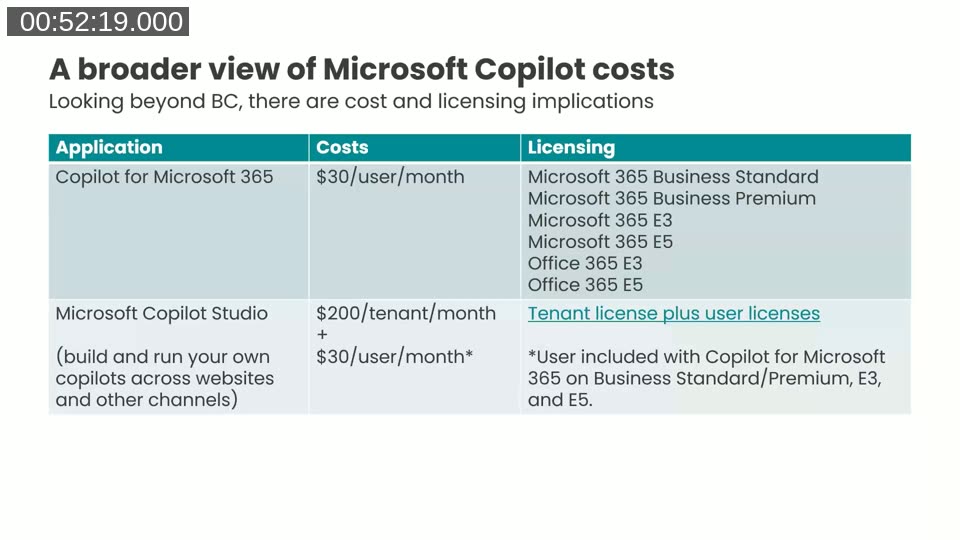
- Copilot for Microsoft 365 (Word, PowerPoint, Teams, Outlook): $30 per user per month, available across Business Standard, Business Premium, E3, and E5 plans.
- Microsoft Copilot Studio (build and run your own agents): $200 per tenant per month, plus $30 per user per month for users who build agents. Users included if they already have Copilot for Microsoft 365.
Niall also recommends the Microsoft Dynamics Copilot availability report for tracking which Copilot features are available in which regions and release waves — useful when setting expectations with customers in non-US regions where rollout lagged at the time of recording.
Resources
The following resources were shared by Niall in the webinar description:
- Microsoft Copilot Documentation and Resources
- Copilot and AI features in Dynamics 365 Business Central, 2024 release wave 1 — Microsoft Learn
- Configure Copilot and AI capabilities in Business Central — Microsoft Learn
- Get set up with Azure OpenAI Service — Business Central developer docs
- Bert Verbeek: Business Central, Copilot and the new PromptDialog
- Luc van Vugt & Dmitry Katson: Developing Generative AI with Copilot Toolkit in BC
- Transparency note: Developer tools for Copilot in Business Central — Microsoft Learn
- Mike Morton: Transform the way work gets done with Microsoft Copilot in Dynamics 365 Business Central
- Microsoft: Empowering responsible AI practices
This post was drafted with AI assistance based on the webinar transcript and video content.