
In this Areopa webinar, Gabor Faludi (FITS Magyarország) shows how low-code tools in the Power Platform can read and write Business Central data without any custom integration code. Moderated by Luc van Vugt, the session covers why partners and consultants should care about low-code, the setup required to connect Business Central to Dataverse, and a live build of a complaint management app that combines Business Central records, SharePoint documents, and an approval flow.
Why low-code matters for Business Central partners
Faludi opens by framing low-code as an opportunity rather than a threat. Customers often struggle to articulate requirements up front, and giving key users a way to click together their own small applications frees consultants to focus on higher-value work. He also points to Microsoft’s own push toward the cloud and Gartner’s prediction that most enterprises will run at least two low-code applications within a few years, placing Microsoft among the leaders in Gartner’s Magic Quadrant for enterprise low-code platforms.
He lists typical scenarios where this pays off for a Business Central partner: motivated key users building small approval apps themselves, add-on applications a partner can resell across customers, and offloading simple builds to consultants so scarce AL developers can focus on more complex extensions.
What “virtual tables” actually do
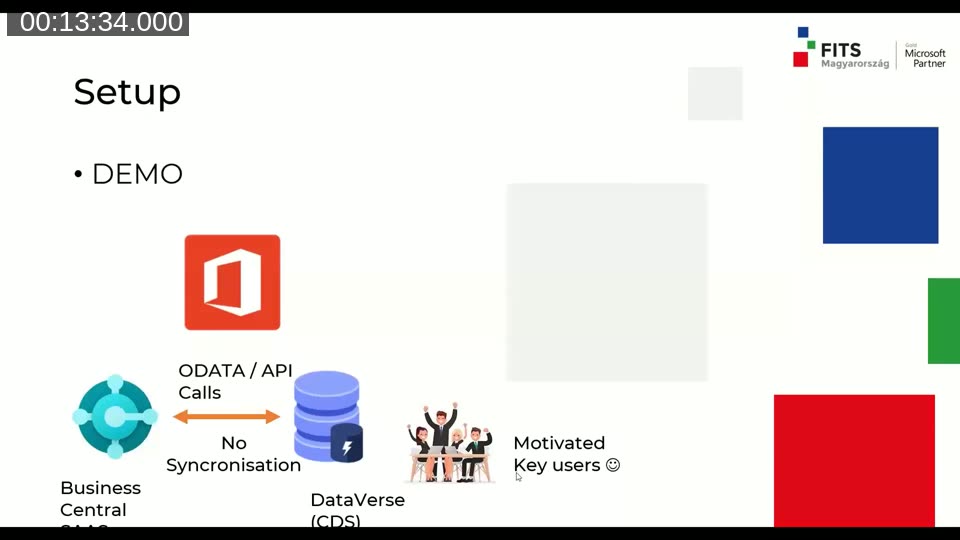
The core technology is what Microsoft originally shipped as Dataverse virtual entities, later renamed virtual tables — the webinar title itself shows the strikethrough mid-rename. A Business Central virtual table is not a data copy: it is a live pass-through. Power Apps or any other Dataverse-connected tool calls Business Central’s OData/API endpoints directly at runtime, so there is no synchronization job and no risk of stale data, at the cost of depending on Business Central’s API being reachable and reasonably fast.
📖 Docs: Create and edit virtual tables with Microsoft Dataverse — the current Microsoft Learn reference for how virtual tables work, including the note that several Dataverse features (business process flows, auditing, offline mobile, queues) are not supported directly on a virtual table itself.
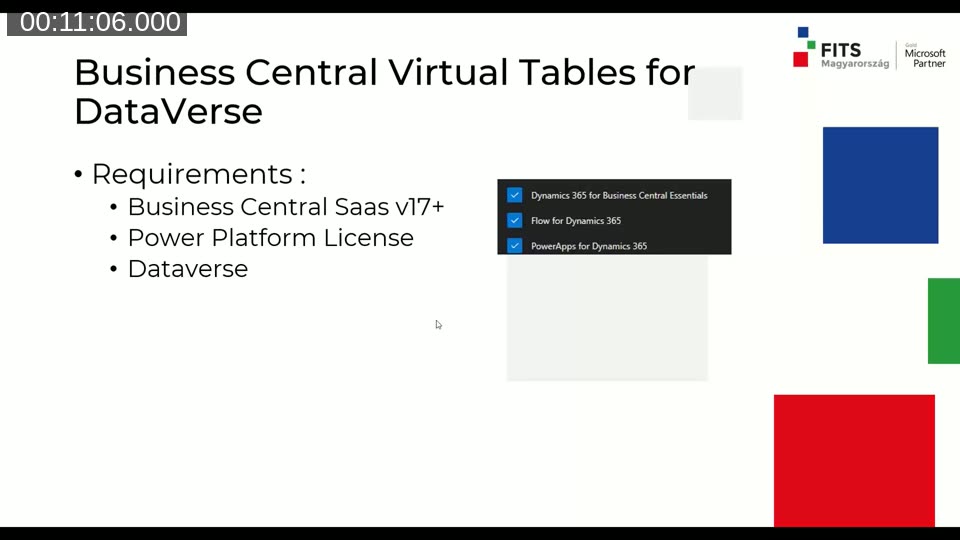
To use this, Faludi lists three requirements: Business Central SaaS version 17 or later, a Power Platform license, and a Dataverse environment matching the Business Central environment’s region and base currency.
Setting up the connection
The setup starts in make.powerapps.com, where a new Dataverse environment is created through the Power Platform admin center. From AppSource, the “Business Central Virtual Tables” component (referred to in the URL at the time as “virtual entity”, another trace of the same renaming) is installed into that environment. Back in Business Central, the corresponding Microsoft Entra ID application — “Dynamics 365 Business Central Virtual Entities” — has to be enabled before the two systems can talk to each other.
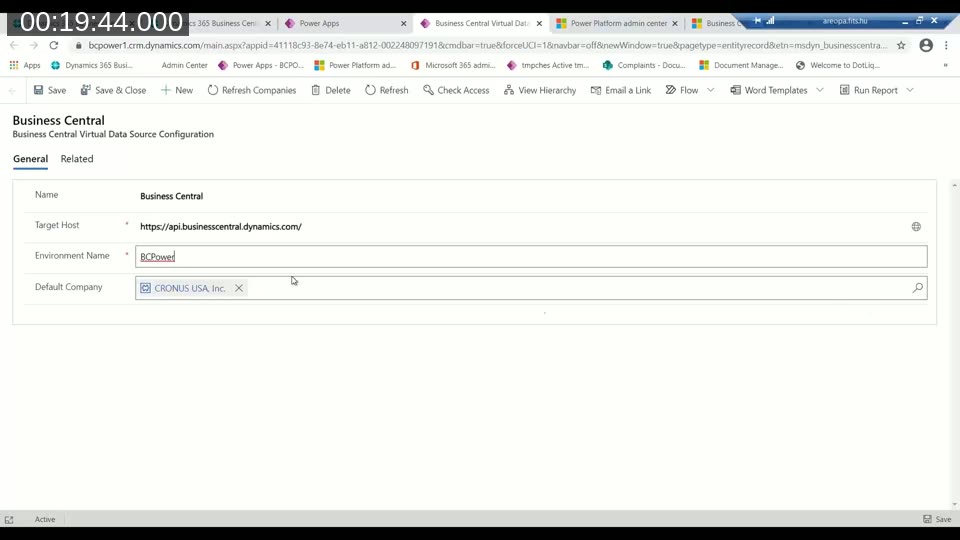
Once that’s done, a single “Business Central Virtual Data Source Configuration” record links the Dataverse environment to a specific Business Central environment and company:
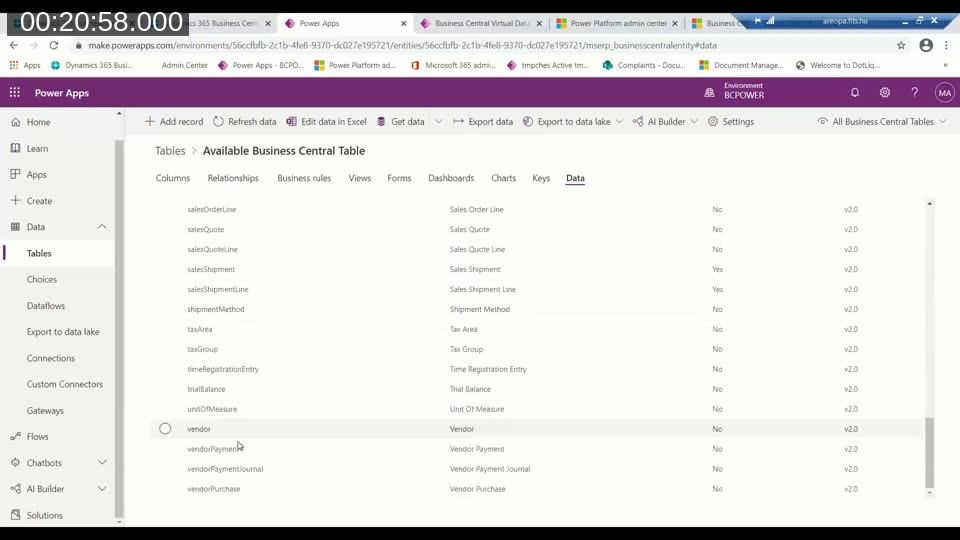
From there, the “Available Business Central Table” list shows every table exposed through Business Central’s default API pages. Marking a table as visible generates the matching virtual table in Dataverse — no code required for the standard entities:
Once a table like Customer is published, it shows up in Power Apps carrying live Business Central data, with the standard API version reflected in its name (for example, dyn365bc_customer_v2):
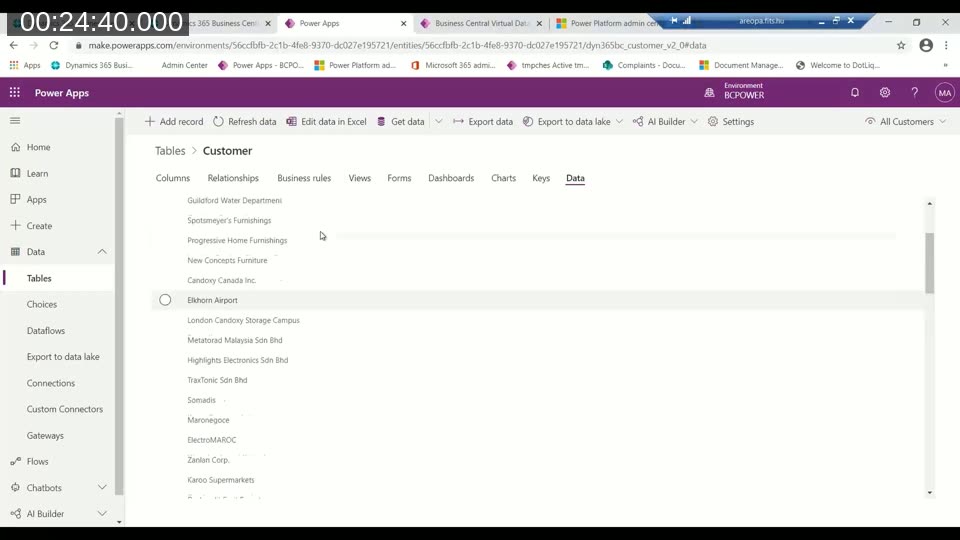
Faludi notes this is a two-way connection: creating a customer in Dataverse also creates it in Business Central, and vice versa, since both sides are reading and writing through the same live API.
Publishing custom data through an API page
Only tables with a default API page are available out of the box. To expose anything else — a custom table added by an extension, for instance — Faludi points out that a normal AL API page still has to be created and published in Business Central; the low-code side doesn’t remove that step, it just picks up the new endpoint automatically once it exists.
📖 Docs: Get started developing Connect apps for Dynamics 365 Business Central — covers the REST API stack, endpoint structure, and Microsoft Entra ID authentication that underpins both the standard and custom API pages used here.
Building a complaint management app live
With the Customer, Sales Invoice, Sales Invoice Line, and Item tables published, Faludi builds a small complaint-tracking application from scratch in around 20–30 minutes. He creates two new Dataverse tables — Complaint Header and Complaint Line — with lookup columns pointing back to the Business Central Customer and Sales Invoice(Line) virtual tables, sets up a relationship between the header and line tables, and lays out forms and views using the table designer rather than code.
He then packages the tables into a model-driven app, defines its sitemap and navigation, and publishes it. The result is a working app where selecting a customer or a disputed invoice pulls real Business Central data straight into the form:
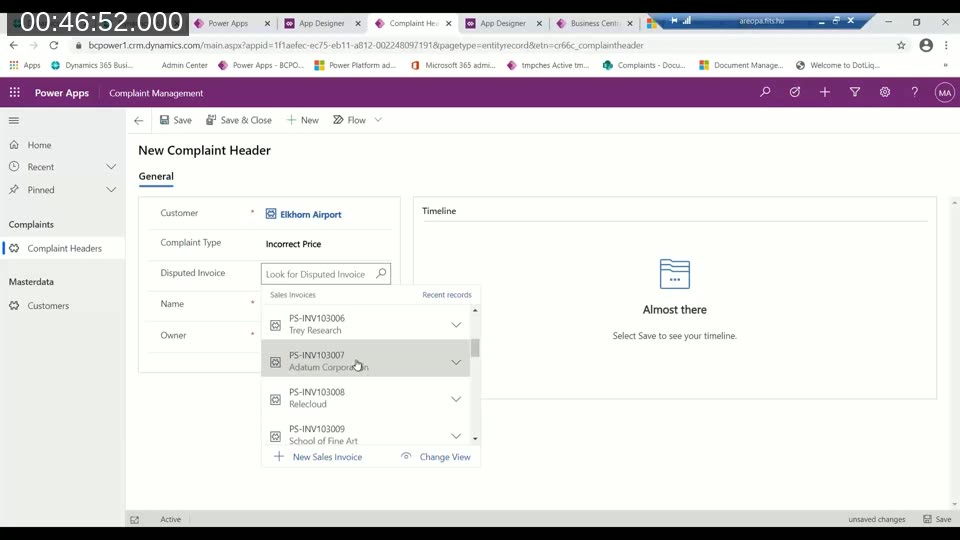
Because Complaint Header and Complaint Line are ordinary Dataverse tables — not virtual tables themselves — they support the full set of Dataverse features, including the document management and business process flow capabilities shown next.
Attaching documents through SharePoint
Dataverse’s built-in document management integration is enabled for the Complaint Header table, pointed at a SharePoint site that was configured beforehand. Once enabled, Dataverse automatically creates a document folder per complaint record, and users can open and edit Word documents or upload photos directly from the record’s timeline without leaving the app:
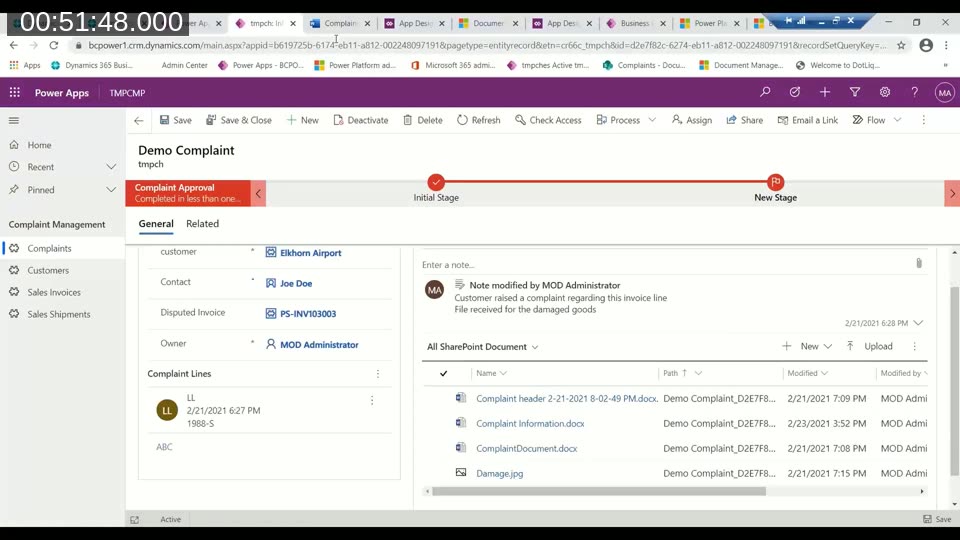
Faludi contrasts this with the effort of building equivalent document handling natively in Business Central, noting that here it took only a few configuration clicks.
Guiding users with an approval flow
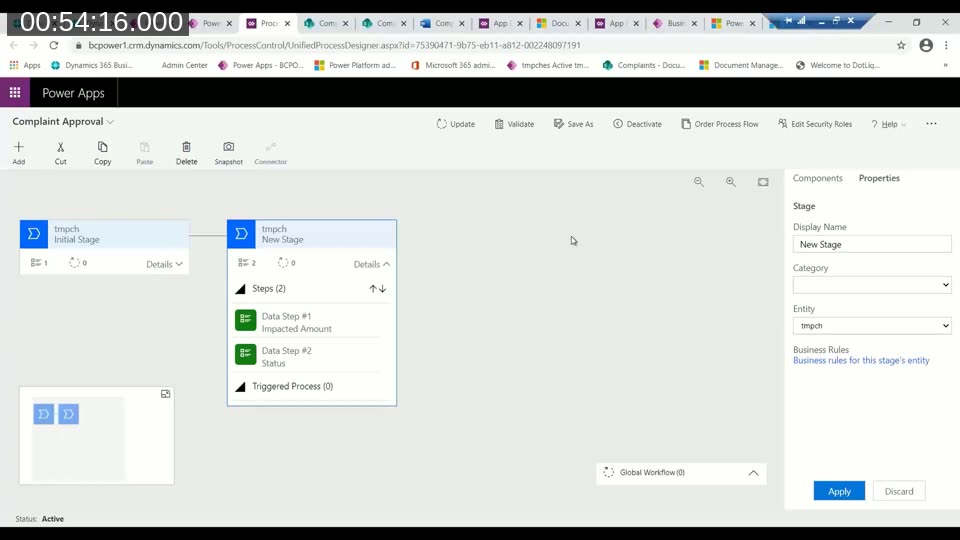
To guide end users through resolving a complaint, Faludi configures a Dataverse business process flow with two stages — an initial stage to gather the invoice, and a follow-up stage to record the impacted amount and status. Business process flows render as a visual stepper on the record and also track how long each stage takes, which he says has been well received by users on the CRM side for several years already.
📖 Docs: Create virtual tables using virtual connectors in Microsoft Dataverse — as of this update, the current virtual connector provider list (SQL Server, SharePoint, Fabric, Salesforce, Oracle, Snowflake, PostgreSQL) no longer includes a dedicated Business Central option. Readers evaluating this approach today should check the current setup guidance in the Business Central admin center rather than assume the exact steps shown here still apply unchanged.
Power Portals as a bonus
In the closing minutes, Faludi briefly demonstrates that a Power Platform license also includes a portal (at the time called Power Portals, part of what’s now Power Pages), which can expose the same Dataverse lists to external users so they can view or submit their own complaints. He notes this option is less low-code than the rest of the demo — building a custom portal page involves JavaScript, HTML, and the Liquid templating language — but tutorials are available to get started.
Answering a moderator question on the Power Apps UI compared to Business Central’s, Faludi acknowledges the Power Platform’s model-driven UI is more rudimentary and less customizable out of the box, but argues the guided business process flow experience compensates for that for end users, and that the portal remains fully open to custom JavaScript and HTML for teams that want a more tailored look.
This post was drafted with AI assistance based on the webinar transcript and video content.