
In this Areopa webinar, David Feldhoff shows how to build a Visual Studio Code extension from scratch, with Luc van Vugt moderating. David has worked with NAV and Business Central since 2014 at GWS mbH, and he is the developer of the AL CodeActions extension for VS Code. Starting from an empty project, he scaffolds a Hello World extension, extends it with a custom code action, wires it up to VS Code’s built-in commands, and finishes by packaging and publishing it to the Visual Studio Marketplace.
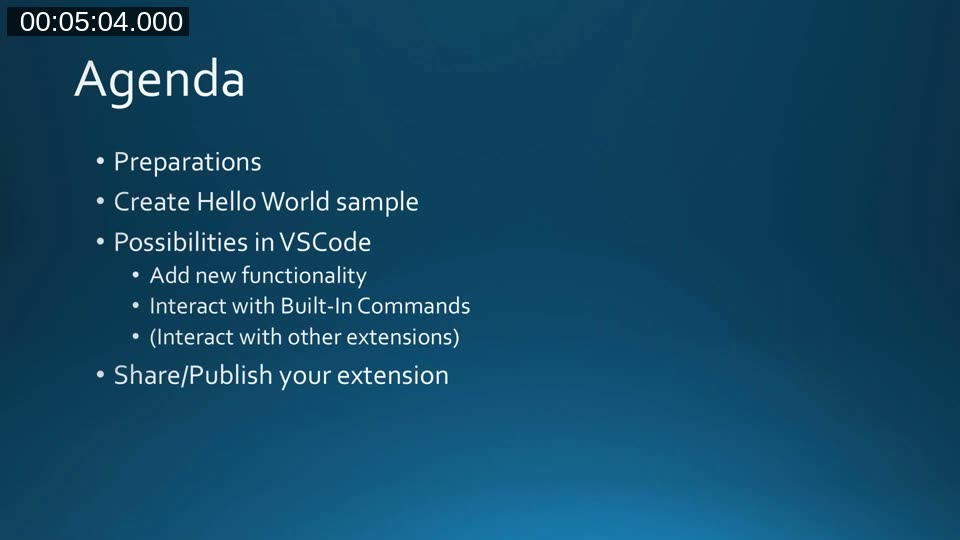
Preparations
Before writing any extension code, David sets up the tooling needed to scaffold a new project. Two things are required on the machine: Node.js and Git. On top of that, the extension generator is installed via npm:
npm install -g yo generator-codeThis installs Yeoman (yo) together with the VS Code Extension Generator (generator-code), which scaffolds a ready-to-run extension project.
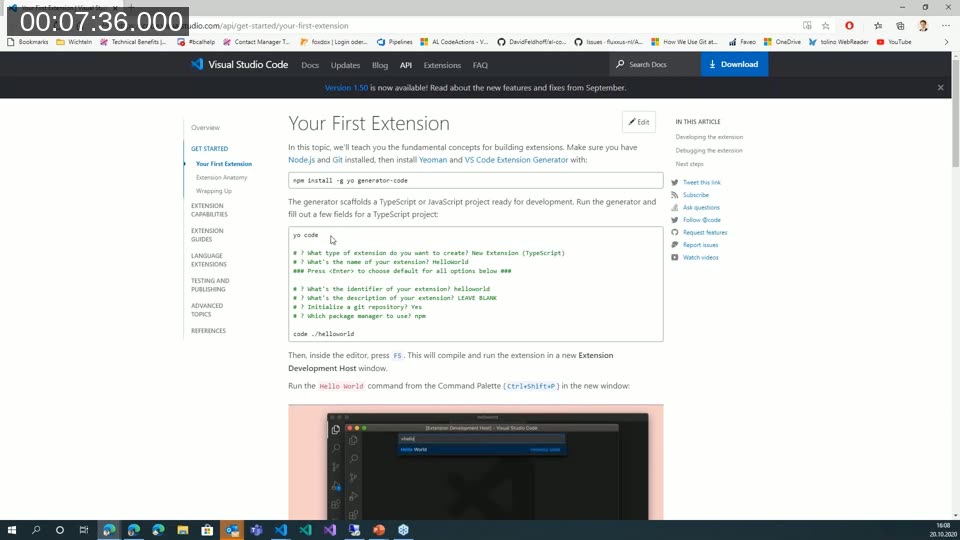
📖 Docs: Your First Extension — the official walkthrough David follows for generating, running, and debugging a new extension.
Creating the Hello World sample
Running yo code prompts for the extension type, name, identifier, and a few other options. Choosing a TypeScript extension generates a project named webinar with a working Hello World command already wired up.
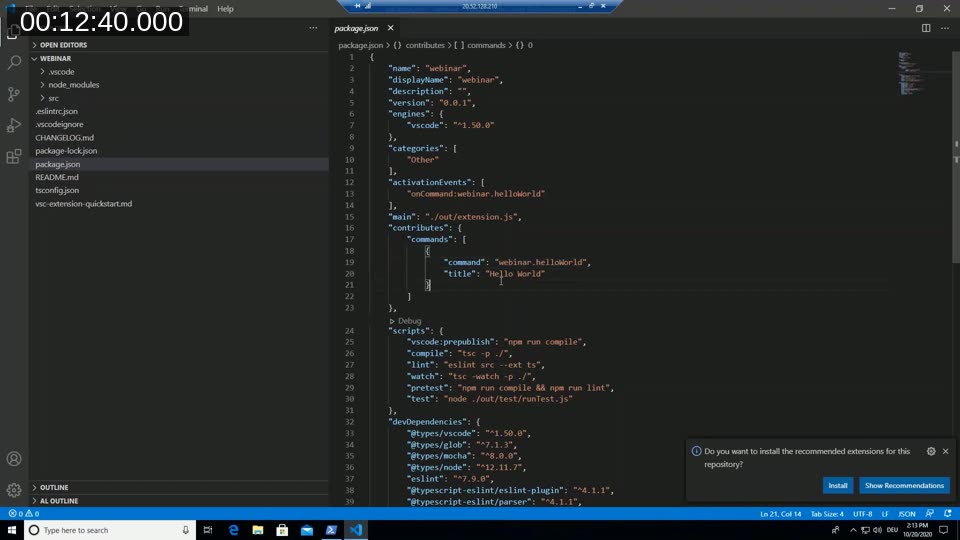
The generated package.json is the extension’s manifest. Two fields matter most for a command-based extension:
activationEvents— lists the events that trigger VS Code to load the extension, for exampleonCommand:webinar.helloWorld.contributes.commands— declares the command ID and its display title, herewebinar.helloWorldshown as “Hello World” in the Command Palette.
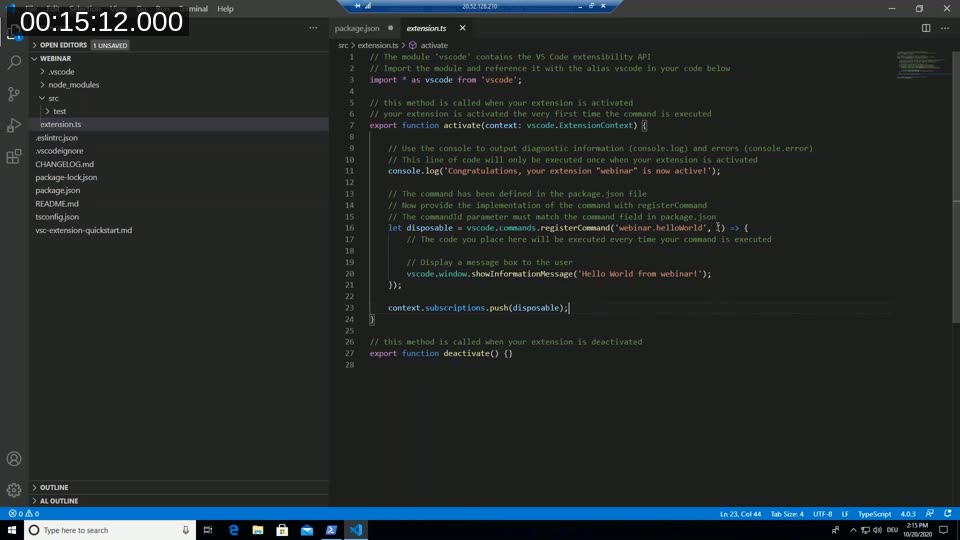
The matching logic lives in extension.ts. The activate function runs the first time the command is executed; inside it, vscode.commands.registerCommand registers the implementation for webinar.helloWorld, and vscode.window.showInformationMessage displays a notification. A deactivate function is generated alongside it for cleanup when the extension is unloaded.
Pressing F5 compiles the extension and launches a separate Extension Development Host window with it installed. Running the Hello World command from the Command Palette (Ctrl+Shift+P) in that window confirms the extension is active and triggers the notification.
Adding new functionality: a custom code action
With the basic command working, David demonstrates the “Add new functionality” item from the agenda by building a small refactoring feature: a code action that extracts a selected piece of text into a new AL Label variable — the same kind of feature his AL CodeActions extension ships.
A new file, AreopaCodeActionProvider.ts, implements the vscode.CodeActionProvider interface. The only required method is provideCodeActions, which VS Code calls whenever the user’s selection or cursor position changes in a document that matches the provider’s registered language.
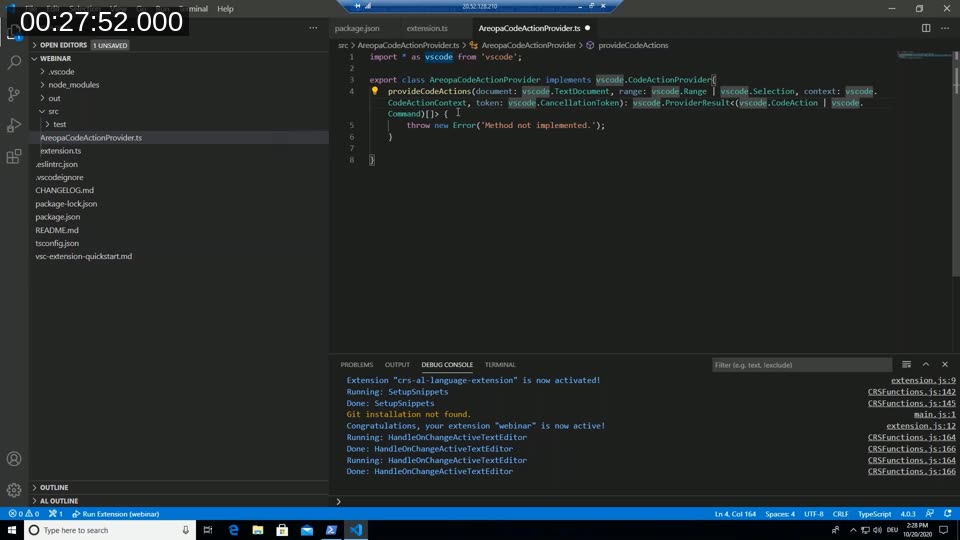
The provider is registered against the AL language specifically, using the language namespace:
vscode.languages.registerCodeActionsProvider('al', new AreopaCodeActionProvider());Inside provideCodeActions, the implementation reads the selected text, checks whether it looks like a quoted string, and if so offers a vscode.CodeAction of kind RefactorExtract. Applying it uses a vscode.WorkspaceEdit to replace the selected text with a reference to a new label and insert a corresponding Label declaration into the variable section of the AL object.
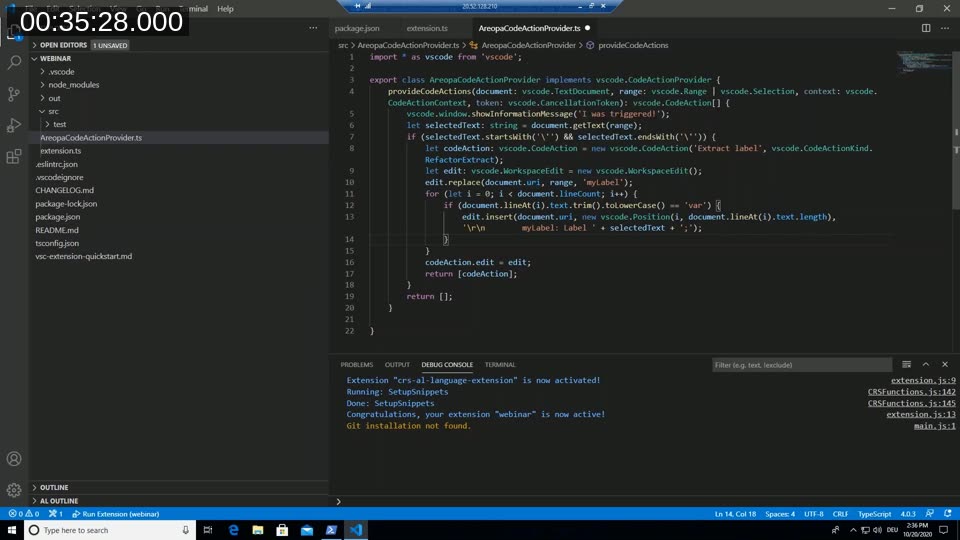
📖 Docs: VS Code API reference — languages namespace — covers registerCodeActionsProvider and the other language feature providers (completion, hover, definition, and more) that extensions can register.
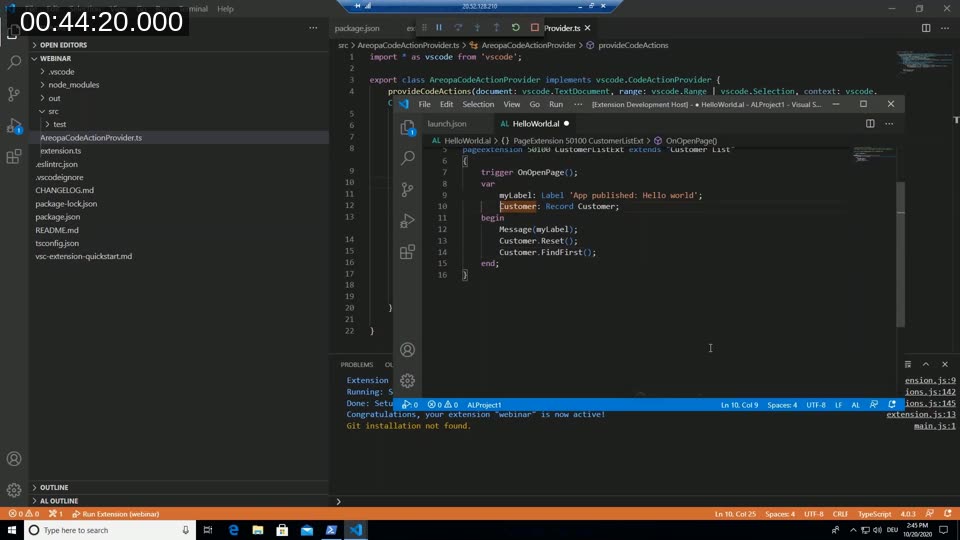
Running the extension again against a real AL page extension object shows the code action offered on a quoted string, and applying it inserts a new Label variable and replaces the literal with a reference to it — the same pattern used for the “extract label” refactoring in AL CodeActions.
Interacting with VS Code’s built-in commands
The second half of the “Possibilities in VSCode” agenda item covers calling VS Code’s own built-in commands from an extension, rather than only reacting to user actions. David extends the Hello World command to call vscode.executeReferenceProvider through vscode.commands.executeCommand, passing the active document’s URI and the cursor position.
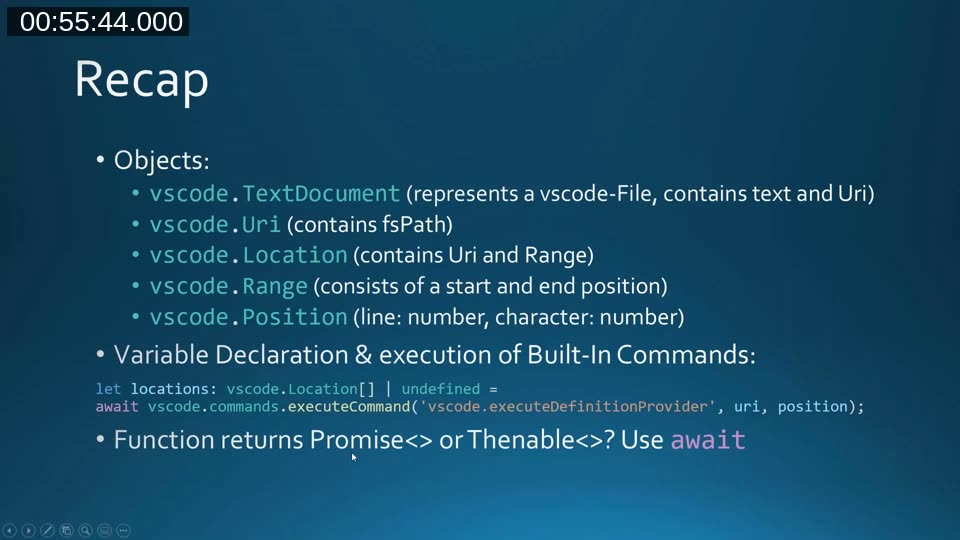
A short recap slide ties the relevant types together:
vscode.TextDocument— represents an open file, exposing its text and URI.vscode.Uri— identifies a resource, including its file system path.vscode.Location— a URI combined with a range.vscode.Range— a start and endPosition.vscode.Position— a line and character offset.
Built-in commands like vscode.executeReferenceProvider return a Promise (or Thenable), so the call needs to be awaited to get the result back before continuing.
📖 Docs: Built-in commands reference — the full list of vscode.execute* commands an extension can call, covering references, definitions, implementations, hover, and more.
Publishing your extension
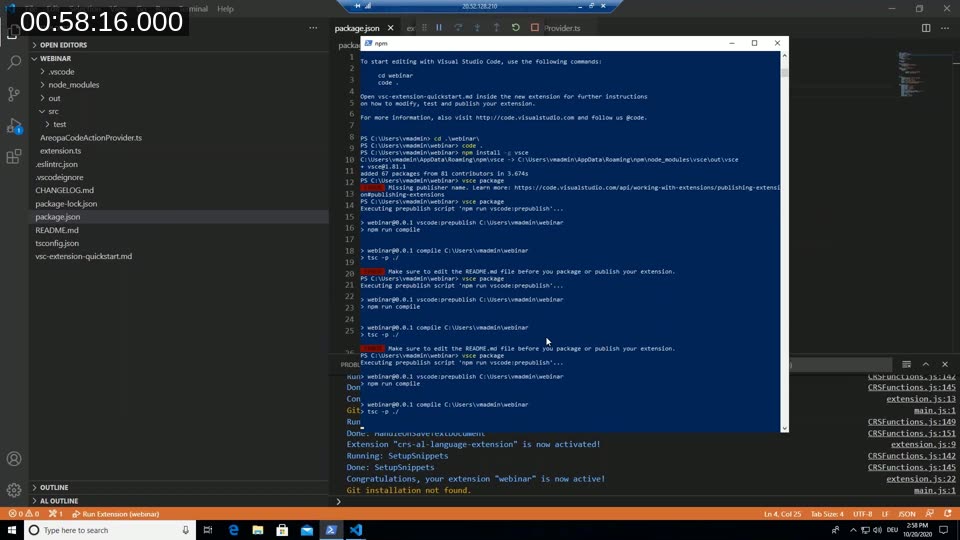
With the extension working, David walks through packaging and publishing it using vsce, the command-line tool for Visual Studio Code extensions:
npm install -g vsce
vsce package
Running vsce package without a publisher configured fails with a “Missing publisher name” error and a link to the publishing documentation — a publisher identity has to be created on the Marketplace first, and the extension’s package.json needs a matching publisher field before it can be packaged into a .vsix file or published directly.
📖 Docs: Publishing Extensions — covers creating a Marketplace publisher, obtaining an access token, and packaging or publishing with vsce. Note that the tool has since been renamed to @vscode/vsce on npm.
This post was drafted with AI assistance based on the webinar transcript and video content.