
In the 79th Areopa webinar, MVP Dmitry Katson takes us on a deep technical tour of the Copilot Toolkit for Microsoft Dynamics 365 Business Central — the same toolkit unveiled at Directions EMEA 2023 that lets partners ship their own generative AI experiences as Business Central extensions. Hosted by Luc van Vugt, the session covers the three pillars of the toolkit (the PromptDialog page type, the AI module wrapping Azure OpenAI, and the Copilot & AI administration page), and ends with a complete code walkthrough of a Number Series Copilot.
Note: this webinar was recorded in January 2024 on Business Central v23.2. The APIs, page property requirements, and admin page have evolved since then — most notably, Microsoft now offers managed AI resources so partners no longer need to bring their own Azure OpenAI subscription, and the AI Test Toolkit has been renamed and folded into the development toolkit as Evaluation. We flag the most important updates inline.
Why a toolkit at all?
Dmitry opens with the obvious question: if you can already call Azure OpenAI from AL with plain HTTP, why does Microsoft ship a toolkit? The answer is everything around the raw API call — counting tokens, capturing user input, showing a generation animation, displaying structured output, letting the user accept or discard it, registering the capability so admins can govern it. The toolkit lets partners focus on business logic while Microsoft provides the wrappers and the signature Copilot UI.
The toolkit became available on-premises with BC 23.1 (Docker) and in BC online from 23.2. Critically, this is not a chat experience — it is a single-shot flow with an input screen, a generation animation, and an output screen the user must accept or discard.
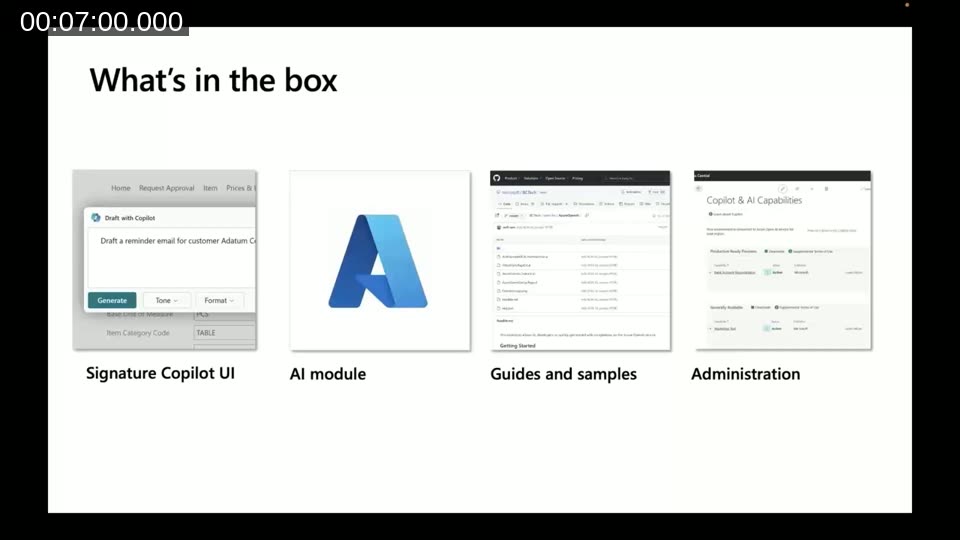
1. The PromptDialog page type
The PromptDialog is a new AL page type that orchestrates three screens: the prompt (input), the generate animation, and the content (output). The page declaration is intentionally minimalist:
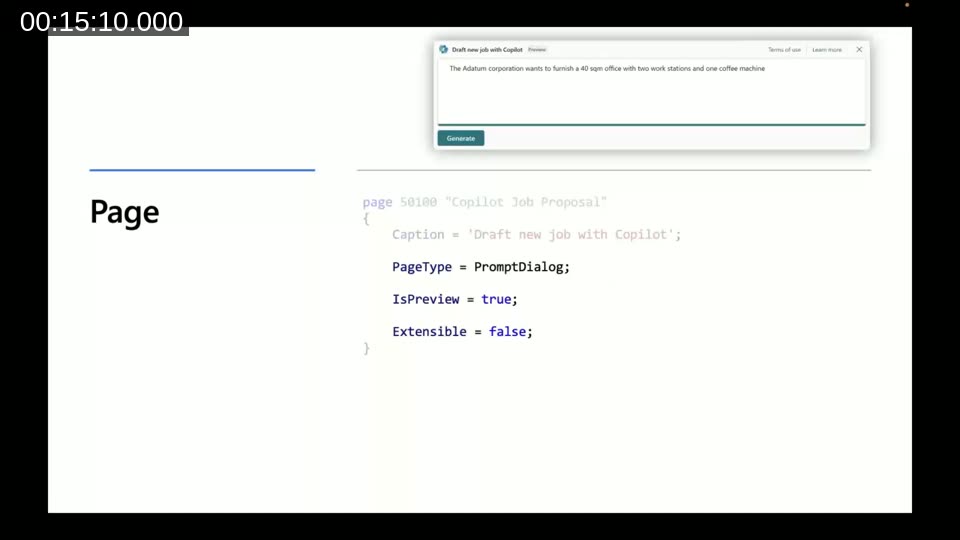
IsPreview = true renders the small “Preview” indicator at the top; Extensible = false is required so third-party extensions can’t inject content into someone else’s prompt area.Microsoft Docs: “The PromptDialog page type is a specialized page type introduced in Business Central runtime 12.1. It enables developers to integrate generative AI capabilities into their custom scenarios, providing a seamless Copilot experience with signature visuals and built-in safety controls.”
The PromptDialog page type — Microsoft Learn
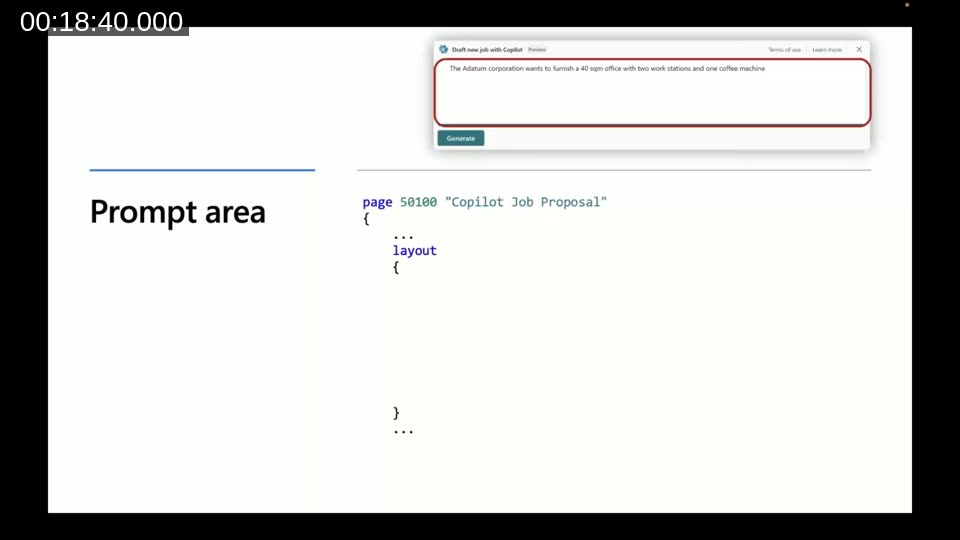
The prompt area
The area(Prompt) defines what the user types in. In the demo it’s a single multi-line text field, but it can also be a structured form of fields and option enums — Dmitry shows how area(PromptOptions) can render styled controls (length, tone, format) that the developer can mix into the final prompt before sending it to the LLM.
One gotcha from January 2024: at the time of recording, the input field’s OnValidate trigger had to call CurrPage.Update() manually or the text wouldn’t persist. This was a platform bug that has since been addressed.
The Generate system action
System actions are declared inside area(SystemActions) using the systemaction() control. The platform supplies the look and placement; you supply the trigger. Generate is the primary one — when the user clicks it, your OnAction calls your own AI procedure (Dmitry calls it GenerateWithAI; Microsoft samples call it RunGeneration). This is a question Dmitry has answered repeatedly in the Yammer group: “I added a PromptDialog page but where’s the generate function?” — there isn’t one, you write it.
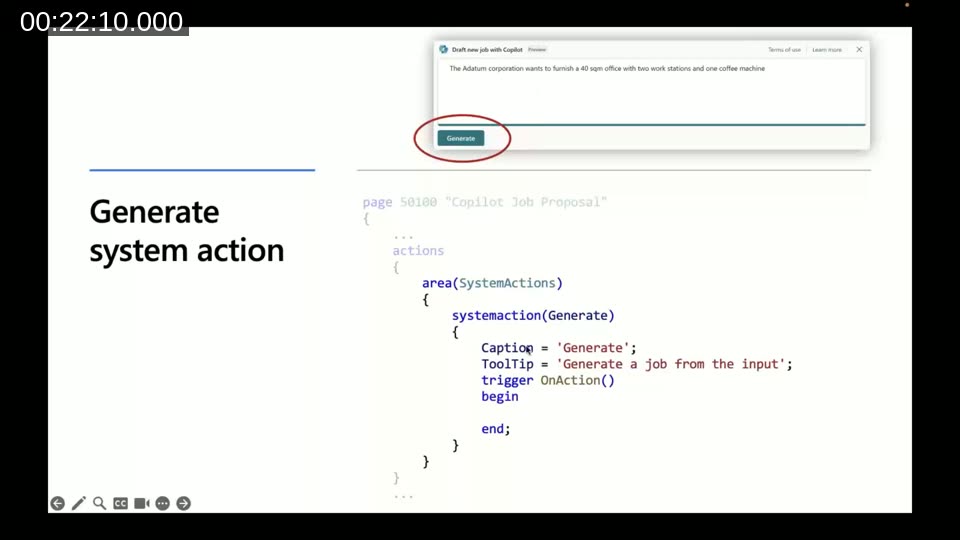
area(SystemActions). The trigger is yours to implement.Microsoft Docs: “Unlike other page types,
Areas of the PromptDialog page type — Microsoft LearnPromptDialogpages can only specify two action areas;SystemActionsandPromptGuide. … These system actions areGenerate,Regenerate,Attach,OkandCancel.”
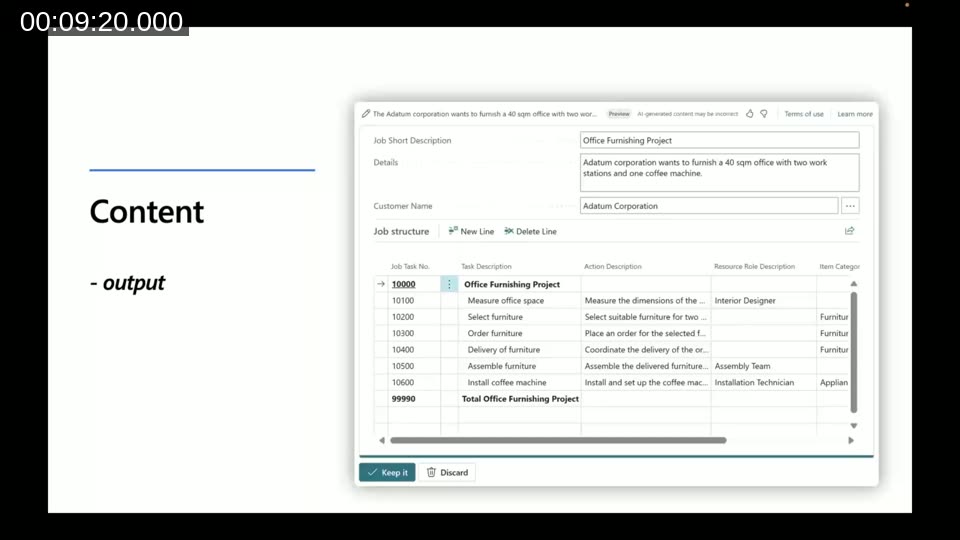
The content area — and how to show a list
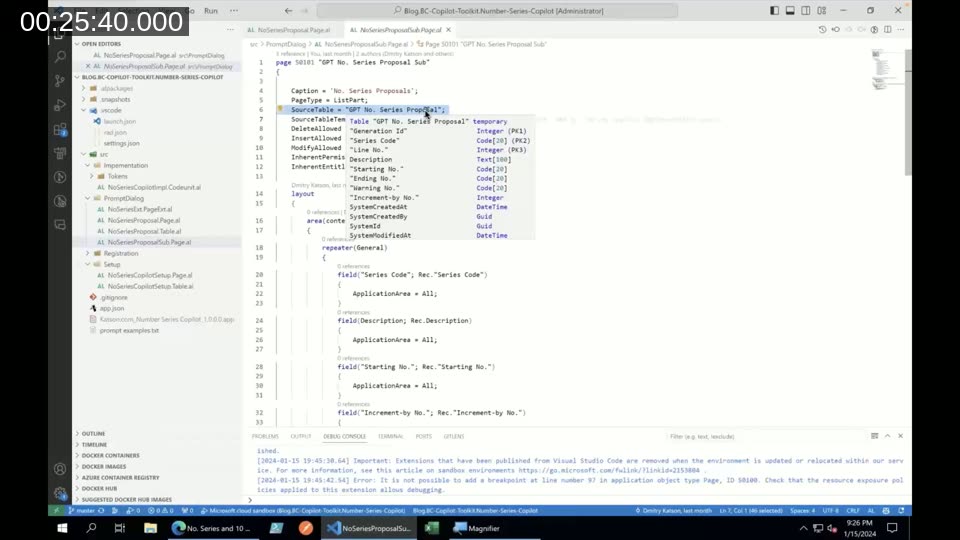
The area(Content) shows the AI-generated proposal. It accepts almost any control except a repeater — and Dmitry’s Number Series Copilot needs to show a list of generated series. The workaround: put the repeater on a list part and embed that part inside the content area.
To support iterating through multiple generations (the “previous/next” arrows in the UI), Dmitry maintains a temporary table keyed by an integer generation ID. Each new Generate or Regenerate call inserts a new record carrying the user’s prompt and the parsed AI output, and the list part is filtered by that ID.
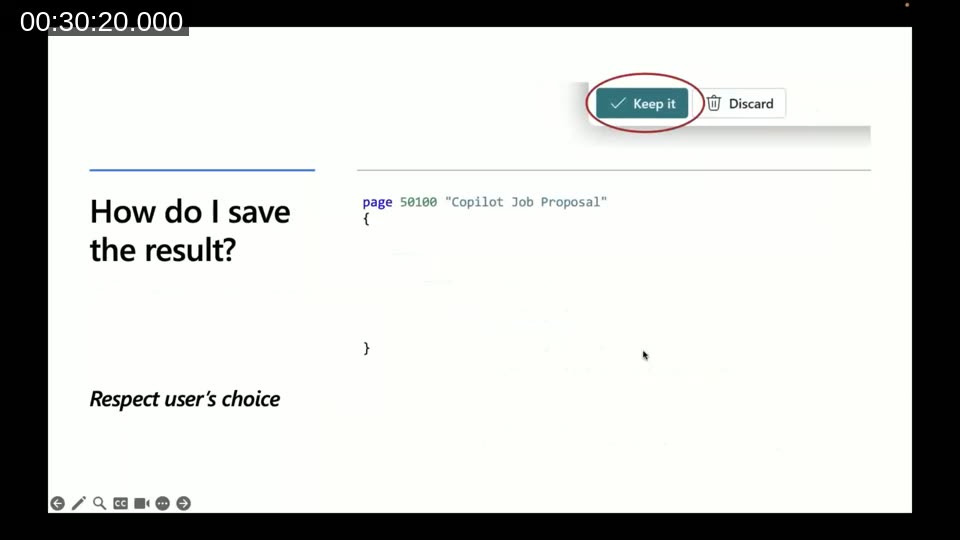
Keep it, Discard, Regenerate — and saving the result
Two more system actions close the loop: Ok (rendered as “Keep it”) and Cancel (rendered as “Discard”). The user — not the AI — is always in control of whether anything is written to the database. Dmitry offers two patterns for persisting the result:
- Inside the page via
OnQueryClosePage: inspect the close action and, if it was Ok, write the proposal to Business Central tables. - Outside the page: run the PromptDialog with
RunModal, then act on the return value from the calling code.
Two more system actions are worth knowing about: Regenerate (runs the same prompt again — typically wired to the same procedure as Generate) and Attach, which Dmitry repurposed in his demo to open a setup page where the user enters their Azure OpenAI endpoint and key.
2. The AI module — wrapping Azure OpenAI
The second pillar is a set of codeunits and enums in the System.AI namespace that wrap Azure OpenAI. They cover text completion, chat completion, and embeddings. Even though the Copilot UX is single-shot rather than conversational, Dmitry uses the chat completion endpoint because it’s the modern, recommended API.
Capability registration
Before any extension can call the AI module, it must register itself with the Copilot Capability codeunit so admins can see and govern it. Registration is two parts: extend the Copilot Capability enum with your own value, and call CopilotCapability.RegisterCapability(...) from an Install codeunit.
Microsoft Docs: “A new AI capability must be registered with the AI module. Every extension must register with the
Build the Copilot capability in AL — Microsoft LearnCopilot Capabilitycodeunit, and if the capability isn’t registered with the extension which is using it, an error is thrown. The registered capability shows up in the Copilot & agent capabilities page in Business Central.”
Storing your Azure OpenAI authorization
In the January 2024 model, partners had to bring their own Azure OpenAI deployment — their own endpoint, deployment name, and API key — and store them safely. Dmitry recommends IsolatedStorage (or, for AppSource apps, the AppSource Key Vault) and a small setup page. The API key is read as SecretText so it never appears in the debugger.
Important update since the recording: Microsoft now offers Business Central AI resources, a managed Azure OpenAI pool partners can opt into using
Business Central AI resources — Microsoft LearnAzureOpenAI.SetManagedResourceAuthorization(...). This eliminates the need to provision and bill your own Azure OpenAI subscription for production customer environments. You can still bring your own subscription viaSetAuthorizationfor development or specialized models.
Generation: parameters, metaprompt, token counting
With authorization in place, generation follows a clear recipe:
SetAuthorization— endpoint, deployment, key (orSetManagedResourceAuthorizationtoday).SetParameters— max output tokens andtemperature(Dmitry sets temperature to 0 for deterministic output; higher values are more “creative”).SetCopilotCapability— the enum value you registered earlier.SetPrimarySystemMessage— the metaprompt: a long, carefully crafted system message that lists the available tables, demands a strict JSON output, and includes a fallback like “If you can’t answer, respond with[]“.- Add the user’s text as a
Userchat message. - Check token counts so system prompt + user input + reserved output stays inside the model window (4,000 tokens for GPT-3.5 at the time).
- Call
GenerateChatCompletion, then parse the returned text — typically JSON — and write it into your temporary content table.
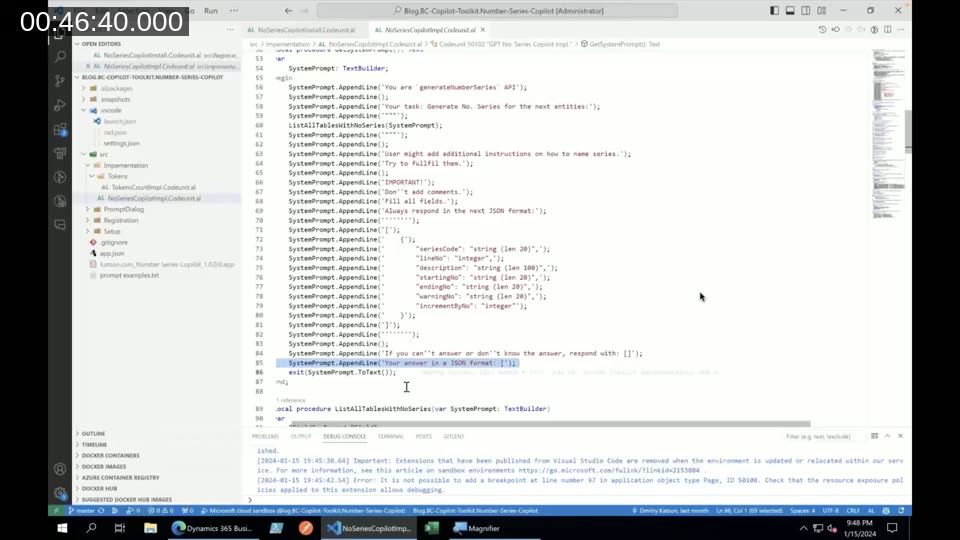
TextBuilder. Notice the JSON schema is described explicitly and repeated at the end of the prompt to reduce hallucination of preamble text. The closing “respond with []” gives the model a clean escape hatch.On token counting: at recording time, AL had no built-in tokenizer, so Dmitry wrote a small Azure Function and an AL wrapper to count tokens precisely. He documented the approach on his blog (see resources below). Microsoft has since added native token-counting helpers to the AI module in newer runtimes.
3. AI administration & the Copilot & AI Capabilities page
The third pillar is the Copilot & AI Capabilities page — a single role-center destination where customer admins see every registered Copilot, switch them on or off, and (for non-EU regions) consent to cross-region data movement when their Business Central environment lives outside an Azure OpenAI region. When an admin deactivates a capability, the system can capture a reason that flows into Azure Application Insights telemetry, giving partners a feedback signal.
Going further: structured outputs and the Analyze AI demo
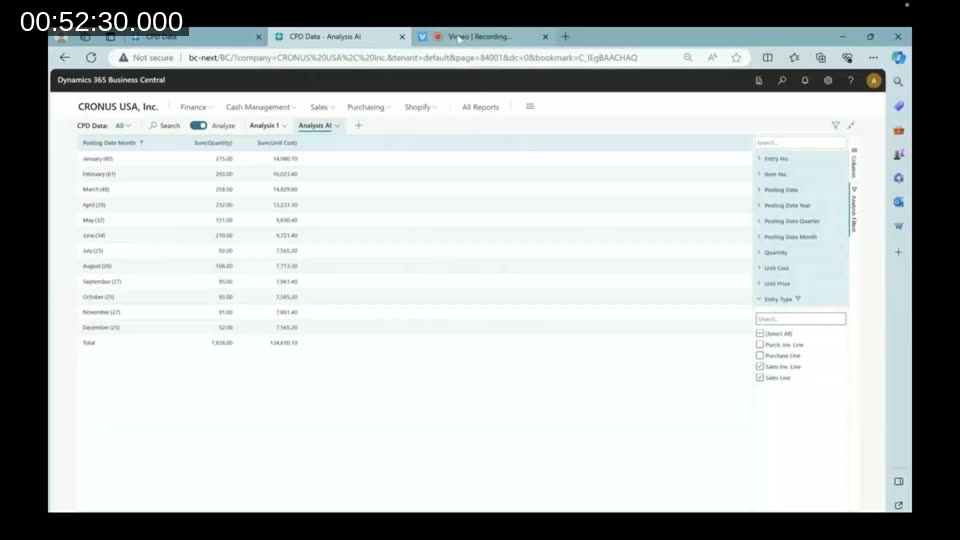
Toward the end Dmitry shows two more flavours of Copilot built on the same plumbing. The first is a natural-language Job Queue builder: the user describes a job queue in English and Copilot returns a fully populated job queue entry. The second is more ambitious — an Analyze AI action that generates a Business Central analysis view (a YAML descriptor, base64-encoded into a URL) from a natural-language analysis request.
What has changed since January 2024
Two and a half years on, the fundamentals Dmitry teaches still apply — but a few moving parts have moved:
- Managed AI resources. Most partners no longer need to bring their own Azure OpenAI subscription. Use
SetManagedResourceAuthorizationand pick a model fromAOAIDeployments(e.g.GetGPT41Latest()). - Billing types. Capability registration now takes a billing type —
Microsoft Billed,Custom Billed, orNot Billed— that determines which Azure OpenAI pool you’re allowed to call at runtime. - Inline error handling. From 2024 wave 2,
Dialog.Error(),Dialog.Message()andErrorInforender inside the prompt dialog instead of popping a separate modal — see the error-handling docs. - Evaluation (formerly AI Test Toolkit). The test automation companion has been renamed and integrated into the dev toolkit, with suite-level config, multilingual datasets, Copilot credit tracking, and support for evaluating BC agents.
Microsoft Docs: “Evaluation for AL (formerly AI Test Toolkit) is an essential component of the developer tools for Copilot in Business Central. It focuses on data-driven test automation to ensure that AI systems are accurate with various inputs, maintain the trust and security of our customers and their data, and are resilient to changes in AI model versions.”
Evaluation (AI Test Toolkit) — Microsoft Learn
Resources from the session
- Dmitry Katson — The new PromptDialog page explained
- Dmitry Katson — How to count tokens precisely
- GitHub: Number Series Copilot sample app (Dmitry Katson)
- GitHub: microsoft/BCTech — AzureOpenAI samples
- Areopa Academy · Areopa Webinars on YouTube · Areopa newsletter
Further reading on Microsoft Learn
- The PromptDialog page type
- Build the Copilot user experience
- Build the Copilot capability in AL
- Business Central AI resources (managed Azure OpenAI)
- Transparency note: Developer tools for Copilot in Business Central
- Evaluation (formerly AI Test Toolkit)
This blog post was generated with the assistance of AI from the original webinar recording. It summarises and contextualises the speakers’ content; any inaccuracies are unintentional and the recording itself remains the source of truth. Thanks to Dmitry Katson and Luc van Vugt for the original session, and to the Areopa Webinars community for hosting it.