
In this Areopa Academy webinar, Bert Verbeek (Technical Solution Architect at 4PS Group, blogger at bertverbeek.nl) explains how to move data out of the Business Central database and into an Azure Data Lake. Jan Hoek moderates and relays audience questions throughout. You’ll learn why syncing data to a data lake matters, how the open-source bc2adls tool moves data from Business Central into Azure Data Lake Storage and Azure Synapse, and how Bert extended the newer Data Archive extension to feed deleted records into the same pipeline.
Why Sync Business Central Data to a Data Lake?
Bert opens with three reasons to move data out of the Business Central database:
- The standard API has request limits and doesn’t handle very large data sets well, and tracking deleted records through APIs means subscribing to web hooks, which are capped at 200 tables.
- Business Central storage is expensive compared to a data lake — roughly €10 per GB per month for BC storage versus a fraction of a cent per GB per month on Azure Data Lake Storage Gen2.
- A smaller database performs better, since Business Central doesn’t have to search through millions of records that could otherwise live in cheaper, external storage.
He also points to keeping files out of the database entirely, referencing a prior Areopa webinar on the subject.
📖 Related webinar: Working with Files in Dynamics 365 Business Central SaaS by Stefano Demiliani — covers keeping file storage out of the BC database.
Azure Data Lake and Azure Synapse in Short
Azure Data Lake Storage Gen2 is built for big data analytics: cheap storage and transactions that can feed Power BI, Azure Data Factory, Azure Synapse, and Azure Machine Learning. Azure Synapse Analytics sits on top of the data lake and provides serverless, pipeline-driven processing to get from raw exports to query-ready data.
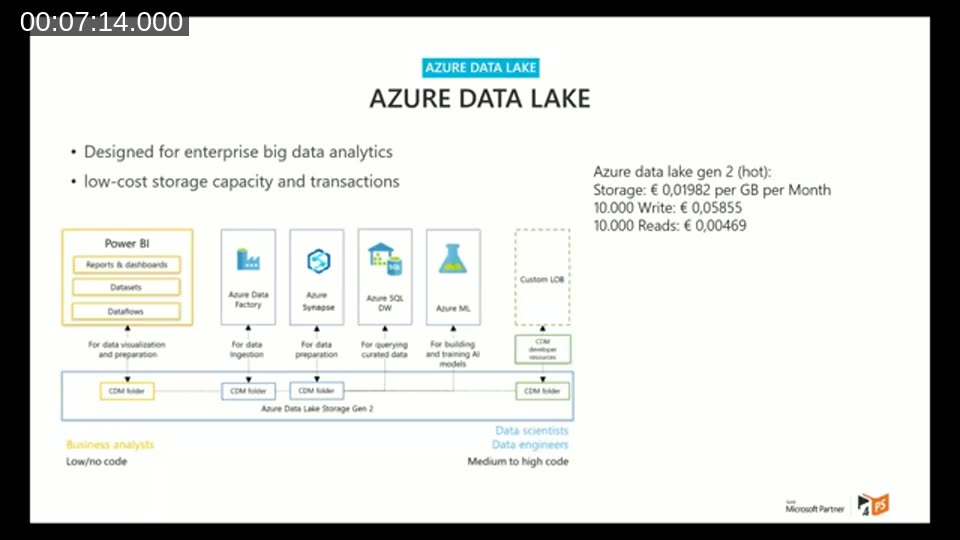
The Scenario
The setup Bert demonstrates uses the ADLSE (Azure Data Lake Storage Export) extension in Business Central to push incremental updates to a data lake container. An Azure Synapse pipeline then picks up those deltas, compares them against what’s already in the lake, stages the changes, and merges them into the final data set — which Power BI or other tools can consume.
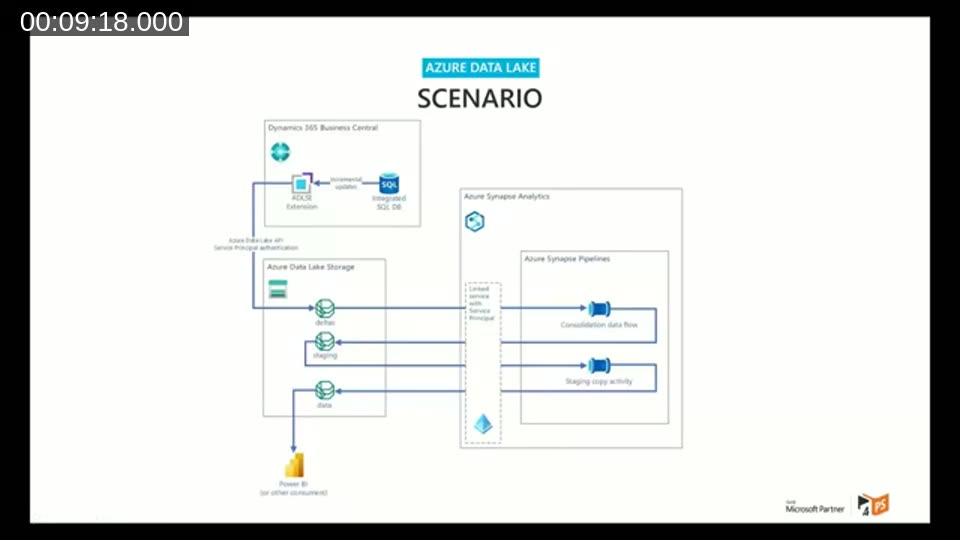
Exporting Data with bc2adls: A Live Demo
Bert walks through the Business Central side first. From the Export to Azure Data Lake Storage page, you fill in your tenant ID, container, account name, and client secret, then add the tables you want to export — including custom tables from extensions. For each table, you select which fields to sync; only normal fields are exported, not FlowFields or Blob fields.
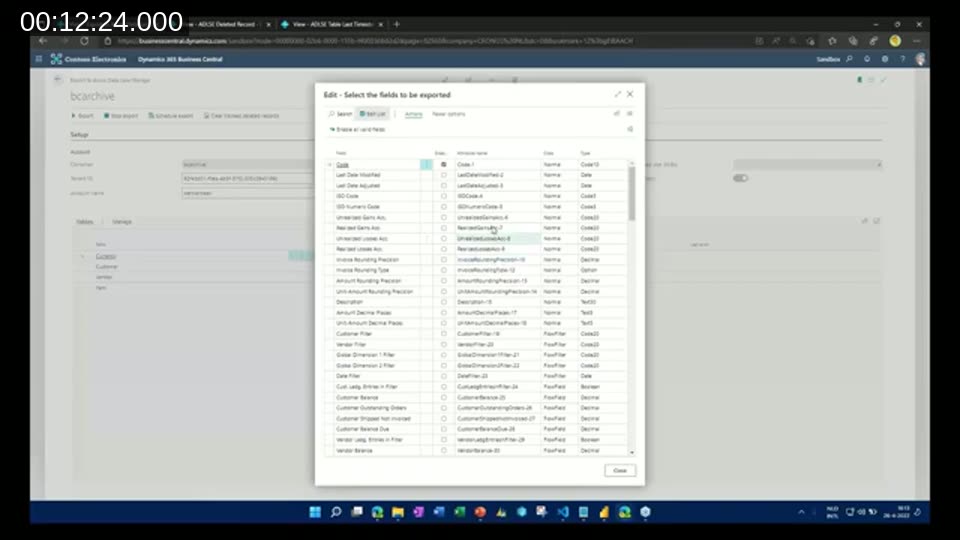
Once the export runs, the data lands in a deltas folder in the configured storage container, in CDM (Common Data Model) format. From there, three Synapse pipelines take over: one that checks all exported entities for new deltas, one that processes a single entity’s deltas (combining them with existing data and writing to a staging table), and one that copies the staged data into the final data set.
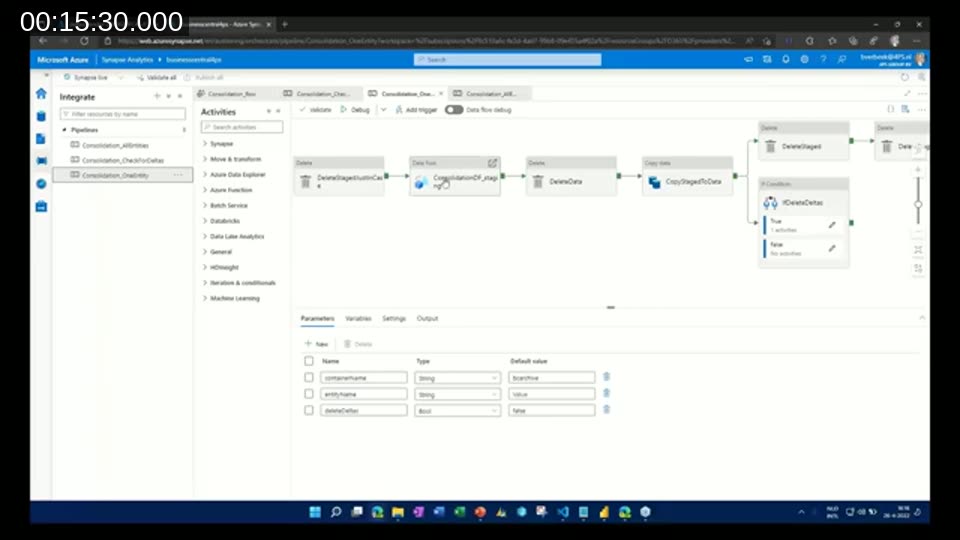
Bert then connects Power BI to the data lake using the CDM folder connector and loads a table straight from the lake into a report, showing the full path from Business Central to a Power BI dashboard.
📖 Tool: bc2adls on GitHub — the extension and Synapse pipeline templates Bert uses throughout the demo. The original Microsoft repository is now in maintenance mode; active development continues in Bert’s own fork.
📖 Setup guide: bc2adls Setup.md — the step-by-step manual Bert references for configuring the storage account, credentials, and Synapse pipelines.
Tracking Deleted Records and Export Timestamps
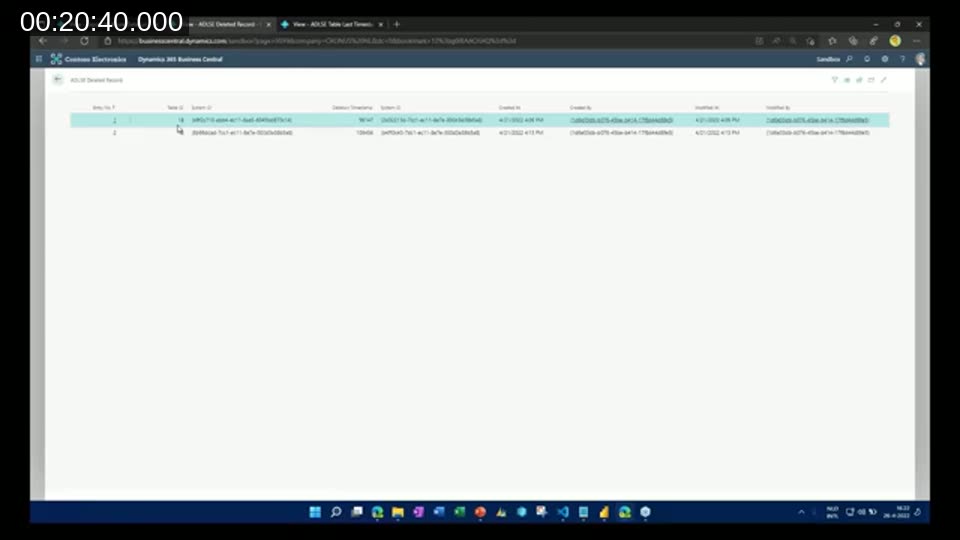
The ADLSE extension keeps its own bookkeeping tables inside Business Central. The ADLSE Deleted Record table logs the system ID and table of every record deleted since the last export, so the corresponding row can also be removed from the data lake. A separate ADLSE Table Last Timestamp table tracks, per table, when it was last exported — this is what makes delta (incremental) exports possible instead of re-exporting everything each run.
Setting a Retention Limit on Stored Data
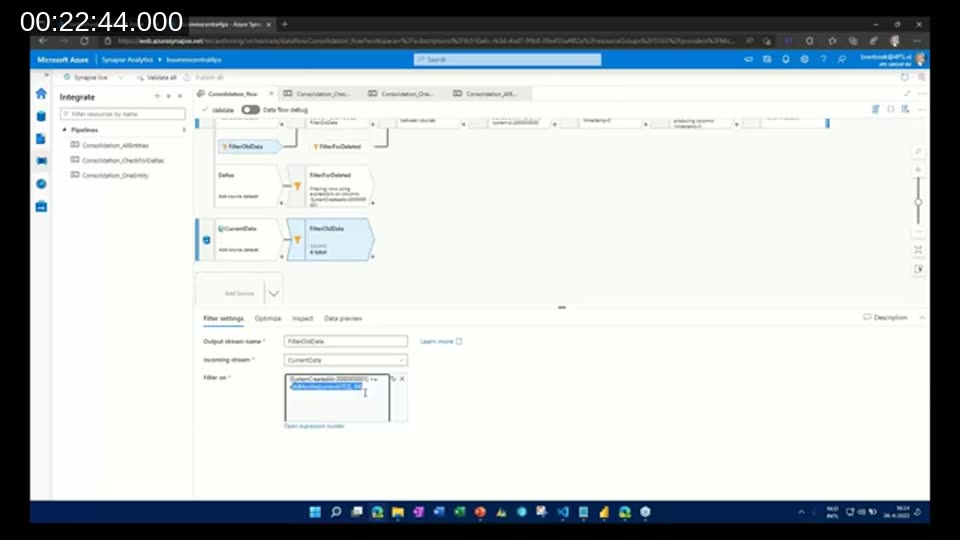
For compliance or cost reasons, you may not want to keep data in the lake forever. Bert shows how to add a filter to the Synapse consolidation data flow that excludes records older than a chosen age — in his example, records where SystemCreatedAt is older than 84 months (seven years) are filtered out of the merged data set. Business Central’s system fields (SystemId, SystemCreatedAt, SystemModifiedAt) are what make this kind of filtering possible without custom fields.
The Data Archive Extension
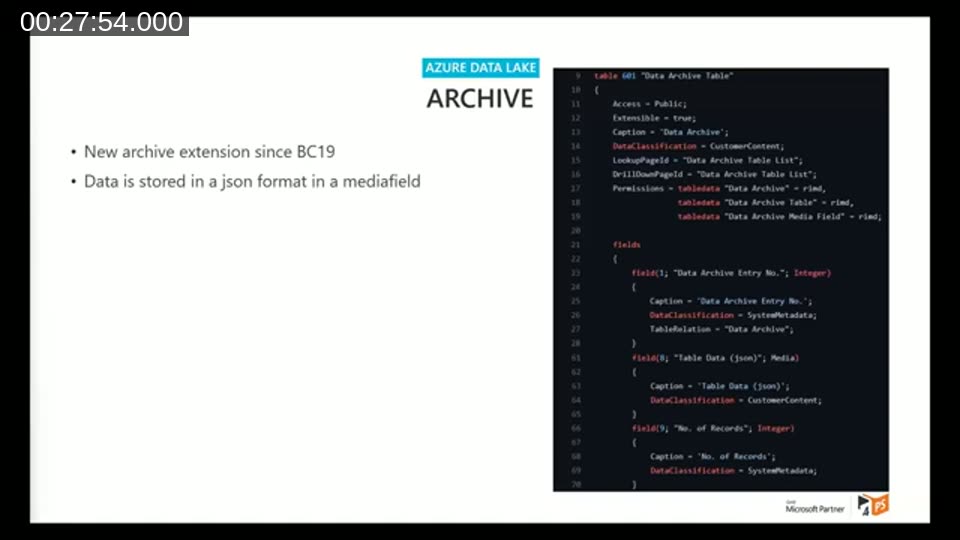
New since Business Central 2021 release wave 2 (BC19), the Data Archive extension lets you archive a record’s data as JSON in a media field before deleting it, so the record’s history survives even after it’s removed from its original table. Bert demonstrates subscribing to a delete trigger on the Customer table: when a customer is deleted, its data (and related comment lines) are captured into the Data Archive table first.
📖 Docs: Extending the Data Archive extension — Microsoft Learn reference for the
StartSubscriptionToDelete/StopSubscriptionToDeletepattern Bert uses in the demo.
📖 Blog: Data Archive in Business Central – Cleanup your data — Bert’s own write-up of the Data Archive extension referenced in the webinar.
Combining the Two Worlds: Data Archive as an Intermediate Table
Archiving a record keeps its data in Business Central, just outside the main table — it doesn’t get the database any smaller. Bert’s own extension closes that gap by using the Data Archive table as an intermediate step before exporting to the data lake: when a record is deleted, it’s archived, then immediately pushed into the same ADLSE pipeline used for regular syncs, and only then cleared out of Business Central entirely.
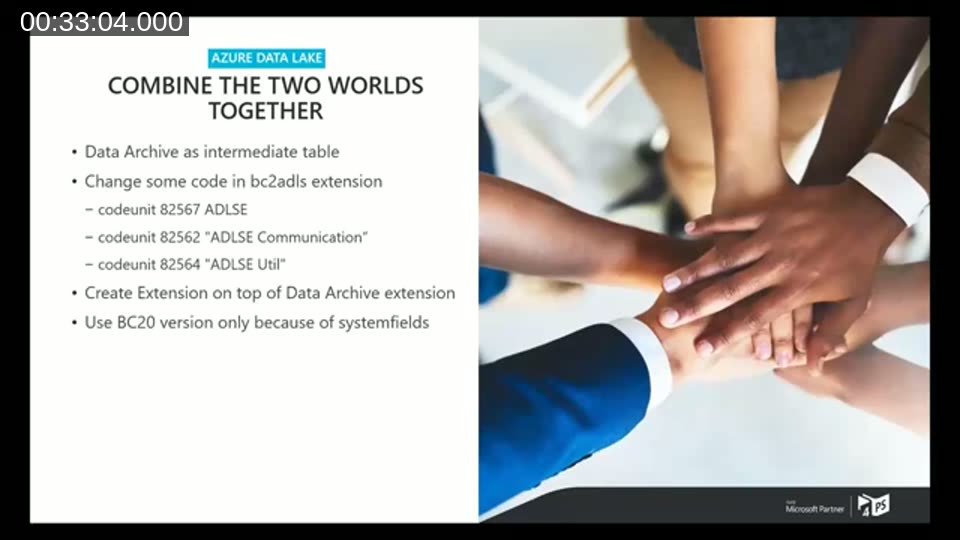
To make this work, Bert modified three ADLSE codeunits (82567 “ADLSE”, 82562 “ADLSE Communication”, 82564 “ADLSE Util”) to expose functions for appending a payload and converting JSON to CSV, then built a separate extension on top of both the Data Archive extension and bc2adls that depends on both. Because the required system fields aren’t present in the Data Archive table until BC20, this approach only works from Business Central 2022 release wave 1 (BC20) onward.
As an alternative to combining Data Archive with bc2adls, Bert also shows a lighter-weight option: removing a single check in codeunit 82569 “ADLSE Execution” so that deletions are tracked without recording a last-export timestamp — useful if you’d rather not modify Business Central further and only need deleted records reflected in the data lake.
Q&A Highlights
During and after the demo, Bert answered several audience questions:
- Do BC, the data lake, and Synapse need to be in the same Azure region? No — they can run in separate regions.
- Can custom tables and extension tables be exported? Yes, including tables from per-tenant extensions.
- Can media/blob fields be exported? No — only normal fields are supported; blob and FlowFields are excluded.
- How long does a full pipeline run take? In Bert’s test with around five entities, roughly half an hour, depending on the underlying Synapse compute.
- Does the media field used by Data Archive count toward the Business Central storage limit? Yes — media fields are included in the licensed storage size.
- Should you export all data or only deltas, and how often? Bert recommends exporting all data rather than a subset, since a single complete data set is more useful for machine learning and reporting, and running the sync nightly so it doesn’t affect active users.
Real-world performance data wasn’t available yet at the time of the webinar — Bert mentions he was planning dedicated performance testing in the following months and would publish the results on his blog.
This post was drafted with AI assistance based on the webinar transcript and video content.