
In this 106th Areopa Academy webinar, Arend-Jan Kauffmann — CTO at Lumos 365 Limited and long-time Business Central MVP — walks through a set of practical lessons learned from building and maintaining Power Automate approval flows connected to Business Central. The session is grounded in real customer situations and covers topics that are often discovered only after running into problems in production.
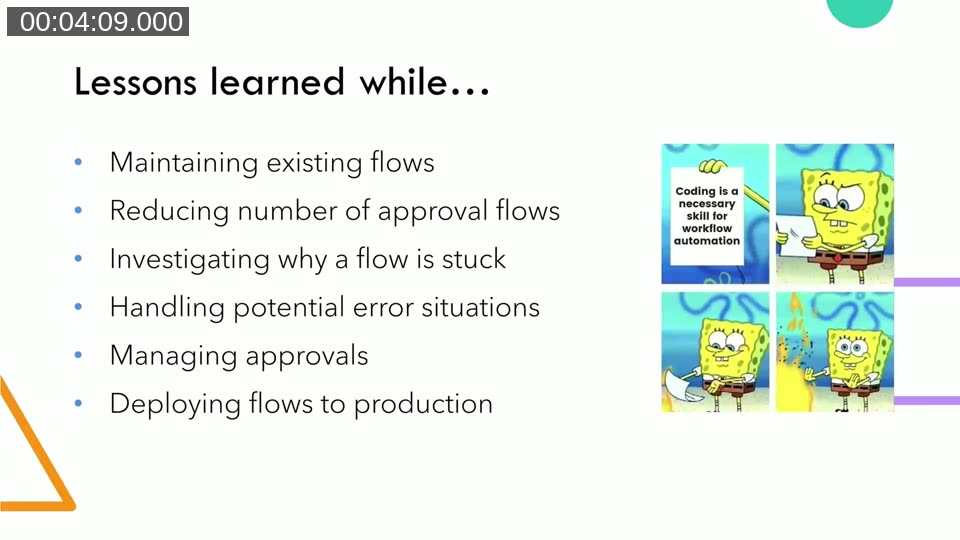
Keep Flows Simple: Power Automate Is Not an Application Platform
The first lesson is one of principle. Power Automate can do a great deal, and it is tempting to solve business logic inside it. Kauffmann’s team learned this the hard way: by placing too much logic in flows they ended up with what was effectively a full application spread across Power Automate. When something needed to change, the fix had to be replicated across dozens — sometimes 75 — flows per customer.
The recommendation is to keep flows short and focused on integration between systems. If logic can live in AL code inside Business Central, it belongs there. The low-code nature of Power Automate does not translate to low maintenance effort, especially at scale. Deploying and updating flows across multiple customer environments consistently takes more time than publishing an updated AppSource app.
Using Variables for Environment and Company
A significant part of the session focuses on a specific technique: using dynamic values instead of hardcoded environment names and company names in Business Central connector steps.
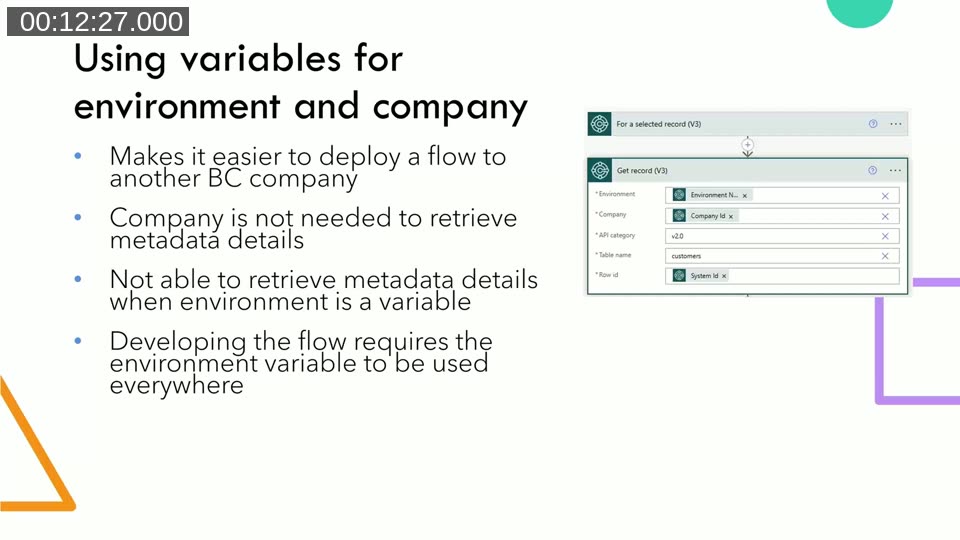
When you hardcode the environment name and company in every step of a flow, copying that flow to a different company or customer environment means manually updating each step. Using the environment and company values from the trigger — which Business Central passes as part of the event — makes the flow portable.
There is an important trade-off, however. When the environment is set to a dynamic value, Power Automate can no longer retrieve metadata from the Business Central API at design time. This means the field picker for downstream steps stops showing individual output fields and instead shows only the raw JSON body. To select a specific field for use in another step, the developer must temporarily switch the environment back to a hardcoded value, configure the field reference, then switch it back to the dynamic value.
This is a repetitive step that is easy to forget, and the consequences of forgetting are silent: the flow works in development but fails in production because it is still pointing at the development environment. Kauffmann demonstrated this behaviour in a live demo using the Power Automate designer.
📖 Docs: Power Automate integration overview for Business Central — official overview of how automated flows and approval flows connect Business Central to Power Platform services including Dataverse, Teams, and Outlook.
An alternative approach is to write the output expression manually using the Power Automate expression language (e.g. outputs('Get_record_(V3)')?['body/number']). This avoids the need to toggle the environment field but requires knowing the API field names, which sometimes differ from what Business Central displays in the UI.
How Power Automate Approvals Actually Work
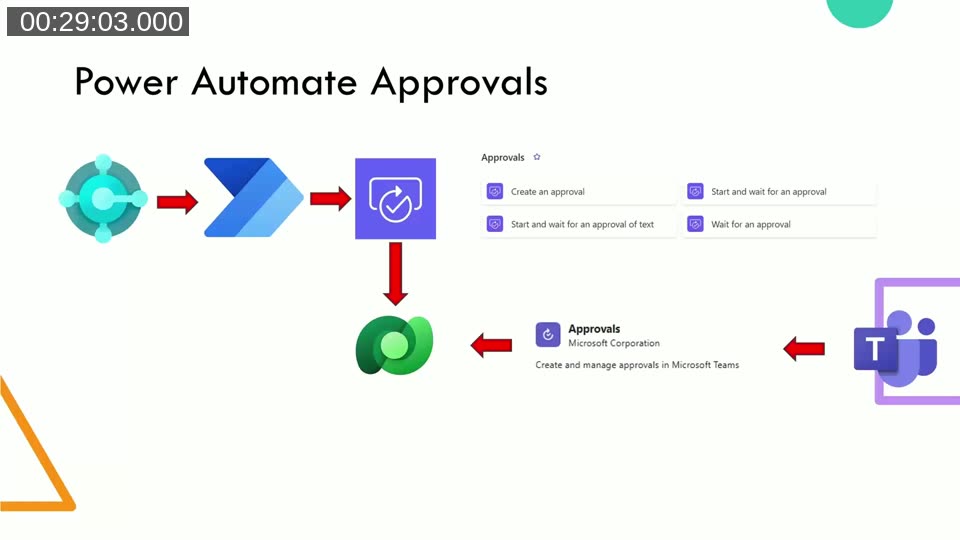
Understanding what happens behind the scenes when an approval is requested is essential for avoiding a category of problems that is otherwise very hard to diagnose.
When Business Central triggers a Power Automate flow for an approval, the flow calls the Power Automate Approvals connector. That connector — specifically the “Start and wait for an approval” step — stores the approval request in Dataverse, not in Business Central. The state of the running Power Automate flow is also removed from memory and serialised to Dataverse while it waits for a response.
The approver interacts with the request through the Microsoft Teams Approvals app or through an adaptive card in email. When they respond, Power Automate resumes from Dataverse and reports the outcome back to Business Central.
The critical consequence of this architecture is that Business Central and Dataverse have no awareness of each other’s state. Business Central does not know what is stored in Dataverse, and Dataverse does not know about the Business Central record.
📖 Docs: Workflows in Business Central — describes both the built-in approval workflow system and Power Automate flows, and explains how the two systems relate to each other when configured together.
The Cancellation Problem
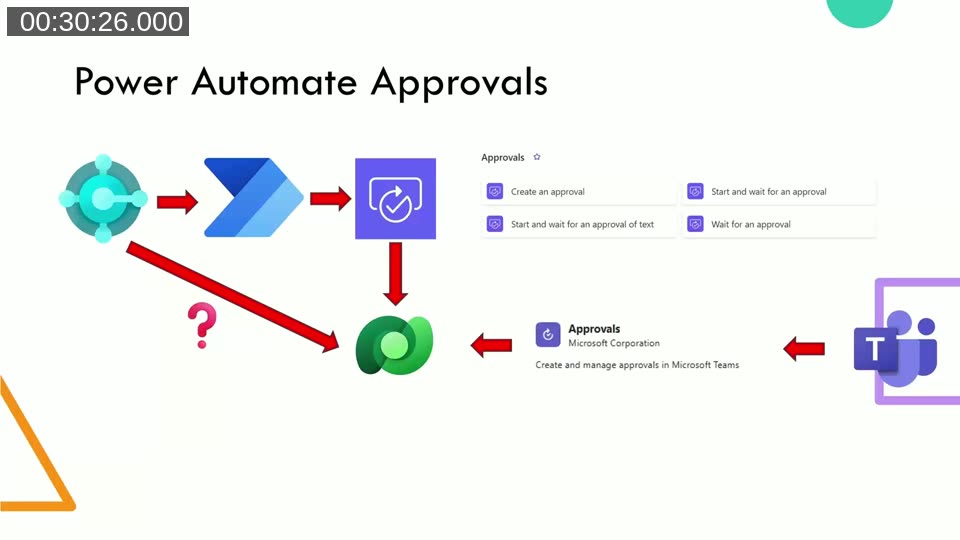
The lack of a direct connection between Business Central and Dataverse creates a specific and commonly encountered problem: cancelling an approval request in Business Central does not cancel the corresponding approval entry in Dataverse or notify the Power Automate flow.
If a user cancels an approval request in Business Central — for example, because they need to correct the document — the approval request remains visible to the approver in Teams. When the approver then responds, the Power Automate flow resumes and attempts to report the outcome to Business Central, which now returns an error because it was no longer waiting for that approval. The flow fails.
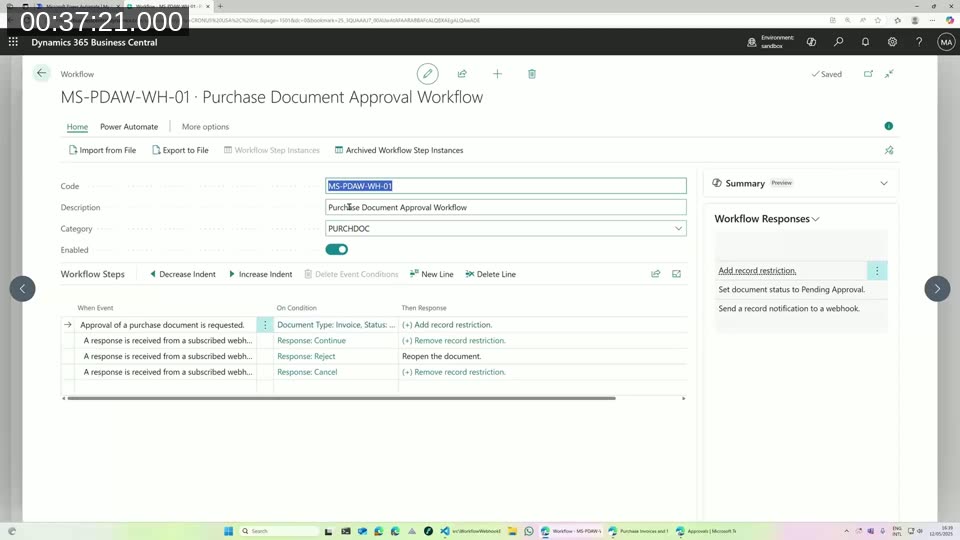
The reverse scenario is also problematic. If the Power Automate flow itself is cancelled directly (rather than through Teams), the approval entry remains in Dataverse with no active flow listening for a response. If the approver later clicks Approve in Teams, the response disappears without result, while Business Central continues to show the document as pending approval.
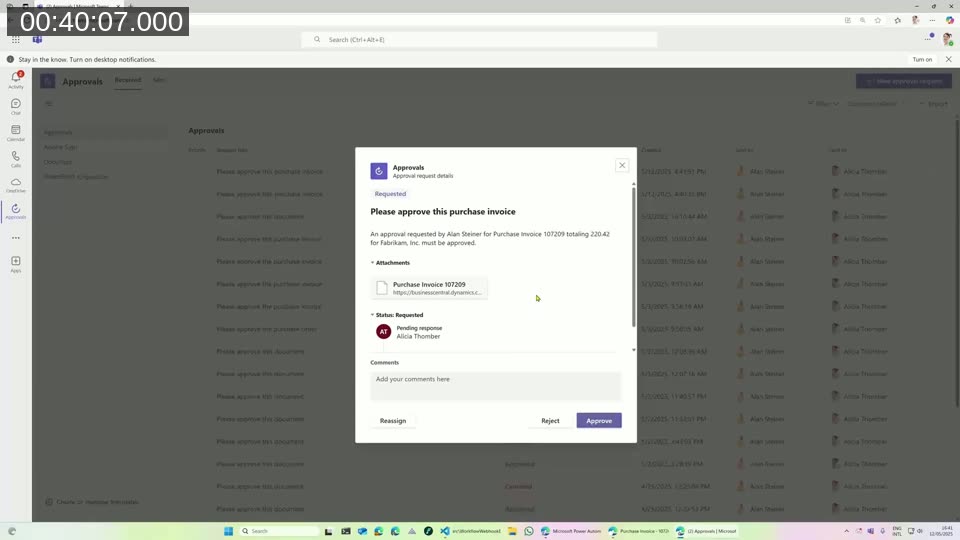
The correct way to cancel an approval request today is to go to the Teams Approvals app, navigate to the Sent tab, and cancel the request from there. This updates Dataverse, which resumes the Power Automate flow and causes it to correctly cancel the approval in Business Central, returning the document to an open state.
Kauffmann’s team has added a custom warning in their solution that appears when a user attempts to cancel from Business Central, directing them to Teams instead. He also mentioned that he has been working on a prototype that calls an undocumented Dataverse API — the same one Teams uses internally — to allow Business Central to cancel the Dataverse approval request directly. At the time of recording, the prototype was showing promising results.
Upgrading Approval Flows Without Disruption
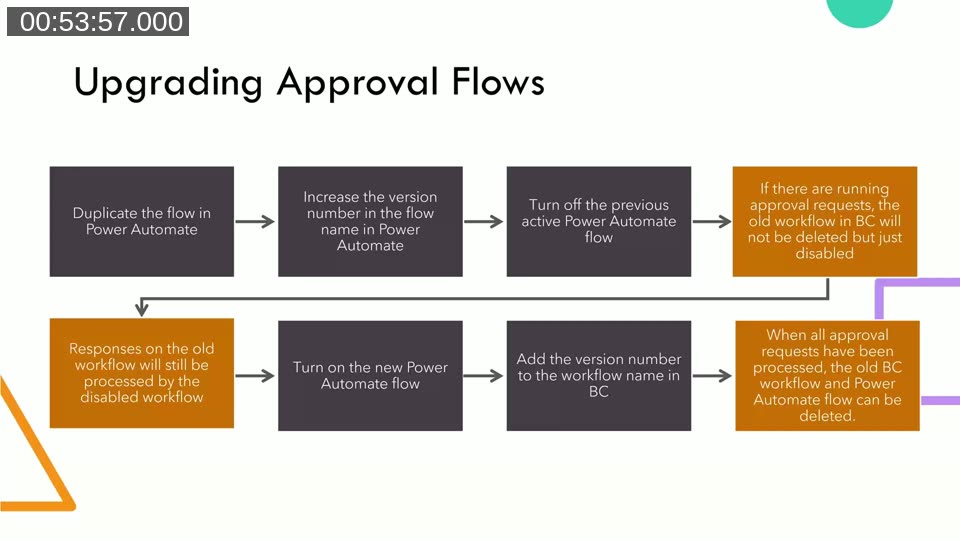
When a flow needs to be updated — whether due to a bug fix, a text change, or a behavioural change — replacing the active flow directly is not safe if there are pending approval requests. Doing so will cause those in-flight flows to fail or leave orphaned entries in Dataverse.
Kauffmann presented a structured upgrade process:
- Duplicate the flow in Power Automate (or import the new version from development).
- Give the new flow a version number in its name (e.g. V2.0).
- Turn off the previous active flow (V1.0). If there are pending approval requests, the workflow in Business Central will not be deleted — it will only be disabled.
- Turn on the new flow. New approval requests will be handled by the new flow; responses to existing requests will still be processed by the disabled old flow.
- Update the workflow name in Business Central to include the version number. A visual indicator (such as a checkmark or red cross prefix) helps identify which version is currently active.
- Once all pending approval requests on the old workflow have been resolved, delete both the old Power Automate flow and the old Business Central workflow entry.
📖 Docs: Troubleshoot your Business Central automated workflows — covers common errors including the “Entity set not found” issue that can appear when required web services are not published, and the “response too large” error from the Business Central connector.
Delegated Admin Limitations in Sandbox Environments
Power Automate approval requests are sent from Business Central using a scheduled task. Delegated admins — partners accessing a customer environment through their own credentials — cannot schedule tasks in Business Central by default, which means they receive an error when attempting to trigger an approval flow in a sandbox environment.
The workaround is to subscribe to the OnFindTaskSchedulerAllowed event in codeunit Workflow Webhook Management and override the result. When the environment is a sandbox and the current user is a delegated admin or delegated help desk user, the code sets IsTaskSchedulingAllowed := false. This sounds counterintuitive, but when the task scheduler is marked as not allowed, Business Central skips the scheduler and sends the approval request directly from the current user session instead — which is exactly what is needed in a sandbox.
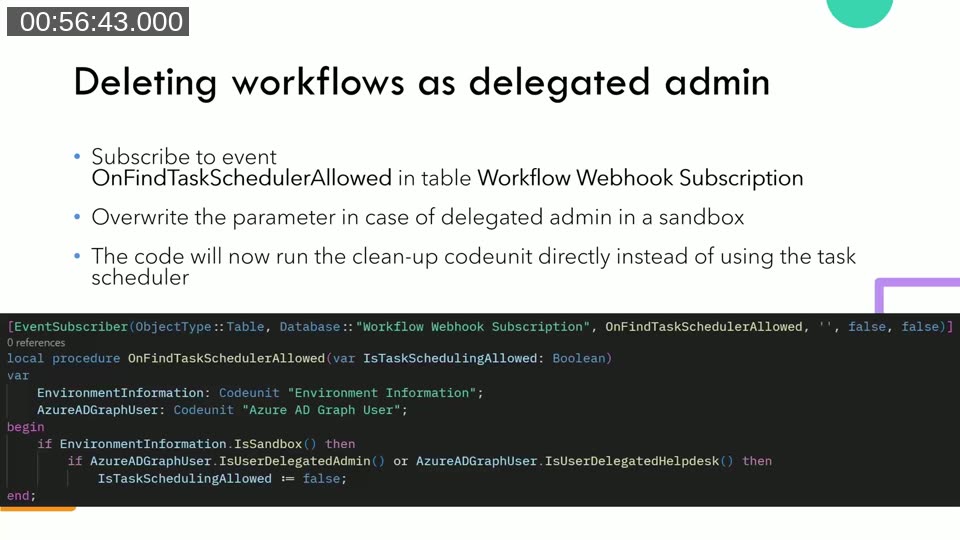
A similar event — OnFindTaskSchedulerAllowed in table Workflow Webhook Subscription — applies when deleting approval workflows, which is also performed via the task scheduler. The same pattern resolves that limitation.
Kauffmann also noted that when copying a production environment to a sandbox, active approval workflows are not automatically disabled. His team has built a cleanup routine that disables all approval workflows and cancels all pending approval requests as part of the copy-to-sandbox process.
Investigating Stuck Flows
When a flow appears stuck, the Power Automate run history is the primary diagnostic tool. For most steps, this is straightforward: the run details show where the flow is paused and what the last action was.
Loops present a specific challenge. If a flow contains a loop and it stops inside the loop — for example, waiting for an approval within a loop iteration — the run history shows the loop step as running but does not indicate which iteration it is in. There is no way to inspect the internal state. If the flow is cancelled, all intermediate state inside the loop is lost with no record in Dataverse.
The practical advice is to avoid placing approval steps inside loops. If sequential approvals are needed, prefer separate branches or use intermediate flags rather than looping constructs.
Handling Error Situations
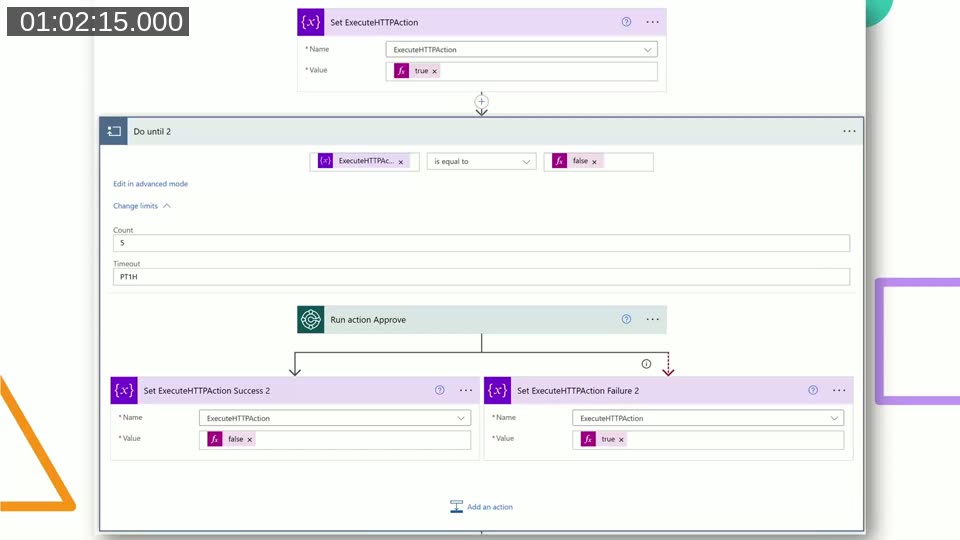
When an action in a flow can fail — for example, the “Create an approval” step failing because an email address is invalid — the default behaviour is for the entire flow to stop and report a failure. To handle this gracefully, add a parallel branch configured to run when the preceding step fails or is skipped.
For transient errors such as deadlocks (which Kauffmann’s team has encountered when updating an approval response), a retry pattern is more appropriate. The recommended approach uses a Do Until loop with a boolean variable:
- Initialise a variable (e.g.
ExecuteAction) totrue. - Inside the loop, run the action that may fail.
- On success, set
ExecuteActiontofalseto exit the loop. - On failure (using a “run after” error branch), set
ExecuteActiontotrueto retry. - Set the loop count limit to a reasonable value such as 5, with an optional delay between retries.
This pattern gives the flow multiple attempts to complete the action before ultimately failing, which is appropriate for operations that may encounter temporary resource contention.
📖 Docs: Set up approval workflows — explains how to configure approval users, notifications, and workflow steps in Business Central, including the relationship between Power Automate flow templates and the built-in workflow list.
This post was drafted with AI assistance based on the webinar transcript and video content.