
In this Areopa Academy webinar, Stefano Demiliani — Microsoft MVP for Business Applications — walks through how Azure Functions work, how to create and deploy them, and how to call them from Dynamics 365 Business Central extensions. The session covers everything from platform fundamentals to real-world tips drawn from production projects.
Why Business Central SaaS Needs Azure Functions
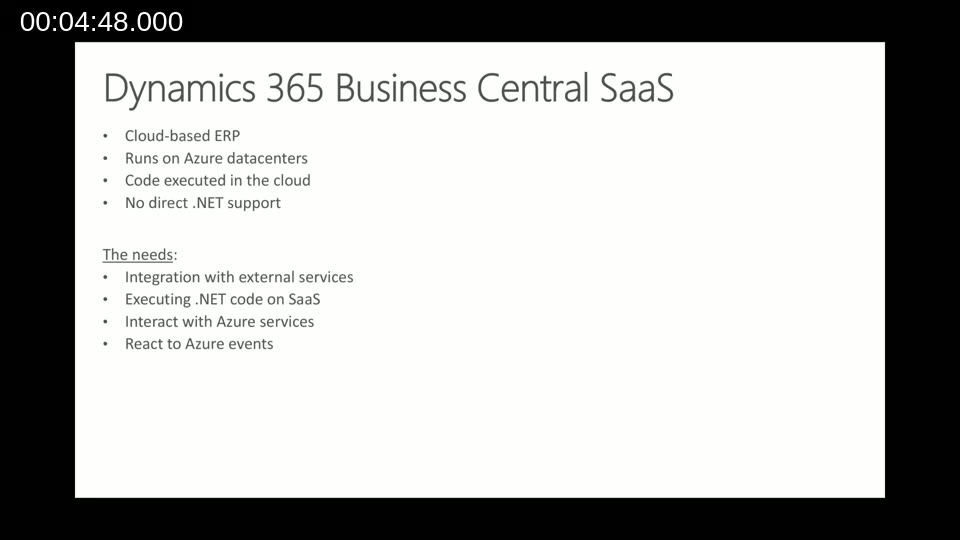
Dynamics 365 Business Central SaaS runs all business code inside Azure datacenters and offers no direct .NET variable support. Partners who relied on custom .NET DLLs in on-premises NAV environments cannot simply carry that approach into the cloud. Four recurring needs drive the demand for a bridge:
- Integration with external services
- Executing .NET code on a SaaS tenant
- Interacting with other Azure services (Storage, Cosmos DB, Service Bus, and so on)
- Reacting to Azure events in real time
Azure Functions is Microsoft’s recommended answer to all four of these needs.
What Azure Functions Is
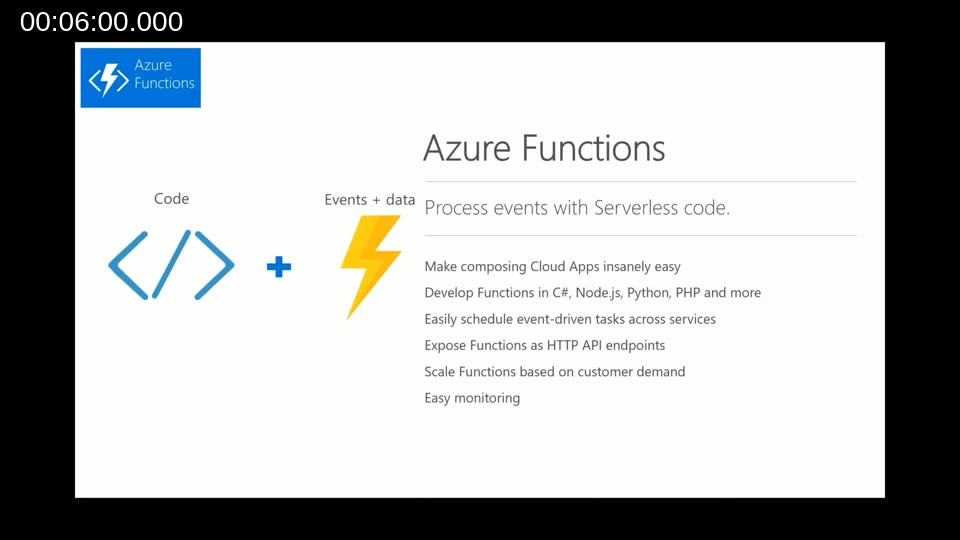
Azure Functions is a serverless compute service. A developer writes code, deploys it to Azure, and the platform handles infrastructure provisioning, scaling, and monitoring. From the outside it looks like a simple HTTP endpoint: a caller sends a request with parameters, the function executes, and a response comes back. Demiliani describes it as “a black box that we open and program.”
Functions can be written in C#, F#, JavaScript (Node.js), Python, PHP, PowerShell, and several other languages. Visual Studio and Visual Studio Code are the recommended authoring tools; both offer full IntelliSense and local debugging before any code reaches the cloud.
Events, Code, and Outputs
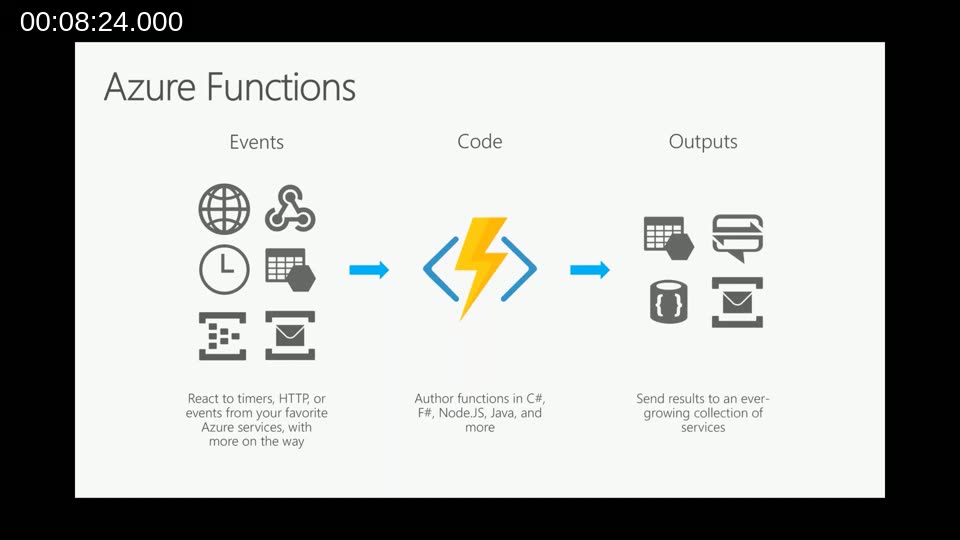
Every Azure Function is built from three entities. An event triggers the function — the most common for Business Central developers is an HTTP request, but timers, blob storage changes, queue messages, Cosmos DB updates, and Event Grid subscriptions are all supported trigger types. The code is the function itself, deployed to an App Service instance in the cloud. The output can be an HTTP response, a message written to a queue, an entry in Table Storage, or any other binding supported by the platform.
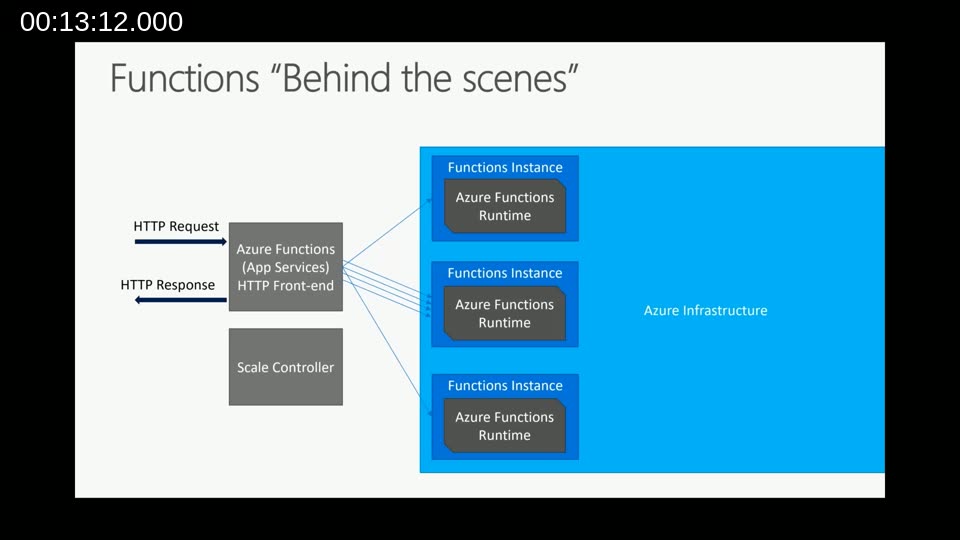
Internally, each incoming request spins up a Function Instance with its own Azure Functions Runtime. A Scale Controller monitors load and automatically provisions additional instances when request volume rises, then releases them when it falls. This auto-scaling is built into the platform — developers do not write any scaling logic themselves.
Pricing tip: The dynamic (Consumption) plan charges based on number of executions and resource consumption. The first one million executions per month are free. For most Business Central extension scenarios, partners will not reach that threshold, making the dynamic tier effectively free at low volumes.
Trigger Types and Authentication
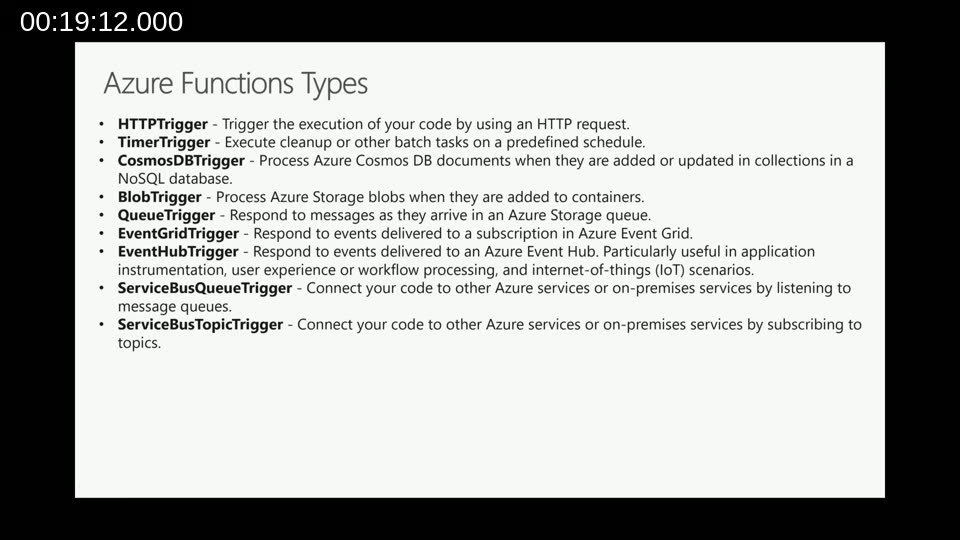
The nine built-in trigger types cover the most common integration patterns. HTTPTrigger is the most relevant for Business Central — it exposes a function as a URL that any HTTP client can call. TimerTrigger is useful for scheduled batch jobs that need to execute .NET code in the cloud. The remaining triggers (Blob, Queue, Cosmos DB, Event Grid, Event Hub, Service Bus Queue, and Service Bus Topic) respond to changes in their respective Azure services and are valuable in event-driven architectures.
Authorization level is set per function in the code. Anonymous means anyone can call the URL. Function (the default) requires the caller to append an access key as a query string parameter. Admin uses a single master key for all functions in the app. OAuth 2.0 with App Service Authentication is also an option for scenarios that require Azure Active Directory authentication.
Key management: Multiple function keys can be created per function, one per external application. This allows individual keys to be revoked without affecting other callers — a useful pattern when a Business Central extension and a separate integration both call the same function.
Bringing Existing .NET DLLs to the Cloud
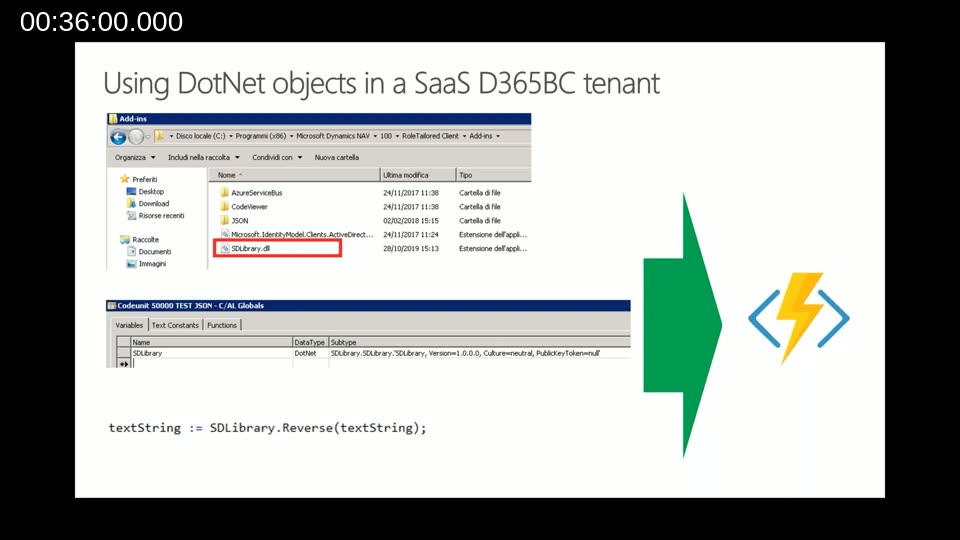
One of the most practical demonstrations in the session shows how to reuse a .NET library that previously lived in the NAV add-ins folder. Demiliani walks through adding the DLL as a reference inside a Visual Studio Azure Functions project. When the function is published, Visual Studio packages the DLL alongside the function code and deploys everything to the cloud. The Kudu console in the Azure portal confirms the DLL is present in the /site/wwwroot/bin folder.
The result is that on-premises business logic written years ago — reverse-string operations, validation libraries, custom calculation routines — can be exposed as Azure Function endpoints and called from Business Central without any changes to the original library.
Calling Azure Functions from Business Central AL Code
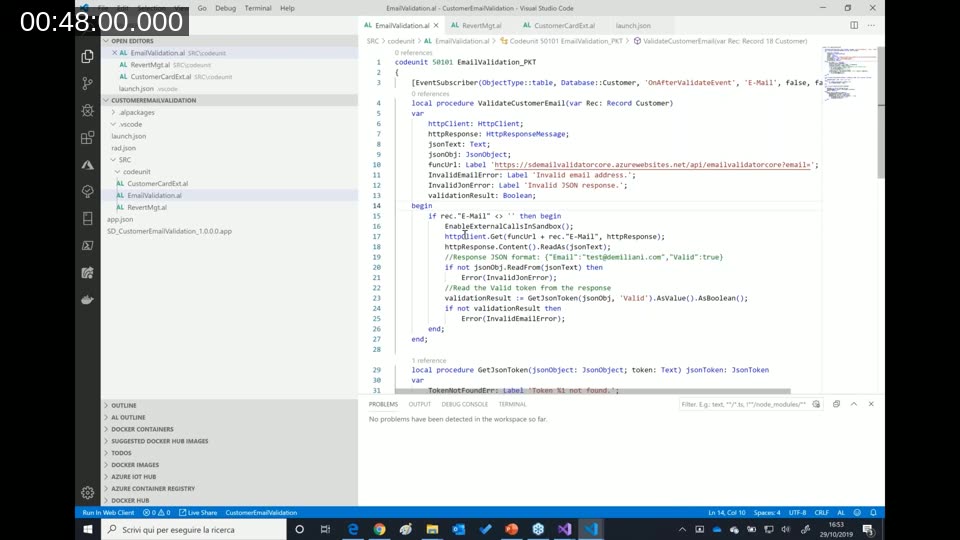
The session shows two AL integration examples. In the first, a page extension on the Customer Card adds an action that calls an Azure Function to reverse the customer name. In the second — shown in the frame above — an OnAfterValidate subscriber on the Email field of the Customer table calls an email validation function. The AL pattern is the same in both cases:
- Declare an
HttpClientand anHttpResponseMessage - Construct the function URL with the function key appended as
?code=...and the input value as an additional query parameter - Call
HttpClient.Get(url, response) - Read
response.Contentas text - Parse the JSON response and act on the result (trigger an error, update a field, and so on)
The email validator function returns a JSON object containing the submitted address and a boolean valid field. Business Central reads that field and surfaces an error if the address fails validation. The function itself is a .NET Azure Function that performs the actual email format check — logic that cannot run directly inside a SaaS AL extension.
Best Practices for Production
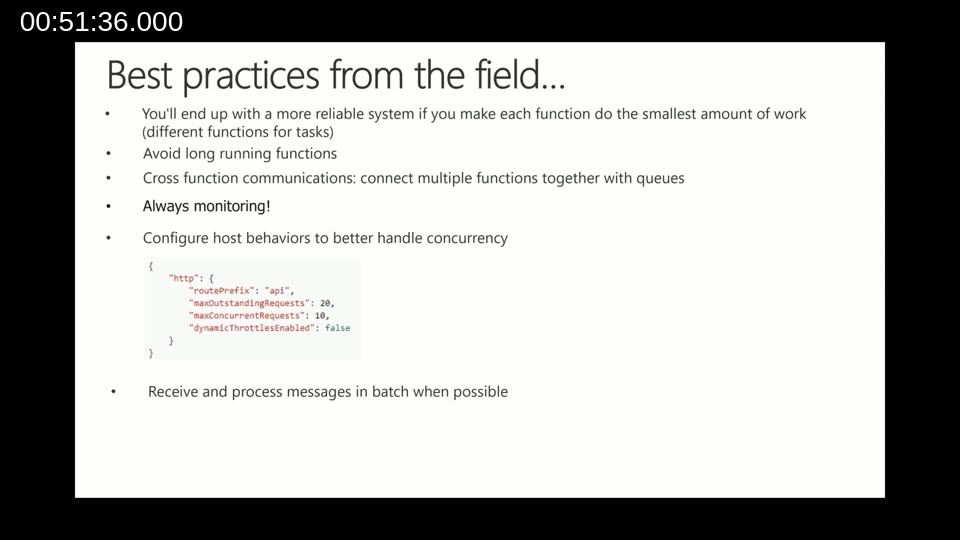
Demiliani closes with a set of field-tested recommendations:
- Keep functions small. Each function should do one thing. Splitting work across multiple focused functions produces a more reliable system than a single large function that chains many operations.
- Avoid long-running functions. Azure Functions have execution time limits and are optimised for short-lived tasks.
- Use queues for cross-function communication. If Function A needs to trigger Function B, write a message to a queue rather than calling B directly. This decouples the two and improves reliability.
- Always monitor. Application Insights is built into the platform. Enable it and watch it. Problems that are invisible in development become obvious once real traffic flows through.
- Configure concurrency limits. The
host.jsonfile exposesmaxOutstandingRequestsandmaxConcurrentRequestssettings that prevent a function from being overwhelmed during traffic spikes. - Batch where possible. Sending a batch of customer records in a single JSON payload and processing them in one function call is far more efficient than one HTTP call per record.
File handling: A question from the audience asks whether Azure Functions can handle file transfers with Business Central. Demiliani confirms they can — a function can stream files to or from Azure Blob Storage, and the storage account can be mapped directly to the user interface. He notes he will publish sample code on his blog covering upload and download scenarios.
Deploying to Multiple Regions with Traffic Manager
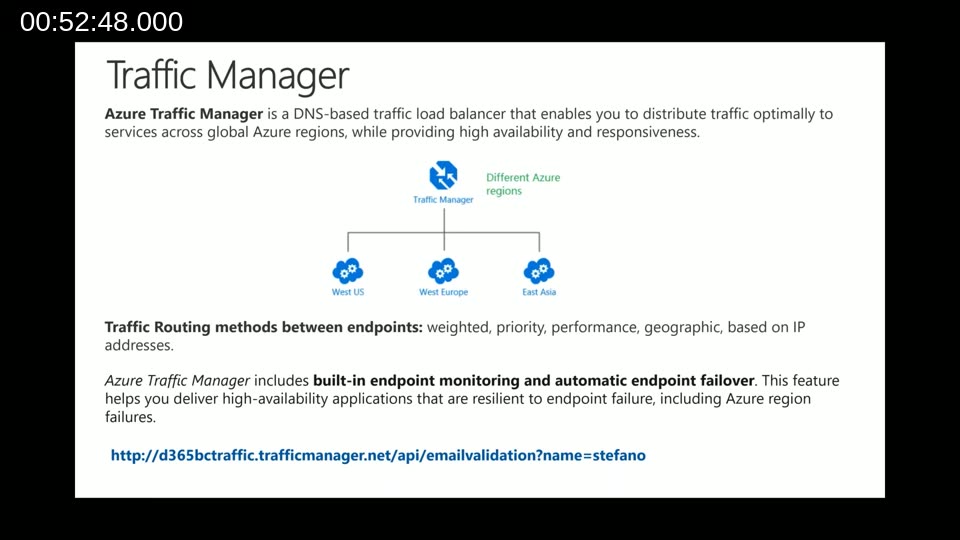
For partners with Business Central customers spread across different parts of the world, deploying a single function instance in West Europe while customers are in the US or Asia introduces unnecessary latency. Demiliani recommends deploying identical function instances in each relevant Azure region and placing Azure Traffic Manager in front of them.
Traffic Manager is a DNS-based load balancer that routes each request to the closest healthy endpoint. A user in West Europe hits the West Europe function instance; a user in West US hits the West US instance. The setup is straightforward and the pricing is low relative to the performance gain at scale. Traffic Manager also provides built-in endpoint monitoring and automatic failover, so if one regional instance goes down, traffic is redirected to a healthy one automatically.
Where to start: Start with the dynamic (Consumption) pricing tier. Move to a dedicated App Service plan only if the function receives a very high volume of calls from a very large customer base. The first million monthly executions are free, so most partner solutions will see no hosting cost at all in early stages.
This post was generated with AI assistance from the Areopa Academy webinar recording. The technical content reflects the session presented by Stefano Demiliani. Always verify code samples and Azure pricing details against current Microsoft documentation before using them in production.