
In this Areopa Academy webinar, Niall McGovern, Product Manager at 4PS UK, walks functional Business Central consultants through practical ways to use AI across the full project lifecycle. The session is moderated by Luc van Vugt. Rather than covering cutting-edge or speculative AI capabilities, Niall focuses on everyday, low-effort wins: places in a consultant’s normal workshop-to-go-live routine where Microsoft 365 Copilot and Business Central’s built-in AI can save time without replacing the consultant’s judgment.
You’ll learn how to use Copilot to accelerate requirements gathering and analysis, challenge and validate solution designs, generate test cases, produce and standardize documentation, and support issue triage and root cause analysis. The session also covers Business Central’s own Copilot capabilities and gives a plain-language introduction to MCP (Model Context Protocol) for consultants who aren’t building integrations themselves but need to understand what it enables.
<img src="
📂 Resources: AI-4-BC-Consultants on GitHub — the sample prompts document (Markdown and PDF) and the sample finance workshop checklist used throughout the demos are published here.
Where AI fits in the BC project lifecycle
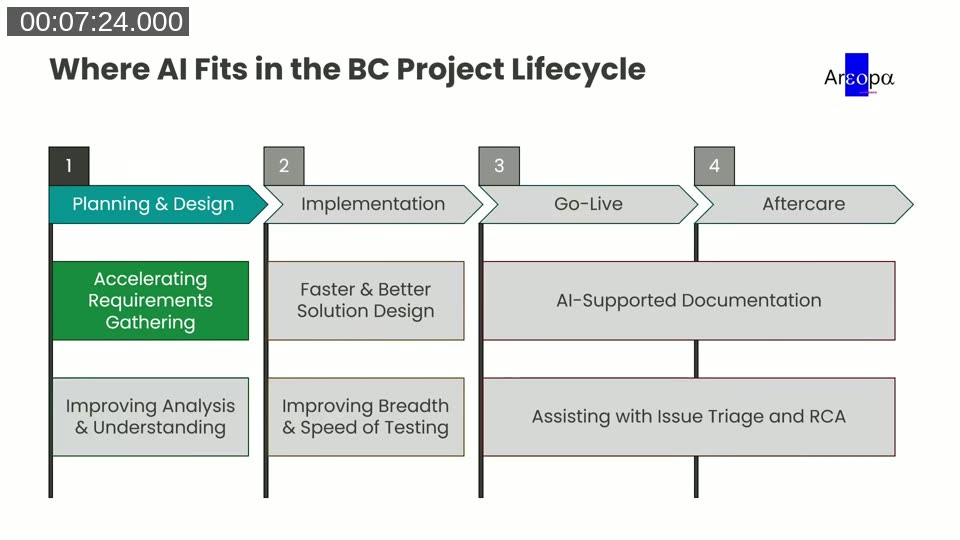
Niall frames the whole session around a six-stage project lifecycle: Planning & Design (requirements gathering, analysis), Implementation (solution design, testing), Go-Live, and Aftercare (documentation, issue triage and root cause analysis). For each stage he covers the primary Microsoft AI tooling a consultant is likely to already have access to, followed by example prompts.
Accelerating requirements gathering
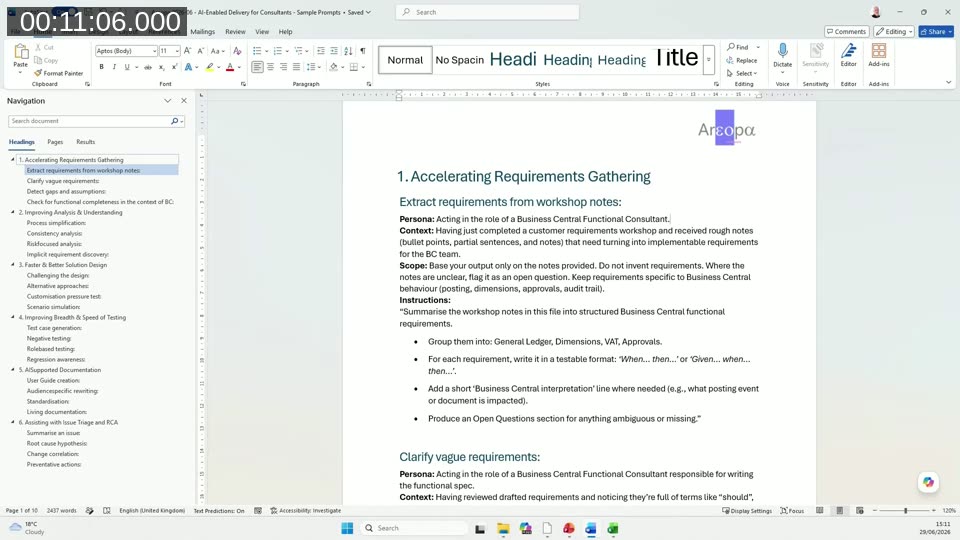
At the start of a project, Copilot in Microsoft 365 (Teams, Word, OneNote) can turn workshop recordings, meeting notes, and chat threads into structured requirement drafts and flag early gaps. Niall demonstrated this live: he pasted a persona-and-context prompt into Copilot in Excel along with a sample financial workshop checklist, and asked it to derive a structured requirements list in a new worksheet, complete with a Business Central interpretation column, source references, and an open-questions section for anything ambiguous.
Example prompts shown for this stage:
- “Summarize yesterday’s requirements workshop and list open questions”
- “Rewrite these notes as structured functional requirements”
- “What requirements mention a role or person as owner, but don’t define responsibility for a follow-up action?”
Niall notes that every prompt in the sample document starts by defining a persona for Copilot (for example, “acting in the role of a Business Central Functional Consultant”), the context, the scope, and explicit instructions. That structure consistently produces better, more relevant output than an unstructured ask.
Improving analysis and understanding
Once initial requirements are captured, the next step is turning them into insight: summarizing business processes, cross-checking requirements for completeness, and spotting inconsistencies or implicit requirements that are easy to miss when reading through a long list manually. Example prompts here include process simplification (“Summarize this end-to-end ‘Procure to Pay’ process in Business Central in no more than 8 steps, using plain business language”), consistency analysis, risk-focused analysis, and implicit requirement discovery. Niall points out that if requirements appear to deviate from standard Business Central behavior, Copilot can flag that early as a likely customization area, based on its knowledge of standard BC processes.
Faster and better solution design
Moving into implementation, the same tooling shifts from requirements to solutions: challenging proposed solution logic, generating alternative approaches, and evaluating trade-offs before committing to a design. Copilot in Excel can help compare solution options by cost, risk, effort, and impact; Copilot in VS Code or GitHub can help consultants who read (but don’t necessarily write) AL code sanity-check what a piece of logic is doing.
In the demo, Niall used a “solution architect doing a design review” persona to have Copilot critique a proposed design, list the assumptions it makes about standard BC behavior, and flag where each assumption might fail at scale or under edge cases.
Improving the breadth and speed of testing
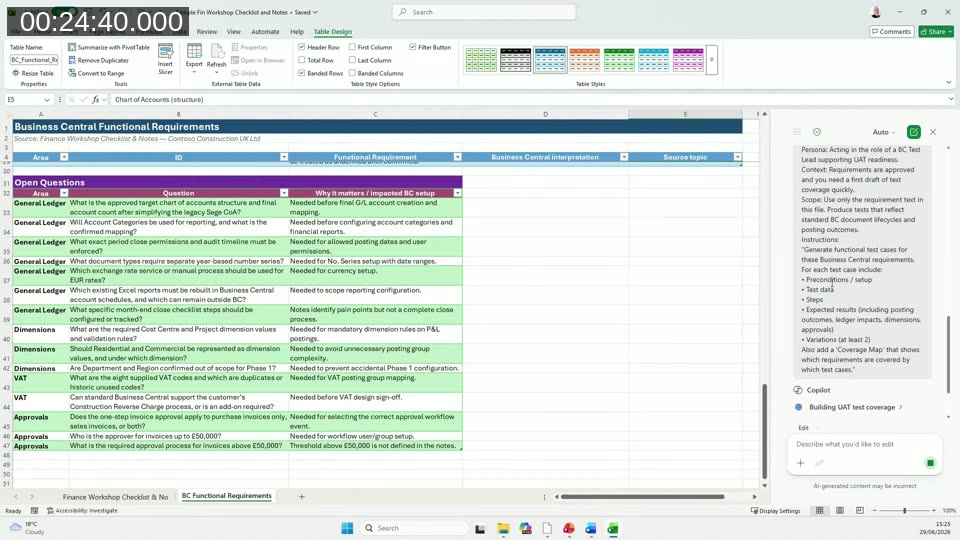
For test coverage, Niall used the same requirements worksheet and asked Copilot in Excel to generate functional test cases directly from the requirements, without specifying a new worksheet — it created one on its own. The result included preconditions, test data, steps, expected results, at least two variations per case, and a coverage map linking each test case back to its source requirement.
<img src="
Example prompts for this stage:
- “Generate functional test cases for these Business Central requirements, including setup, steps, and expected results”
- “Suggest negative and edge-case test scenarios for this posting process in Business Central”
- “Create UAT scenarios from these requirements for: Site Manager, Accounts Payable, Project Accountant”
Asked in the Q&A how he’d rate the quality of the generated test cases, Niall described them as “a first draft” — generated in about a minute for roughly 30 workshop points, getting a consultant 40–50% of the way through in minutes rather than hours, but still needing review and additional detail before being logged in a test management tool.
AI-supported documentation
Documentation is one of the areas consultants are most likely to already be using Copilot for: generating user guides, rewriting content for different audiences (end user vs. admin), and standardizing structure and terminology across documents written by multiple people. Copilot can also draw on SharePoint content — solution designs, test evidence, other project artifacts — as source material, based on the user’s own permissions.
Making Copilot write more like you
A recurring theme is teaching Microsoft 365 Copilot your writing preferences so you don’t have to restate them in every prompt. Under Copilot’s chat settings, under Personalization, there are toggles for Custom Instructions (persistent rules, such as tone or structure) and Saved Memories (general facts Copilot remembers about you or your working context).
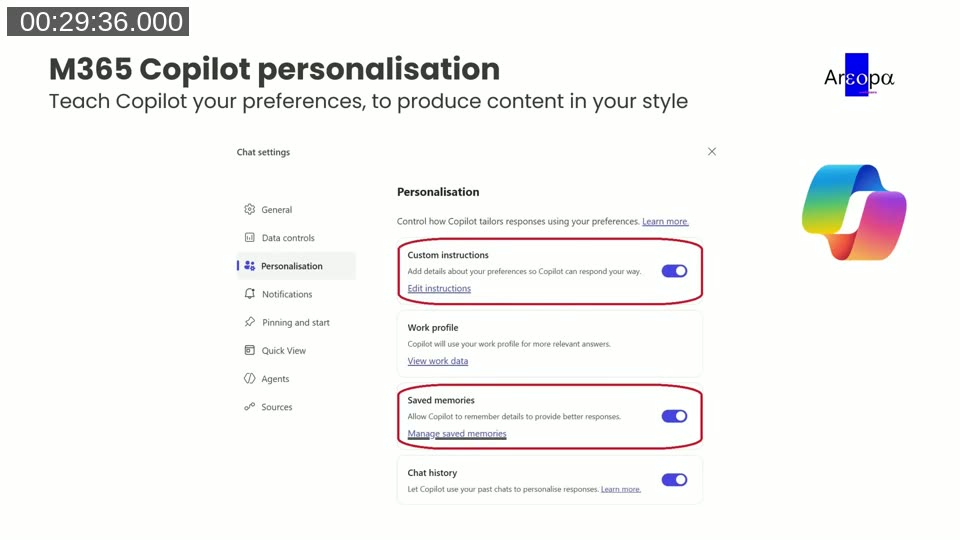
📖 Docs: Manage Copilot personalization and memory — official guidance on how custom instructions and saved memories work, and how memory data is stored and secured.
Niall shared a sample “documentation style card” that consultants can drop directly into custom instructions:
<img src="
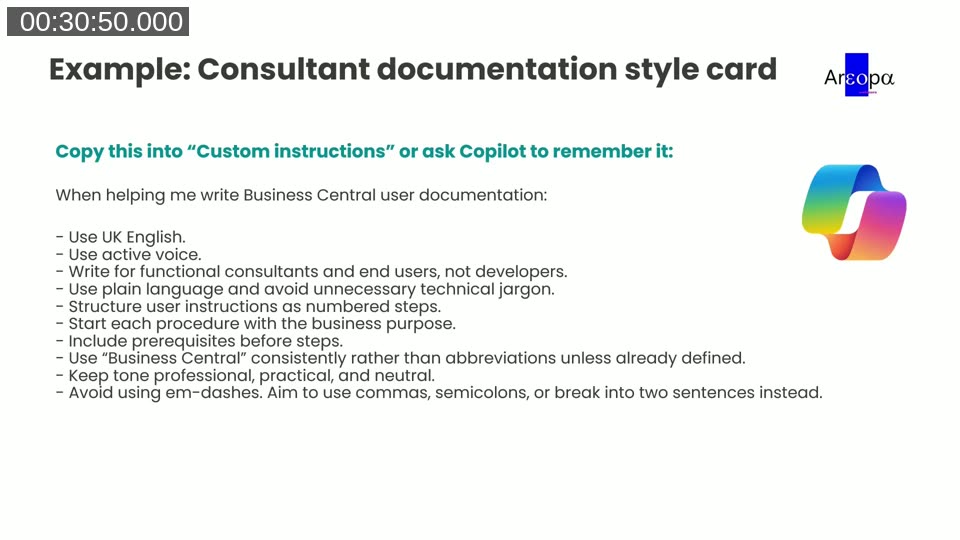
When helping me write Business Central user documentation:
- Use UK English
- Use active voice
- Write for functional consultants and end users, not developers
- Use plain language and avoid unnecessary technical jargon
- Structure user instructions as numbered steps
- Start each procedure with the business purpose
- Include prerequisites before steps
- Use “Business Central” consistently rather than abbreviations unless already defined
- Keep tone professional, practical, and neutral
- Avoid using em-dashes; use commas, semicolons, or two sentences instead
Assisting with issue triage and root cause analysis
After go-live, Copilot can help consultants get up to speed quickly on issues that surface: summarizing long Teams threads, emails, and support notes into a clear problem statement, impact, and timeline; proposing root cause hypotheses based on symptoms in a BC context (setup, data, permissions, customizations, or process); and spotting recurring problem patterns across projects or customers. Copilot in Word or OneNote can help structure the RCA document itself (problem, impact, cause, resolution) and suggest corrective and preventive actions.
Relevant AI capabilities built into Business Central
Stepping away from the project-phase framing, Niall also highlighted Copilot features already built into Business Central itself that consultants can use during implementation, and demonstrate to customers:
- No. series suggestions — speeds up setting up number series, useful when configuring a new company or training a customer to be self-sufficient.
- Autofill field suggestions — suggested field values when creating or modifying a record, based on accessible BC data, AI generation, or web information.
- Analysis assist — natural-language generation of data structures and insights in the data analysis mode on list pages, useful for spotting anomalies during data migration validation and for demonstrating the feature to customers.
📖 Docs: Analyze data in lists with Copilot (analysis assist) — official documentation on using natural language to build analysis views on Business Central list pages.
What is MCP, in plain language?
MCP (Model Context Protocol) is a standard connector between AI agents and business systems. In Business Central, MCP lets an AI agent discover what data and actions are available, read allowed data, and perform configured actions where permissions allow — all built on top of the same APIs that would otherwise require hand-built integrations. Niall was clear that functional consultants don’t need to build MCP setups themselves, but should understand what it enables, since it will come up in conversations with customers and partners exploring Copilot Studio agents or AI assistants backed by live BC data.
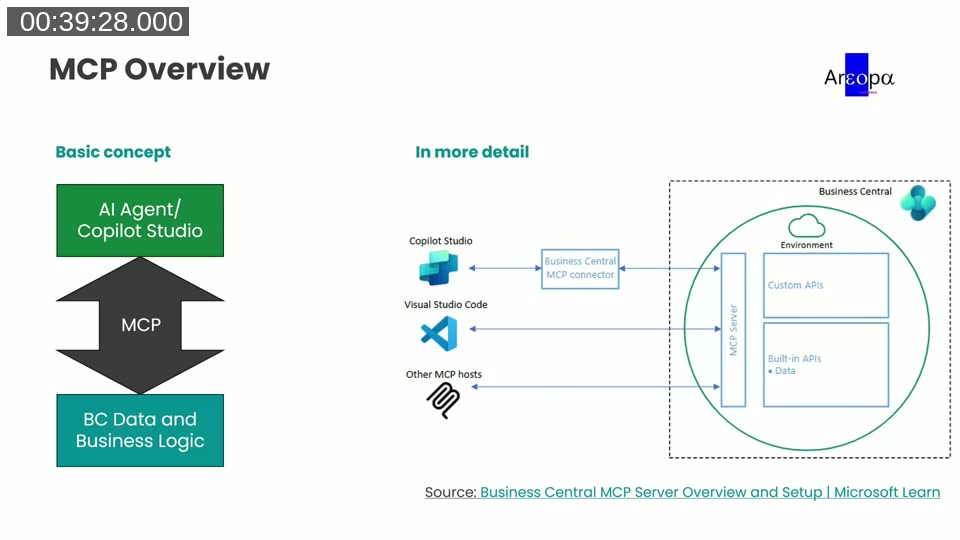
📖 Docs: Business Central MCP Server Overview and Setup — the official Microsoft Learn documentation Niall referenced during the session. By default the MCP server gives agents read-only access to exposed API pages; write operations must be explicitly configured.
Before enabling an MCP-based scenario, Niall suggests consultants help define, and ask:
<img src="
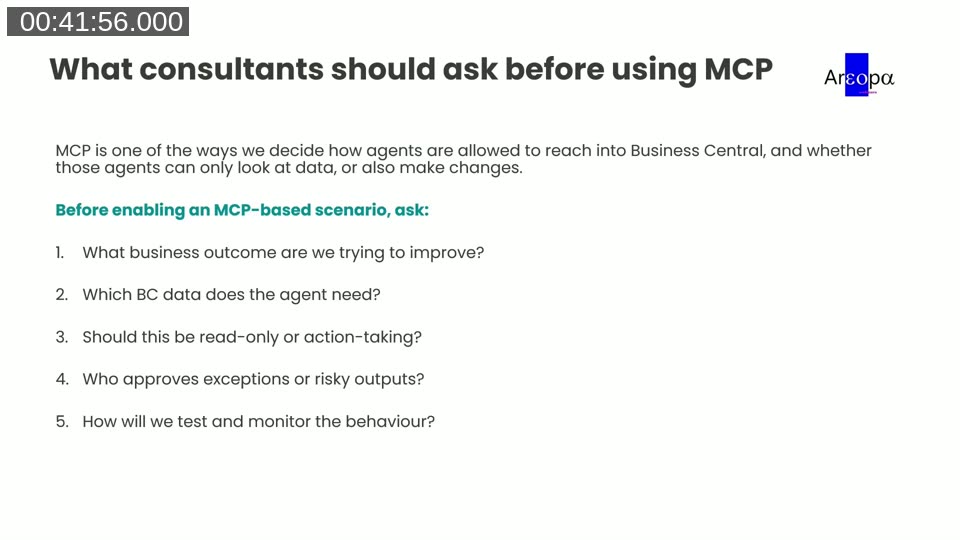
- What business outcome are we trying to improve?
- Which BC data does the agent need?
- Should this be read-only or action-taking?
- Who approves exceptions or risky outputs?
- How will we test and monitor the behavior?
Closing insights
Niall’s suggested starting points for consultants not yet using AI day-to-day: requirement clarity improvement, summarizing complex workflows, and identifying risks from a spec — all relatively quick to pick up and apply immediately. He frames AI literacy as a core skill for consultants going forward, not a novelty: clients will increasingly expect AI-assisted delivery, and AI amplifies the impact of consultants who already have strong domain expertise, rather than replacing the need for it.
None of the prompts covered in the session ask AI to make decisions on the consultant’s behalf. Niall’s responsible-use reminders: AI doesn’t know your customer, you do; always validate AI output against Business Central reality; treat AI output as a first draft or a second opinion; and know your company’s policies on customer data in AI tools.
Q&A highlights
During the live Q&A, moderator Luc van Vugt relayed audience questions:
- Which AI models does Niall use? Standard Microsoft 365 Copilot (Premium/work edition), which uses OpenAI models behind the scenes. No non-Microsoft AI tools in his day-to-day consulting work.
- What does it cost? A per-user monthly Microsoft 365 Copilot subscription, roughly $30/user/month depending on country, covering the vast majority of what was demonstrated.
- Is AI used for complex AL development, not just pages/tables/simple checks? Niall doesn’t do development himself, but relayed that colleagues at 4PS have seen a real uplift in AI-suggested code quality since the start of 2026, particularly on standard, well-componentized (vanilla) parts of the codebase — results are weaker on heavily customized code. One audience member (Eigor) shared the opposite experience for complex customizations, noting it can take more time to guide the AI than to do the work directly.
- Could requirements gathering be automated further, e.g. with a document drop-and-process flow? Niall suggested a Copilot Studio agent with strict instructions as an ideal fit, potentially also processing workshop recordings directly rather than only files — with the added benefit that improvements to a shared organizational agent benefit every project using it.
This post was drafted with AI assistance based on the webinar transcript and video content.