In the 81st Areopa webinar, Stefano Demiliani revisits a session he originally delivered at Directions EMEA in Lyon and turns it into a focused conversation about performance. Moderated by Luc van Vugt, the talk works through why the obvious low-code choice for Business Central integration — Power Automate — frequently runs out of headroom, what Azure Logic Apps Standard brings to the table, and how a hybrid “low-code plus a small piece of .NET” pattern took a real customer workflow from eight hours down to under one.
Why low-code at all?
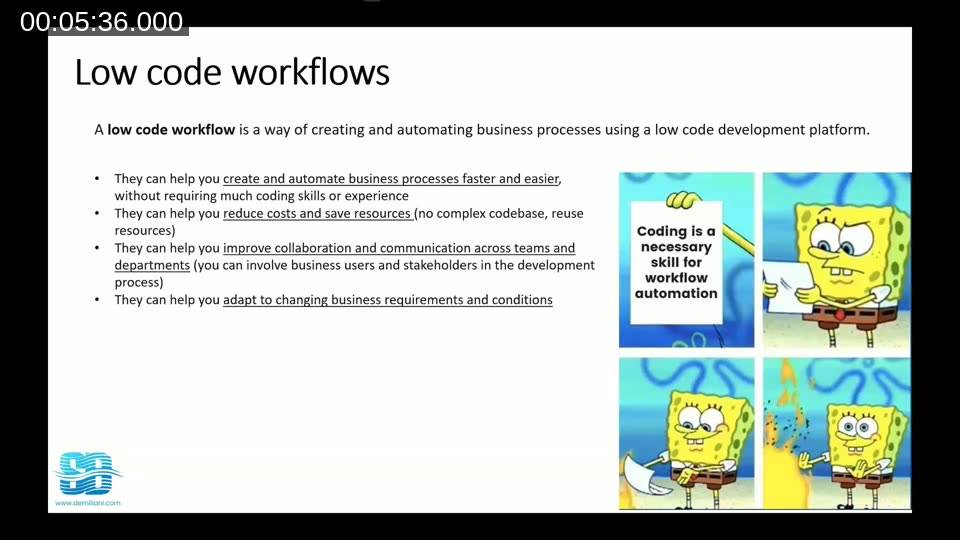
Stefano opens with the usual case for low-code workflows in Business Central projects: integrations are everywhere, third-party systems have to be talked to, data has to be pulled in and pushed out, and writing all of that as AL with job-queue tasks is rarely the right tool. Low-code platforms ship with hundreds of connectors, the workflow is self-explanatory in a graphical designer, and changes are easy to apply when the business rules move.
The warning comes immediately after: being easy to build is not the same as being well-architected. A flow that works perfectly on thirty records can collapse on three hundred thousand. “Low-code is easy” and “low-code is performant” are two different statements, and the rest of the session is dedicated to the gap between them.
Power Automate vs. Azure Logic Apps
For Business Central there are two realistic low-code platforms: Power Automate, which most BC developers and power users already know, and Azure Logic Apps. Stefano is direct about where each one fits.
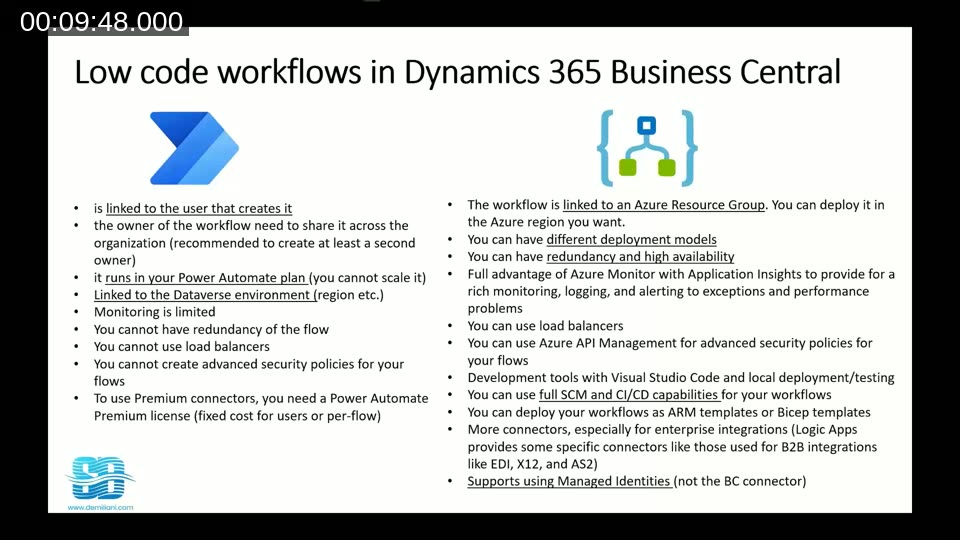
Power Automate is great for user-centric automation — anything triggered from the Business Central UI or tied to a specific user. But a Power Automate flow is owned by the user who created it, it runs inside that user’s Power Automate plan and the linked Dataverse environment, you cannot redeploy it into another region, you cannot load-balance it, monitoring is limited, and premium connectors require a premium license.
Azure Logic Apps is, in Stefano’s words, “the father of Power Automate” — it is the underlying engine, and it exposes everything Power Automate hides. A Logic App lives in an Azure resource group, can be deployed to whatever Azure region matches your Business Central tenant, supports redundancy and load balancing, integrates with Azure Monitor and Application Insights, can be put under source control with full ARM/Bicep CI/CD, and supports more advanced auth such as managed identities (with the caveat that the BC connector itself does not yet use them).
📖 Docs: Integrating Business Central with Microsoft Power Platform — Microsoft’s overview of the BC connector used by Power Automate, Power Apps, Copilot Studio and Azure Logic Apps. As the doc notes, nearly all of the connector’s functionality is identical between Power Automate and Logic Apps; the platform you host it on is what differs.
Consumption vs. Standard, stateful vs. stateless
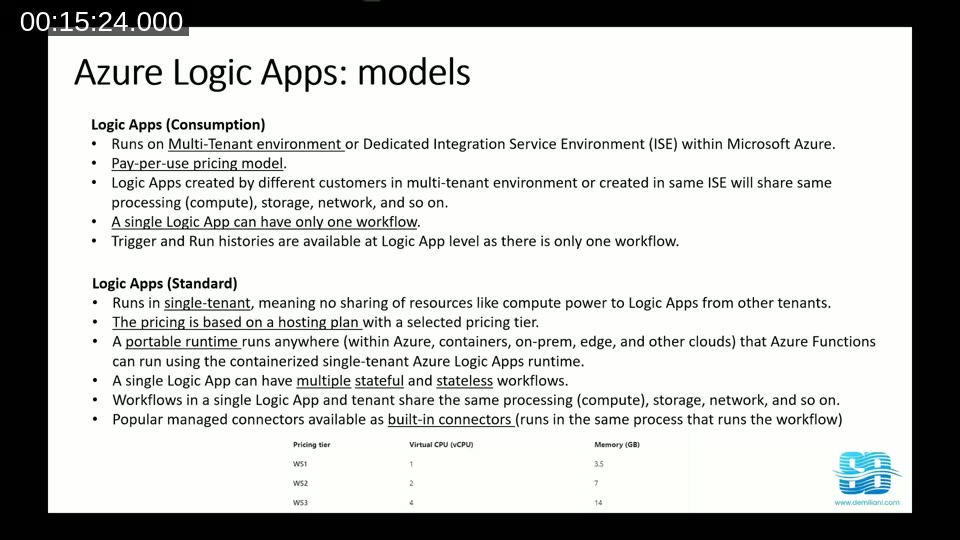
Inside Logic Apps there are two hosting models. Consumption is multitenant and pay-per-execution; a single Logic App holds a single workflow; every connector is available without a “premium” surcharge; it is the cheapest starting point. Standard is single-tenant, runs on a hosting plan with a fixed price, supports many workflows inside the same Logic App, and uses the same portable runtime as Azure Functions — which means it can also run in containers or on-premises.
Standard also introduces two workflow types. A stateful workflow behaves like the classic Logic App or Power Automate flow: every action’s input, output and state is written to external Azure Storage, so you get full run history, replay and resiliency, and the workflow can run for long durations. A stateless workflow keeps everything in memory for the duration of the run — much faster, no per-action storage transactions, but capped at roughly five minutes and unable to automatically restore interrupted runs.
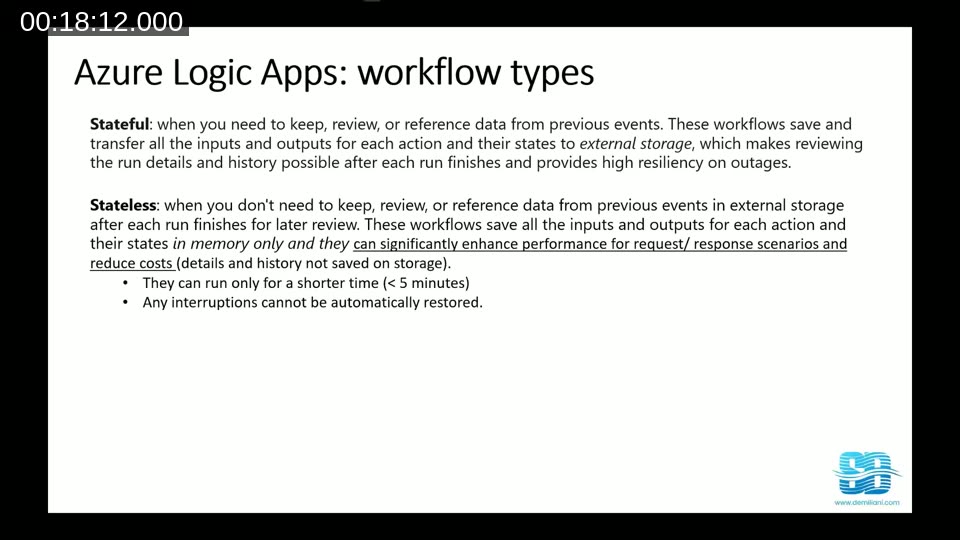
📖 Docs: Differences between Standard single-tenant and Consumption multitenant Logic Apps — Microsoft’s reference for choosing between stateful and stateless workflows, including the table Stefano summarises in the slide: stateless workflows are recommended for runs under five minutes and payloads under 64 KB, with no managed-connector triggers, no chunking and no asynchronous operations.
Two small Logic Apps Standard features worth knowing
Before getting to the main case study, Stefano calls out two features that exist in Standard and not in Consumption or Power Automate.
The first is the “Submit from this action” button on a failed run. If a workflow has done an hour’s worth of upstream work — pulling files, importing data — and then fails on a single HTTP call because the URL is wrong, you can edit the input on that one action and resubmit from there, without re-executing everything before it. For long, expensive integrations this is a major operational improvement over Power Automate’s all-or-nothing rerun.
The second is workflow decoupling. Inside one Logic App Standard you can have many workflows and call one from another via a built-in “invoke workflow in this Logic App” action, passing JSON parameters. The child workflow can be stateless even if the parent is stateful, which is useful for any short check or transformation you do not need to persist.
Combined with that is the splitOn trick. If a workflow receives an array, Stefano shows how — by editing the workflow definition in code view — you can add "splitOn": "@triggerbody()?['data']" to the trigger. Instead of looping over the array with a for-each, the runtime instantiates one workflow run per array item in parallel. In the demo, around thirty Business Central items end up processed concurrently rather than sequentially.
📖 Docs: Trigger multiple workflow runs on an array (splitOn / debatching) — Microsoft’s reference for the same pattern. Note the limits Stefano does not mention: with trigger concurrency turned off, splitOn can fan out to 100,000 array items; turn concurrency on and the limit drops to 100. There is also no compatibility with the synchronous Response action — debatched workflows always run asynchronously and return 202.
The real-world scenario: import, merge, post
The customer is a large reseller that works with marketplaces such as Amazon. Every day a set of data files arrives from several sources: some land in Azure Blob storage, some come from SQL Server, some from Oracle, all of them JSON. The job is to merge records across these sources, decide which proposed documents are accepted and which are rejected, and then call the Business Central API to post the accepted ones.
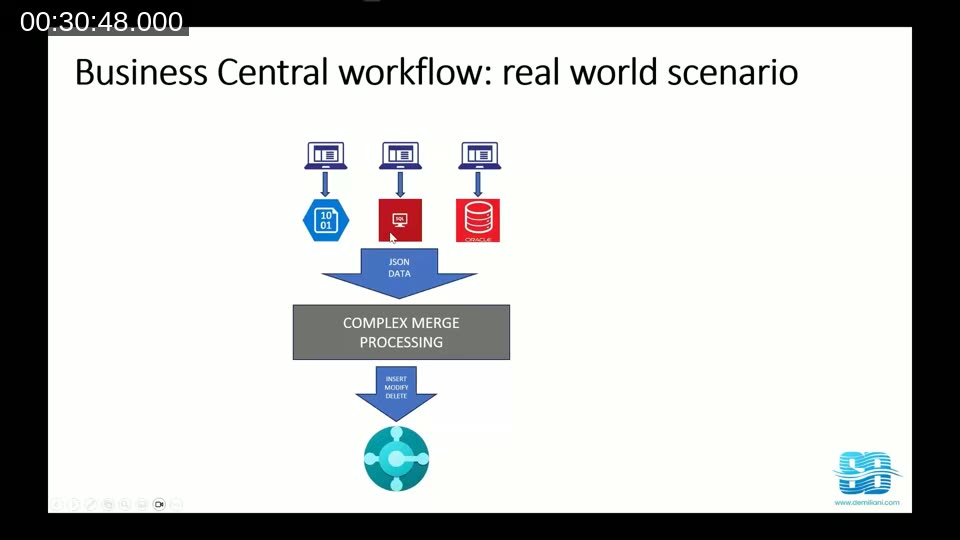
The project started, as many do, on Power Automate, owned by the internal IT team. Two problems showed up quickly. First, performance was poor — most of the time was spent in parseJson and in nested for each blocks. Second, the flows were tied to the Dataverse environment, which was shared with Dynamics 365 for Sales and its plugins, so unrelated activity in Dataverse periodically caused the integration to slow down or stall.
Moving the same workflow to Logic Apps Consumption helped only slightly — the spikes from Dataverse contention went away, but the per-file processing time was essentially the same. Moving again to Logic Apps Standard helped a bit more (dedicated resources, more stable runtime), but a typical file still took two to three minutes.
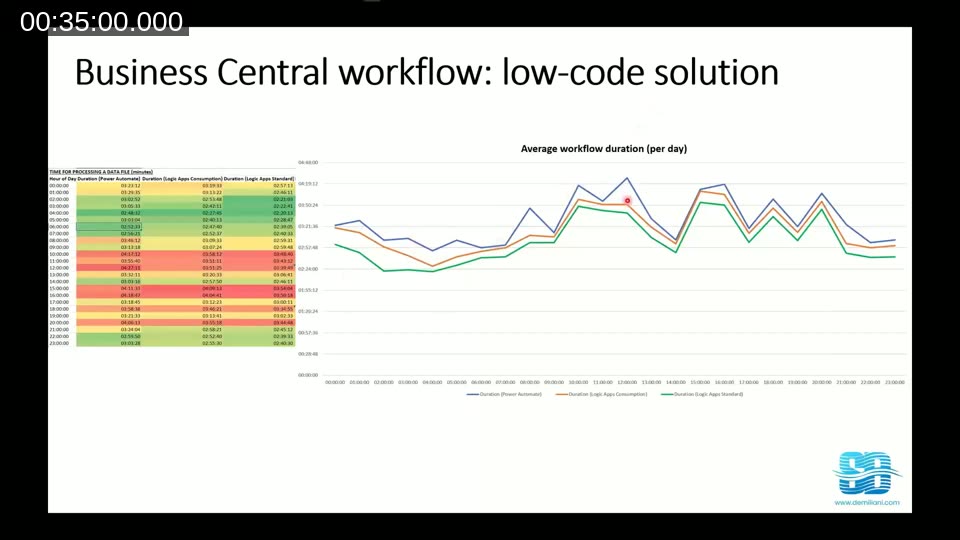
That was acceptable while the customer was processing about thirty files a month. Six months in, volume had climbed past a hundred files a month, and the same workflow now needed six to eight hours to drain its queue. The architecture had to change.
Why nested for-each loops are the enemy
Stefano’s general rule, learned the hard way on this project: in a low-code workflow, nested for each loops are a performance anti-pattern. The reason is not the loop itself — it is the storage. Every iteration of every action in a stateful workflow writes its scope, inputs and outputs to Azure Storage. Nest two loops, and the storage traffic explodes. Add a variable assignment inside the loop and you can also pick up concurrency issues, because parallel iterations can race on the same variable.
Pulling the inner loop into a child workflow (the “debatch to another Logic App” pattern) was tried first but did not move the numbers enough — the storage cost is still there, just split across more workflows.
The mixed solution: a .NET local function inside the Logic App
The solution that finally worked uses a feature that is, at the time of recording, in public preview for Logic Apps Standard: local .NET functions hosted inside the same Logic App project. The workflow stays low-code on the outside, but the heavy comparison logic moves into a C# function that ships and deploys alongside the workflow.
Stefano opens the project in Visual Studio Code with the Azure Logic Apps (Standard) extension installed.
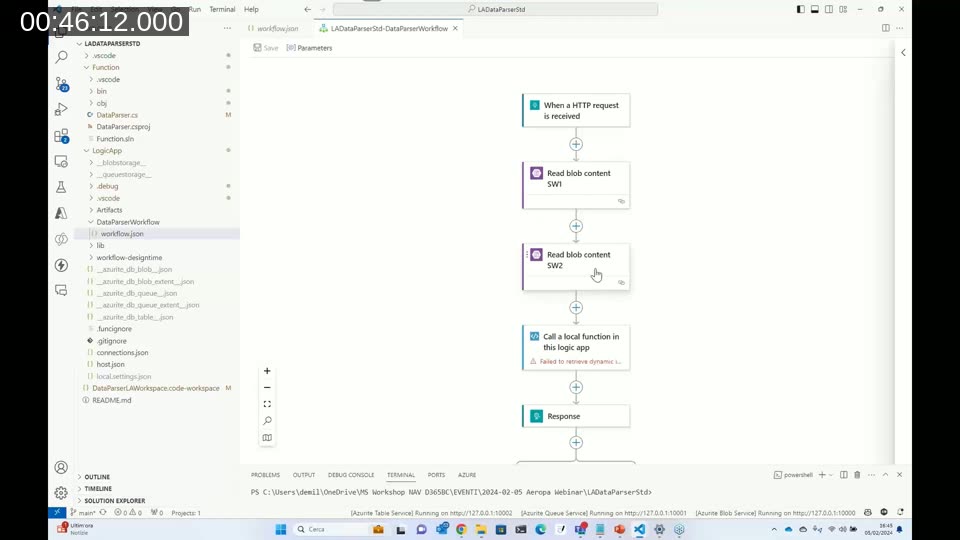
The workspace has two folders: a LogicApp folder containing the workflow definitions you can open in the visual designer locally, and a Function folder containing a regular .NET project. After dotnet build, the compiled assembly lands in a lib/custom folder and the designer picks up the function as a callable action — the built-in “Call a local function in this logic app” step.
The function for this customer, DataParser, takes the two JSON strings read from Blob storage, deserialises them with Newtonsoft.Json (much faster than the platform’s parseJson on large payloads), runs the nested comparison in plain C#, and returns two arrays — accepted invoices and rejected invoices — which the workflow then feeds straight into the Business Central connector.
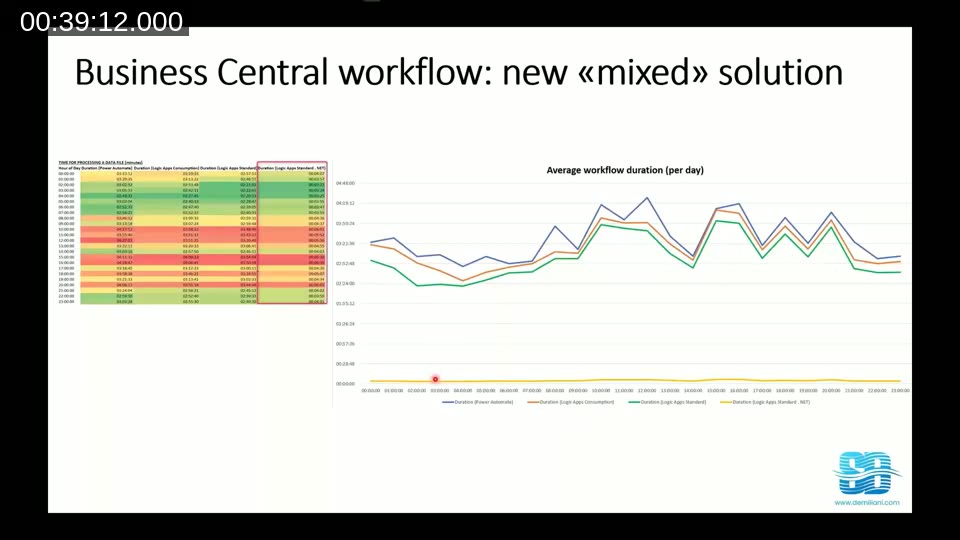
The chart tells the story. The old Power Automate, Consumption and Standard lines hover around the two-to-three-minute-per-file mark; the new Standard + .NET line collapses to a few seconds. The end-to-end job dropped from seven or eight hours to under one.
Stefano is explicit that this is not the same as calling a separate Azure Function. You can call an external Azure Function from a Logic App, and it would also bypass for each in the workflow. The advantage of the local-function pattern is that the workflow and the code share a single project, a single deployment, and a single source-control history — Git commit, push, and the whole bundle ships together through whatever pipeline you have set up.
📖 Docs: Create and run .NET code from Standard workflows in Azure Logic Apps — Microsoft’s reference for exactly this pattern, including the “Call a local function in this logic app” built-in action, the LogicApp/Function project layout Stefano shows in VS Code, and the explicit guidance that custom inline .NET code is not suitable for processes that exceed ten minutes, very large message transformations, or complex batching/debatching. Authoring is currently Windows-only and supports .NET Framework and .NET 8.
Reliability: business continuity and load balancing
The other thing Power Automate cannot do, and Logic Apps can, is operate as proper infrastructure. Because a Logic App is just an Azure resource described by an ARM template, the same workflow can be deployed into a primary region and a secondary region with their own parameter files, fronted by Azure API Management, Azure Load Balancer or Azure Service Bus.
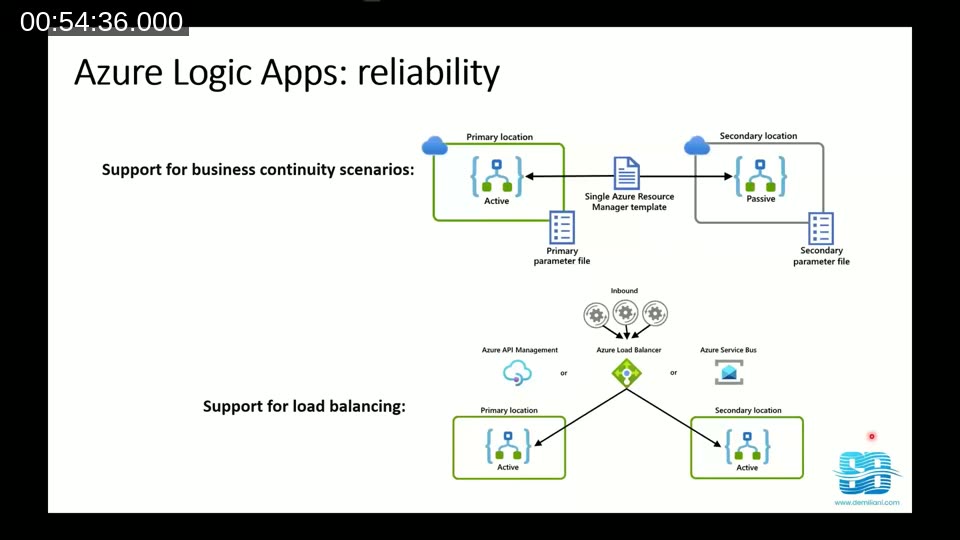
That gives you two things Power Automate does not: business continuity, because if one region’s instance is down the other takes over, and load balancing, because traffic can be split across active instances based on the inbound load.
Conclusions
Stefano’s closing message is deliberately the same one he started with. Low-code is a great default for Business Central integration — it is easy to maintain, easy to change, easy to involve non-developers in. But low-code is not automatically performant, and at scale the platform you choose and the shape of the workflow matter enormously.
His practical guidance:
- Use Power Automate when the workflow is genuinely user-centric — triggered from the BC UI, tied to a specific user, modest volume.
- Use Azure Logic Apps for silent integration workloads — anything scheduled, anything that runs without a user, anything that needs to scale or be observable.
- Architect for the scale you actually expect, not the scale of your first test. A workflow that handles thirty files a day is not the same workflow that handles three hundred.
- Avoid nested
for eachblocks in stateful workflows — they are the most common performance trap, because every iteration writes to storage. - When you hit the wall, embed code rather than abandoning low-code. A Logic Apps Standard local .NET function keeps the workflow visual and observable, but does the heavy work at native speed.
- Logic Apps Standard runs on the Azure Functions runtime, so the same workflow can also be containerised or hosted on-premises when the scenario requires it (managed connectors that only exist online will of course still need an online endpoint).
Q&A
There were no live questions during the session. Luc closes with a comment from David Singleton — that the picture Stefano just drew is in some ways a return to the days of Navision, where almost anyone could build a working solution quickly, with the caveat that the next decade of work will be about tuning those solutions for performance.
Stefano agrees: Logic Apps gives you everything Power Automate gives you and more, the same designer experience, the same connectors, plus the lower-level controls that matter when performance becomes the constraint.
References mentioned in the webinar
- Areopa Academy — webinar series host.
- Areopa Webinars on YouTube — full recording archive.
- Areopa Webinars newsletter — upcoming session announcements.
- demiliani.com — Stefano Demiliani’s blog, where many of the Logic Apps and Business Central patterns shown in the session are written up in more detail.
This post was drafted with AI assistance based on the webinar transcript and video content.