
In this Areopa webinar, Andrey Baludin, moderated by Luc van Vugt, covers two ways to move data from Business Central into Microsoft Dataverse (formerly the Common Data Service, or CDS): full data replication using a custom AL extension, and read-only, no-code access using virtual tables. Baludin also shares issues he ran into while building this integration for a real customer project.
Setting Up the Dataverse Environment
The webinar starts in the Power Platform admin center (admin.powerplatform.microsoft.com), where a new Dataverse environment is created. Baludin flags one setup detail that is easy to miss: the currency selected for a new Dataverse environment must match the local currency used in the Business Central company that will replicate into it. If Business Central uses euros, the Dataverse environment needs euros too.
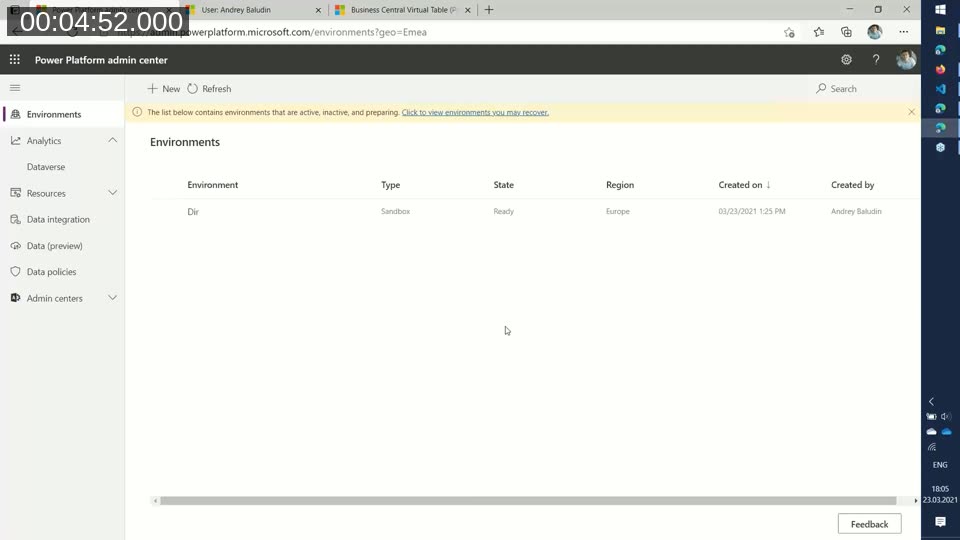
After the environment is created, a single integration user needs two security roles assigned under Settings > Users + permissions > Users:
- System Customizer
- Business Central CDS Integration (only visible once a Business Central environment is linked)
📖 Docs: Integrate with Microsoft Dataverse via data sync — the current Microsoft Learn walkthrough of connecting Dataverse to Business Central, including licensing, the Base Integration Solution, and integration table mappings.
Baludin also warns about environment ordering if Dynamics 365 Sales (CRM) is part of the plan: a Dataverse environment that is first linked to Business Central cannot later be connected to Dynamics 365 Sales. On a real project, this meant recreating the entire replication setup after the customer asked to add CRM later. His advice: if there is any chance CRM will be needed in the future, create the CRM connection first, then connect Business Central to that same environment.
Connecting Business Central to Dataverse
From Business Central, the connection is made through Extension Management > Assisted Setup > Set up Dataverse connection. If Business Central and the Dataverse environment share the same tenant, the environment can be selected from a list. Signing in requires the administration user with the two roles described above — without both roles, sign-in fails.
By default, Business Central already ships with entities for contact, customer, vendor, and currency, since this mapping originates from the older Dynamics CRM integration built into NAV. Baludin explains that Business Central’s Dataverse integration reuses the same tables, codeunits, and default entities as that earlier CRM integration.
Replicating Custom Tables with the CDSBox Extension
To replicate additional Business Central tables — in the demo: Customer, Dimension Set Entry, Dimension Value, G/L Account, G/L Entry, and Vendor — Baludin built a sample AL extension, published on GitHub as CDSBox.
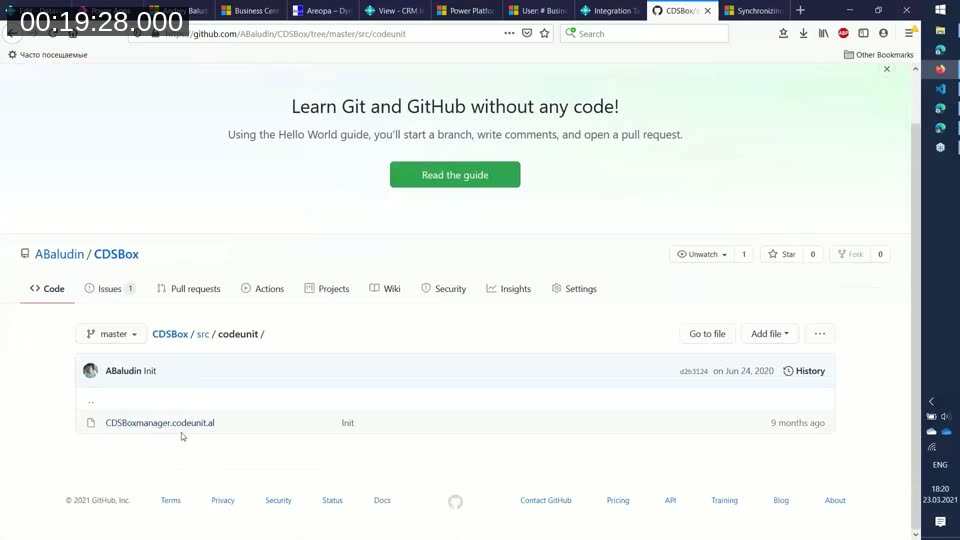
Building a replicated table takes three steps:
- Create the table manually in Dataverse. There is no code generator for this step — fields are added one by one in the Power Apps table designer. Baludin notes that field count has a real performance cost: a table with roughly 20-25 fields (such as G/L Entry) replicates noticeably slower per record than a table with 6-7 fields (such as Dimension Set Entry), so only the fields actually needed should be added.
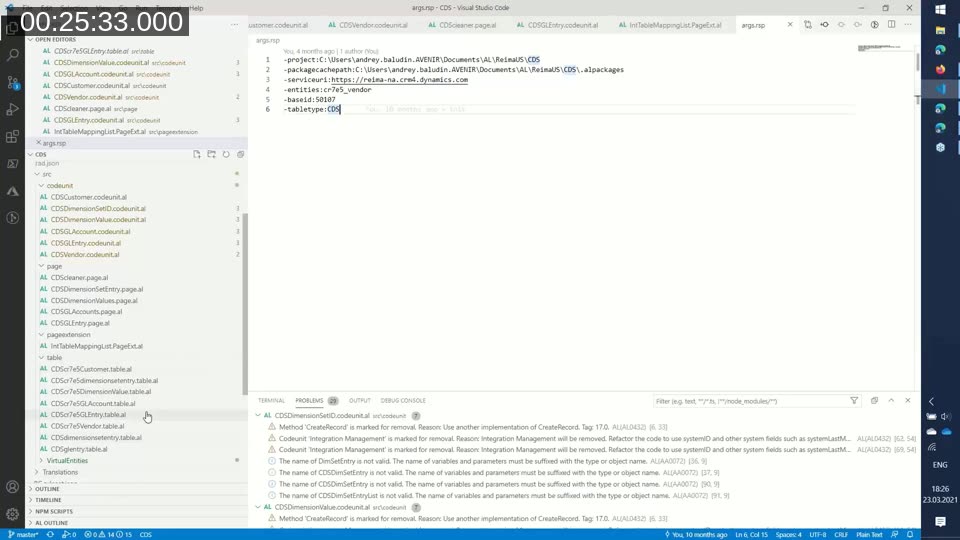
- Generate the intermediate AL table with the AlGen tool. This command-line utility ships inside the AL Language extension, under
%USERPROFILE%\.vscode\extensions\ms-dynamics-smb.al\bin. It reads a response file (an.rspfile specifying the project path, package path, Dataverse environment URL, entity name, and table type) and connects to Dataverse to generate the AL table wrapping the Dataverse entity — including its external name, external type, and option field mappings — without writing that table by hand. - Map the fields in a management codeunit. An event subscriber on Use default synchronization setup creates the field mapping between the Business Central table (for example, G/L Entry) and the generated intermediate table. This mapping is what powers the Integration Table Mappings page in Business Central; the mapping itself isn’t editable by hand, so all of it has to be created in code.
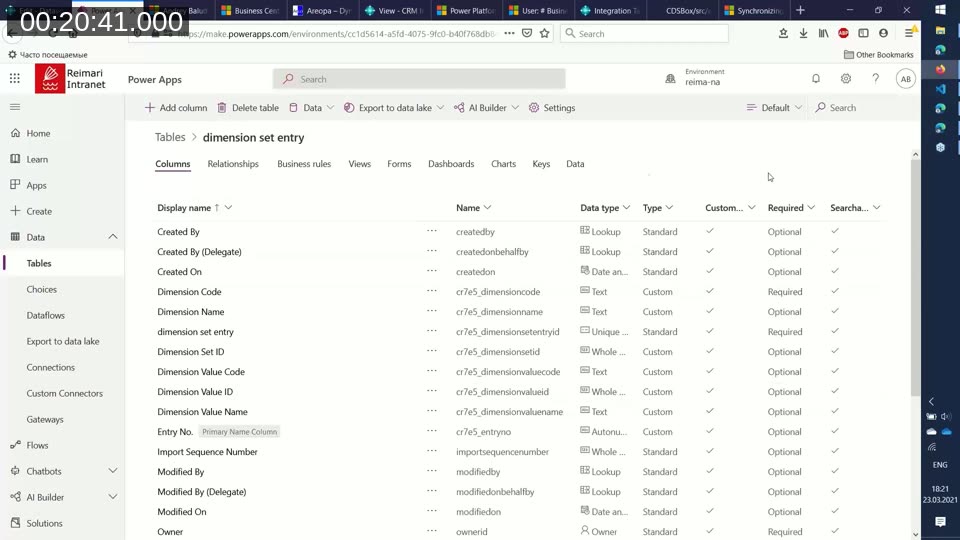
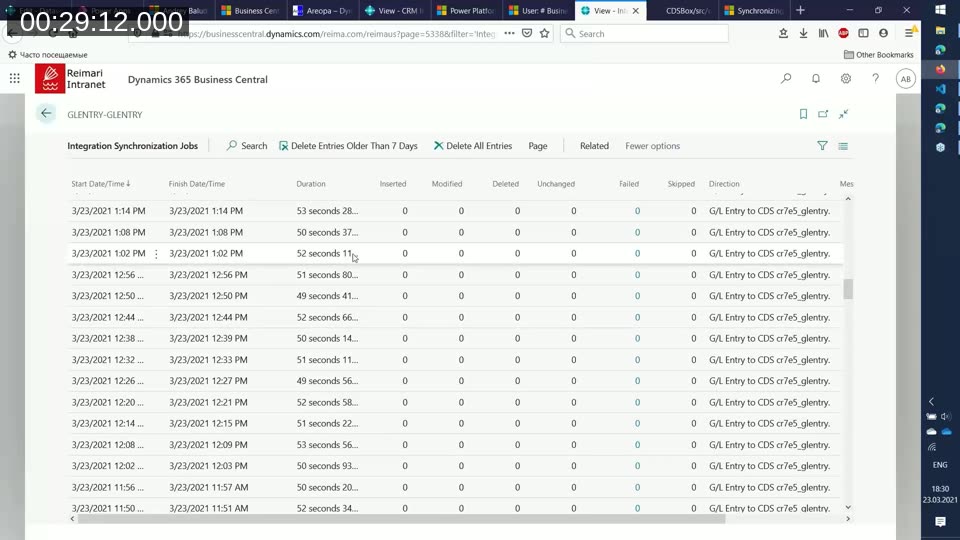
Once the mapping exists, pressing Synchronize > Full Synchronization runs an integration synchronization job. In the demo, this job is scheduled to run every five minutes, which Baludin describes as “close to online” replication — new or changed records in Business Central show up in Dataverse within minutes rather than requiring a manual trigger.
Lessons from a Production Integration
Baludin flags a gotcha around re-running replication from scratch. Business Central tracks every synchronized record in the CRM Integration Record table by ID. If a Dataverse environment is deleted and recreated (for example, because CRM needed to be added later), replication silently synchronizes nothing — Business Central still believes those records were already sent. Clearing the CRM Integration Record table is required before Business Central will treat the records as new again and re-send them.
Exporting to a Data Lake for Analytics
For the customer’s second use case — feeding data into non-Microsoft analytics tools that expect CSV input rather than a live API or Power BI — Baludin uses Dataverse’s Export to data lake feature to continuously push replicated tables to an Azure Storage account as CSV files, partitioned by year.
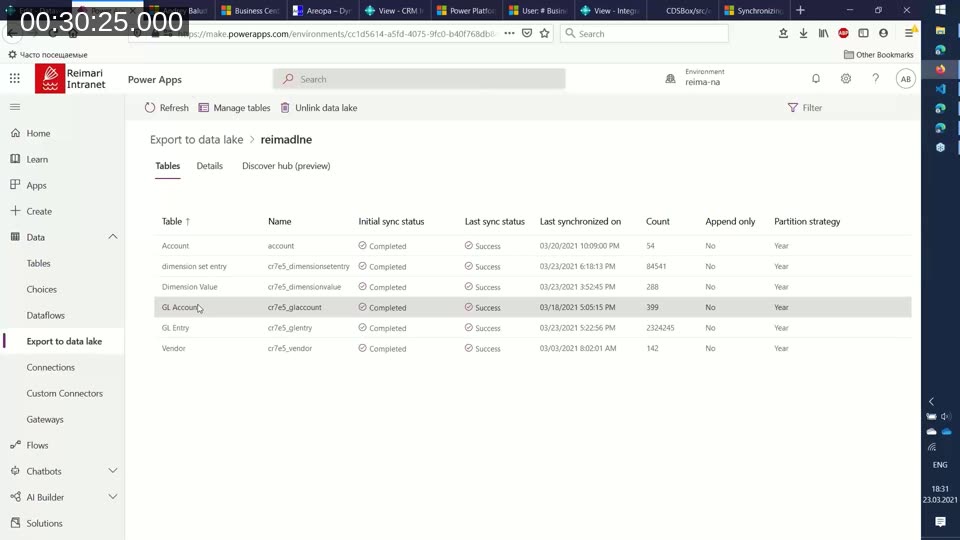
📖 Docs: Azure Synapse Link for Dataverse — the feature shown in this webinar as “Export to data lake” was renamed Azure Synapse Link for Dataverse in May 2021, about two months after this recording. It still exports to Azure Data Lake Storage Gen2, and now also supports exporting directly to Azure Synapse Analytics.
Baludin notes that further processing of the yearly CSV files — for example, consolidating them or loading them elsewhere — typically requires an Azure Data Factory pipeline set up by someone with Data Factory expertise, which was outside what he covered live.
Virtual Tables: Replicating Without Code
The second half of the webinar covers a no-code, read-only alternative: the free (at the time, preview) Business Central Virtual Table app from Microsoft AppSource. Instead of copying data into Dataverse, it exposes existing Business Central API pages as virtual tables that Dataverse queries live.
Setup requires two steps: installing the app into the target Dataverse environment, and enabling the corresponding Azure AD application (“Business Central for virtual entities”) from Business Central’s Azure Active Directory Applications page, since it’s disabled by default after installation.
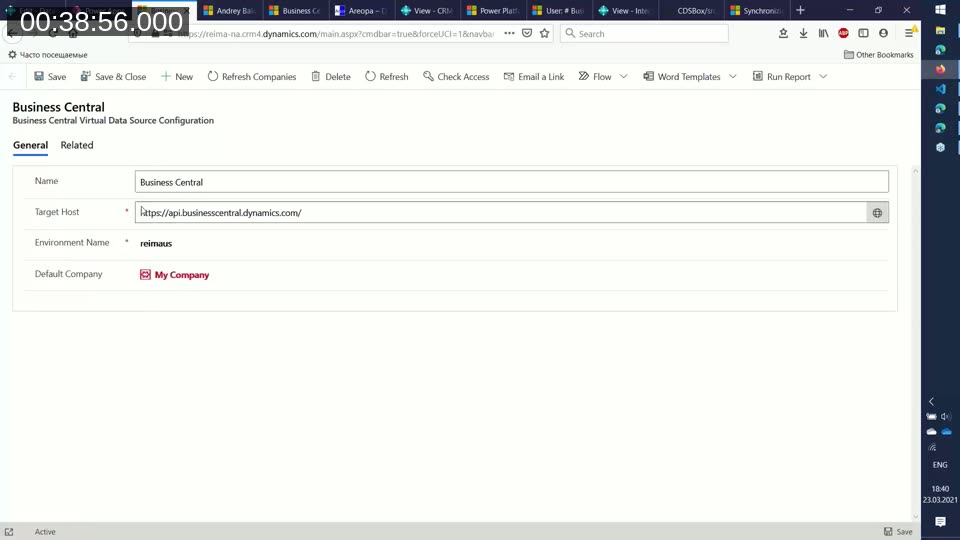
After the connection to a target host, environment, and company is configured, any published Business Central API — standard or custom — can be marked visible and appears as a virtual table in Dataverse. In the demo, Baludin exposes the standard Item Ledger Entries API this way, with no AL code involved.
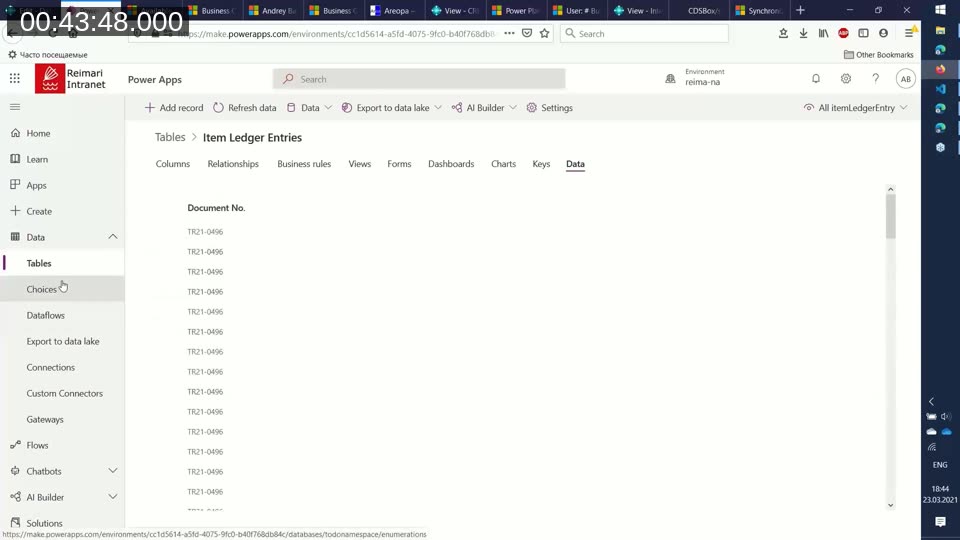
📖 Docs: Microsoft Power Platform integration with Business Central via Virtual Tables — the current reference for this approach. Virtual tables don’t store data in Dataverse; all reads and writes go back to Business Central, with full CRUD support. Known limitations today still include no support for images/attachments, no multiline (BLOB) fields, and reduced filtering capability compared to native Dataverse tables.
At the time of recording, Baludin calls out two limitations of virtual tables: a 20,000-record cap per request (Microsoft had promised pagination support for a following release), and no built-in data-tracking support, which meant virtual tables couldn’t yet feed Export to data lake directly — something he was actively working around with a custom Data Factory connector.
Q&A Highlights
The session closed with audience questions relayed by Luc van Vugt:
- Regional availability: Baludin was not aware of any regional restriction on using virtual tables, based on his own testing in both EU and US tenants.
- Media/image fields: Uncertain whether Dataverse’s media field type maps cleanly from Business Central; a participant (Stefan Strobel) suggested using Dataverse’s File or Image column types instead.
- Importing table structure from Excel: Stefan Strobel pointed out that Dataverse table and column definitions can be created by importing an Excel file describing the schema, rather than building tables field by field.
- Sync frequency: The five-minute schedule shown in the demo is configurable via the job queue entry; Baludin noted five minutes was close enough to real time for the customer’s use case (closing periods, new G/L entries).
- Custom/extension fields: Adding table-extension fields to a standard replicated table (for example, extra fields on Customer) is documented by Microsoft and follows the same intermediate-table and mapping pattern as the custom tables shown live.
- Restricting data access: Baludin was not aware of a way to restrict which Dataverse users can see specific records the way Business Central permission sets do, but suggested Dataverse views as a possible way to limit what different users see.
- Business Central 14 compatibility: The embedded Dataverse connector was introduced in Business Central 15; on version 14 the same schema would need to be built using the older “CRM” table type rather than “CDS,” which Baludin had not tested himself.
Baludin also mentioned he documents these scenarios in more detail, with screenshots, on his blog at community.dynamics.com/business/b/andreysnavblog.
This post was drafted with AI assistance based on the webinar transcript and video content.