This is the third session in Areopa’s VS Code AL Extensions series. Host Luc van Vugt is joined by James Pearson and Marton Sagi, who each demo the extension they built for Business Central AL development, before Luc closes the session with a look at his own ATDD.TestScriptor. Together the three tools cover running and debugging tests, exploring and editing an AL workspace visually, and turning test case definitions into working AL test code.
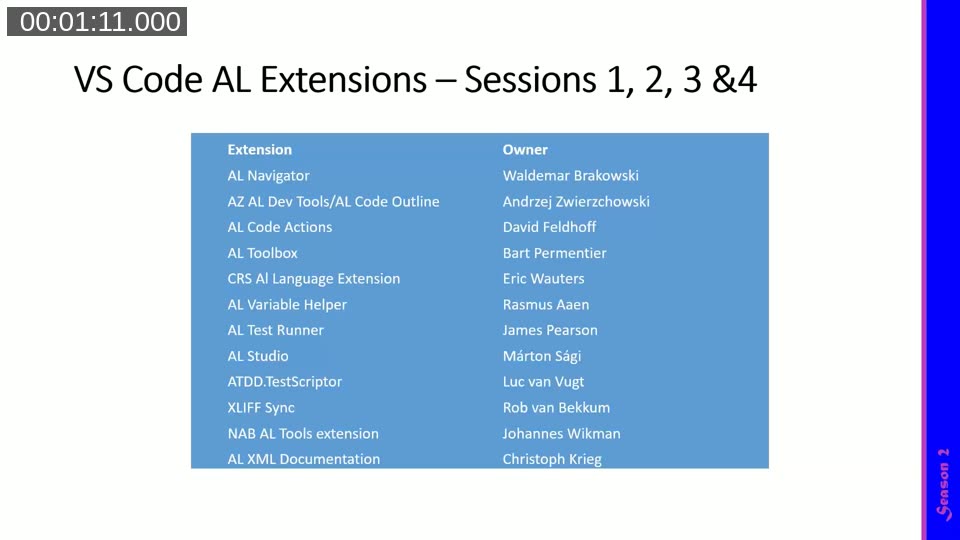
The series covers a long list of community-built AL extensions across four sessions. This webinar focuses on three of them: AL Test Runner, AL Studio, and ATDD.TestScriptor.
AL Test Runner
James Pearson, a solution architect at Norriq, built AL Test Runner to keep the test-writing workflow inside VS Code instead of switching back and forth to the web client’s test tool page. The extension lets you write, run, and debug AL tests directly from the editor, using the container helper PowerShell module to talk to the Business Central test service.
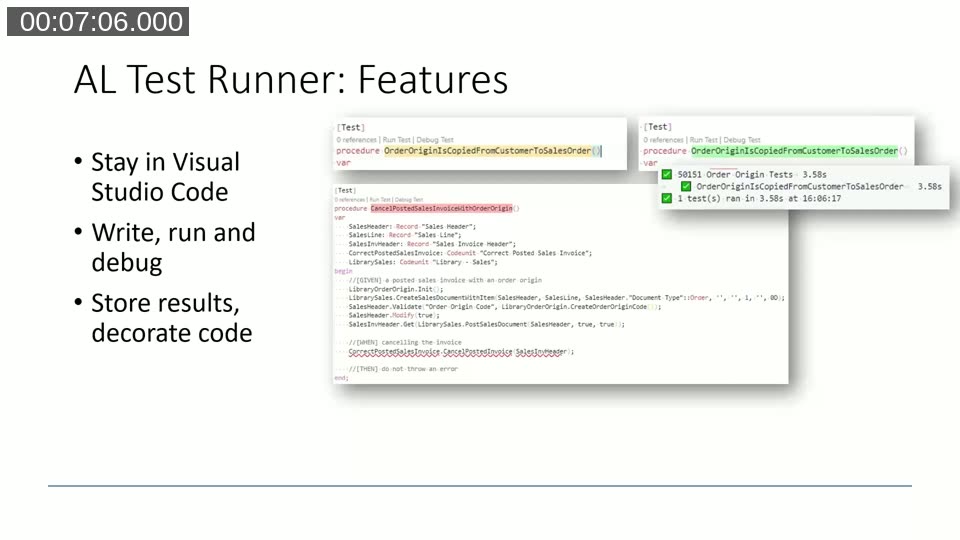
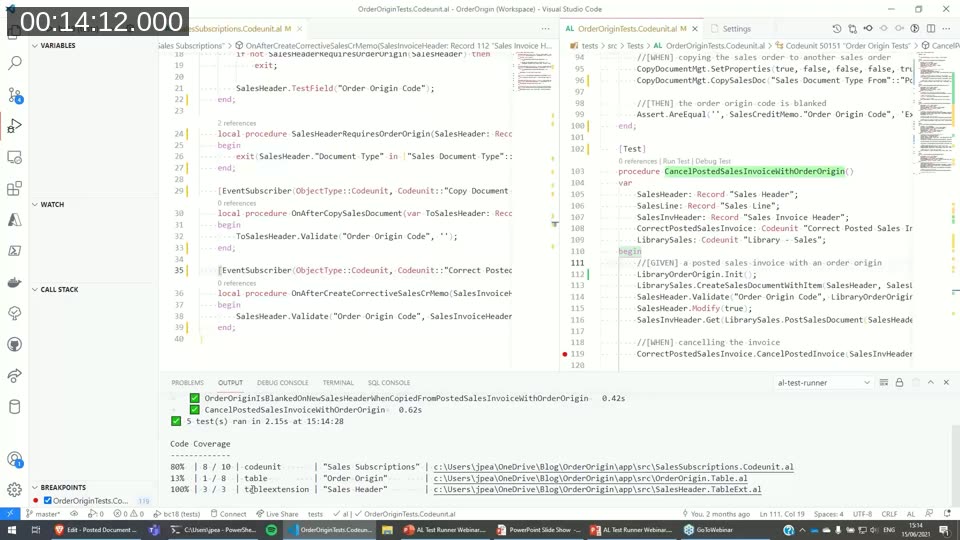
Pearson demonstrated the core workflow: code lens actions above each test method to run or debug it, and above the codeunit to run or debug every test it contains. A failed test decorates the offending line in red, and hovering over it shows the call stack that led to the error. Once the underlying code is fixed and the test passes, the decoration turns green.
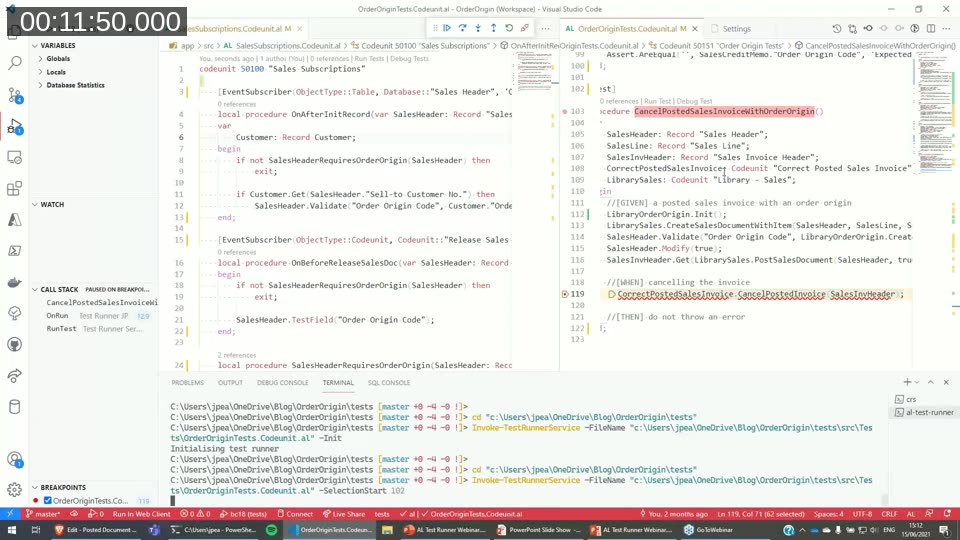
Running a test also offers a choice of publish behavior — automatically publish the test app to the container first (rapid or standard publish), or skip publishing and do it manually. For debugging, AL Test Runner attaches to a launch configuration of type attach, sets a breakpoint, and calls the test as a web service so you can step through the code as it runs.
Code coverage
AL Test Runner can also report code coverage for a test run. After running all tests in a codeunit, it shows the percentage of lines hit per object, and a toggle command highlights covered and uncovered lines directly in the source file. Pearson was clear that coverage numbers are a useful indicator of under-tested areas of the code base, not a target percentage to chase. Coverage is not cumulative — it reflects only the most recent run.
📖 Docs: AL Test Runner on the Visual Studio Marketplace — install page, with a link to the full documentation site.
Supported development scenarios include local VS Code against a local Docker host, local VS Code against a remote Docker host (with PowerShell remoting enabled), and remote VS Code development using VS Code Server. AL Test Runner does not work against non-Docker Business Central installations or SaaS environments, and Windows authentication in the Docker container has limited support. The extension is open source, and Pearson invited pull requests and suggestions on GitHub.
📖 Docs: jimmymcp/al-test-runner on GitHub — source code and issue tracker for AL Test Runner.
AL Studio
Marton Sagi, a Business Central developer at eFacto and co-author of ATDD.TestScriptor, presented AL Studio, an extension he describes as the continuation of AL Object Designer, taking the same idea of gathering AL workspace information in one place and extending it substantially. Most of AL Studio is a visual, data-grid-based view of an AL project rather than a coding tool.
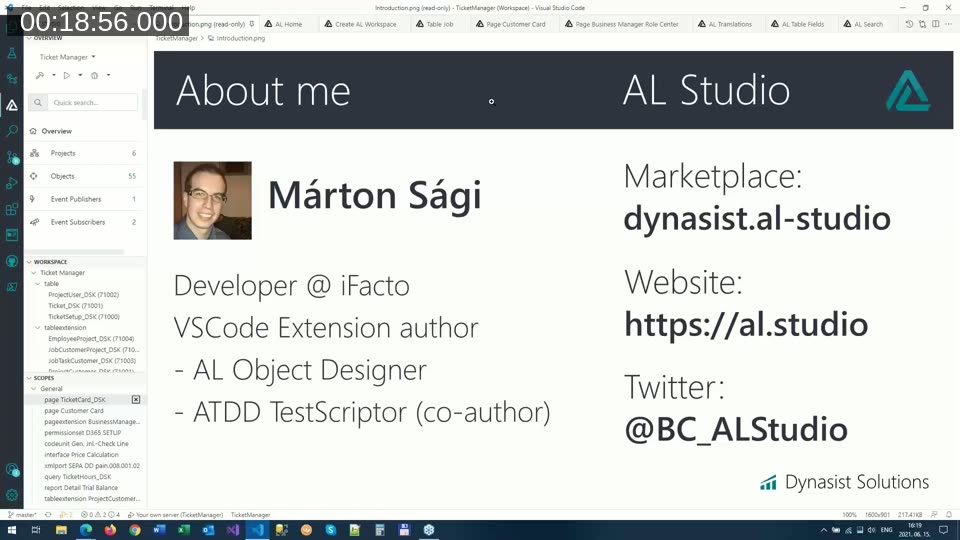
The extension opens on a home screen listing objects, event publishers, and subscribers, with a sidebar for switching between applications in the workspace. Common VS Code commands — publish, start debugging, download symbols, and manage snapshots — are exposed as buttons so they don’t need to be typed out each time.
From the object views, clicking a property name opens the relevant Microsoft documentation page, and clicking a lookup page or related object navigates straight to its designer or source code. Table and page designers show fields, keys, and triggers in a searchable grid, support jumping to a table or page extension’s parent object automatically, and can pull an RDLC or Word report layout directly out of the app package without manually extracting it first.
Translations and search
AL Studio includes a translation view that edits XLIFF-based captions and tooltips across every language in a project from a single grid, with an option to auto-translate remaining entries using machine translation and then accept or adjust them individually.
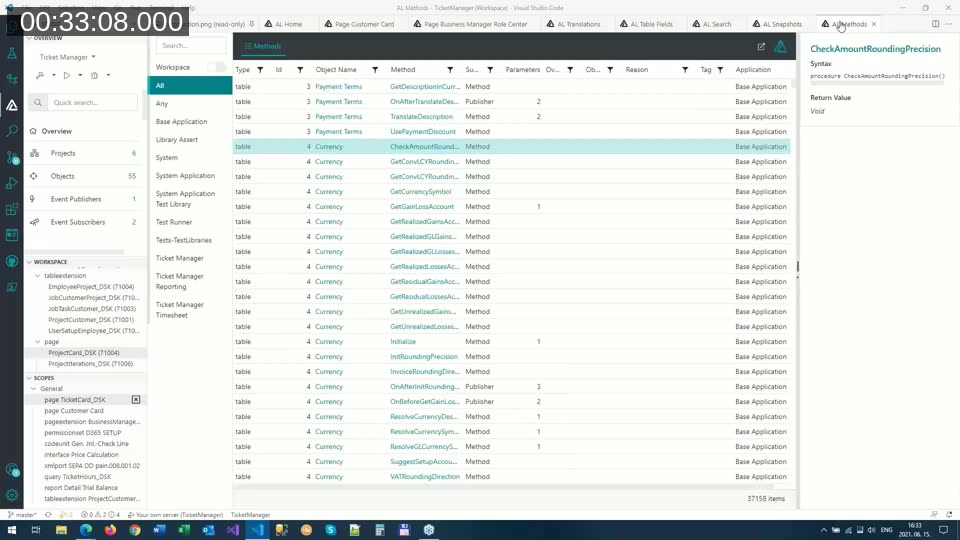
A global search view covers source code, object symbols, object properties, and translations at once, including AL package files that are not runtime packages. Sagi also showed a snapshot view for reviewing debugger snapshots as a call stack tree, a workspace-wide method list built to make it easier to find existing helper functions across large test libraries, and a bookmarking feature for pinning methods, publishers, and objects for later.
📖 Docs: AL Studio on the Visual Studio Marketplace — the free tier covers the AL home screen, workspace wizard, and source navigation; the graphical designers and translation tooling are part of the licensed edition. Pricing details are on the AL Studio website.
📖 Docs: dynasist/ALStudio on GitHub — repository for issues and discussion related to AL Studio.
ATDD.TestScriptor
Luc van Vugt closed the session with ATDD.TestScriptor, the extension he originally conceived and built together with Jan Hoek, with Marton Sagi and David Feldhoff later joining the effort. Unlike the first two extensions, ATDD.TestScriptor is not about running tests — it’s about authoring them, turning a structured test case definition into AL test code.
Van Vugt explained the acceptance test-driven development (ATDD) pattern behind the tool: every test scenario breaks down into Given (the context or setup data), When (the action or event being tested), and Then (the expected outcome). He chose this pattern partly because Microsoft’s own standard tests are largely written this way, including the given/when/then comments visible in James Pearson’s demo earlier in the session.
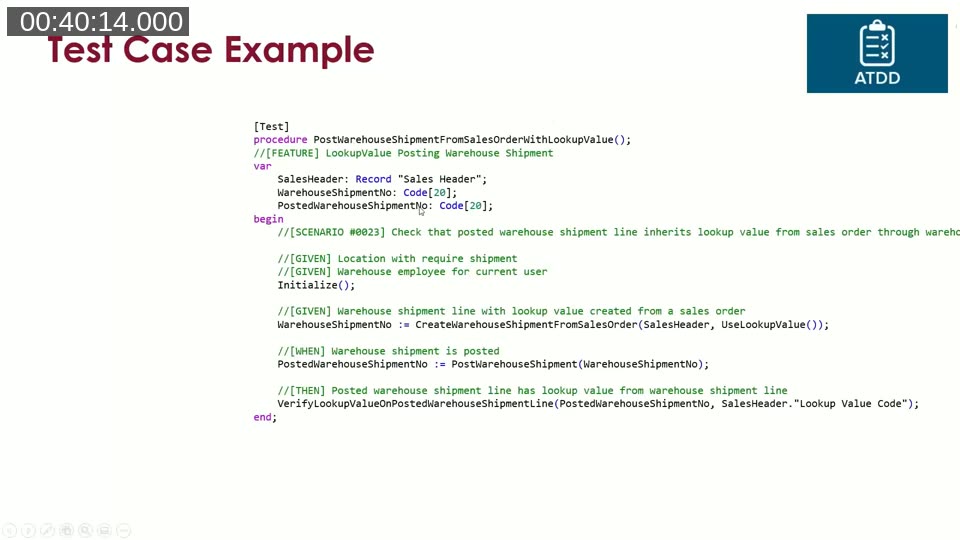
Writing test code from a test definition by hand is repetitive and error-prone: the same given, when, and then steps get copy-pasted across scenarios, and helper functions can end up duplicated or inconsistently named. ATDD.TestScriptor addresses this by scanning existing test codeunits — using GIVEN, WHEN, and THEN tags in code comments — and presenting them in a feature/scenario overview panel where each step links to a helper function.
In the demo, van Vugt showed adding a new given, when, or then step from the panel, which automatically inserts the corresponding comment line into the test code and generates a stub helper function (with a deliberate “not yet implemented” error, overridable by a setting) so development can continue immediately. The same panel supports creating a brand new feature or scenario from scratch, or removing an existing one along with its now-unused helper function.
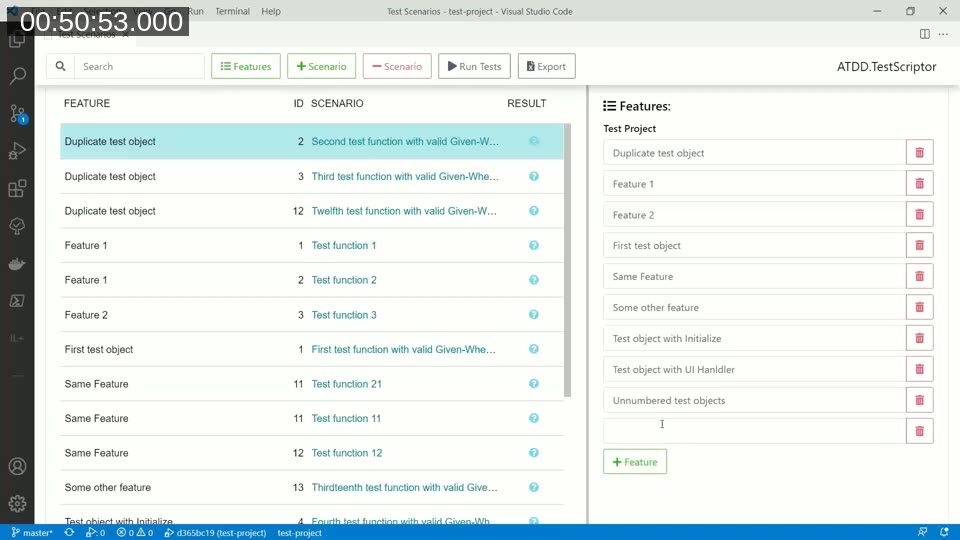
Van Vugt noted the extension deliberately allows only one When per scenario: if a test needs to verify two actions, it should be split into two scenarios, with the second reusing data from the first. He also demoed exporting the current test structure to an ATDD sheet (a spreadsheet layout used in his book on automated testing), with round-tripping — sheet to AL and back — planned as future work, alongside integration with James Pearson’s AL Test Runner to actually execute the generated tests from within the extension.
At the time of this recording, ATDD.TestScriptor was in beta, still being tested ahead of a version 1.0 release.
📖 Docs: ATDD.TestScriptor on the Visual Studio Marketplace — install page for the extension.
📖 Further reading: Test Automation Examples on Van Vugt’s DynamiXs blog — background on the ATDD approach and Luc van Vugt’s book, Automated Testing in Microsoft Dynamics 365 Business Central.
Wrap-up
All three presenters emphasized that their extensions are open source and welcome contributions and feedback. Van Vugt noted that the next session in the series, on June 22, 2021, would cover extensions from Rob van Bekkum, Johannes Wikman, and Christoph Krieg.
This post was drafted with AI assistance based on the webinar transcript and video content.