
In this webinar, Christoph Krieg, moderated by Luc van Vugt, covers how DevOps and Docker apply outside of ISV product development, specifically in customer, PTE, and on-premise Business Central projects. Christoph walks through a live Azure DevOps setup: branching model, build pipelines, release pipelines with approvals, and using Azure Artifacts feeds to manage both released versions and third-party extensions. You’ll learn how to set up Microsoft-hosted and self-hosted agents, automate deployment approvals outside business hours, and reference ISV dependencies without a manifest.
The problem with manual release processes
Christoph opens with a familiar flow: an idea comes from a consultant or key user, a developer builds the feature in VS Code, commits the code, compiles and deploys to a test environment, and waits for the key user to verify it. Testing often takes days or weeks, and by the time approval comes back, the developer has moved on to other work and has to stop, switch branches, and manually schedule the deployment to production.
The core question he raises is why developers should still be doing manual, non-development steps — recompiling, republishing, remembering to deploy — when that work can be handled automatically once a feature is approved.
The solution: CI/CD
Christoph defines CI/CD as the combined practices of continuous integration and continuous delivery, and stresses that in real customer projects, CI/CD is often stopped short: pipelines exist but only compile the app, missing the delivery half of the process entirely. The challenges he sees most often are third-party extensions from ISVs, no access to their source code, on-premise environments assumed to be unreachable from DevOps, and limited familiarity with Docker.
The big picture
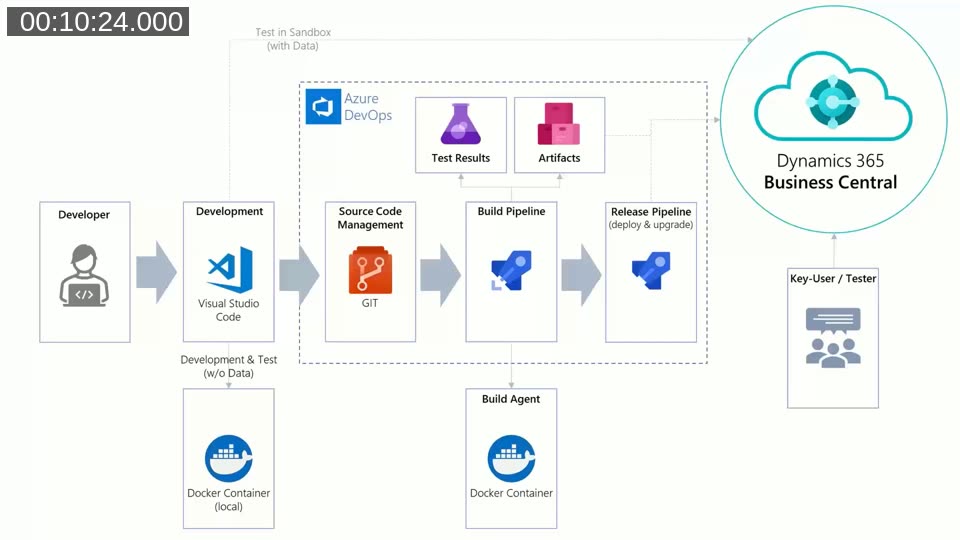
Christoph bases his architecture on a diagram originally created by Freddy Kristiansen: development happens in VS Code against local (or centralized sandbox) Docker containers, source code goes through Git, a build pipeline compiles and tests the app into artifacts, and a release pipeline deploys those artifacts to Business Central for the key user or tester to verify.
He recommends a simple three-branch model to drive this automation:
- Master/main — the most recently released version
- Release — features collected and ready to ship
- Development — work in progress
Branches are the trigger layer for every pipeline: commits to specific branches kick off specific automation, so classifying code by branch is the first step toward automating anything.
Build pipelines: the CI part
A build pipeline that only compiles the app is, in Christoph Krieg’s words, a solid base layer but a missed opportunity. He uses build pipelines to run automated builds and tests, check for breaking changes between versions, and enforce quality gates through Microsoft’s code analyzers. All of this runs through Docker containers created with the BcContainerHelper PowerShell module, executed by DevOps agents.
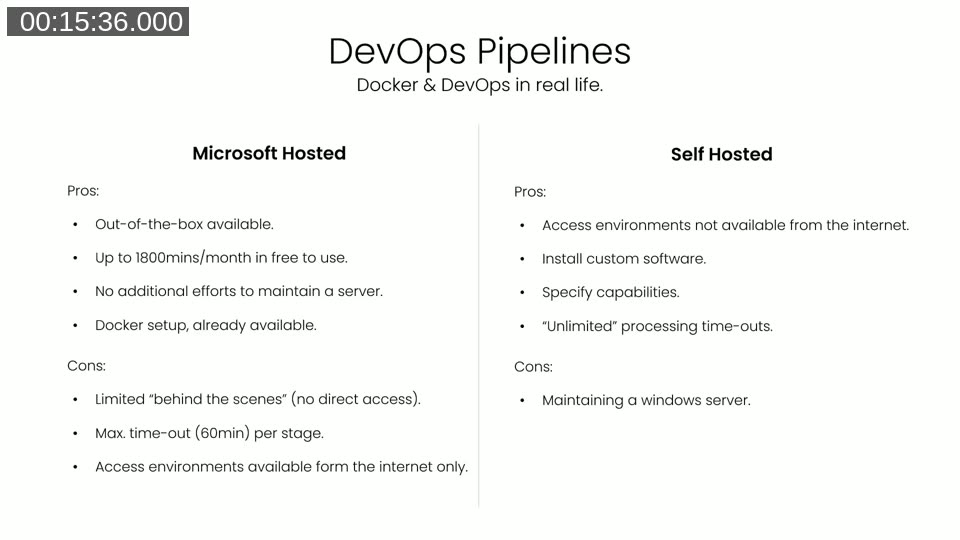
There are two types of agents, and Christophs advice is to start with Microsoft-hosted agents by default: they’re available out of the box with up to 1,800 free minutes per month and no server to maintain, but they can’t reach environments that aren’t accessible from the internet and are capped at a 60-minute timeout per stage. Self-hosted agents remove both limits at the cost of maintaining a Windows server, since Business Central containers rely on Windows containers.
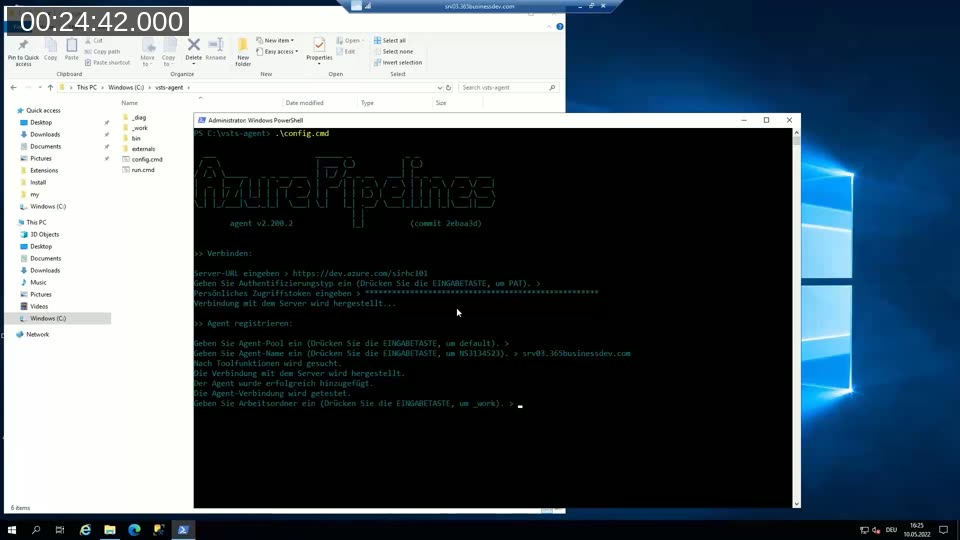
Registering a self-hosted agent is done from Project Settings → Agent Pools → New Agent, downloading the agent package, and running config.cmd. The script asks for the DevOps organization URL, a personal access token for authentication, the agent pool, a name, and a working directory, then registers and starts the agent as a Windows service.
The output of a build pipeline is a test result and an artifact. An artifact isn’t limited to the compiled app file — it can include documentation, PowerShell deployment scripts, or a chain of dependency apps needed to compile and deploy the main app.
Managing branches and pull requests
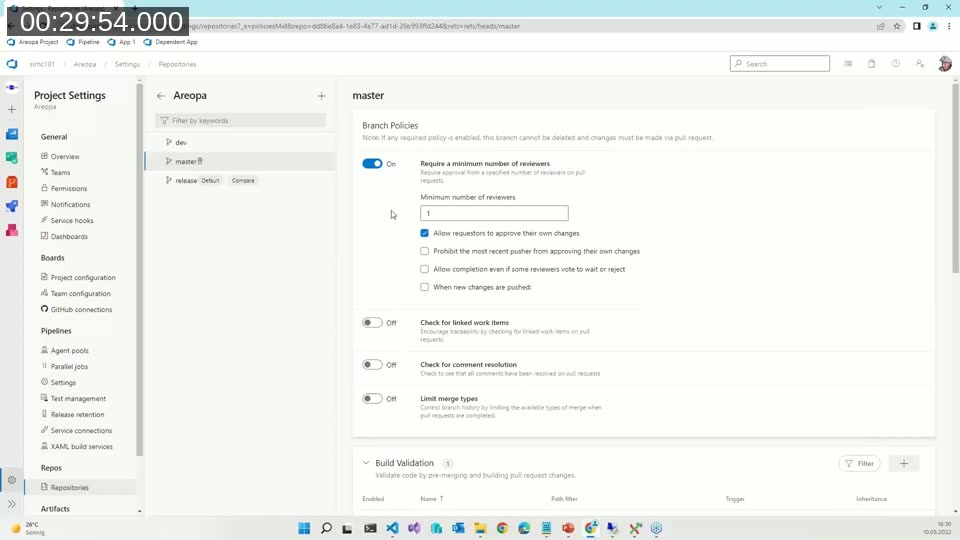
In the demo, the master branch has a branch policy requiring a minimum number of reviewers and, more importantly, a required build validation check tied to a CI pipeline. Every pull request into master triggers that CI pipeline, which compiles and tests the app against both the current Business Central version and the next minor version (Insider builds only produce a publishable artifact from the current version, since long-running multi-version builds can exceed the Microsoft-hosted agent’s 60-minute timeout).
To avoid duplicating pipeline logic across every repository, Christoph keeps a separate “Pipeline” repository holding shared settings, PowerShell scripts, and YAML templates. Each app repository’s own YAML file is then just a few lines referencing that shared template.
Release pipelines: the CD part
Christoph calls the release pipeline the most underrated feature in Azure DevOps. Build pipelines automate what a developer already does manually during development; release pipelines automate everything after that — deployment, approvals, and the level of expertise required to safely publish an app.
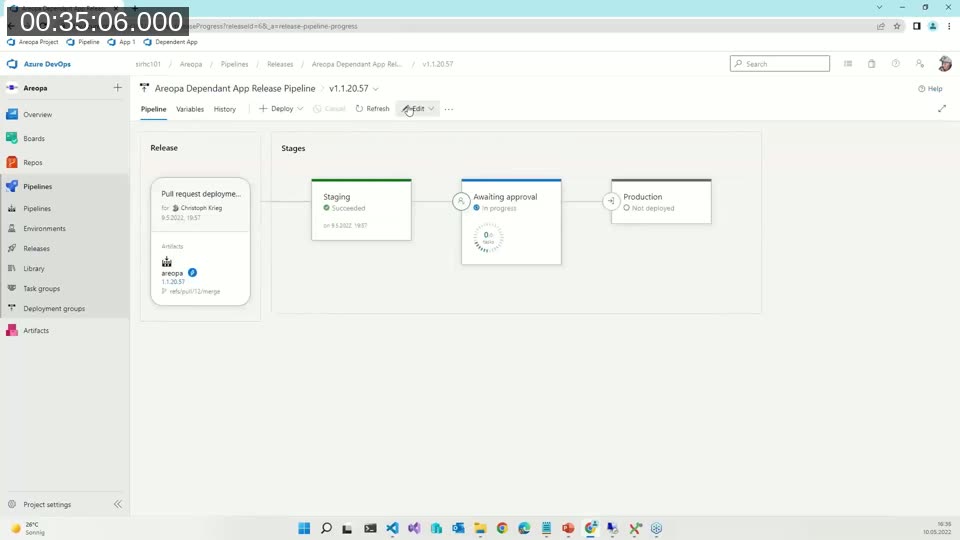
His example release pipeline has three stages: staging (deploy to a test environment, requiring pre-deployment approval), an “awaiting approval” gate held open for up to 30 days, and production. Deployment itself is a single PowerShell task — in the demo it publishes the app via the development service in development scope, though the Business Central API can be used the same way.
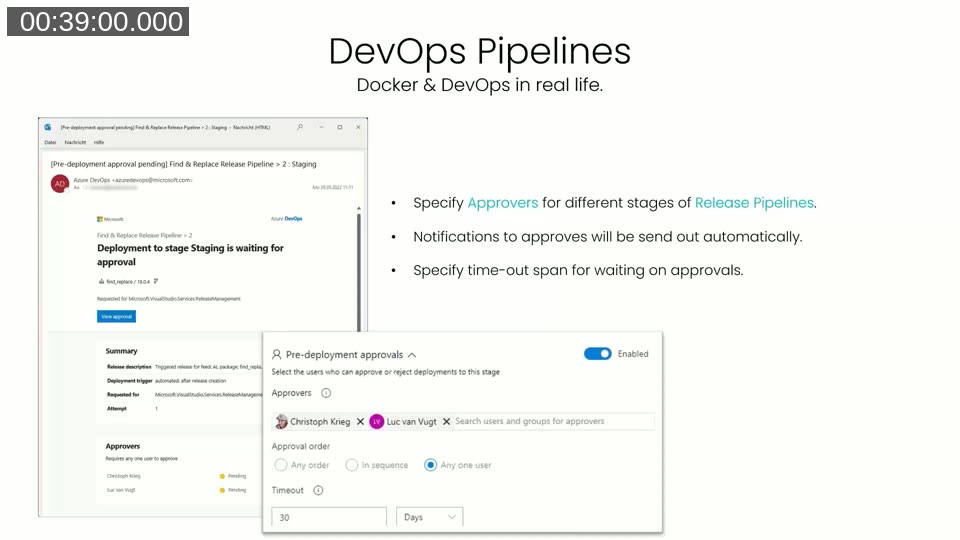
Approvers can be specific people (Christoph lists himself and Luc van Vugt as approvers in the demo), and DevOps sends an email notification automatically when a stage is waiting on approval. Production deployments can also be scheduled — Christoph sets his pipeline to run daily but only actually deploy at 8pm, outside business hours, so nobody has to sit and wait to publish manually in the evening. A pending deployment can still be forced through immediately if needed.
Release pipelines aren’t limited to Docker or Windows containers: since deploying an already-compiled app doesn’t require compiling business logic, the deployment agent can run on a Linux server or even a Raspberry Pi.
Artifacts and Azure Feeds
The second half of the demo covers Azure Artifacts feeds, used for storing released versions of extensions and for managing third-party ISV dependencies. Creating a feed only requires a name and a scope (project or organization-wide). For Business Central, the relevant package type is Universal Packages, which can hold anything — an app file, a manifest, or a full folder structure.
📖 Docs: Publish Universal Packages in Azure Artifacts — covers the CLI and pipeline task syntax used to publish packages like the app files shown in this pipeline.
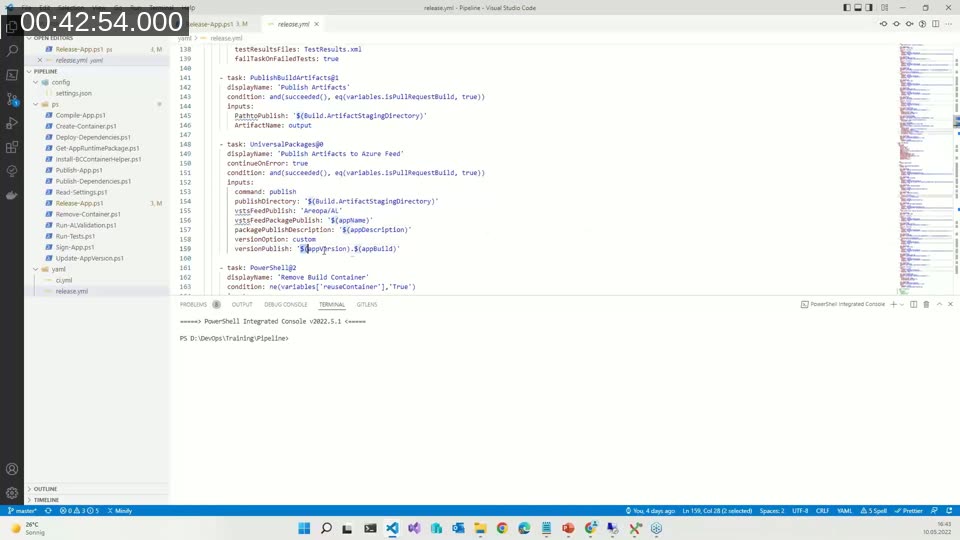
Rather than downloading pipeline artifacts and uploading them manually, the release pipeline template includes a UniversalPackages task that publishes straight from the build’s staging directory to the feed, tagging each package with the app name, description, and version. Because Business Central uses four version parts (major.minor.patch.build) while Azure Feeds only support three, pipelines need to account for that difference — the feed rejects publishing the same three-part version twice.
For third-party extensions, Christoph Krieg’s example is a “Find & Replace” app from AppSource where only the app file is available, with no manifest. That’s enough: the app name and version can be uploaded to the feed as a universal package via az artifacts universal publish, and referenced from there on.
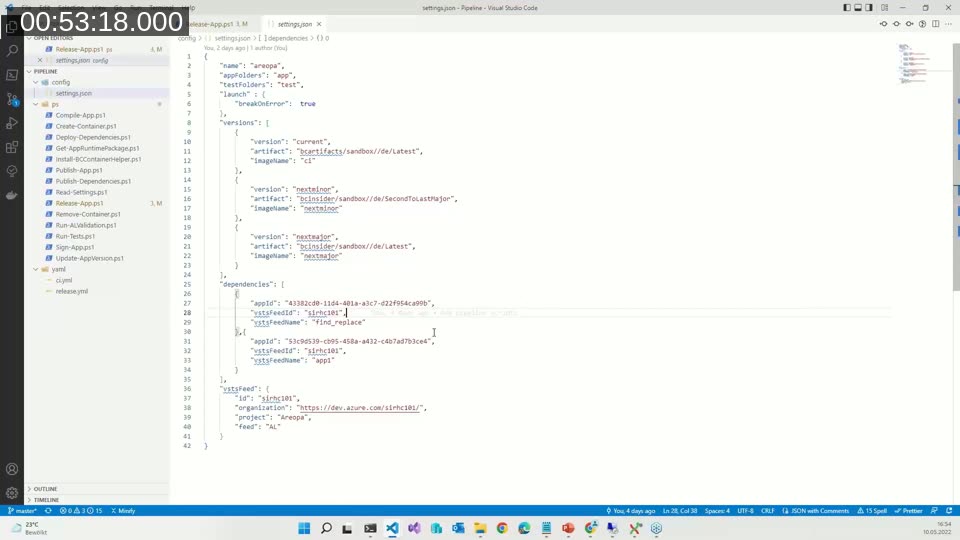
Dependencies are then declared in a project settings file by app ID, feed ID, and feed name, rather than being resolved manually before every build. A release pipeline can also be configured to trigger directly off new uploads to a feed, so publishing a new ISV package version can kick off its own staging/approval/production flow.
Q&A: handling parallel feature branches
Asked how to keep two parallel feature developments from overwriting each other in staging, Christoph explained that in real projects the setup is more layered than the simplified demo: features are collected and tested from the development branch and pipeline rather than the release pipeline directly, so unapproved features don’t block anything. Only once a feature is approved does it get cherry-picked into the release branch, where it’s published to test and production together with the other approved features.
Get started
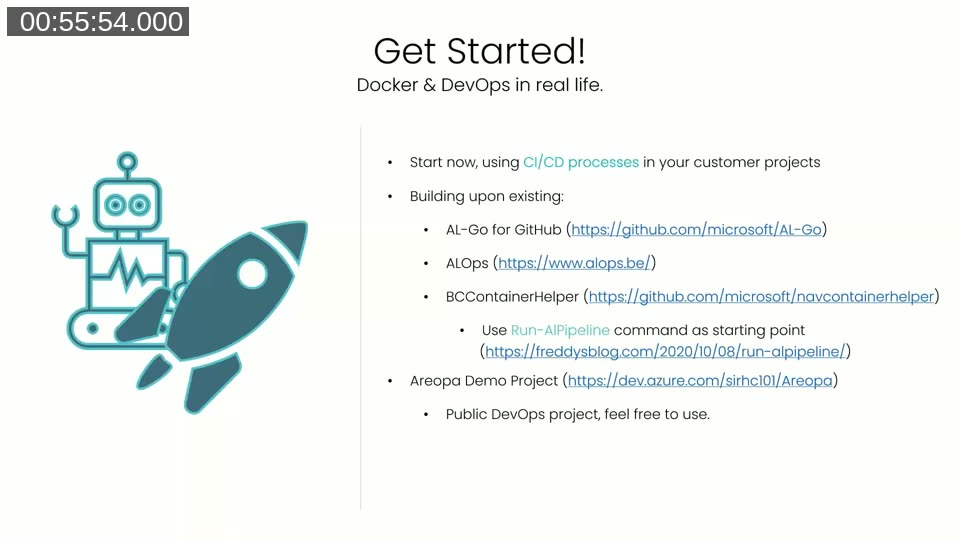
Christophs closing advice: don’t reinvent the wheel. Several starting points already exist depending on where a team is today:
📖 AL-Go for GitHub: github.com/microsoft/AL-Go — a set of GitHub templates and actions for setting up CI/CD, quality checks, and release workflows for Business Central AL projects without an existing Azure DevOps setup.
📖 ALOps: alops.be — an Azure DevOps extension for managing AL build and release steps for teams already using Azure DevOps.
📖 BcContainerHelper / Run-AlPipeline: github.com/microsoft/navcontainerhelper and Freddy Kristiansen’s Run-AlPipeline post — a single PowerShell function that compiles, publishes, and tests an app in Docker without a separate pipeline definition.
The Areopa demo project itself is public at dev.azure.com/sirhc101/Areopa, and Christoph invites viewers to reuse and modify it directly.
This post was drafted with AI assistance based on the webinar transcript and video content.