
Can you talk to Business Central in natural language? In this webinar, Roberto Corella, a Microsoft MVP who has worked with NAV and Business Central since 1998, shows how the Business Central MCP server makes that possible. Gert Hector moderated the session, the first of Areopa season 8.
Roberto covers what MCP is, how to configure the server in Business Central, how to build a Copilot Studio agent on top of it, and how to reach the same server from VS Code and Claude. The session was recorded on August 31, 2026.
What MCP Is and Why It Matters
Roberto starts with a question to the audience: how many have a production project that uses MCP, and how many with a Business Central MCP? His impression is that everyone knows the concept, but few customers run it in production.
He compares the Model Context Protocol to USB. Without it, every AI application has to learn how to connect to every data source, each with its own authentication. With MCP, a client only needs to know how to talk to the MCP server. How the server reaches Business Central or SQL is not the client’s concern. MCP was created by Anthropic and has since been adopted across the industry.
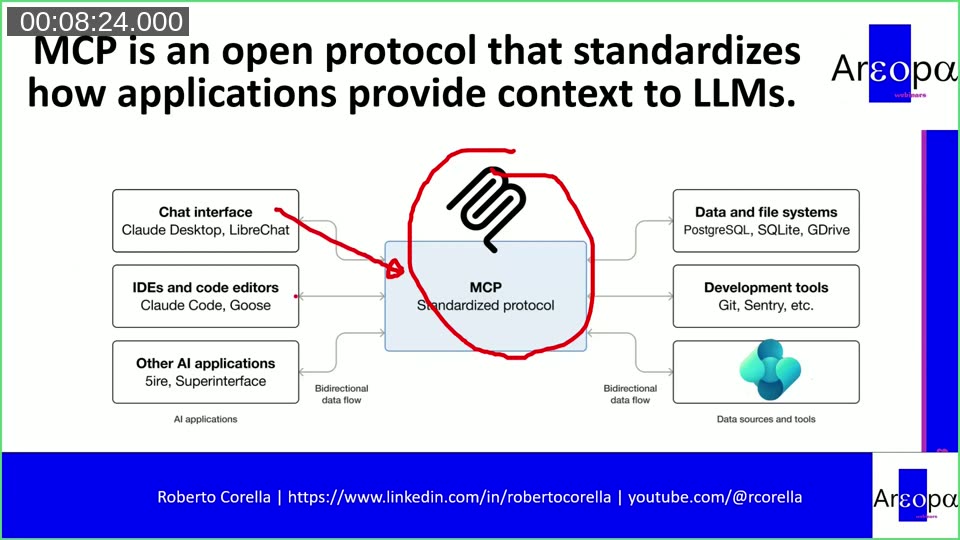
An MCP server can expose resources, prompts and tools. The protocol also defines sampling, elicitation and apps, but Roberto notes that few products use those so far. He names reusability as the main benefit: functionality built once can serve other clients and other language models.
What Copilot Studio and Business Central Support
Copilot Studio supports only two of these components, resources and tools. For Business Central the situation is narrower still: at the time of the session, only tools could be used. Roberto expects resources to follow in later minor versions.
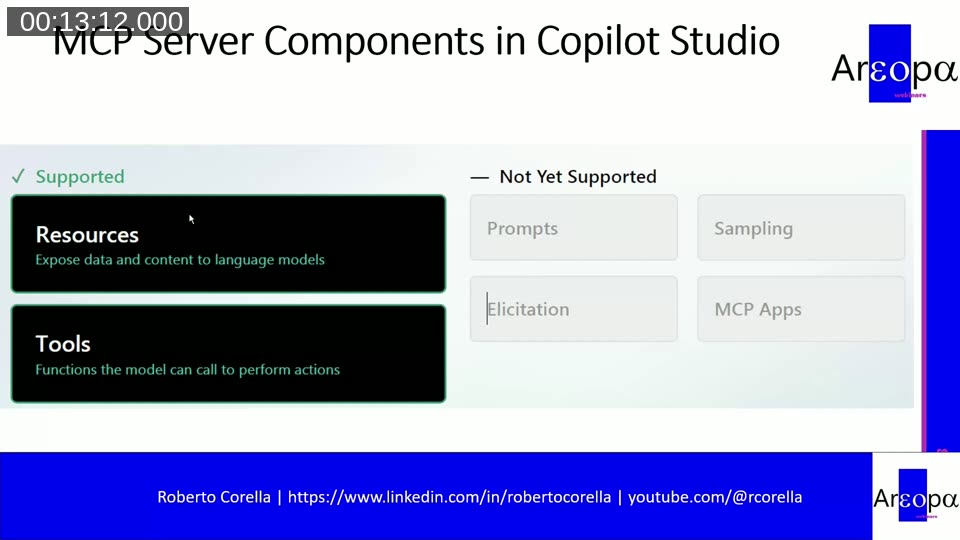
He also points out that the number of tools is limited, and that this is on purpose. He compares tools to doors. With direct API calls, you choose which API to use. With MCP, the language model chooses, and the more tools it sees, the easier it is to pick the wrong one.
Architecture and the Three Business Central MCP Servers
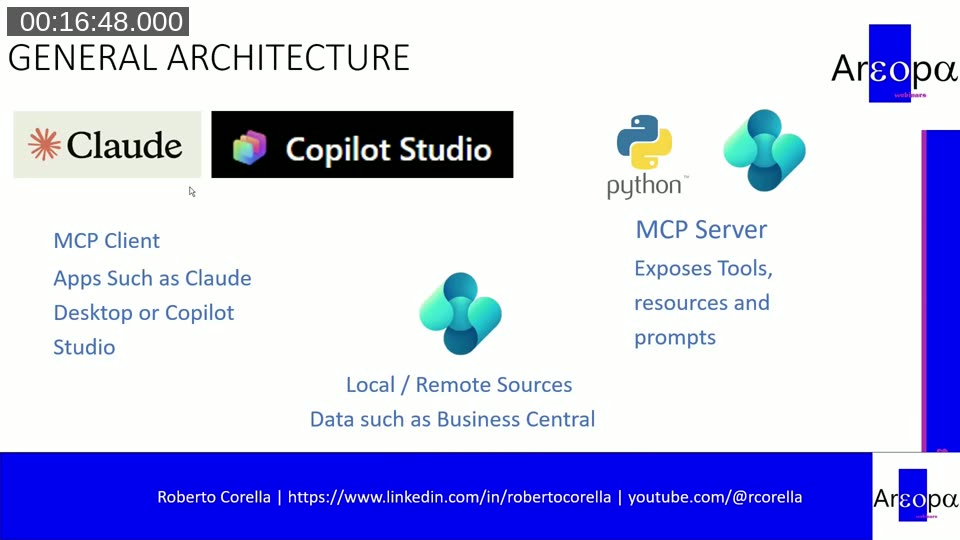
An MCP client, such as Claude, VS Code or Copilot Studio, calls an MCP server, and the server calls the data source. Roberto says you can write your own server in Python or TypeScript. He built one in Python before Microsoft released its own, and it still works.
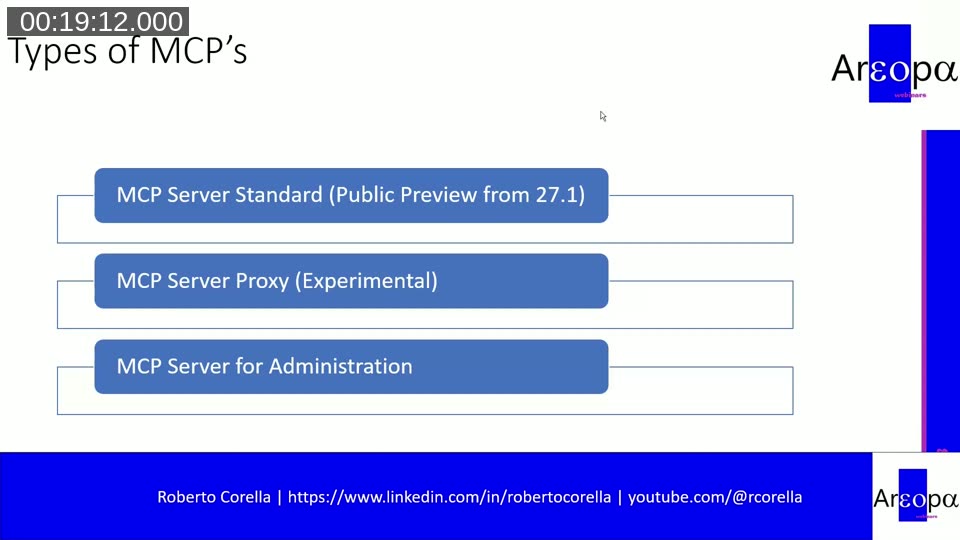
He describes three Business Central MCP servers:
- MCP server standard: the supported one, in public preview from version 27.1.
- MCP server proxy: experimental and not supported by Microsoft. It is the route Roberto uses for Claude.
- MCP server for administration: for managing environments and apps rather than business data.
📖 Docs: Business Central MCP Server Overview and Setup — Microsoft Learn describes the supported hosts, the endpoint and the OAuth-based authentication. It reflects the current state, which may differ from the preview behavior shown in the session.
Configuring the Server in Business Central
In Business Central, the Model Context Protocol (MCP) Server Configurations page lets you create several configurations. Roberto recommends one configuration per agent, so that, for example, a sales agent does not see vendors or accounting data.
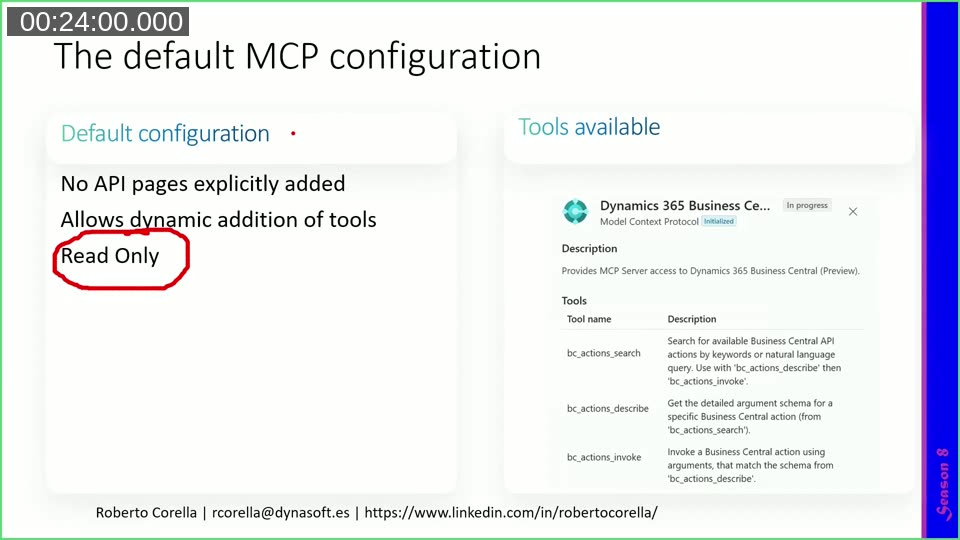
The default configuration adds no API pages explicitly. It uses dynamic tool mode and is read only. Instead of one tool per API, the agent gets three tools: search, describe and invoke. The agent searches for the best API for a request, asks for its description, and then invokes it. Roberto prefers this mode for reading because it limits the security risk.
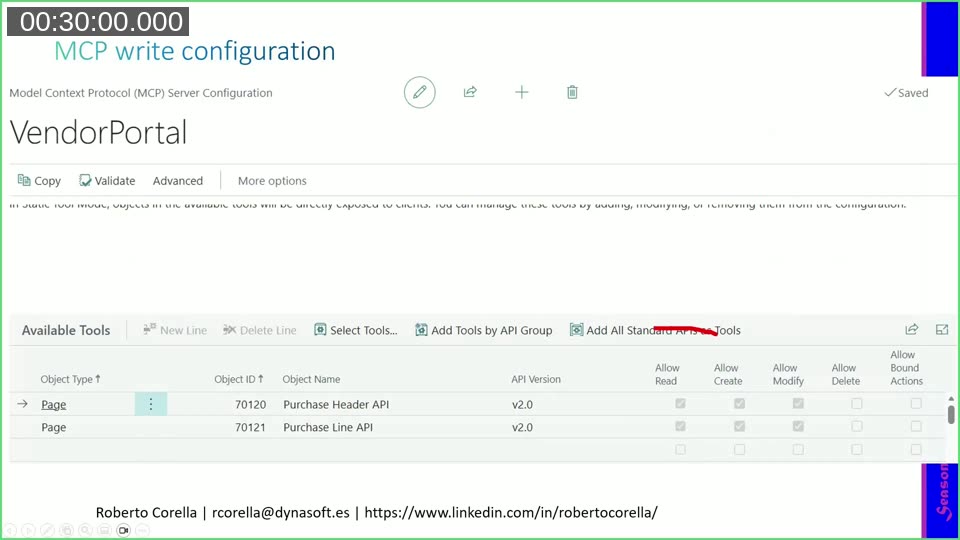
For write scenarios, you create a static configuration. You turn off dynamic tool mode, pick the API pages to expose, and for each one set whether the agent may read, create, modify or delete. Delete and bound actions have to be marked explicitly. The example shown, VendorPortal, exposes the purchase header and purchase line APIs.
Security follows the signed-in user. The MCP server authenticates like the APIs do, so if the connection has no permission on a table, the MCP server has none either.
📖 Docs: Configure Business Central MCP Server — covers default and named configurations, dynamic tool mode, per-API permissions, validation, export and import, and the connection string.
Demo: A Copilot Studio Agent for Sales
Roberto’s example is a “Pocket Sales Assistant” for salespeople who are with a customer and need quick answers, such as the last three orders for that customer.
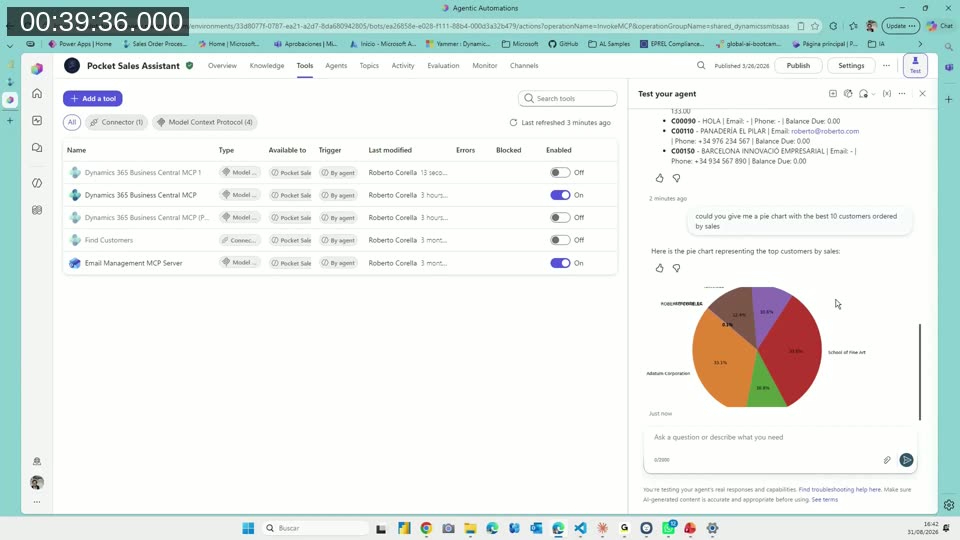
- In the agent’s Tools tab, choose Add a tool, then Model Context Protocol, then the Business Central MCP server.
- Select or create the connection. Its user determines which data the agent can reach.
- Choose the environment, the MCP server configuration and the company.
- Save and refresh the tools. With the default configuration, the three tools search, describe and invoke appear.
With that in place, the agent listed customers from the CRONUS USA company, returned the last three orders for a customer, and drew a pie chart of the top 10 customers by sales using Copilot Studio’s code feature. A request to create a sales order failed, as expected, because the default configuration is read only. Roberto disabled the second configuration in the tool list to avoid confusing the agent.
On MCP compared with other tools, Roberto lists these points:
- Pros: built for AI tools, low latency, flexible.
- Cons: a newer standard that is still maturing, and less tested than the existing connectors.
📖 Docs: Create Agents in Copilot Studio that Connect to Business Central — step-by-step guide for the connector and for the MCP server.
New Features in Version 28
Roberto points to several additions in the 28 version:
- Validate: checks a configuration, for example when you expose sales lines without the sales header they depend on.
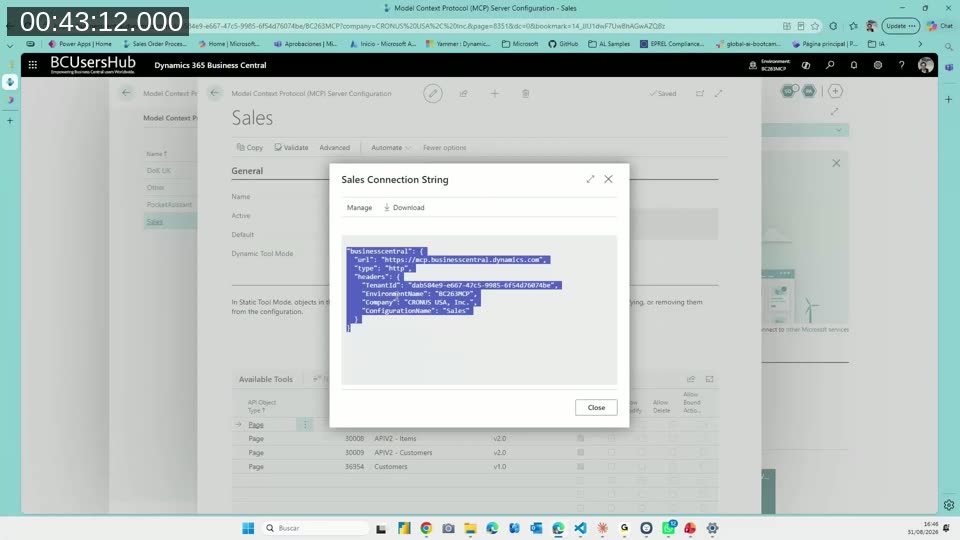
- Connection string: copy it from the configuration and reuse the MCP server in other clients.
- Exposing queries: API queries can now be exposed as tools. Roberto says this did not work perfectly for him yet.
- Export and import: move a configuration, for example from a sandbox to production.
Other Clients: VS Code and Claude
For VS Code, Roberto pastes the connection string into the mcp.json file. He then asked for the item list from Business Central and the customer list, and both came back. The Microsoft documentation describes the same steps.
For Claude, he used the experimental MCP proxy and added it as a connector in claude.ai. He asked for the items with the highest inventory and got a table back. Because the proxy is experimental, Microsoft does not support it.
📖 Docs: Connect to Business Central MCP Server with Visual Studio Code — shows the mcp.json setup. Microsoft also documents a route for non-Microsoft hosts such as Claude, which needs your own Microsoft Entra app registration.
MCP for Administrators
The administration server works on environments rather than company data. Roberto added it to a chat and asked for the Business Central environments in his tenant. It returned the three he has, matching the admin center. He mentions that you can also ask about the version of a sandbox or whether it can be updated.
From the Lab and Takeaways
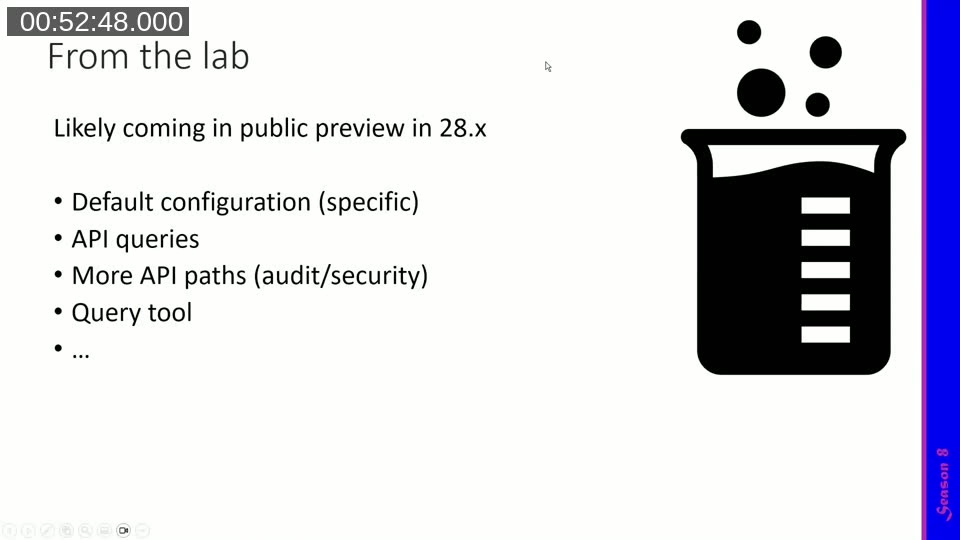
Roberto lists items likely to arrive in public preview in 28.x: a specific default configuration, API queries, more API paths for audit and security, and a query tool. He also mentions new tool selection options in Copilot Studio that are not yet available in all environments.
- Start using the MCP server as soon as possible to create your first agent.
- Start with small projects. Large agents can be confusing.
- Do not expose all APIs. Expose only what the agent needs.
- Use Copilot Studio or your preferred language model.
Q&A
Can the MCP server be used in VS Code to get data from Business Central? Yes. Roberto showed it in the demo.
Can the agent’s data visualization be improved with skills or other MCP servers, such as Power BI? Yes. Roberto says you can obtain data from one tool and pass it on to another MCP server such as Power BI.
When custom fields are added and exposed through a custom API, how does the agent learn the context? You need to expose the new fields through custom APIs. Roberto recommends good tooltips, captions and description fields, because the agent uses them as context.
One further question about testing was too unclear in the recording to summarize. Roberto invites viewers to contact him on LinkedIn.
Resources
- Roberto Corella: LinkedIn and the YouTube channel youtube.com/@rcorella (both shown on the slides)
- Business Central MCP Server Overview and Setup on Microsoft Learn
This post was drafted with AI assistance based on the webinar transcript and video content.