
In this Areopa Academy webinar, Milan Milinčević (Tech Lead at BDO, Microsoft MVP) and Luc van Vugt (QA Lead at 4PS) deliver 43 rapid-fire development tips for Business Central developers. Organized into nine categories, these tips cover everything from VS Code productivity to performance optimization, clean code patterns, and security.
Category 1: Work Faster (Tips 1–3)
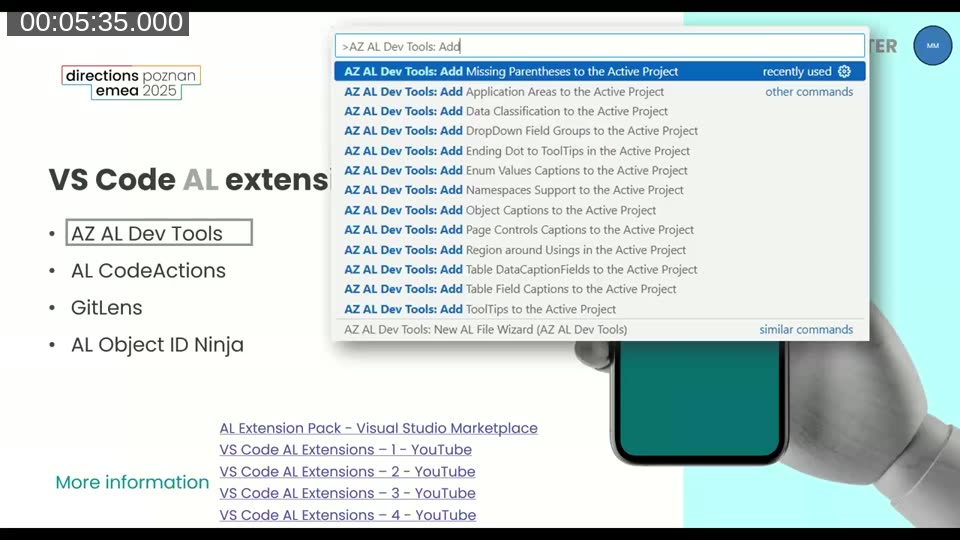
Tip 1 – VS Code AL Extensions
Milan highlights four extensions every BC developer should have installed:
- AZ AL Dev Tools (by Andrzej Zwierzchowski) — a “Swiss army knife” with dozens of automation commands for your AL repository
- AL CodeActions (by David Feldhoff) — extract code into separate procedures with a single click, used multiple times a day
- GitLens — see when each line was changed and which pull request it belonged to, making refactoring much safer
- AL Object ID Ninja (by Vjeko) — prevents ID collisions when multiple developers work on the same project
Tip 2 – Shortcuts in VS Code
Use keyboard shortcuts instead of the mouse for navigation and editing. For example, Alt+Up/Down moves lines of code without copy-pasting. You can also create custom shortcuts for operations you use frequently.
Tip 3 – Use MSDyn365BC.Code.History
The MSDyn365BC.Code.History repository by Stefan Maron contains the standard BC application code across versions and localizations, each on its own branch. Switching between branches lets you compare changes between versions and trace when Microsoft introduced a specific change or bug. A companion repo, the Sandbox Code History, is updated daily with the latest sandbox builds.
Category 2: Work Smarter (Tips 4–7)
Tip 4 – Agentic Development
AI-assisted coding tools like GitHub Copilot can speed up development, reduce repetitive work, and act as a real-time companion for coding suggestions and code review. Luc notes that the more componentized your code is (following SOLID principles), the better agentic tools can help. See the Agentic Coding guidelines on alguidelines.dev for BC-specific guidance.
Tip 5 – Use Micro-Commits
Commit each small, tested change immediately rather than waiting until a feature is complete. If a later step introduces a problem, you can roll back to the last known-good state and pinpoint exactly where things went wrong. For more on this approach, see What’s This About Micro-Commits? by Industrial Logic.
Tip 6 – Limit Event Subscriptions
Avoid unnecessary event subscriptions — too many will slow down your solution. Keep subscriber codeunits small, use SingleInstance codeunits when possible, and be aware that Static Automatic binding has a cost over manual binding.
Tip 7 – Managed CI/CD Solution
Use established CI/CD tools: AL-Go for GitHub, ALOps, or Cosmo Alpaca. Automating your build and test pipeline reduces manual work, improves reproducibility, and catches issues earlier.
Category 3: Work Smarter – Continued (Tips 8–11)
Tip 8 – Implicit Commit
Wrapping Codeunit.Run inside an if statement creates an implicit commit — the system starts a new transaction and automatically commits on success or rolls back on failure. This is the recommended pattern for batch processing, as it prevents system stops and ensures processed data is persisted. For a detailed walkthrough, see Luc van Vugt’s Codeunit.Run transaction semantics series.
Tip 9 – Implement Tooltips on Table Level
Define the ToolTip property on table fields instead of repeating them on every page. Multiple pages referencing the same table inherit the tooltip automatically. If a specific page needs a different tooltip, you can override it at the page level. This reduces redundancy, especially when translations are needed.
Tip 10 – Move to Word Layouts
Microsoft is investing heavily in Word report layouts as the future standard. Word layouts are simpler to edit than RDLC and can even be maintained by consultants or power users — not just developers. The trade-off is that Word layouts are static (no dynamic expressions in the layout), so datasets need to be prepared carefully.
Tip 11 – Organize Folders by Category, Not Object Type
Instead of grouping files into Pages/, Codeunits/, Tables/ folders, organize by feature or business area. This makes it easier to find all related objects for a given feature and matches how Microsoft structures the standard application.
Category 4: Find and Fix (Tips 12–16)
Tip 12 – Data Administration Page
Before building custom cleanup routines, check what Business Central already provides. The Data Administration page lets you review database statistics and schedule tasks like deleting orphaned media records — no custom code required. Stefano Demiliani has a detailed overview of its capabilities.
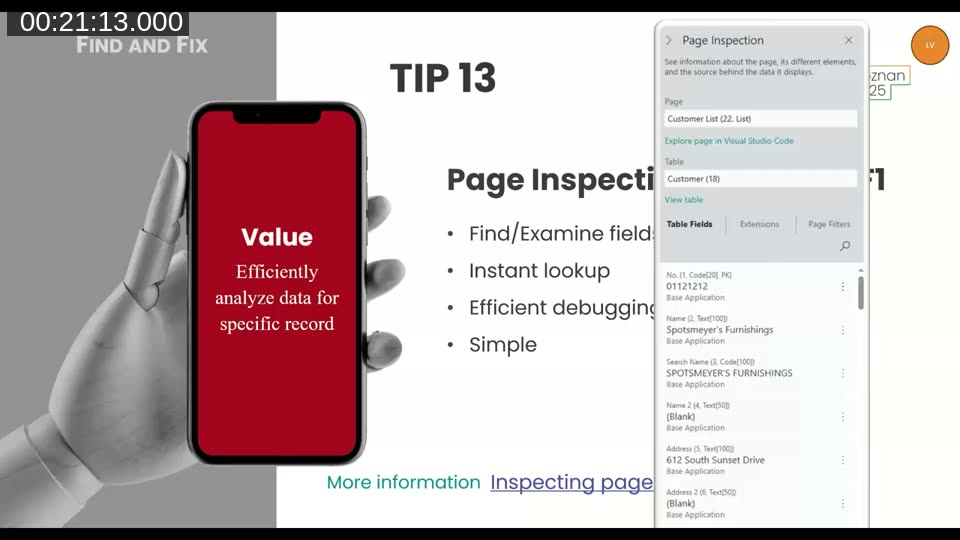
Tip 13 – Page Inspection (Ctrl+Alt+F1)
The Page Inspection panel (Ctrl+Alt+F1) shows table fields and their values, which extensions contribute to the page, applied filters, and the underlying table. You can click “View table” to browse the data directly — no more manually typing table numbers in the URL.
Tip 14 – Snapshot Debugging
Snapshot debugging records AL code execution on the server without interrupting live users. Start recording with F7, stop with Alt+F7, then step through the captured snapshot offline in VS Code. Breakpoints become “snappoints” where variable states are captured. This is the only way to debug production environments in SaaS, where traditional attach debugging is not available.
Tip 15 – Telemetry
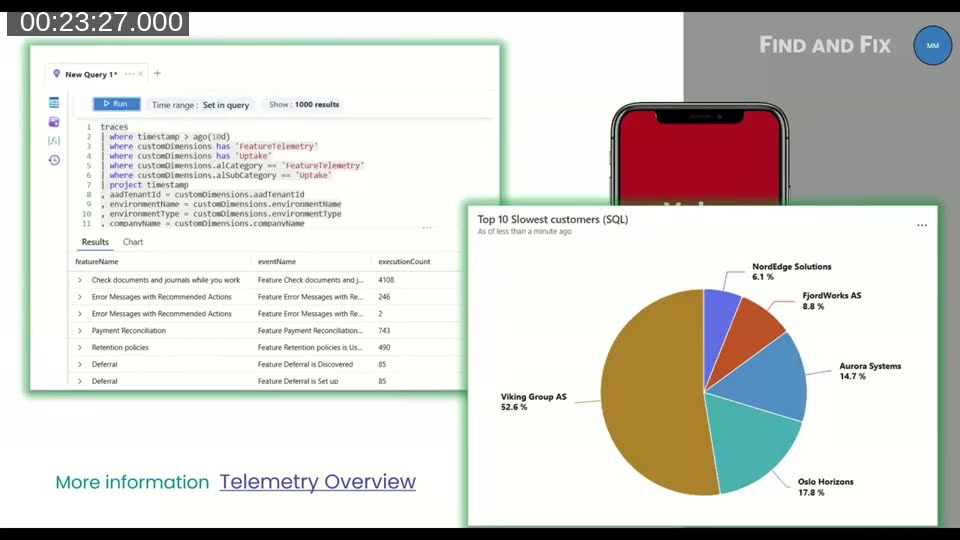
If you are not using telemetry yet, start now. Milan emphasizes that the goal is not just to set it up, but to proactively monitor it daily. Open-source dashboards and free Microsoft apps (like the Power BI Telemetry app) are available, so you do not need to build custom solutions from scratch. Use KQL queries in Azure Application Insights to analyze performance, errors, and feature uptake across customer environments.
Tip 16 – Database Performance Pages
Two built-in pages help diagnose database issues in cloud environments:
- Database Missing Indexes — shows suggestions from the SQL query optimizer (evaluate them carefully before implementing)
- Database Wait Statistics — shows wait categories and times to help identify bottlenecks
Category 5: Write Performant Code (Tips 17–25)
Tip 17 – SetAutoCalcFields
When iterating over records in a FindSet/repeat loop, use SetAutoCalcFields instead of calling CalcFields inside the loop. SetAutoCalcFields is called once before the query and joins the FlowField calculation into a single SQL statement, while CalcFields triggers a separate query for each record. In benchmarks, this can be up to 23x faster and significantly reduces SQL Server load.
📖 Docs: Record.SetAutoCalcFields Method — configure FlowField calculations to be included in the initial database query.
📝 Blog: CalcFields vs. SetAutoCalcFields by Kauffmann — a deep dive into performance differences with benchmarks.
Tip 18 – Page Background Tasks
Not everything on a page needs to load before the user sees it. Page Background Tasks let you push processing to the background so the page appears immediately while calculations run asynchronously. The architecture involves enqueueing a task, handling results in OnPageBackgroundTaskCompleted, and handling errors in OnPageBackgroundTaskError.

Tip 19 – TextBuilder
Use the TextBuilder data type instead of concatenating text variables. It uses less memory, executes faster, and produces cleaner code when assembling strings — particularly useful when building large text outputs line by line. See Using TextBuilder Data Type to Export Data on Dynamics 365 Lab for a practical example.
Tip 20 – IsEmpty + DeleteAll
Calling DeleteAll on an empty table still acquires a lock, blocking other processes unnecessarily. Always check IsEmpty first:
if not Rec.IsEmpty() then
    Rec.DeleteAll();
This prevents table locks when there is nothing to delete, improving concurrency.
Tip 21 – SetLoadFields (Partial Records)
Use SetLoadFields to specify which fields to retrieve from the database, reducing I/O and memory usage. Be careful: if code later accesses a field that was not loaded, the platform triggers an additional “just-in-time” query, negating the benefit. For report datasets, use AddLoadFields to extend the default field list rather than replacing it. Stefano Demiliani’s post on SetLoadFields with reference vs. value passing explores an important related performance nuance.
Tip 22 – Use Query Objects Instead of Nested Loops
When joining data from multiple tables, a Query object pushes the filtering and joining to SQL instead of doing it in AL loops. This avoids nested FindSet/repeat patterns and runs faster. Note that Query objects always read directly from the database (bypassing the record cache), so measure performance in cases where cached data would have been beneficial.
Tip 23 – “Lazy Evaluation”
AL evaluates all conditions in an if statement regardless of whether an earlier condition already determined the result. Put the least costly checks first and use separate if statements when short-circuit evaluation would help performance. For a worked example, see Lazy Evaluation on That NAV Guy.
Tip 24 – Use DataTransfer for Efficient Upgrades
The DataTransfer data type moves data between tables at the SQL level, making it around 50x faster than row-by-row processing in AL. It can only be used in upgrade codeunits, making it ideal for data migration scenarios where minimizing downtime matters.
📖 Docs: Transferring Data Between Tables Using DataTransfer — usage patterns and constraints for bulk SQL-level data migration.
Tip 25 – Use alguidelines.dev BC Design Patterns
The alguidelines.dev site collects community-maintained design patterns and best practices for AL development. Rather than reinventing solutions, adopt these proven patterns for consistent, high-performing code. You can also contribute new patterns or join discussions.
Category 6: Write Readable Code (Tips 26–28)
Tip 26 – Proper Use of Global Variables
Use local variables by default and only make a variable global when there is a clear reason — for example, when a value must persist across multiple method calls to avoid repeated lookups. Luc points to an example in the standard posting process where AllowPostingFrom and AllowPostingTo should be global to avoid rechecking the allowed posting period with every line.
Tip 27 – Interfaces
Interfaces define a contract (method signatures) without specifying the implementation. This promotes modularity, loose coupling, and easier testing — you can swap in a mock implementation during tests without running the full business logic. Multiple implementations can be plugged in depending on context, similar to a plugin system. Vjeko has a detailed walkthrough in Fun with Interfaces.
Tip 28 – SetRange vs. SetFilter
Use SetRange for single-value or range filters — it is type-safe and its intent is clear. Use SetFilter for complex expressions with wildcards or operators. A key distinction: SetRange enforces type safety on the filter values, while SetFilter accepts a free-text filter expression.

Category 7: Write Consistent Code (Tips 29–34)
Tip 29 – Preprocessor Directives
Preprocessor directives (#if, #else, #endif) let you maintain multiple code paths in a single codebase, compiling only the relevant branch for each target version or environment. Microsoft uses these in the standard application during feature transitions. See Preprocessor Directives in AL on Microsoft Learn.
Tip 30 – Use IntelliSense
Let IntelliSense complete variable names and method calls instead of typing them manually. This ensures consistent casing and spelling — small inconsistencies are distracting during code reviews and can introduce subtle bugs.
Tip 31 – Clear vs. Reset vs. Init
Know the difference between these three operations on record variables:
- Clear — empties the record variable entirely
- Reset — removes filters regardless of filter group and resets key settings; use when reusing a record variable in a new context
- Init — re-initializes field values except the primary key; use when inserting a new record
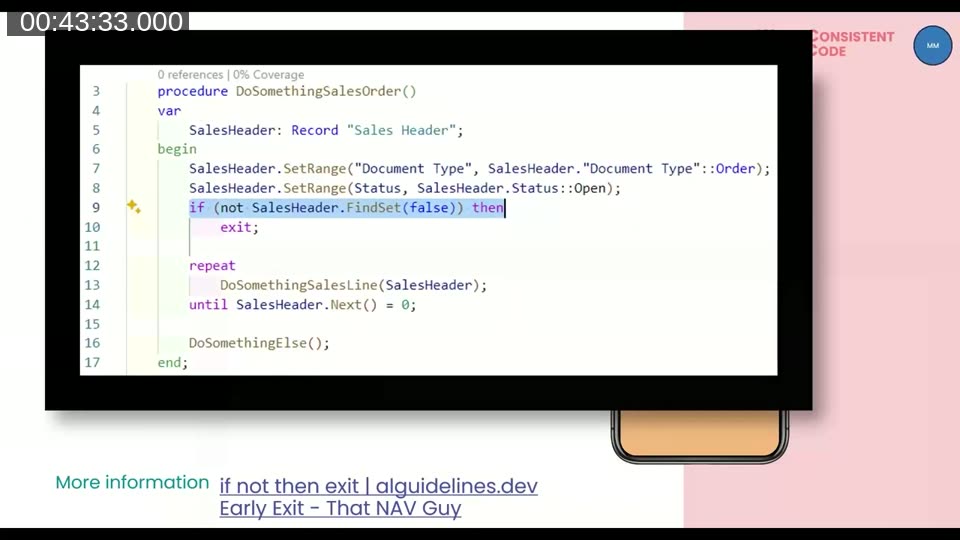
Tip 32 – Early Exit Strategy
Instead of deeply nested if blocks, check preconditions at the top of a procedure and exit early if they are not met. This keeps business logic flat, readable, and easier to maintain. The pattern is documented on alguidelines.dev, and That NAV Guy has a practical walkthrough.
Tip 33 – Pass by Reference vs. Value
Adding var before a parameter passes it by reference — changes inside the called procedure affect the original variable. Omitting var passes a copy. Use var intentionally and only when the called procedure needs to modify the original data. Unintentional pass-by-reference is a common source of bugs. Tine Staric’s post Reference Parameters — var Does Matter demonstrates why this matters.
Tip 34 – Be Consistent with Object and File Naming
Follow established file naming conventions and use the CRS AL Language extension to enforce them automatically. Configure your settings.json so that file names match the object names inside them, improving discoverability when browsing the repository.
Category 8: Write Testable Code (Tips 35–37)
Tip 35 – Write Tests While Developing
Write tests alongside your implementation, not as an afterthought. Tests written later often feel like extra work and get deprioritized. When tests are part of the development process, they provide instant feedback and guide your design toward more modular code.
Tip 36 – Create a Test Plan
A test plan lists the scenarios you intend to implement and how you will verify them. It is as much a design tool as a testing tool — it forces you to think through the expected behavior before writing code.
Tip 37 – Break Down Your Code into Smaller Methods
Smaller methods are easier to test individually, easier for other developers to understand, and easier for AI tools to assist with. Use the AL CodeActions “Extract to procedure” feature to split up large methods quickly.
Category 9: Write Secure Code (Tips 38–40) & Think UX (Tips 41–43)
Tip 38 – SecretText
Use the SecretText data type for API keys, tokens, and passwords. Values stored as SecretText are automatically protected — they show as <HiddenValue> in the debugger and cannot be assigned back to regular Text variables, preventing accidental exposure.
📖 Docs: Protecting Sensitive Values with SecretText — how to use SecretText to prevent credential exposure in debugging and logging.
Tip 39 – Access Modifiers
Keep AL objects and methods internal by default. Only expose what partners or customers genuinely need. Restricting visibility makes future refactoring easier and reduces the risk of unintended dependencies on your code. See Using Access Modifiers in AL on Microsoft Learn.
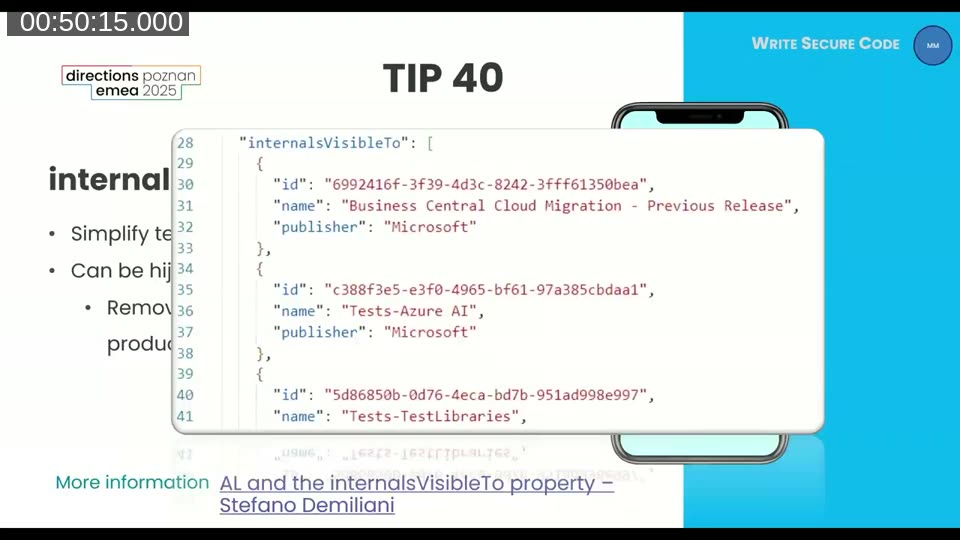
Tip 40 – internalsVisibleTo
The internalsVisibleTo property in app.json lets your test app access internal objects. Be careful: if someone knows your app ID, they could reference your internals. Remove internalsVisibleTo from your production build — handle this in your CI/CD pipeline so it is only present during testing. Stefano Demiliani covers the details in AL and the internalsVisibleTo Property.
Tip 41 – Test with Permissions
Working code does not mean usable code — users need the right permissions. Include permission sets in your test scenarios to catch missing permissions before deployment rather than getting calls from users who cannot access the feature.
Tip 42 – Actionable Error Messages
Error messages should not just block the user — they should include a recommended action. Business Central supports error messages with action buttons (e.g., “Set value to blank”) so users can fix the issue directly from the error dialog.
Tip 43 – Collecting Errors
Instead of stopping at the first error, use the ErrorInfo collecting pattern to gather all validation errors and present them as a summary. This gives users a complete list of issues to fix in one pass, rather than cycling through errors one at a time.
📖 Docs: Collecting Errors — Microsoft’s guide to gathering multiple validation errors and presenting them as a summary.
Resources
The presenters referenced these resources throughout the session:
- alguidelines.dev — community-maintained AL design patterns and best practices
- MSDyn365BC.Code.History — standard BC application code across versions
- AL-Go for GitHub — Microsoft’s CI/CD framework for Business Central
- Telemetry Overview — Microsoft Learn documentation for BC telemetry
- Page Background Tasks — documentation for asynchronous page processing
- Snapshot Debugging — non-intrusive production debugging reference
Community blogs referenced on the slides:
- CalcFields vs. SetAutoCalcFields — Kauffmann @ Dynamics 365 BC
- Lazy Evaluation and Early Exit — That NAV Guy
- Fun with Interfaces — Vjeko.com
- Reference Parameters — var Does Matter — Tine Staric
- Codeunit.Run Transaction Semantics — Van Vugt’s DynamiXs
- Data Administration, SetLoadFields Performance, and internalsVisibleTo — Stefano Demiliani
- Using TextBuilder Data Type to Export Data — Dynamics 365 Lab
Want the slide deck? Email webinars@areopa.academy. Subscribe to the Areopa Academy newsletter to be notified of upcoming webinars.
This post was drafted with AI assistance based on the webinar transcript and video content.