In this Areopa Academy webinar, Josh Anglesea (Xpedition) shows how to keep master data, such as the chart of accounts, in sync across multiple Business Central companies using Power Automate. Luc van Vugt moderates the session. Josh walks through a working solution built around the Business Central connector and the HTTP connector, then rebuilds part of it from scratch so viewers can see the connectors, variables, and JSON parsing involved. You’ll learn where the standard Business Central API falls short for this scenario, why a small custom AL extension was needed to fill the gap, and how the insert, modify, and delete flows are structured in Power Automate.
What Is Master Data Synchronization?
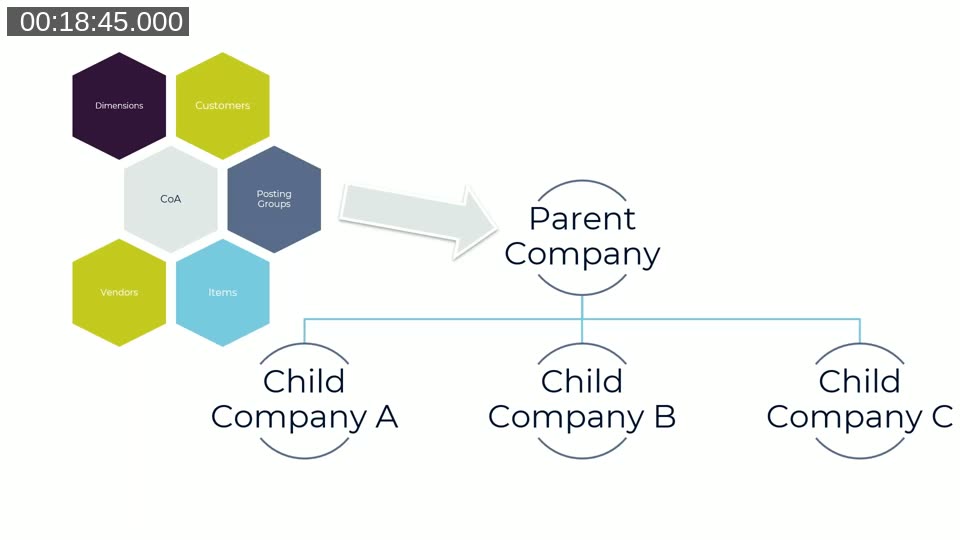
Master data synchronization covers shared reference data, such as the chart of accounts, dimensions, posting groups, customers, vendors, and items, that needs to stay consistent across companies. Many implementations start by copying one company to create the next, but that only solves the problem at go-live. Once new accounts or other master data get added later, someone has to repeat that work manually, or fall back on tools like data ports or the copy-to-company feature in the configuration worksheet.
Josh’s own experience prompted the topic: while working as an end user on 11 different country companies that shared item and posting group data, new items had to be loaded into one company and then re-entered in all the others by hand. The pattern he proposes instead uses a parent company where data is created, modified, or deleted, and one or more child companies that receive those changes automatically.
Upfront Considerations and Licensing
Josh is upfront that this could also be built entirely in AL. He prefers Power Automate for this kind of scenario because it’s faster to build and test than packaging and deploying an AL extension across tenants, and it gives a visual way to trace what’s happening at each step.
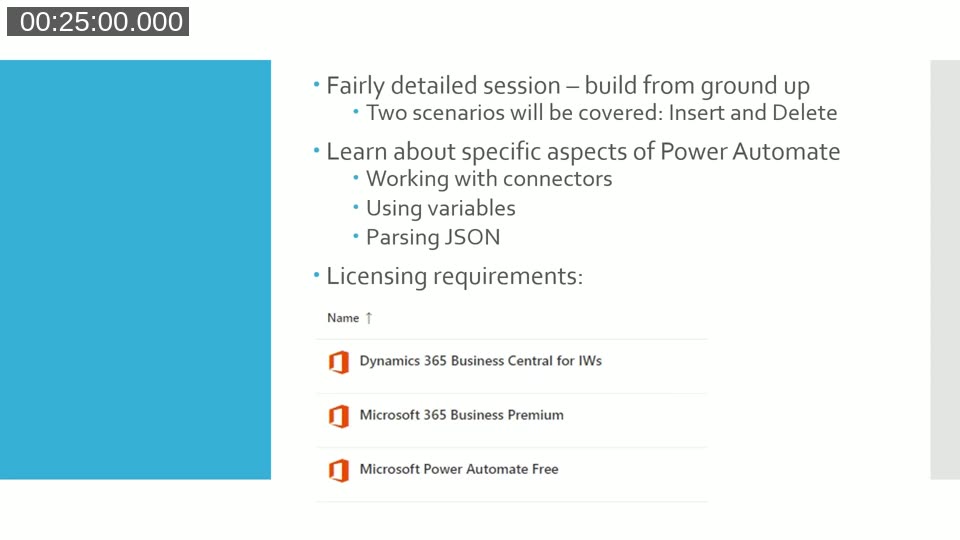
Before building anything, he covers the licensing needed for this approach:
- A Dynamics 365 Business Central license, for the connection to Business Central itself.
- Microsoft 365 Business Premium (or an equivalent license tier), which unlocks the premium HTTP connector used to call the Business Central API directly.
- Power Automate, included with the Business Central license at a throttling limit of roughly 5,000 to 10,000 API calls per user per day, which he notes is unlikely to be a constraint for a master data sync scenario like this one.
He also mentions Logic Apps as an alternative that can achieve most of the same result, with access to some more advanced capabilities than Power Automate offers.
Functional Demo: Insert, Modify, and Delete
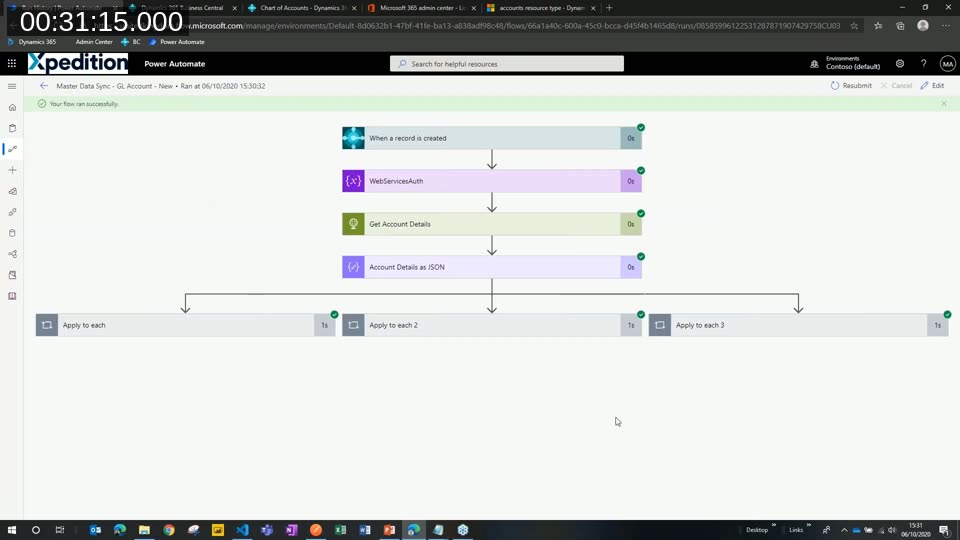
Josh first demonstrates three working flows against the chart of accounts in a CRONUS UK company: one triggered when a G/L account is created, one when it’s modified, and one when it’s deleted. Each flow uses the Business Central connector to detect the change, then the HTTP connector to push the same change out to the other companies. Power Automate’s run history proved useful here, since failed runs can be inspected and resubmitted without re-triggering the original change.
The insert and modify flows both follow the same shape: get the changed record, parse the JSON payload, and loop over the target companies with an HTTP POST or PATCH. The delete flow needed a different approach, which Josh covers in the build demo.
Why the Standard API Wasn’t Enough
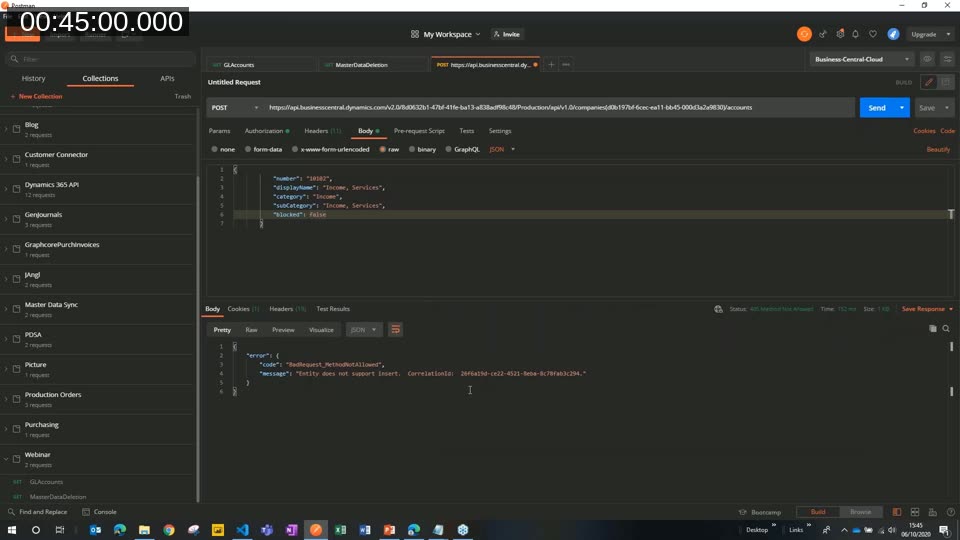
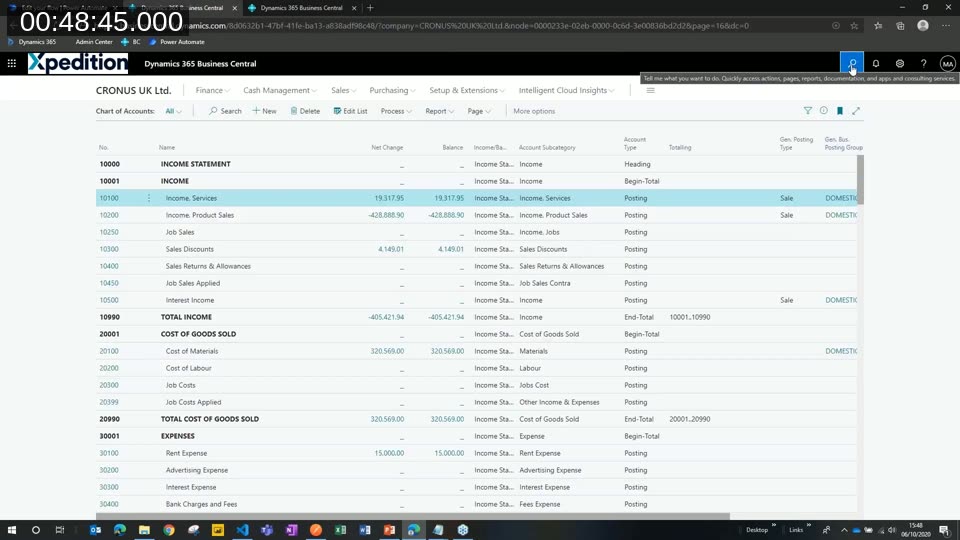
Comparing the API documentation for customers against accounts, Josh points out that the standard accounts API entity only supports GET. Posting a new account against it in Postman confirms this: the API returns an error stating the entity doesn’t support insert. The example response body is also missing fields he needs, such as posting groups and direct posting, which are visible in the Business Central client but not exposed by the standard entity.
📖 Docs: API (v2.0) for Dynamics 365 Business Central — Microsoft’s reference confirms that standard API entities can’t be extended with additional fields; if you need extra fields or operations, you copy the AL source for the page and build a custom API from it, which is exactly the workaround Josh demonstrates.
Building a Custom AL API Page
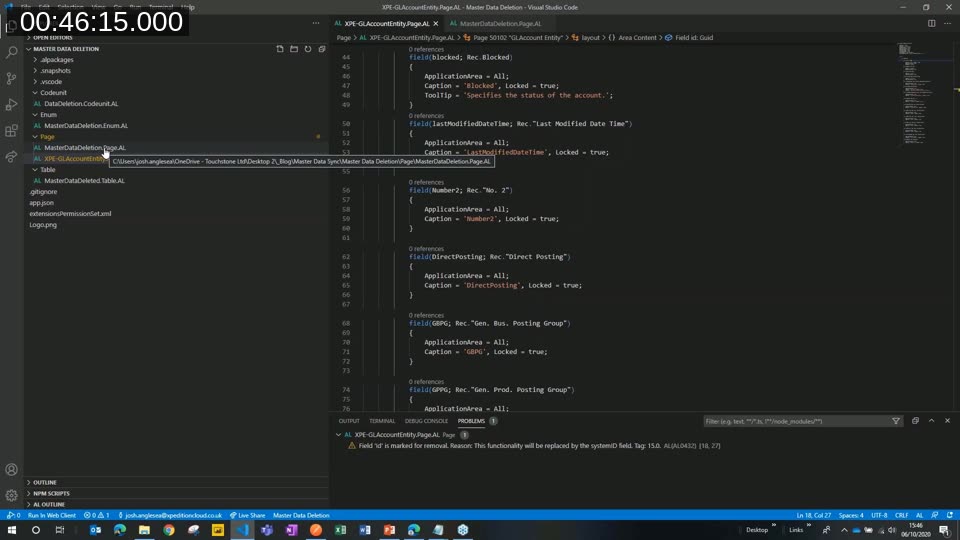
To get around the limitation, Josh built a small AL extension in VS Code with a custom page exposing the G/L account fields he needs (including LastModifiedDateTime, a second account number field, direct posting, and posting group fields), published as a web service using OData rather than an API page. He chose OData publishing specifically because, unlike API pages, OData-published pages can be looked up from within the Business Central client, which made testing and troubleshooting easier during the build.
A second piece of the extension is a codeunit that subscribes to the G/L account deletion event. When an account is deleted, it inserts a record (system ID, account number, and a data type enum) into a small tracking table, since Business Central doesn’t retain any information about a deleted record for a flow to pick up afterward.
Building the Delete Flow
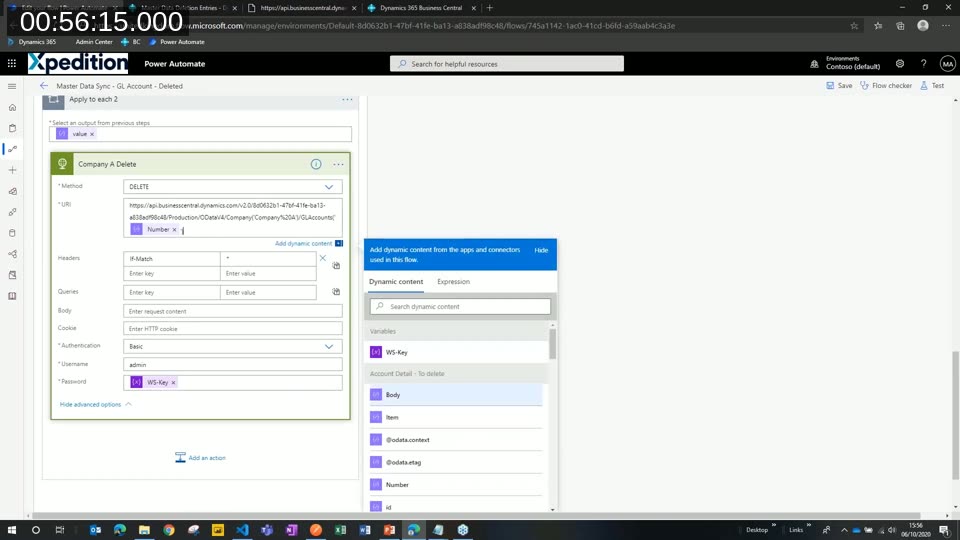
The delete scenario is the most involved of the three because Business Central no longer has the deleted record to hand off once the deletion has happened. Josh’s flow instead reads from the custom deletion-tracking table added by the AL extension, then loops through each target company with a nested “apply to each”: first getting the matching account by number, then issuing the DELETE call against that company’s copy.
He also demonstrates Power Automate’s “generate from sample” feature for building the Parse JSON schema (paste a sample payload and it infers the schema for you), and points out that an array in a parsed JSON payload automatically produces an “apply to each” loop, even when, as in this demo, the array only ever contains a single item.
📖 Docs: Dynamics 365 Business Central connector reference — the current connector documentation lists dedicated “When a record is created,” “When a record is modified,” and “When a record is deleted” triggers, along with V3 create/update/delete actions that reduce the need for a raw HTTP connector call in newer flows.
Authentication and OData Filtering
The HTTP calls authenticate using Basic authentication, with a web service access key generated from a Business Central user record stored once as a Power Automate variable and referenced wherever a call needs to authenticate, instead of retyping it into every action. Filtering the right record out of each company relies on OData syntax, such as $filter=Data_Type eq 'GL Account' and No eq '{value}', with spaces URL-encoded as %20. To speed up building several similar branches, Josh uses Power Automate’s copy-to-clipboard feature to duplicate an existing branch and adjust only the company name.
⚠️ Note: This demo authenticates with a Business Central web service access key over Basic authentication, which was standard practice in 2020. Microsoft has since deprecated access keys for Business Central online (as of October 2022) in favor of OAuth2. See Using OAuth to authenticate Business Central web services for the current recommended approach when building a similar flow today.
Q&A: Versioning and Challenges
In the closing Q&A, Luc asks whether Power Automate flows can be versioned or rolled back. Josh confirms that Power Automate saves a new version each time you save a flow, but there’s no restore feature tied to individual run history the way there might be with source control.
Asked about the biggest challenges building this out, Josh points to the initial lack of built-in support for some scenarios inside Business Central, meaning custom AL pages had to be built to fill the gaps. He notes that not every table or command you might need is available through the Business Central connector out of the box, but the tools needed to build a custom connector or extension for your own master data are there if you need them.
This post was drafted with AI assistance based on the webinar transcript and video content.