
In this October 2019 Areopa webinar, Tobias Fenster — then freshly started as CTO at COSMO CONSULT — walks through the challenge of running multiple Dynamics NAV and Business Central Docker containers on a single Azure VM and explains three concrete solutions for making those containers reachable from client machines.
The Problem
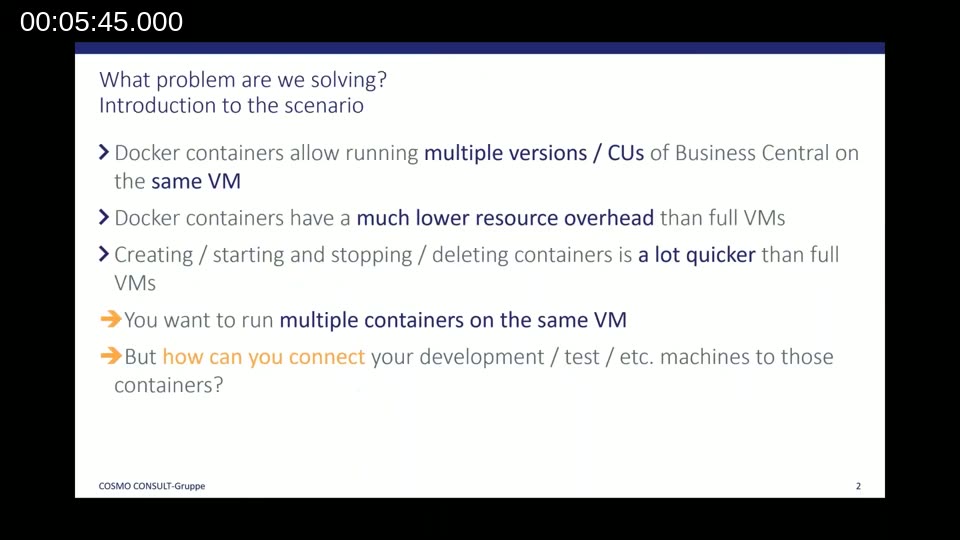
Docker containers let developers run multiple versions or cumulative updates of Business Central on the same virtual machine without the overhead of separate Windows Server instances. Creating, starting, and deleting containers takes seconds rather than the minutes a full VM requires. The resource savings make running several containers on one host an attractive option for development, test, and demo environments.
The complication arises the moment a second machine needs to reach those containers. When Docker uses its default bridge network, the container IP addresses (typically in the 172.x range) are only reachable from the host itself. A colleague’s laptop, a build agent, or any external client simply cannot connect.
Solution 1: Port Mapping
The most direct approach is to expose container ports on the host using Docker’s -p flag. The first container might map its internal ports 7045–7049 (Windows client, OData, SOAP, and development endpoint) and port 80 (web client) to identical port numbers on the host. A second container must use different host ports — for example 7145–7149 and port 8080 — to avoid conflicts.
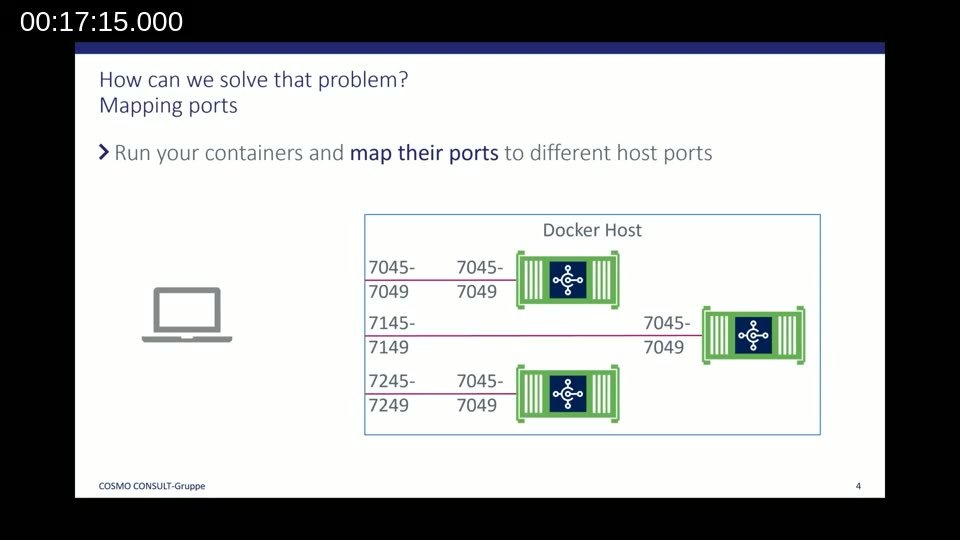
Important limitation: Port mappings can only be set when a container is first created. If a mapping turns out to be wrong or incomplete, the container must be removed and recreated. Any data stored inside the container needs to be exported first. This is less of a concern when VS Code AL projects live outside the container, but it matters for traditional C/SIDE development.
Firewall rules must also be opened on the Windows Server for every non-standard port. On Azure, the network security group adds a second layer of firewall rules to manage. The more containers, the more ports to track and open.
Solution 2: Transparent Networking
With a transparent Docker network, each container receives its own IP address from the host’s network — one that is visible to all machines on the same subnet. Containers are also reachable by name if DNS is configured. No port remapping is needed; clients connect on the standard BC ports (7045–7049, 80/443) using only the container name.
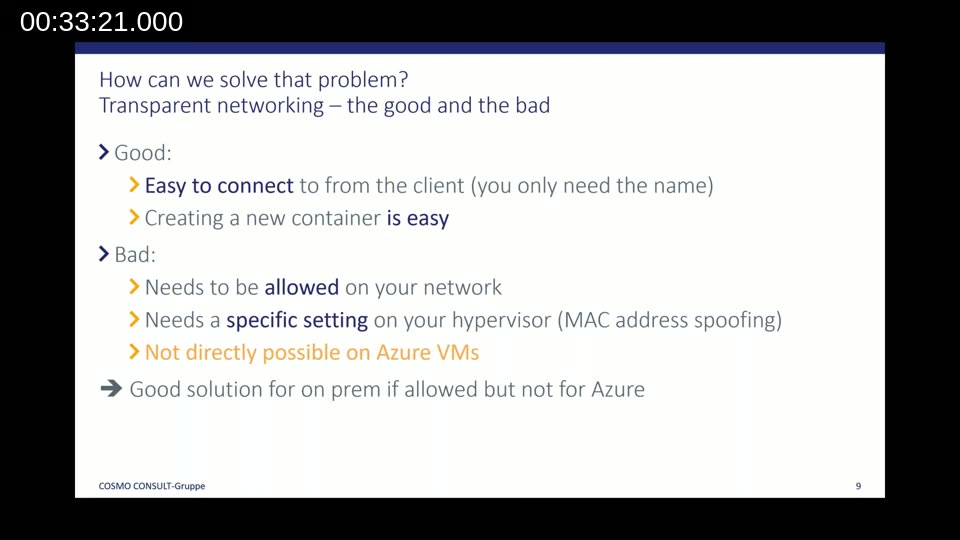
Not available on Azure VMs: Transparent networking requires MAC address spoofing (Hyper-V) or promiscuous mode (VMware) to be enabled on the hypervisor. Azure does not allow this setting on its virtual machines, so this approach is limited to on-premises environments where the hypervisor is under the team’s control.
Solution 3: Reverse Proxy with Traefik
The recommended solution for Azure — and one that also works on-premises — is to place a reverse proxy in front of the BC containers. Tobias demonstrates this using Traefik, a container-native reverse proxy that is already popular in the Docker and Kubernetes ecosystem.
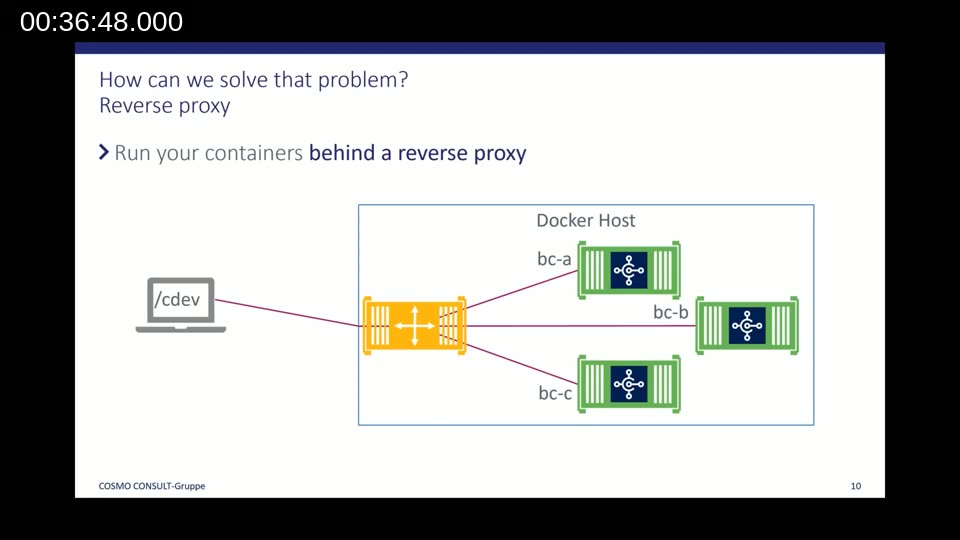
Traefik runs as an additional container on the same host. Incoming requests on ports 80 and 443 arrive at Traefik, which reads Docker container labels to decide where to forward each request. A request to /cdev goes to the container named bc-a on port 7049; a request to /a goes to bc-a on port 80. Adding a new BC container automatically registers it with Traefik through its labels — no manual reconfiguration of the proxy is required.
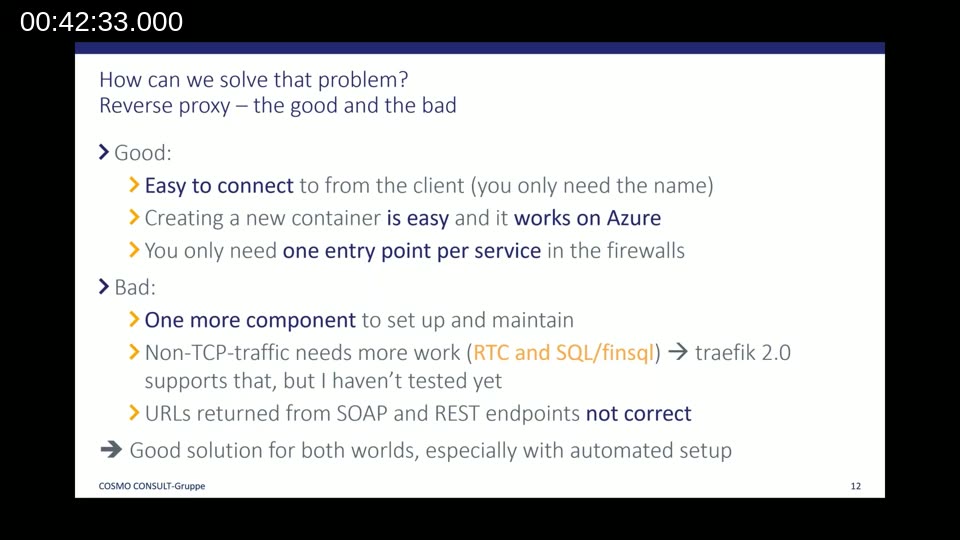
Azure ARM template integration: Freddy Kristiansen’s aka.ms/getbc templates include a “Use Traefik” toggle. Selecting it provisions an Azure VM with Traefik already configured and a Let’s Encrypt SSL certificate generated automatically. The navcontainerhelper cmdlet New-BCContainer accepts a -useTraefik switch, and a separate cmdlet Setup-TraefikContainerForNavContainers can be run once to enable the same setup on an existing on-premises host.
Traefik picks up only containers that pass its health check. Because a BC container cannot respond to a health check before it is fully running, and it cannot be fully running before Traefik routes to it, the navcontainerhelper automatically overrides the health check setting. These details are handled behind the scenes so that adding a new container stays a one-command operation.
AL Development Against a Traefik-Enabled Container
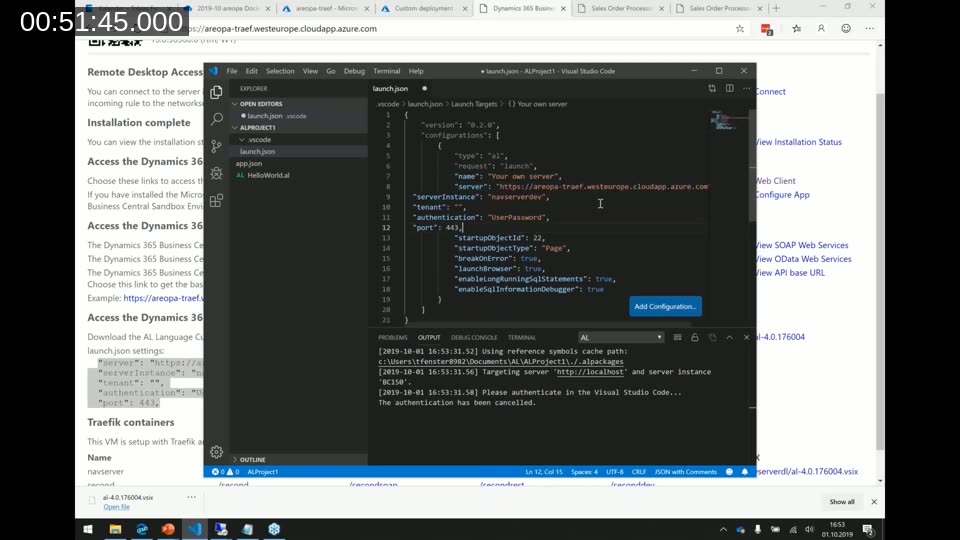
Tobias closes the session by connecting VS Code to one of the containers running on the Traefik Azure VM. The launch.json file provided by navcontainerhelper points to the Azure VM’s public DNS name; no custom port numbers are needed in the configuration. After downloading symbols, a simple AL extension extending the Customer List is published with F5, and a live debugging session opens in the browser — exactly as it would against a local container or a traditional VM.
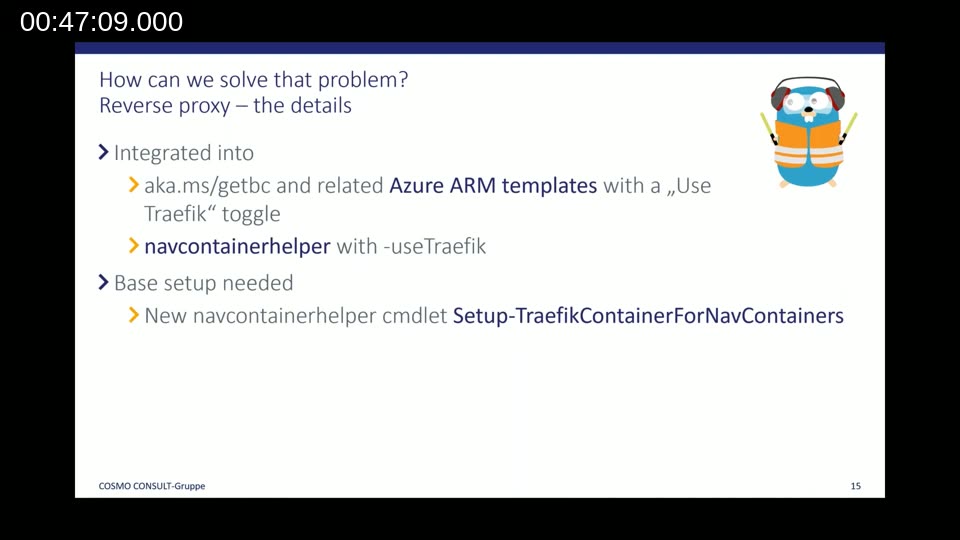
Known limitation at the time of the webinar: The reverse proxy approach supports the web client, OData, SOAP web services, and the VS Code development endpoint. The classic RTC (Windows) client and direct SQL/C/SIDE connections do not work through the proxy without additional configuration. Traefik 2.0, released a few weeks before the webinar, was expected to address this, but Tobias had not yet tested it.
Summary of the Three Approaches
| Approach | Works on Azure | Easy to add containers | One firewall rule |
|---|---|---|---|
| Port mapping | Yes | No (manual port tracking) | No |
| Transparent networking | No | Yes | Yes |
| Reverse proxy (Traefik) | Yes | Yes | Yes |
For teams working on Azure, or for anyone who wants a repeatable and scalable setup, the Traefik approach is the clear recommendation. The automated integration in navcontainerhelper and Freddy Kristiansen’s ARM templates means the initial setup is largely a matter of checking a single toggle when creating the VM.
This post was generated with the assistance of AI based on the webinar recording and transcript. The content has been reviewed for accuracy against the original presentation.