
In this Areopa Academy webinar (#111), Stefan Šošić — Microsoft MVP and CEO at BCILITY — walks through twelve common AL coding patterns and shows, using SQL Server Profiler, exactly what each one costs at the database level. The session covers Business Central versions 25 through 27. Moderator David Singleton manages the Q&A session at the end.
How the Tests Were Performed
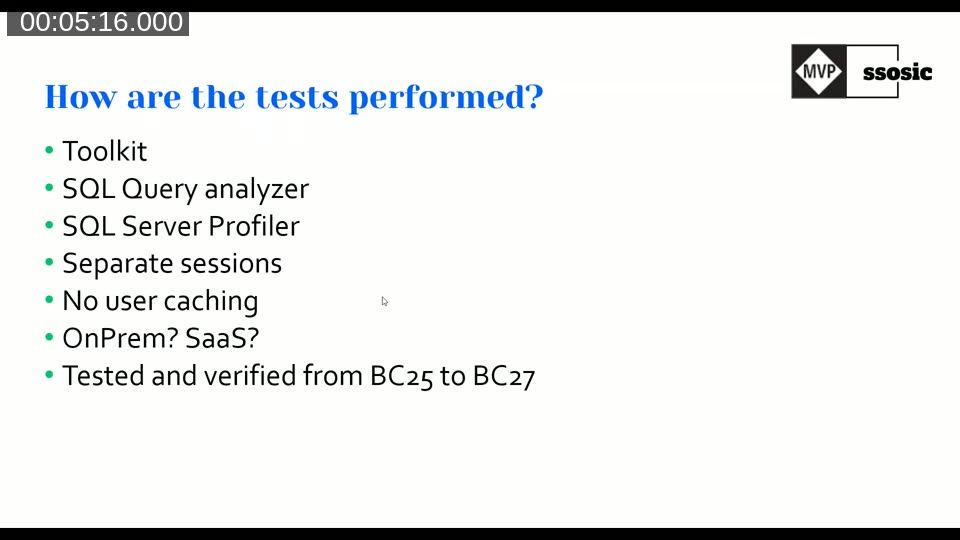
Stefan ran all scenarios using a custom performance toolkit available as a BC extension. Each test was captured with SQL Query Analyzer and SQL Server Profiler. To eliminate NST caching effects, every test call was preceded by Database.SelectLatestVersion(), which clears the client-side cache and forces a fresh round trip to SQL Server. The database used 1 million customer records for large-dataset tests and a configurable vendor dataset (typically 50 records) for smaller-table scenarios. The findings apply equally to SaaS — the SQL behavior is identical, though absolute timings vary by environment load.
📖 Docs: AL database methods and performance on SQL Server — Microsoft Learn reference describing how AL record methods translate to SQL statements.
NST Caching
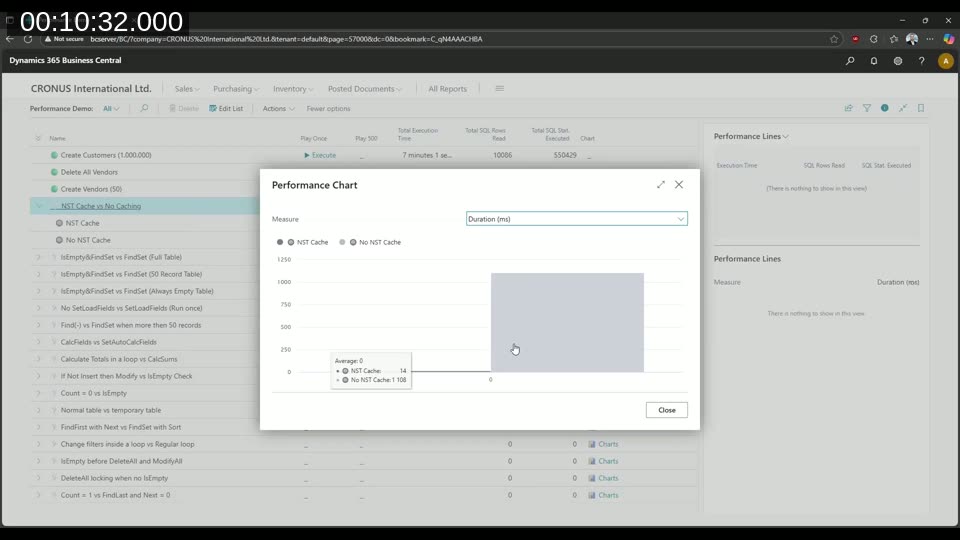
The first example demonstrates the value of NST caching. When looping over the same 10 customers ten times with caching enabled, Business Central issues one SQL call and serves the remaining nine iterations from cache — 14 ms total. Without caching, each iteration triggers a fresh database call — 1108 ms. This baseline establishes why the rest of the tests disable caching: to measure the raw cost of each pattern.
IsEmpty then FindSet vs. FindSet Only
From BC25 onwards, the platform automatically optimises repeated FindSet calls by wrapping the stored procedure with IF EXISTS after a few executions. When you add an explicit IsEmpty check before FindSet, you force an extra SELECT TOP 1 NULL query that duplicates work the platform already handles. On a full table this pattern doubles both SQL statement count and execution time compared to a bare FindSet. The only scenario where IsEmpty + FindSet is marginally faster is when the table is always empty — a case that is rarely guaranteed in production.
Recommended pattern: Use if Customer.FindSet() then directly. Avoid if not Customer.IsEmpty() then Customer.FindSet().
SetLoadFields
Without SetLoadFields, a FindSet on the Customer table pulls every field — plus fields from table extensions — creating a heavy SQL SELECT. Adding Customer.SetLoadFields("Place of Export") before the find reduces the returned columns to just that field plus primary keys and system fields. In Stefan’s test on 1 million customers, the version with SetLoadFields completed in roughly 3.5 seconds versus nearly 29 seconds without it. The SQL statement count stays the same; the gain comes from a lighter response payload.
One important caveat: if you later write back to the record after using SetLoadFields, Business Central re-reads all fields before the update. Use SetLoadFields only for read-only loops.
📖 Docs: Using partial records — explainsSetLoadFields,AddLoadFields, and the partial records feature in depth.
Find(‘-‘) vs. FindSet When More Than 50 Records
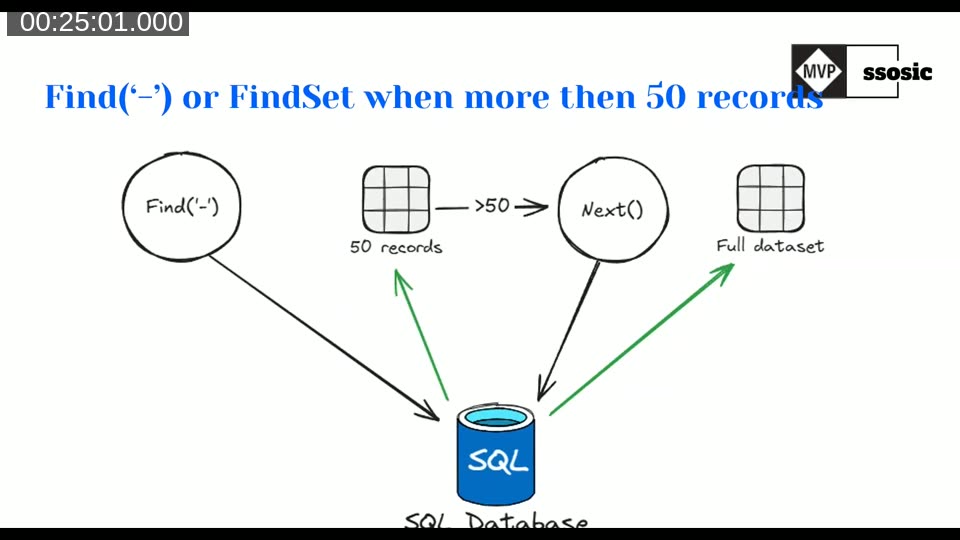
Find('-') (and FindFirst) fills the internal record buffer with only 50 records (SELECT TOP 50). When your loop calls Next() past record 50, Business Central crafts a second SQL query for the remainder — starting from the last record it received. This doubles the SQL statement count for any dataset with more than 50 records. FindSet pulls the full dataset in one query. Always use FindSet when you expect more than 50 records in a loop.
CalcFields vs. AutoCalcFields (SetAutoCalcFields)
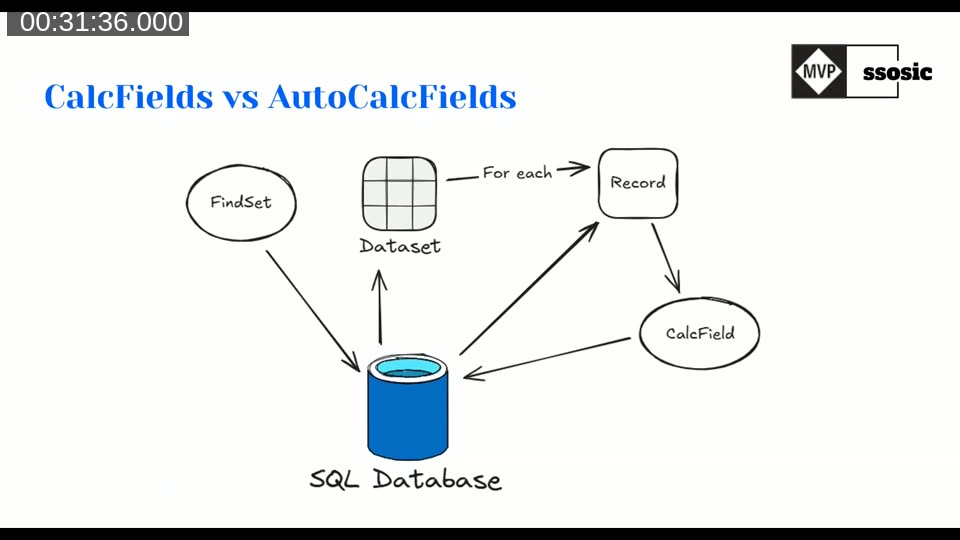
CalcFields inside a loop issues one additional SQL query per record to calculate FlowFields. On 25,000 vendor records this produced over 25,500 SQL statements and took roughly 9 seconds. SetAutoCalcFields placed before FindSet embeds the FlowField calculation directly in the FindSet query as a subquery, resulting in a single SQL call regardless of record count — about 500 ms for the same dataset. The gain in statement count alone (25,000+ vs. ~1) illustrates why this pattern matters at scale.
📖 Docs: Record.SetAutoCalcFields — describes how to declare FlowFields for automatic calculation at fetch time.
Calculate Totals in a Loop vs. CalcSum
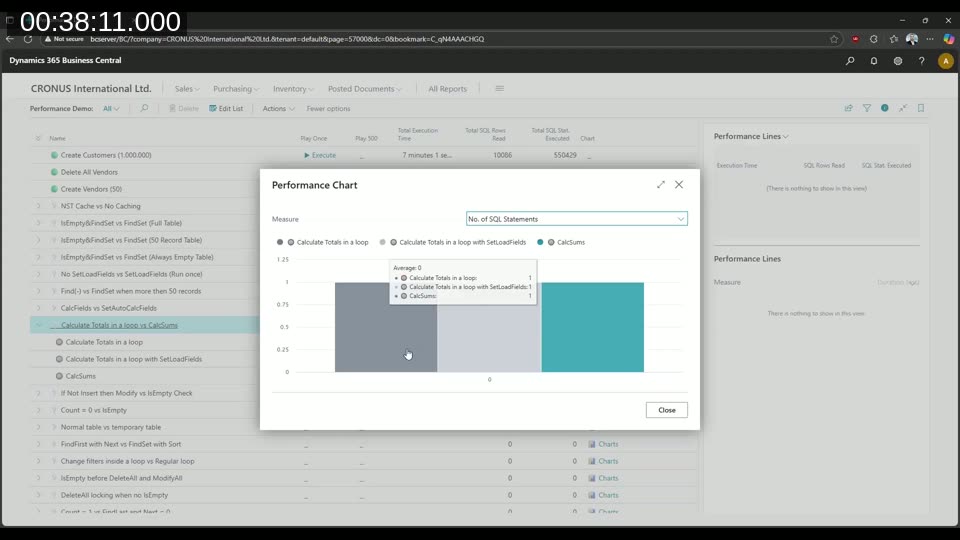
Summing a field by looping over records and accumulating in AL moves the calculation work to the Business Central server tier. CalcSums pushes the aggregation to SQL Server, which is optimised for set-based arithmetic. Stefan’s test shows that a loop with FindSet is the slowest option; adding SetLoadFields to the loop helps, but CalcSums — a single SQL SUM() call — is fastest. When you only need an aggregate and not individual records, skip the loop entirely.
If Not Insert Then Modify
The pattern if not Customer.Insert() then Customer.Modify() works but is inefficient: Business Central sends an INSERT to SQL Server, SQL raises a duplicate key error, the error travels back to the NST, the NST parses it, and only then does Business Central issue a MODIFY. This error-handling round trip is slower than explicitly checking first. A better approach is if Customer.IsEmpty() then Customer.Insert() else begin Customer.Get(...); Customer.Modify(); end. IsEmpty issues a fast SELECT TOP 1 NULL — no error round trip, and the correct operation is sent on the first attempt. The if not Insert then Modify pattern is only acceptable for singleton tables where a duplicate is structurally impossible.
Count = 0 vs. IsEmpty
Vendor.Count = 0 issues SELECT COUNT(*) FROM ..., which forces SQL Server to traverse the entire table to produce a number. Vendor.IsEmpty() issues SELECT TOP 1 NULL FROM ..., which stops at the first row found. On small tables the difference is negligible; on large tables the full count can be significantly more expensive. Use IsEmpty whenever you only need to know whether records exist.
Temporary Tables
Operations on temporary table variables generate no SQL traffic — reads and writes happen in memory on the NST. Stefan’s comparison showed that using a normal table as a variable marked temporary also produces zero SQL statements, but declaring a dedicated temporary table object is faster still. When performance is critical and you need to stage data temporarily, declaring it as a proper temporary table type gives the best result.
FindFirst and Loop Through
Like Find('-'), FindFirst loads only one record (SELECT TOP 1). Calling Next() after a FindFirst triggers a second query to fetch up to 50 more records. For a loop through all records, FindSet is always the right choice. FindFirst is appropriate only when you need a single record and will not iterate further.
Changing Filters Inside the Loop
Setting a filter on the record variable inside a FindSet loop invalidates the internal record buffer. On the next call to Next(), Business Central must re-fetch from SQL with the new filters, discarding any buffered records. This can happen once per loop iteration that triggers the condition. The fix is to collect the affected record keys into a temporary table or a list during the first loop, then process them in a separate pass with the correct filter applied from the start.
IsEmpty / FindSet Before DeleteAll
Business Central’s DeleteAll already includes a IF @@ROWCOUNT <> 0 guard internally, so it skips the delete when the table is empty. However, calling DeleteAll on an already-empty table can still acquire a table lock. Adding IsEmpty before DeleteAll avoids that lock: the SELECT TOP 1 NULL is lighter than the potential lock escalation. Adding FindSet before DeleteAll is worse — it fills the record buffer unnecessarily before discarding it. Use if not Vendor.IsEmpty() then Vendor.DeleteAll() when you cannot guarantee the table is non-empty.
Count = 1 vs. Find(‘-‘) and Next = 0
Checking whether exactly one record exists by using Customer.Count = 1 counts all records in the table — on 1 million rows this is a full table scan. Using FindFirst and then Next = 0 is cheaper (SELECT TOP 1, then a TOP 50 refetch), but the most efficient approach is Customer.Find('-') and (Customer.Next() = 0). Find('-') fetches 50 records in one query; Next() then checks the already-loaded buffer without issuing a new query, so the check costs exactly one SQL statement.
Official AL Guidelines

Stefan closed by pointing attendees to the Official AL Guidelines project, a community-maintained library of BC design patterns started by Henrik Helgesen, Waldo, AJ Kauffmann, and Jeremy Vyska. The project is also intended to serve as a training corpus for AL-aware AI tooling.
📖 Docs: alguidelines.dev — community-maintained Business Central design patterns and best practices, including a dedicated performance section. Source on GitHub.
📖 Docs: Performance article for developers — Microsoft Learn guide covering set-based AL operations, partial records, FlowFields, and other developer-facing performance topics.
This post was drafted with AI assistance based on the webinar transcript and video content.