
In this Areopa Academy webinar, Stefano Demiliani (moderated by Luc van Vugt) covers one of the most common integration scenarios in any ERP project: working with files. Moving from Business Central on-premises to SaaS changes how file access works fundamentally, since a cloud-hosted environment has no visibility into a customer’s local network or file system. Demiliani walks through the AL language basics for handling files, then moves on to OneDrive integration, Azure Blob Storage, Azure File Share, and FTP interaction from SaaS, closing with a live Q&A.
On-Premises vs. SaaS: Why File Handling Changed
On-premises, a Business Central extension runs inside the same corporate network as the file server, so direct file system access is straightforward. Once Business Central runs as a SaaS service, it no longer has any knowledge of a customer’s local network, and direct file system access is no longer possible.
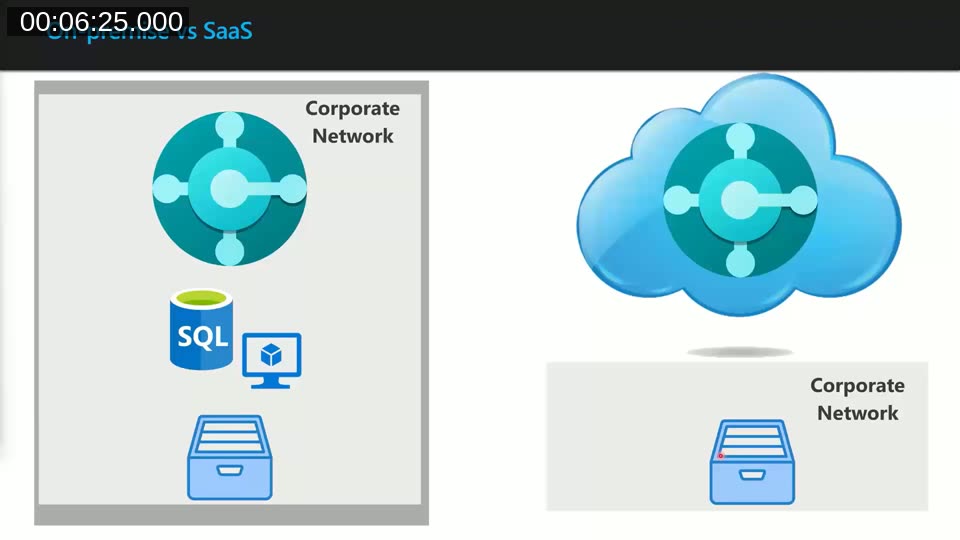
This is reflected in the AL manifest. Every new extension targets Cloud by default. Setting "target": "OnPrem" in app.json unlocks on-premises-only APIs, but Demiliani recommends against it: Microsoft’s universal code initiative penalizes extensions that only work on-premises, and an extension built for the cloud target simply cannot call file-copy APIs or methods marked with on-premises scope, such as File.Copy or FileManagement.CopyClientFile.
📖 Docs: Compilation scope overview — details what theCloudandOnPremtarget values allow and restrict in an AL extension’s manifest.
AL File Management Basics: Streams
With direct file system access gone, streaming becomes the core concept for working with files in AL. The InStream and OutStream data types provide an abstract channel for reading and writing binary data without needing to know the physical representation of the underlying object, and the TempBlob codeunit acts as a bridge between the two.

In the demo, Demiliani shows a simple table with a Blob field. Uploading a file from the client uses File.UploadIntoStream to fill an InStream, then CopyStream to move that binary data into an OutStream created from the blob field. Downloading reverses the process: retrieve the record, call CalcFields on the blob, create an InStream from it, and pass that to File.DownloadFromStream to prompt the client to save the file.

The same pattern extends to other scenarios covered in the demo:
- Writing generated content — building a text file from record data with
OutStream.WriteText, then downloading it viaTempBlob.CreateInStream. - Saving reports as PDF — calling
Report.SaveAswith anOutStreamand aRecordRef, then attaching the result to an email using theEmail Messagecodeunit. - Rendering XMLports — setting an
OutStreamas the XMLport’s destination and exporting to it before downloading. - Item pictures — importing and exporting
MediaSetfields withImportStream, including zipping multiple pictures together with theData Compressioncodeunit. - JSON payloads — converting blob content to and from Base64 with the
Base64 Convertcodeunit when a file needs to travel inside a JSON body, for example over an API.
Keeping Blobs Out of Business Tables: Persistent Blob
Storing files directly in a Blob field on a business table (an invoice or a custom entity, for example) grows that table and can affect performance once business processes like filtering and analysis run against it. Business Central’s Persistent Blob codeunit addresses this by storing the file in a separate system table and returning only a BigInteger ID, which is what gets stored on the business record instead of the blob itself.

To import a file: call PersistentBlob.Create() to get a new ID, then PersistentBlob.CopyFromInStream to store the content. To retrieve it later: check PersistentBlob.Exists(ID), use PersistentBlob.CopyToOutStream together with the TempBlob codeunit to bridge back to an InStream, and download from there. Demiliani recommends this approach over storing blobs directly on business tables.
Storing Files in Business Central Has a Cost
Business Central SaaS environments get an 80 GB base storage entitlement, plus a small per-user allocation, and additional storage can be purchased beyond that. Large blob fields accumulate against this quota and can also degrade performance on the tables that hold them.
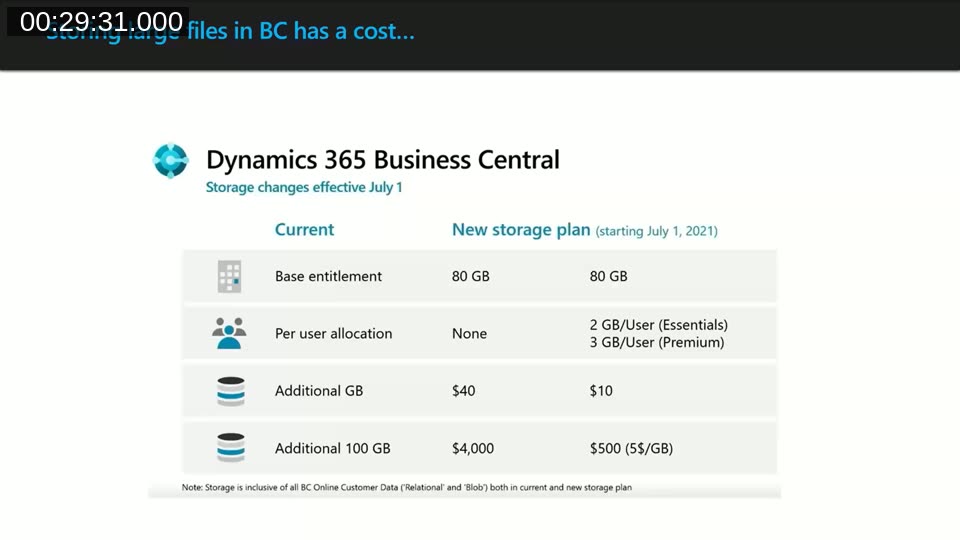
This is the practical argument for moving file storage outside of Business Central entirely once volumes grow: cloud storage services like OneDrive and Azure Storage keep large files off the database and are typically far cheaper per gigabyte.
OneDrive Integration
OneDrive for Business, included in a Microsoft 365 subscription, is the first built-in option. The standard product experience lives on document attachments: an Open in OneDrive action copies the attached file into a Business Central folder (with a subfolder per company) inside the user’s own OneDrive and opens it there. Files stay private to the user until explicitly shared, and repeated opens simply update the copy rather than creating new folders each time.
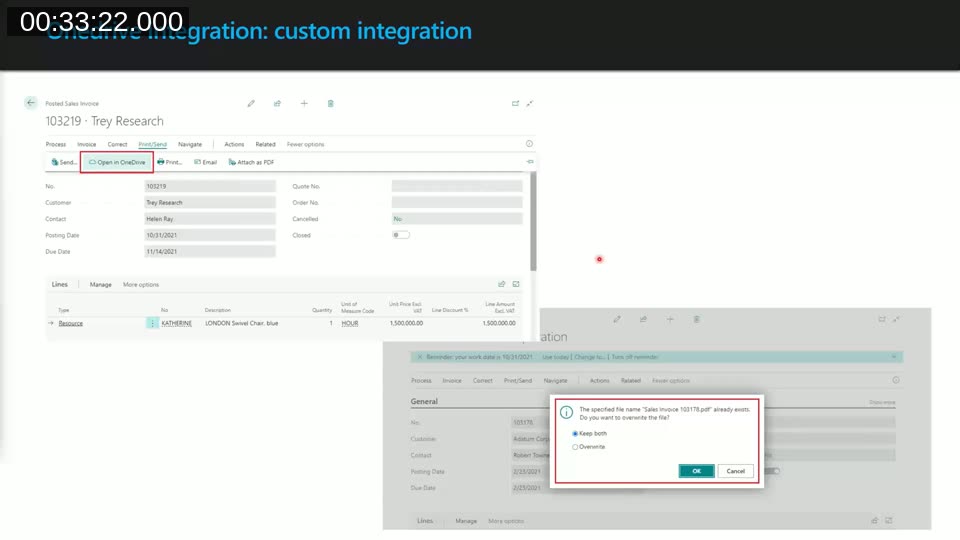
Business Central 20 added the Document Service Management codeunit, which exposes OpenInOneDrive and OpenInOneDriveFromMedia methods for building custom integrations — for example, a button on a posted sales invoice that saves a generated PDF straight to OneDrive and lets the user share it, or offers to keep both copies vs. overwrite if a file with that name already exists. In the demo, Demiliani builds exactly this: a custom action that calls ReportSelections.GetPdfReportForCust, streams the result into a TempBlob, and passes the stream to DocumentServiceManagement.OpenInOneDrive.
📖 Docs: Extending document sharing and OneDrive for Business — how to build custom OneDrive integrations against codeunit 9510 Document Service Management.
Azure Storage: Blob Storage and File Share
For general-purpose cloud storage, Demiliani’s preferred layer is Azure Storage. Two services are relevant to files: Azure Blob Storage, an unstructured store organized into storage accounts and containers (no folders, just blobs), and Azure File Share, a true file system that can be mounted as a network drive on Windows, Linux, or macOS via SMB.
Business Central exposes Azure Blob Storage through a set of ABS-prefixed codeunits in the System Application. The pattern in the demo: authorize with a shared key via the Storage Service Authorization interface, initialize an ABS Container Client to create or list containers, then use an ABS Blob Client to write and read blob content — for example with PutBlobBlockBlobText for text content, or the stream-based equivalents for binary files.

📖 Docs: Integrating Business Central with Azure services — overview of the Azure Storage codeunits available to AL extensions, including the ABS Container Client and ABS Blob Client referenced in the demo.
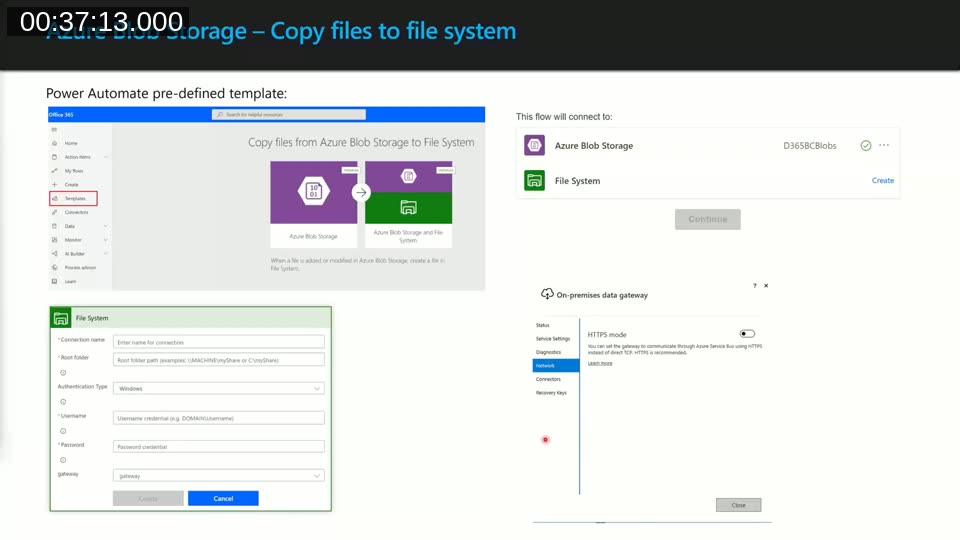
Copying a file that lands in Blob Storage out to an on-premises file system can be automated with a prebuilt Power Automate template (“Copy files from Azure Blob Storage to File System”), which requires an on-premises data gateway to bridge the cloud flow to the local network.
Azure File Share adds true folder support and can be mapped directly as a network drive from the Azure portal’s Connect option, or via a script Demiliani has published on his blog. It comes in four storage tiers — Premium (SSD, low latency), Transaction Optimized, Hot, and Cool — and supports up to 200 share snapshots retained for as long as ten years. Premium tier only supports zone- or locally-redundant storage, not geo-redundancy, and geo-redundant shares are capped at 5 TB versus 100 TB for other redundancy options.
Interacting with FTP from SaaS
Business Central SaaS cannot talk to an FTP server directly — there is no .NET interop available. Demiliani uses Logic Apps as the bridge in both directions.
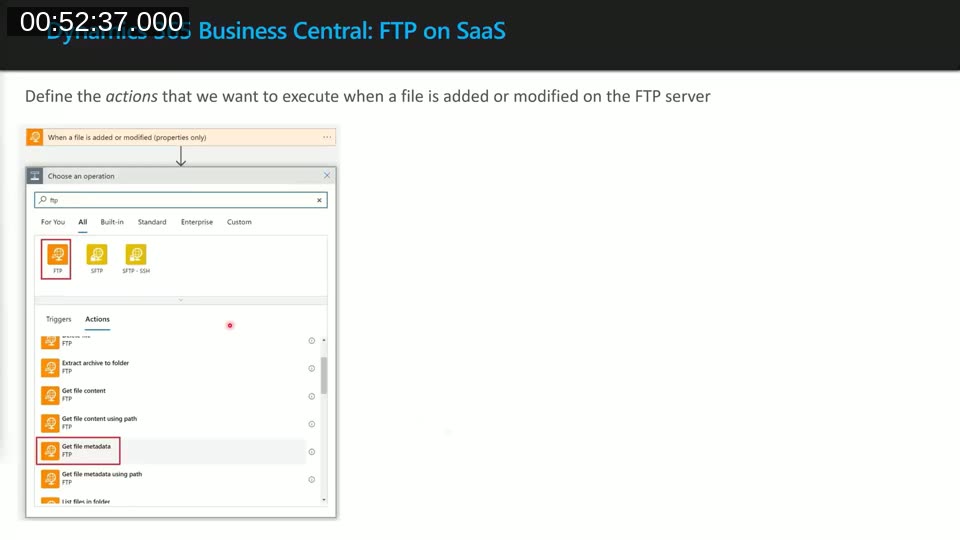
To pull files in: a Logic Apps workflow with the FTP connector triggers “When a file is added or modified,” retrieves the file with Get file metadata and Get file content, then writes it to Azure Blob Storage — from which Business Central can read it with the same AL patterns covered earlier. For scenarios that need file parsing before the data reaches Business Central (an electronic invoice, for example), Demiliani recommends an Azure Function triggered off the blob write, which can then call the Business Central API.
To push files out: save the file to Blob Storage from AL first, then a Logic Apps flow triggered on that blob write reads the content and calls the FTP (or SFTP) connector’s Create file action to deliver it to the target server.
📖 Blog: Dynamics 365 Business Central: handling files via FTP on SaaS — Stefano Demiliani’s write-up of this same Logic Apps pattern, referenced during the webinar.
Monitoring Cloud Storage
Once files live in external cloud storage, Demiliani recommends enabling diagnostic settings on the storage account to monitor access patterns — how often files are read, written, or deleted. This data helps confirm whether the chosen storage tier still fits actual usage, or whether it’s worth switching tiers.
Q&A Highlights
A few questions came up during the live session:
- SharePoint integration? There is no out-of-the-box Microsoft connector for SharePoint at the time of this webinar. Demiliani’s recommended approach is an Azure Function that receives a file as JSON from Business Central and handles the SharePoint REST API call itself. Third-party extensions exist for this scenario too.
- Azure Blob Storage vs. Azure File Share — cost? Blob Storage is the cheaper option — Demiliani cites typical costs under €10/month for a large volume of files — and is his default recommendation unless a mountable network drive is a hard requirement, in which case File Share is worth the extra cost.
This post was drafted with AI assistance based on the webinar transcript and video content.