
In this Areopa Academy webinar, Shannon Mullins, Microsoft MVP and CEO & Founder of A BC Consulting Group, walks through ten ways to automate manual data entry and reporting in Business Central using tools already included in most Microsoft licenses. Luc van Vugt moderates. Shannon covers Microsoft Forms, Power Automate, the built-in Report Inbox, Business Central data in Microsoft Teams, background posting, third-party AP and reporting apps, Power Apps, and Power Virtual Agents — with live demos in a Business Central sandbox throughout.
1. Use Forms to onboard customers and vendors
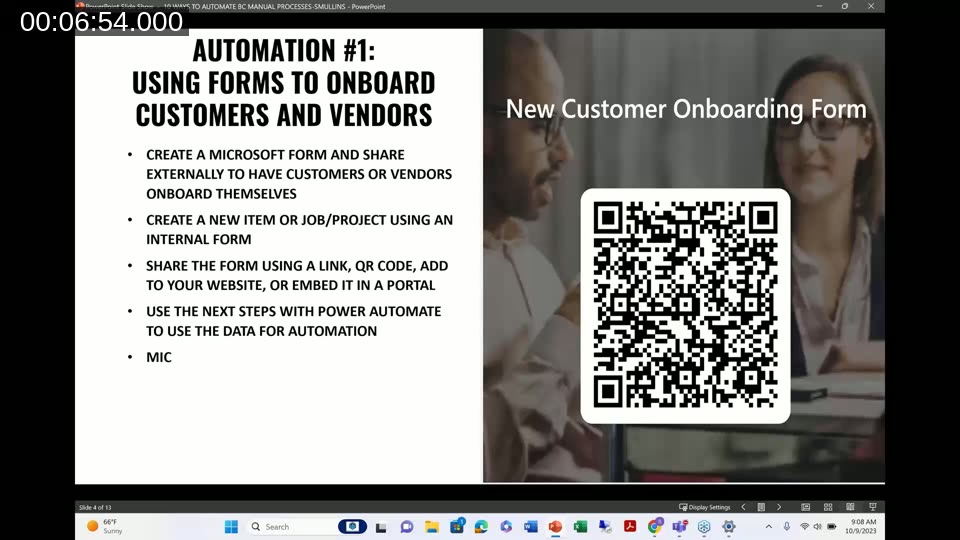
Shannon’s first tip is to create a Microsoft Form and share it externally so customers and vendors can onboard themselves. The same approach works for internal requests, such as a form to request a new item, project, or job, so that regular users aren’t creating master data directly in Business Central.
A form can be shared as a link, a QR code, embedded on a website, or embedded in a customer portal. Once submitted, the response feeds into a Power Automate flow that pushes the data into Business Central after an approval step.
2. Use Power Automate to approve master data
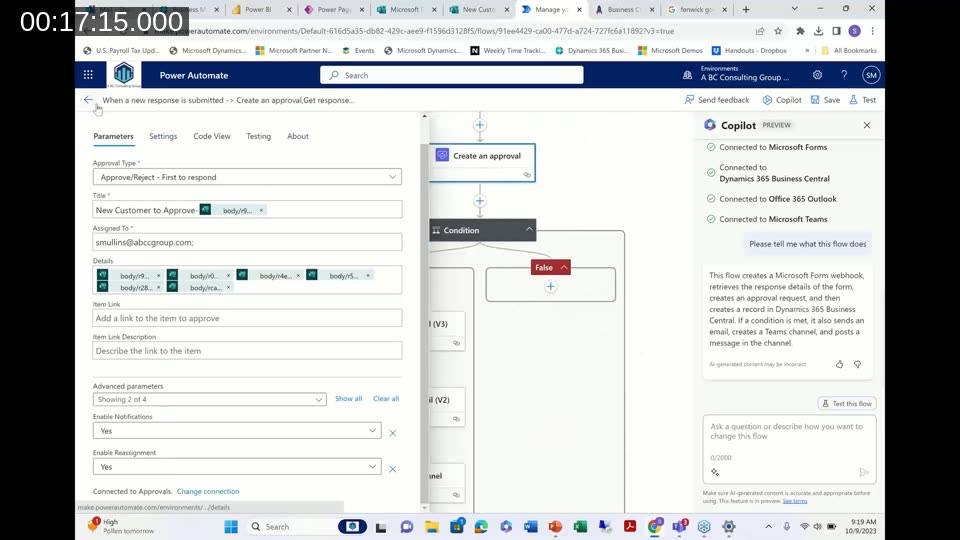
The form response triggers a Power Automate flow that creates an approval request. Shannon highlights the difference between native Business Central approvals and Power Automate approvals: a BC approval is handled entirely by email, while a Power Automate approval lets anyone in the organization approve directly from Microsoft Teams, without logging into Business Central, and keeps a full approval history in the Teams activity feed.
From there, the flow can trigger further actions once approved — creating a Teams channel or SharePoint folder, sending an email, or writing data into Business Central through the standard connector. Shannon also demonstrates Edit with Copilot, a newer Power Automate feature that can explain what an existing flow does in plain language and suggest improvements through process mining.
Licensing note: any internal user creating data in Business Central through Power Automate — for example a sales or purchase order — still needs a Business Central license. Power Automate itself may also require a paid plan once you exceed the daily flow limits on the free tier.
3. Automate recurring reports with the Report Inbox
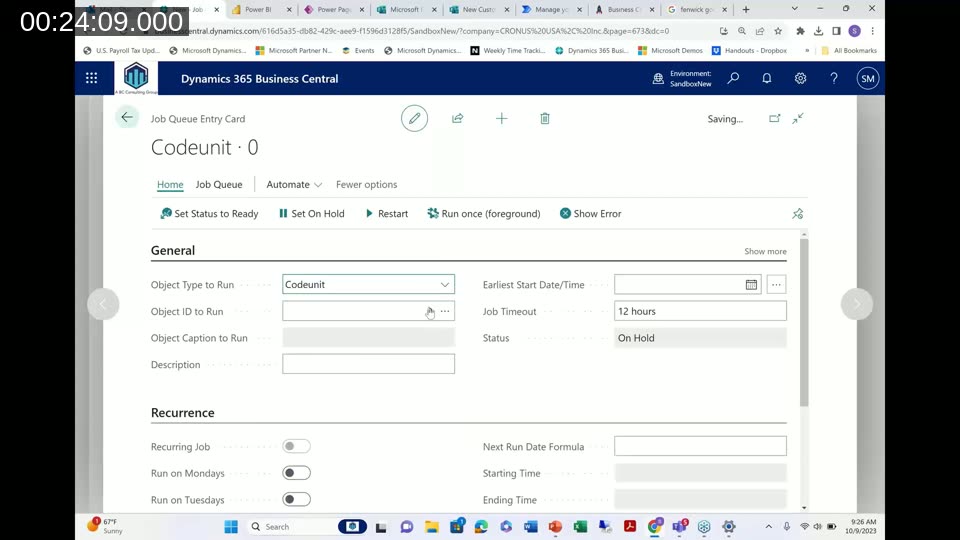
Business Central can schedule reports — like a daily trial balance — to run automatically on the job queue and land in the Report Inbox, so users no longer have to open and run each report by hand every day. Shannon sets this up live: creating a job queue entry, choosing a report and output format (Excel in the demo), setting a recurrence, and running it once in the foreground to confirm it works before switching it to Ready.
Job queue entries aren’t limited to reports — they can run any codeunit, which Shannon’s team also uses for things like custom lot-numbering routines, scheduled posting, and releasing documents. She recommends checking job queue entries at least weekly, since jobs can silently stop running.
Docs: Share and Export Reports with the Report Inbox — how scheduled reports land in a user’s Report Inbox, and Schedule jobs to run automatically for setting up job queue entries.
4. Distribute Business Central data in Microsoft Teams
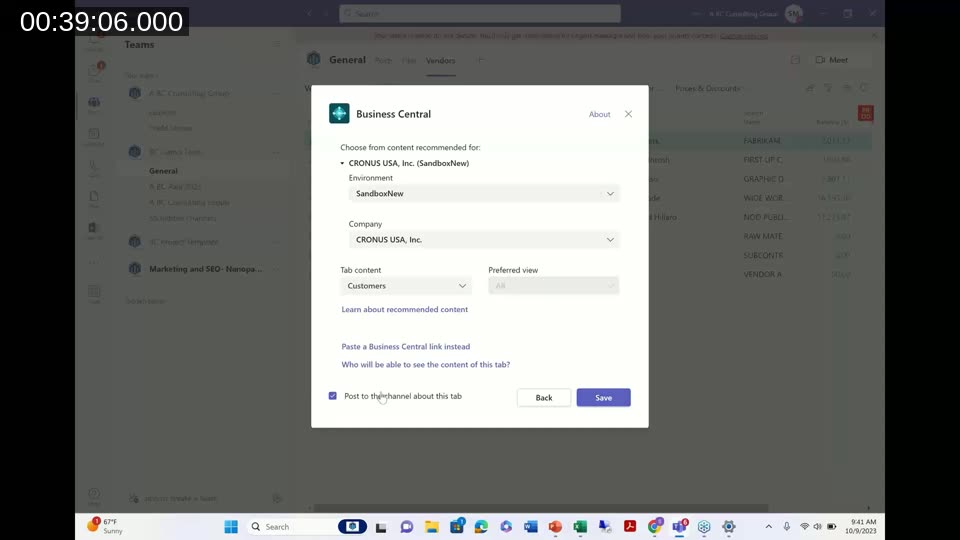
Since November 2022, Microsoft has allowed Microsoft 365-licensed users to view Business Central data directly inside Teams without a Business Central license — read-only, unless they also have a Team Member license. Shannon walks through the setup: enabling the Business Central app for Teams through the Teams admin center, enabling access with Microsoft 365 licenses, and then configuring a permission set for what those users can see.
She specifically warns against the default permission sets that ship with Team Member and similar Microsoft 365 licenses, because they can expose sensitive data such as the general ledger, chart of accounts, or bank ledger entries. Her recommendation is to build a custom permission set scoped to only the tables a given team actually needs — for example customers and vendors for a sales team.
Once configured, a Business Central tab can be added to any Teams channel showing a list or card page, and it can sit alongside SharePoint files, Power BI dashboards, or Dynamics 365 Sales data in the same team.
Docs: Business Central and Microsoft Teams Integration overview and Managing Microsoft Teams Integration with Business Central for the full setup and licensing walkthrough.
5–6. Automate AR collections and AP invoices
Shannon covers two shorter tips together. On the receivables side, a newer Power Automate connector can generate a summary email listing open invoices for selected customers over a given number of days — effectively an automated collections letter. On the payables side, she recommends a document capture and OCR tool for scanning and posting vendor invoices, naming Continia Document Capture as the option her team uses with all of its clients. As a free alternative, Power Automate has its own document-scanning capability, though it requires a paid AI Builder/OCR license.
7. Automate reporting
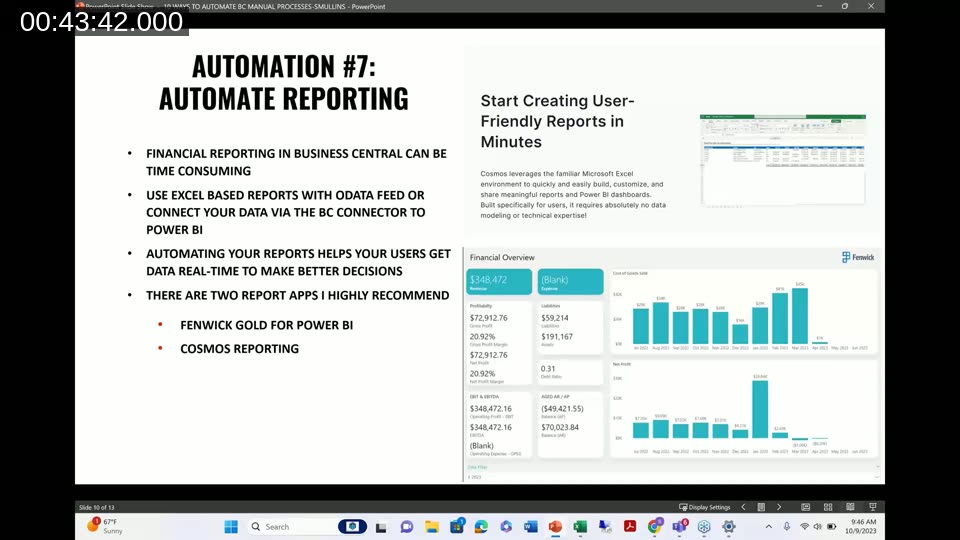
Financial reporting in Business Central can be time-consuming when it relies on Excel exports with an OData feed refreshed manually. Shannon highlights two report add-ons she recommends when a full Power BI project isn’t in the budget: Fenwick Gold for Power BI, which ships prebuilt financial dashboards and its own data connectors, and Cosmos Reporting, a cloud-based reporting and analytics tool that builds on Excel and can automate report distribution.
8. Automate document posting
Business Central’s background posting setup — available for sales, purchasing, and finance — lets users post a batch of sales invoices or purchase orders in the background via the job queue instead of posting each document individually. Shannon notes this is one of the most underused automation options in Business Central: almost no one wants to open and post every document by hand once background posting is available.
Docs: Post Multiple Documents at the Same Time — how to configure background posting for sales, purchasing, and general ledger batches.
9. Use Power Apps to save on data entry
Power Apps lets organizations build simple, no-code applications on top of Business Central data. Shannon’s examples include an app for entering project time that integrates into Business Central, and an app for requesting a new inventory item that flows through Power Automate for approval before the item is created in BC.
She also points to Microsoft’s official sample Power Apps for Business Central, including a warehouse helper app that scans a barcode and updates inventory for that item — meant as a simplified starting point for building a custom warehouse workflow rather than a finished solution.
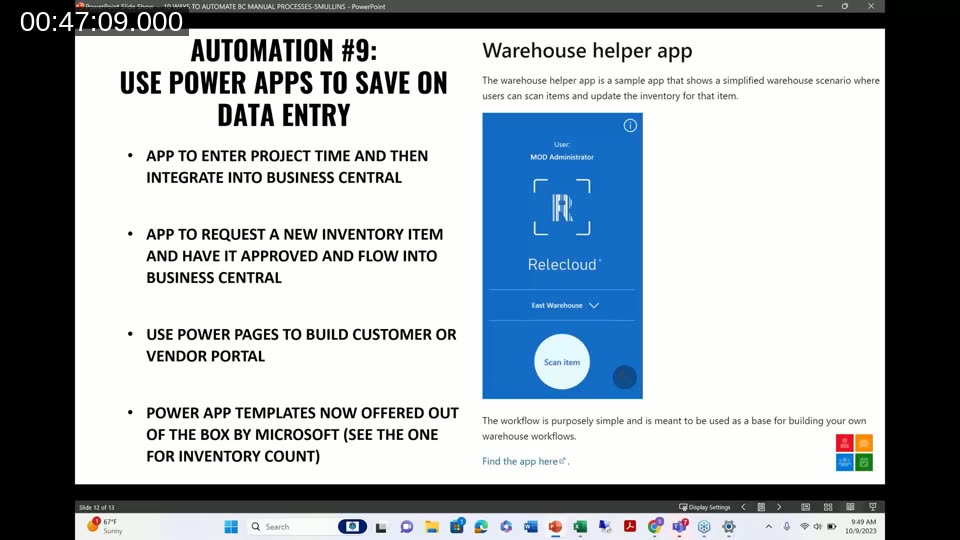
Docs: Sample Power Apps for Business Central — Microsoft’s official sample apps, including the Warehouse Helper sample on GitHub (AL extension, Power App, and Power Automate flow).
10. Use Power Virtual Agents for help desk and document creation
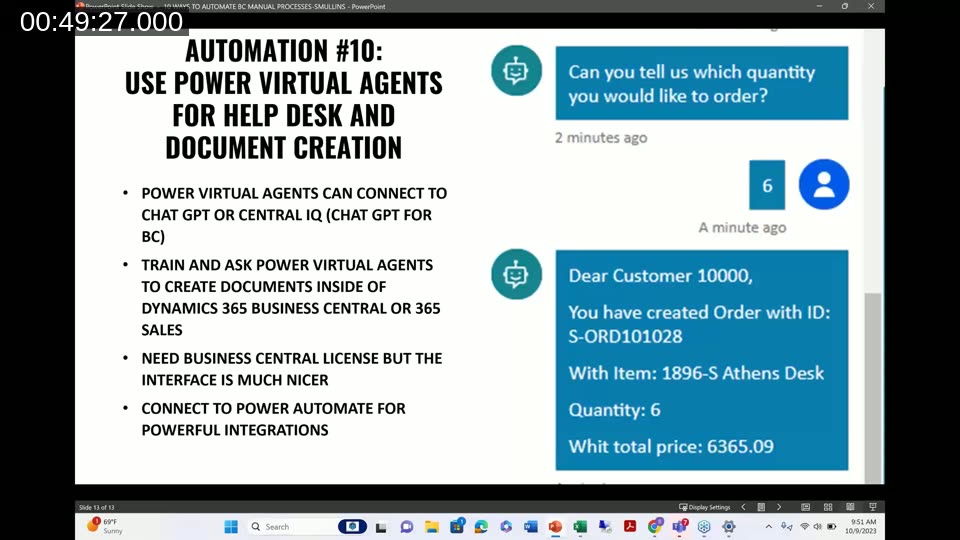
The final tip covers Power Virtual Agents, which can be connected to APIs and to Power Automate to both answer user questions and create data in Business Central through conversation — for example, walking a user through creating a sales order by asking for the quantity and item, then confirming the order was created. Shannon shows a sample conversation where the bot confirms an order ID, item, quantity, and total price after a short exchange.
She notes this still requires a Business Central license for anyone creating data, so it isn’t a licensing workaround — the benefit is a simpler interface for users who don’t want to work directly in the Business Central client, such as sales, purchasing, or customer service staff who only need to complete one task.
Q&A: Does this work the same for Business Central on-premises?
Asked whether the ten tips work the same for on-premises customers, Shannon explains that most of the Power Platform features are cloud-first, and Microsoft’s ongoing investment is focused there. Some capabilities aren’t available for on-premises at all — the Teams data views shown in tip 4, for example, only work with Business Central online.
Power Automate does have an on-premises connector, so data can still flow between BC on-prem and the rest of the Microsoft stack, including a Power Virtual Agents connection through that same connector. However, on-premises customers don’t get Power Automate, Power Apps, or Power Virtual Agents bundled the way Business Central Cloud does — those licenses have to be purchased separately if they aren’t already included in the organization’s Microsoft 365 plan. Shannon also mentions that Power Automate can connect directly to SQL Server as an alternative route for on-premises integrations.
This post was drafted with AI assistance based on the webinar transcript and video content.