
In this December 2019 webinar, Tobias Fenster (CTO at Cosmo Consult and dual Microsoft MVP) addresses a common scaling problem: a single Docker host runs out of capacity, but adding more VMs in isolation creates management overhead and does nothing to address the SQL server bottleneck inside each Business Central container. The session presents a two-part solution — Docker Swarm for container orchestration across multiple hosts, and Azure SQL with an Elastic Pool for shared, scalable database resources.
The Problem: One VM Is Not Enough
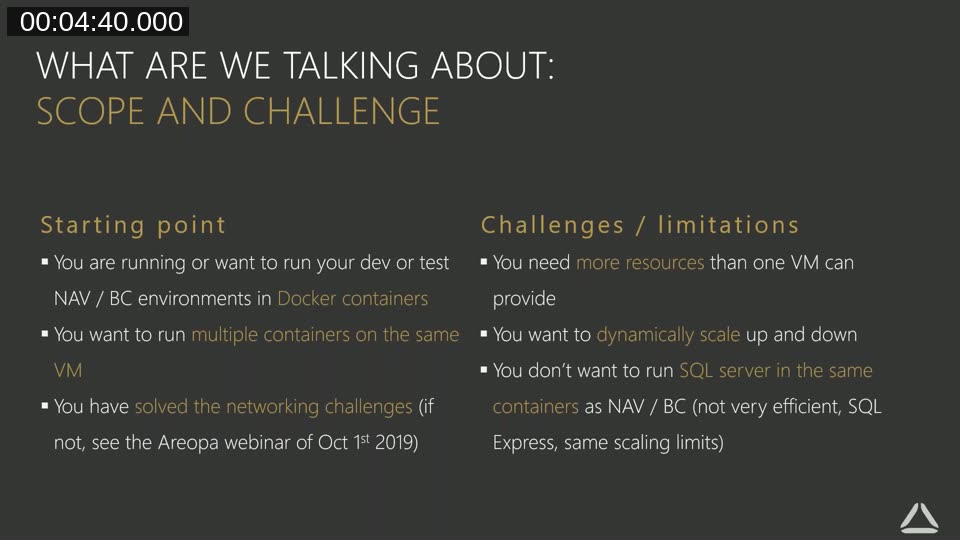
The session opens with the assumption that the audience is already running Business Central or NAV development and test environments inside Docker containers on a single virtual machine. Tobias outlines three challenges that arise as teams grow:
- Resource limits — a team running many containers simultaneously exhausts the CPU and memory of a single VM.
- Manual scaling — adding a second VM means telling users which host to connect to, and then reversing that instruction when demand falls.
- SQL server inefficiency — the default Business Central container ships with SQL Server Express. Running twenty containers means running twenty separate SQL Server instances, each capped at 10 GB and sharing the same VM resources.
The standard answer of “just add more VMs” solves capacity in theory but replaces it with a coordination problem. Docker Swarm addresses both at once.
Part 1: Docker Swarm
Docker Swarm is the built-in container orchestrator that ships with Docker. Rather than managing individual container hosts, a swarm treats a group of hosts as a single virtual entity. Tobias covers the key features that matter for Business Central environments.
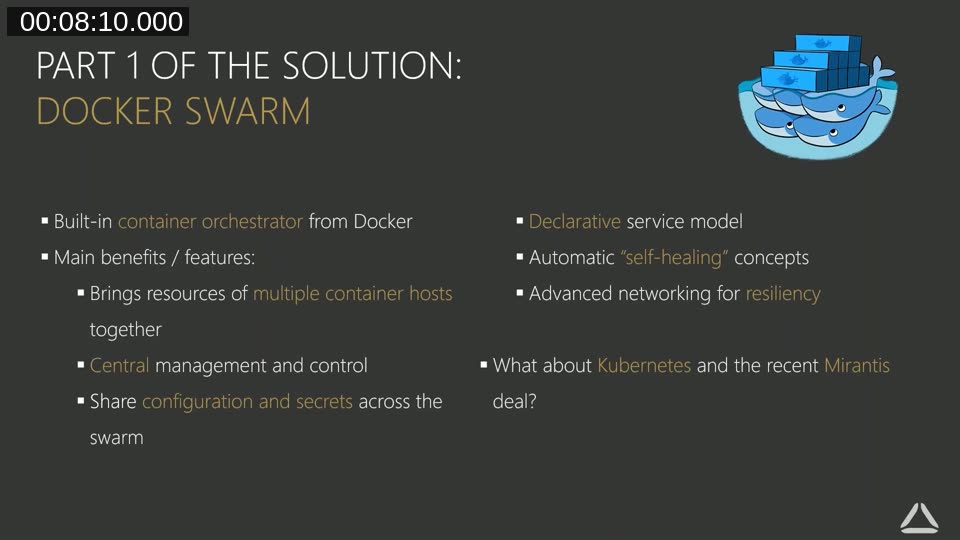
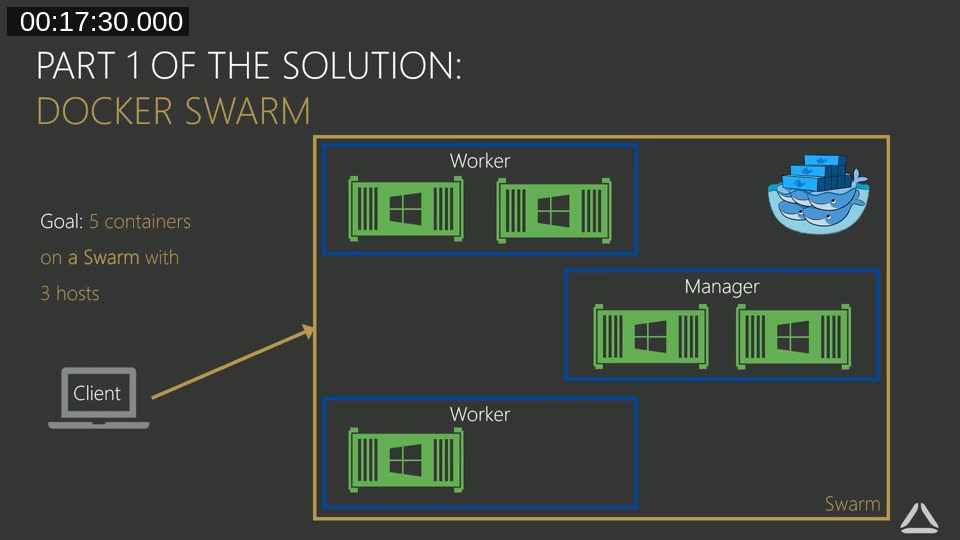
Central management. All commands go to the swarm, not to individual hosts. Starting five containers across three VMs takes one command instead of three separate sessions.
Shared configuration and secrets. Connection strings, passwords, and certificates are defined once at the swarm level and distributed to any node that needs them. There is no need to manually synchronise configuration files across hosts.
Declarative service model. You tell the swarm what you want — image name, number of instances, memory limits, port mappings — and it works out where to place the containers. If a container fails, Swarm recreates it automatically to restore the declared state.
Advanced networking. Services can find each other by name regardless of which physical host they land on. If the SQL service moves to a different node, the Business Central service continues to reach it without reconfiguration.
Swarm Concepts in Practice
Tobias introduces the vocabulary used throughout the demo. A service is the declaration of an image, how many instances (tasks) to run, and any configuration parameters. A node is a Docker engine that has joined the swarm. Nodes are either managers (which can issue commands and schedule work) or workers (which execute tasks). Managers can also execute tasks, but workers cannot manage the swarm.
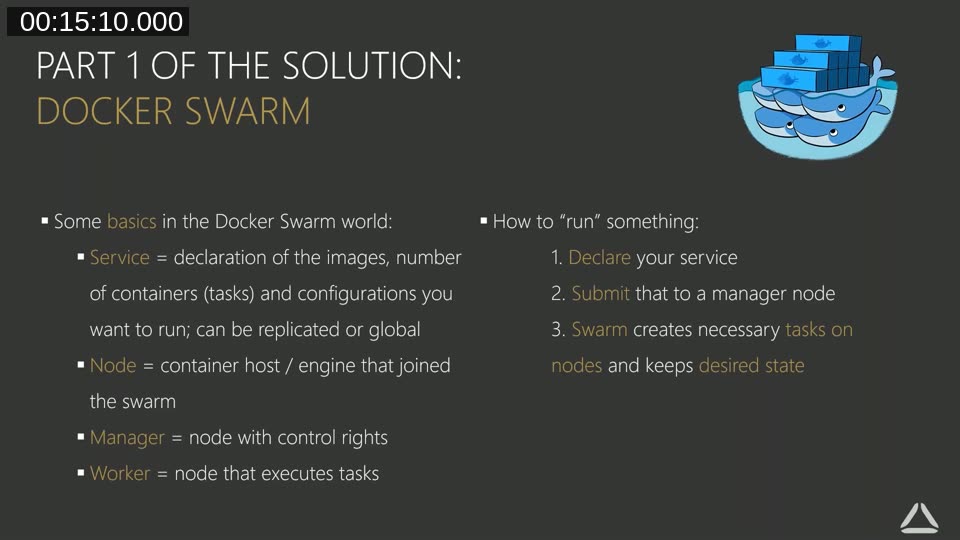
To start something on the swarm: declare the service, submit it to a manager node, and Swarm creates the necessary tasks on available nodes. The manager keeps watching; if the actual state diverges from the declared state, it corrects the difference.
Tobias addresses the question directly. Kubernetes is the industry standard for microservices — stateless, rapidly recyclable containers — but Business Central containers are stateful and monolithic (they include both NST and SQL Server). The Kubernetes model does not map cleanly onto BC containers, and the learning curve is steep for limited gain. Docker Swarm is simpler to set up and sufficient for the BC use case.
Demo: Scaling and Self-Healing in Action
The first demo uses a lightweight “say hello” web service to show swarm behaviour without waiting for Business Central startup times. The setup runs on an Azure VM with a swarm of one manager and three worker nodes, visible in Portainer — a graphical management interface with native Swarm support.
Starting with two instances, Tobias shows that refreshing the application endpoint alternates between container IDs — the built-in load balancing is routing requests across both tasks. He then scales to five instances through the Portainer UI with a single click. The cluster visualiser immediately shows the new containers distributed across worker nodes. Scaling back down removes the excess instances just as quickly.
The self-healing demo is straightforward: one container is deleted directly (bypassing Swarm, simulating a crash). Swarm detects the missing task and recreates it on a different worker node — automatically, without any manual intervention.
Swarm Initialisation
Setting up a swarm requires opening two TCP and two UDP firewall ports for swarm communication, then running docker swarm init on the first host. That command returns a token. Each additional host joins by running docker swarm join with that token and the manager’s address. The full process is a handful of commands, and Tobias notes he has wrapped it into initialisation scripts available in the BC-Swarm GitHub repository.
Part 2: Azure SQL with an Elastic Pool
The second part of the solution replaces the per-container SQL Server Express instances with a single Azure SQL server and an Elastic Pool. Azure SQL is a Platform-as-a-Service offering: Microsoft handles updates and maintenance, and scaling is dynamic with no fixed resource ceiling.
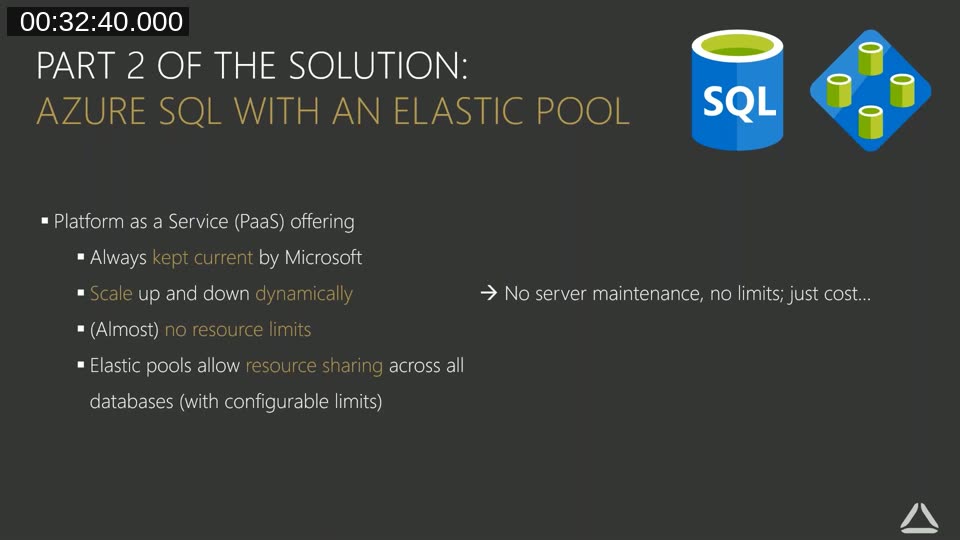
The key concept is resource sharing. An Elastic Pool has a defined pool of DTUs or vCores. Multiple databases draw from that shared pool. When one database is idle, another can use more resources. In a development environment where not all developers are running load at the same time, this means a modest pool can comfortably serve many databases without paying for dedicated capacity per database.
Microsoft’s documentation covers pool configuration, DTU vs. vCore models, and how to move existing databases into a pool.
learn.microsoft.com — Azure SQL Elastic Pool Overview
Bringing It Together: Swarm + Traefik + Azure SQL
The full solution uses three components: Docker Swarm for container placement and orchestration, Traefik as a reverse proxy to handle routing and TLS (covered in an earlier Areopa webinar), and Azure SQL with an Elastic Pool for the database tier.
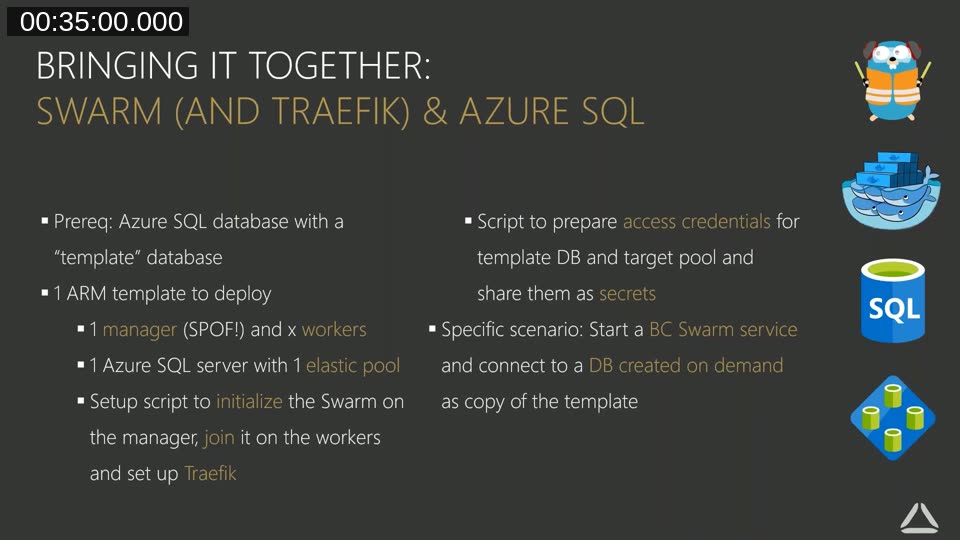
The deployment flow works like this. An ARM template spins up the required Azure VMs (one manager, any number of workers) and an Azure SQL server with an Elastic Pool. An initialisation script sets up the Swarm and joins all workers. A separate script creates an Azure AD service principal with limited permissions — read access to a template database and write access to the target pool — and stores the credentials as Docker secrets. When a service is created with the createBCService script, the container startup code checks whether the target database already exists. If not, it runs New-AzSqlDatabaseCopy to create a copy of the template in the Elastic Pool, then connects the Business Central NST to that new database.
Live Demo: BC Container on the Swarm
The second demo starts an actual Business Central container service — using the BC 1910 W1 image on Windows Server 2019 — on the swarm. The container startup log, visible through Portainer, shows the sequence: Azure modules imported, service principal authenticated, template database not found (first run), database copy initiated, Business Central NST started and connected.
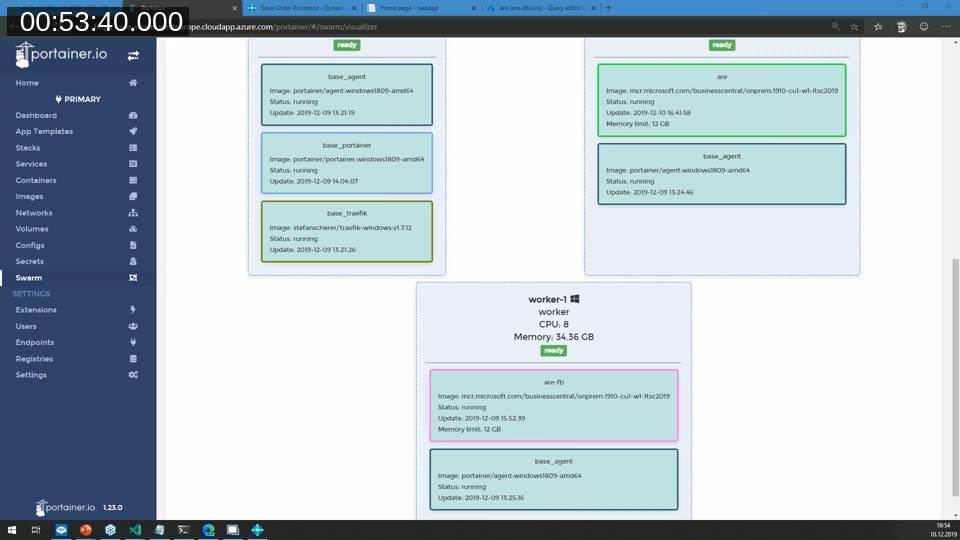
The result is a fully functional Business Central environment accessible via browser and the mobile client, with its database living in the Azure SQL Elastic Pool. Tobias also demonstrates the Azure Portal query editor connecting directly to the pool database, showing that standard SQL tooling and Power Platform integrations work without any additional setup.
The ARM template, initialisation scripts, and service creation scripts shown in the demo are published on GitHub.
github.com/tfenster/BC-Swarm
Azure Resource Quotas
During the Q&A, an attendee asked about hitting a limit when trying to start the swarm — Azure subscriptions have default CPU quotas that can be too small for a multi-node swarm. Tobias explains that the fix is straightforward: in the Azure Portal, navigate to Subscriptions > Usage + quotas, filter for Compute, find the relevant limit, and click Request increase. For reasonable amounts (a few hundred CPUs), the request is typically approved automatically or within a short review cycle.
Practical Considerations
Tobias notes a few constraints that apply specifically to Business Central containers in a swarm context. The standard Docker Swarm networking feature — routing a request to any node regardless of where the container is running — does not apply to Business Central because BC is stateful. Each user needs a persistent connection to a specific container. This is handled at the Traefik layer rather than by Swarm’s built-in routing mesh. Memory limits per container (12 GB in the demo) are set at service creation to prevent a single container from starving others on the same node.
For production use, a single manager node is a single point of failure. The recommendation is to run three or five manager nodes so the swarm remains available if one manager goes offline. The demo scenario uses one manager for simplicity.
The graphical Swarm interface used throughout the demos. Portainer provides a cluster visualiser, service scaling controls, and container log access that work with Docker Swarm out of the box.
portainer.io
This post was produced with AI assistance from the original Areopa Academy webinar recording. The content reflects what was presented in the session; any statements about product behaviour or external services should be verified against current documentation.