
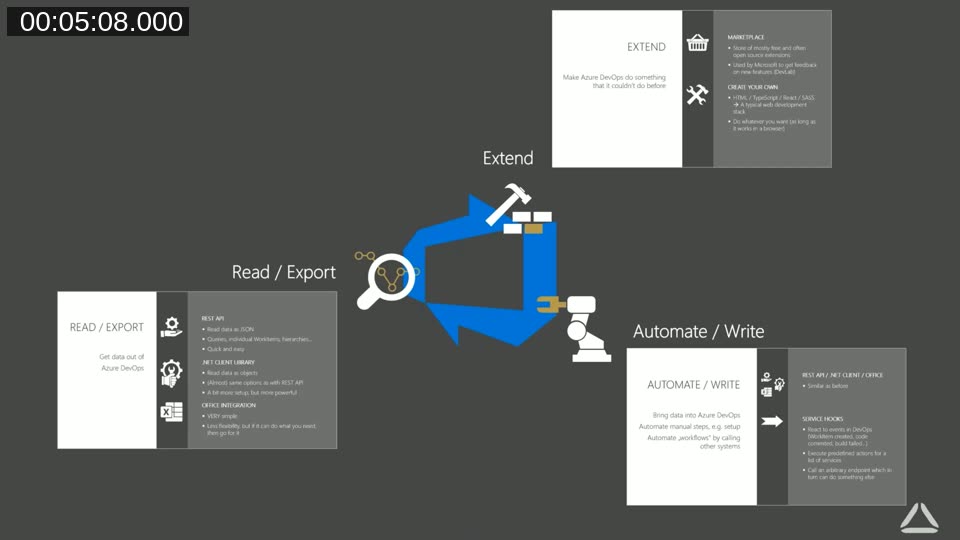
In this Areopa Academy webinar, Tobias Fenster — CTO of the Cosmo Consult Group and dual Microsoft MVP for Business Applications and Azure — covers the full range of ways to interact with Azure DevOps programmatically. Rather than revisiting the standard pipeline and repository setup that the BC community knows well, he focuses on three less-explored areas: reading and exporting data out of Azure DevOps, writing data and automating workflows into it, and extending the platform itself when the built-in features are not enough.
Moderator Luc van Vugt hosts the session, which was recorded on June 23, 2020 as part of the Areopa webinar series.
The Five Pillars — and What Lies Beyond
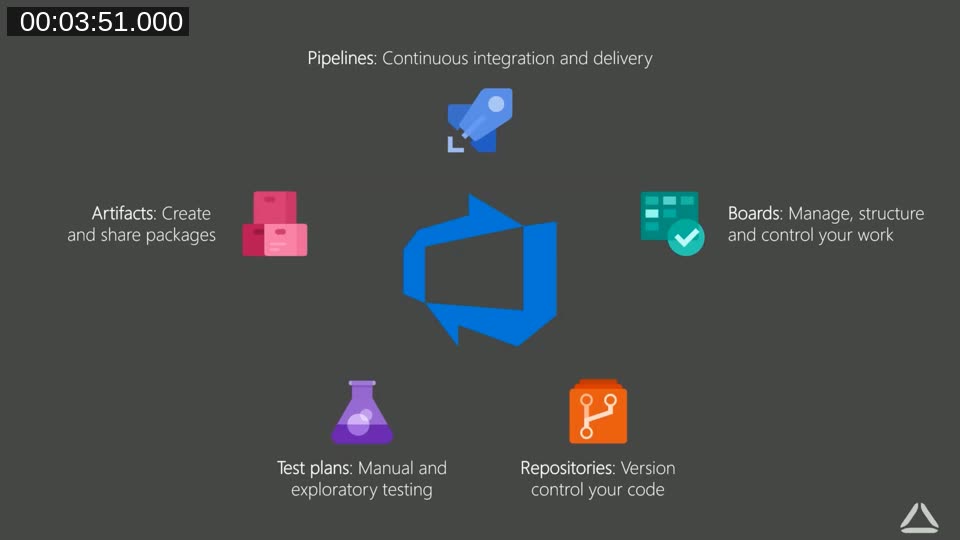
Azure DevOps is built around five services: Pipelines for CI/CD, Boards for work management, Repos for version control, Test Plans for manual and exploratory testing, and Artifacts for package sharing. Fenster acknowledges that Pipelines and Repos receive the most attention in the Business Central community, and uses this session to address what sits outside those five pillars: the APIs and extension points that allow teams to automate and customise the platform itself.
Part 1: Reading and Exporting Data
The first topic is getting data out of Azure DevOps. Fenster walks through three approaches, each trading off simplicity against flexibility.
REST API
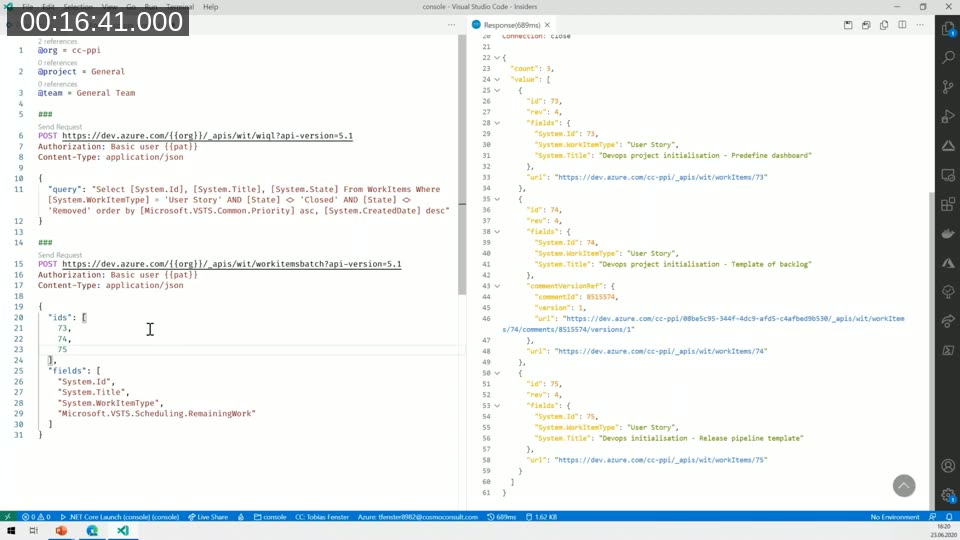
The REST API is the most feature-complete option. Every capability in Azure DevOps — including preview and undocumented features — is available through HTTP endpoints before it reaches any client library. Fenster demonstrates using the REST Client extension for VS Code to run a WIQL (Work Item Query Language) query and then fetch work item details via the batch endpoint.
The typical workflow is two steps: first run a WIQL query to get work item IDs, then call the batch endpoint with those IDs to retrieve field values.
### Step 1 – run WIQL query to get IDs
POST https://dev.azure.com/{{org}}/_apis/wit/wiql?api-version=5.1
Authorization: Basic {{pat}}
Content-Type: application/json

{
  "query": "Select [System.Id], [System.Title], [System.State] From WorkItems Where [System.WorkItemType] = 'User Story' AND [State]  'Closed' AND [State]  'Removed' order by [Microsoft.VSTS.Common.Priority] asc, [System.CreatedDate] desc"
}

### Step 2 – fetch work item details by ID
POST https://dev.azure.com/{{org}}/_apis/wit/workitemsbatch?api-version=5.1
Authorization: Basic {{pat}}
Content-Type: application/json

{
  "ids": [73, 74, 75],
  "fields": [
    "System.Id",
    "System.Title",
    "System.WorkItemType",
    "Microsoft.VSTS.Scheduling.RemainingWork"
  ]
}
Fenster also demonstrates a useful debugging technique for undocumented APIs: open the browser developer tools, clear the network log, trigger the UI action manually, and inspect the resulting HTTP call to discover the correct URL, method, and payload. This approach does not work in every case, but it is often the fastest way to find parameters that are not yet in the official documentation.
📖 Docs: Azure DevOps REST API — Query By Wiql — reference for running WIQL queries via HTTP, including request body format and examples.
.NET Client Library
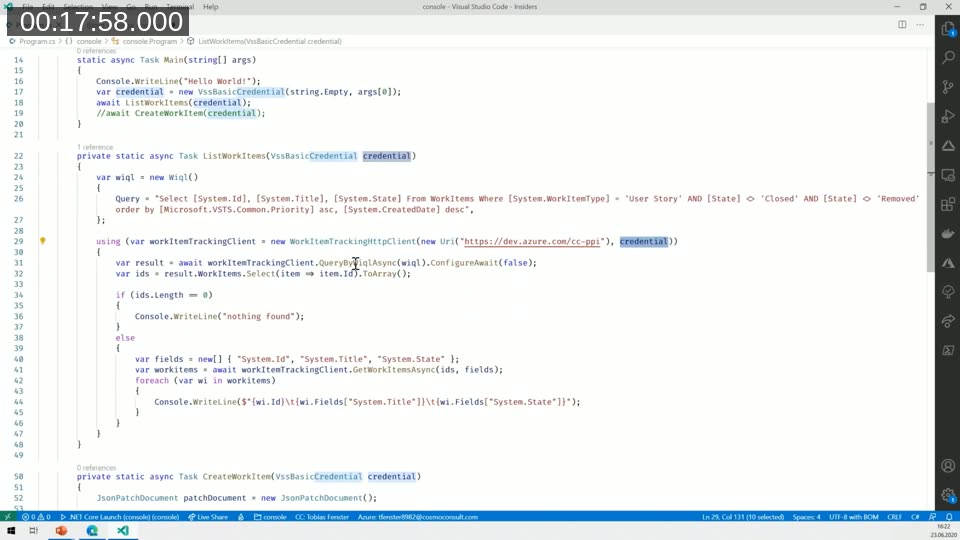
The Microsoft.TeamFoundationServer.Client NuGet package wraps the REST API in a typed .NET interface. Fenster shows a C# console application that authenticates with a Personal Access Token, runs the same WIQL query using WorkItemTrackingHttpClient, and then retrieves work item details with GetWorkItemsAsync.
var credential = new VssBasicCredential(string.Empty, args[0]);

using var workItemTrackingClient = new WorkItemTrackingHttpClient(
    new Uri("https://dev.azure.com/cc-ppi"), credential);

var wiql = new Wiql()
{
    Query = "Select [System.Id], [System.Title], [System.State] " +
            "From WorkItems Where [System.WorkItemType] = 'User Story' " +
            "AND [State]  'Closed' AND [State]  'Removed' " +
            "order by [Microsoft.VSTS.Common.Priority] asc, [System.CreatedDate] desc"
};

var result = await workItemTrackingClient.QueryByWiqlAsync(wiql).ConfigureAwait(false);
var ids = result.WorkItems.Select(item => item.Id).ToArray();

if (ids.Length == 0)
{
    Console.WriteLine("nothing found");
}
else
{
    var fields = new[] { "System.Id", "System.Title", "System.State" };
    var workitems = await workItemTrackingClient.GetWorkItemsAsync(ids, fields);
    foreach (var wi in workitems)
        Console.WriteLine($"{wi.Id}\t{wi.Fields["System.Title"]}\t{wi.Fields["System.State"]}");
}
One practical difference from the REST API: work item IDs are unique per organisation, so reading a work item by ID does not require specifying a project. Creating a work item, however, does require a project, because Azure DevOps needs to know where to place it.
Excel / Office Integration
For users who do not need a custom application, the official Azure DevOps Office Integration add-in for Excel provides a simple way to pull work items into a spreadsheet. After connecting to an organisation and project, users can load a predefined query, view and edit fields, and publish changes back to Azure DevOps — similar in concept to the Excel integration familiar to Business Central users.
Part 2: Writing Data and Automating Workflows
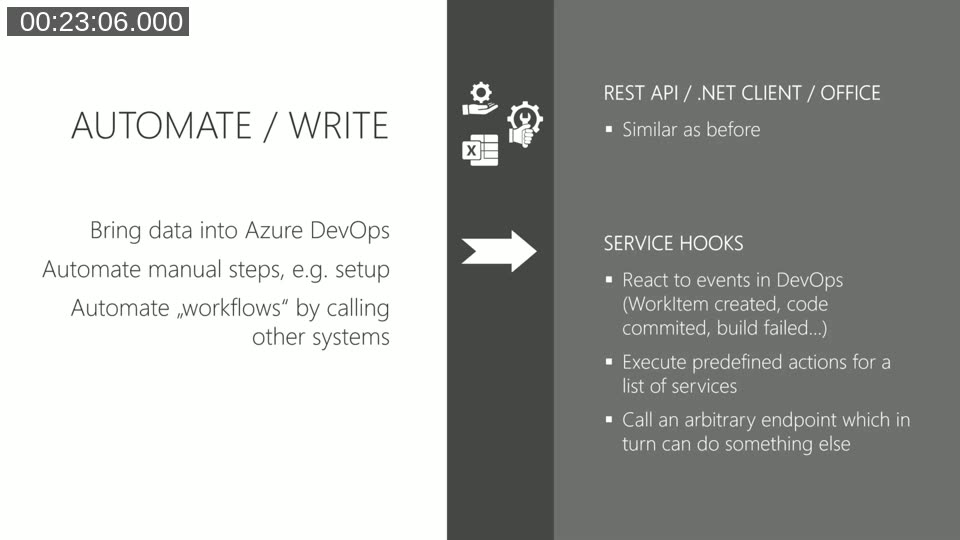
The second section covers bringing data into Azure DevOps. The same three options — REST API, .NET client library, and Excel — support write operations alongside reads, and a fourth mechanism, service hooks, allows Azure DevOps to push notifications outward when events occur.
Creating Work Items via REST and C#
Creating a work item uses a PATCH request with a JSON Patch document body. One common stumbling block: the content type must be application/json-patch+json, not the standard application/json used by most other Azure DevOps endpoints. Fenster shows both the error response and the corrected request.
POST https://dev.azure.com/{{org}}/{{project}}/_apis/wit/workitems/$User%20Story?api-version=5.1
Authorization: Basic {{pat}}
Content-Type: application/json-patch+json

[
  {
    "op": "add",
    "path": "/fields/System.Title",
    "from": null,
    "value": "Areopa sample User Story 1"
  }
]
The equivalent C# code uses JsonPatchDocument and the CreateWorkItemAsync method on WorkItemTrackingHttpClient, passing the project name and work item type as separate parameters.
Service Hooks and Webhooks
Service hooks allow Azure DevOps to react to events — such as a work item being created, code being committed, or a build failing — and call an external service or endpoint in response. A long list of pre-integrated targets (Azure Service Bus, Azure Storage, Teams, Slack, and others) can be configured through the Azure DevOps UI. For any destination not on that list, the generic “Post via HTTP” webhook option posts a JSON payload to any HTTPS endpoint.
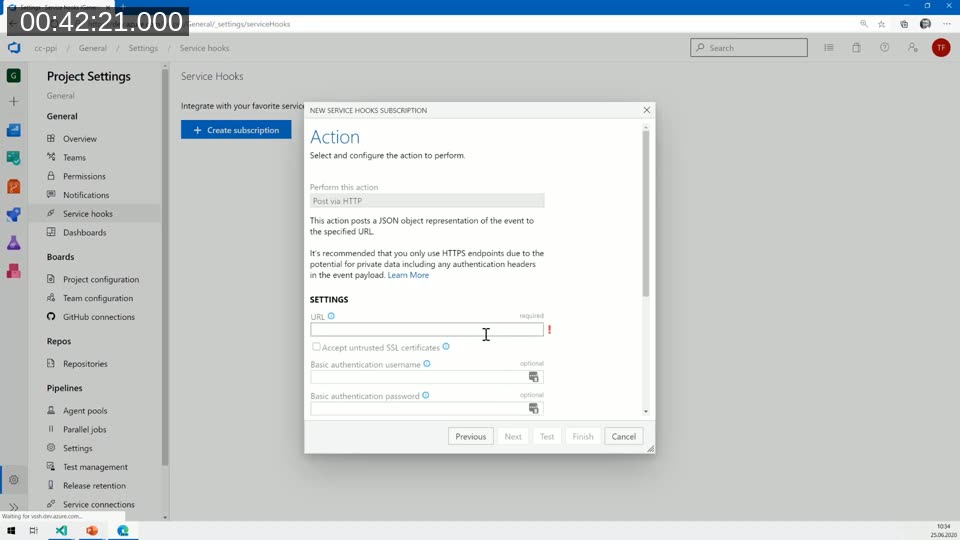
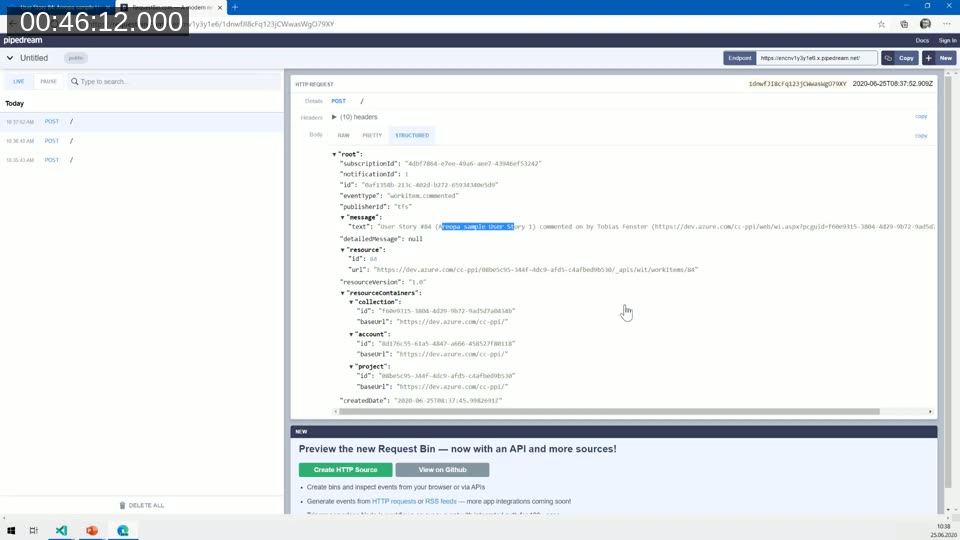
Fenster configures a webhook that fires when someone comments on a work item, and uses a temporary Pipedream HTTP endpoint to capture and inspect the payload. The webhook payload includes the event type, a text and HTML summary of the event, a link to the resource, and optionally the full resource details. Teams can control how much data is sent using the resource detail level setting when creating the subscription.
📖 Docs: Azure DevOps Service Hooks overview — lists all supported event types and consumer services, and explains how to configure subscriptions.
Real-World Example: Automating Project Setup
Fenster shows how Cosmo Consult uses the REST API to automate the creation of a new Azure DevOps project from scratch. When a new customer project is initiated, a single action in their internal tool triggers a sequence of API calls that:
- Creates the Azure DevOps project
- Pre-populates the backlog with a standard epic and feature hierarchy based on a process template
- Creates a DevOps repository (for automation scripts and pipeline definitions) and a Business Central app repository (with
app.json, test folder, and base test codeunit) - Applies branch policies: required reviewer, linked work item, squash merge, and build validation
- Creates a pre-configured pipeline that starts a container, runs build and test, publishes a release, and stops the container
- Sets up an Artifacts feed for the app package and its sources
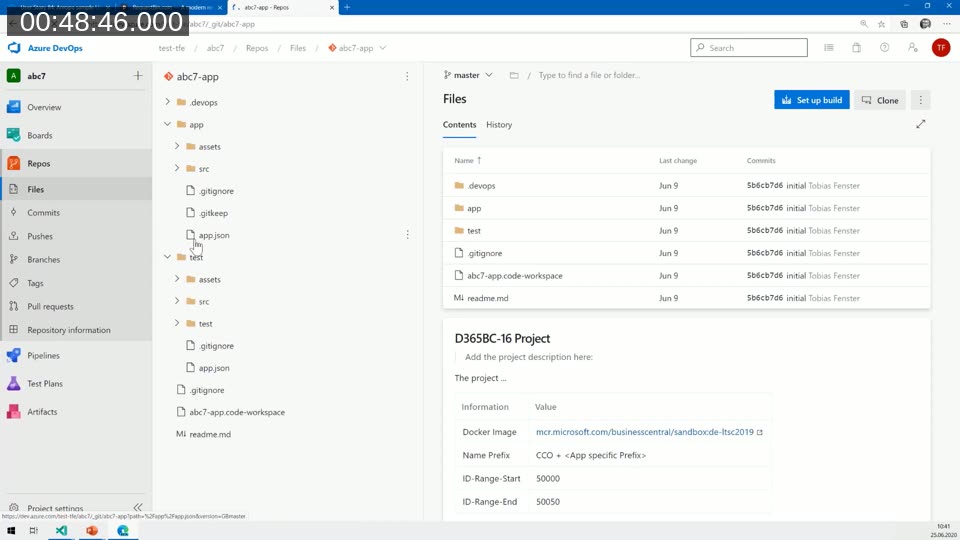
The result is that a developer joining a new project finds all structure already in place, and every project follows a consistent layout without manual setup steps.
Part 3: Extending Azure DevOps
When Azure DevOps does not provide a feature natively, the Visual Studio Marketplace offers thousands of extensions — many free and open-source — that add new UI elements, pipeline tasks, and hub pages. Microsoft also uses the marketplace to publish experimental features through its DevLabs programme, gathering community feedback before deciding whether to incorporate them into the product.
Fenster mentions the ALOps extension by Waldo and colleagues as a well-known example from the Business Central community, noting that community-driven extensions often link to a GitHub repository for issue tracking, support, and contribution.
Building Your Own Extension
Custom extensions are built with HTML, TypeScript, React, and Sass — a standard web development stack. Anyone comfortable with front-end web development can create an Azure DevOps extension. Extensions can add new hub pages, contribute actions to existing menus, add pipeline tab pills, or embed UI components directly inside work item forms.
Fenster demonstrates the work item form group extension sample from the official Microsoft samples repository. The extension adds a panel to the work item form with a button. Clicking the button reads the current title field and appends text to it, illustrating how extensions can read and write work item fields at runtime using the IWorkItemFormService.
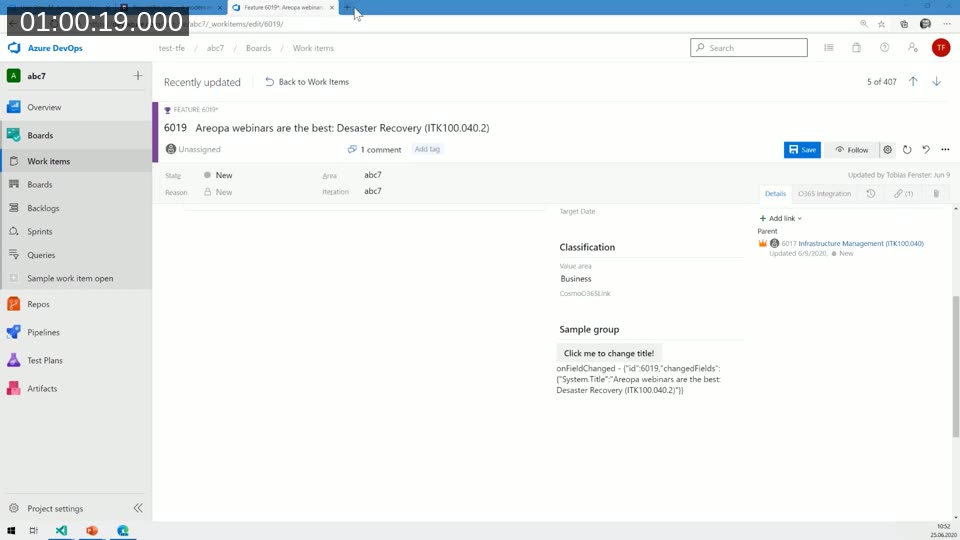
He also shows a custom extension used in production at Cosmo Consult that embeds an Office 365 document preview (PowerPoint, Word, or Excel) directly in a work item form by storing a SharePoint link in a custom field and rendering an inline iframe.
📖 Docs: Create your first Azure DevOps extension — step-by-step guide covering project setup, the extension manifest, packaging, and publishing to the marketplace.
📖 Docs: microsoft/azure-devops-extension-sample on GitHub — the official samples repository referenced during the demo, containing the work item form group example and many other integration points.
Key Takeaways
- The Azure DevOps REST API is the most complete interface: it exposes features before the .NET client library does, and it is the only option for undocumented or preview endpoints.
- Personal Access Tokens are the simplest authentication mechanism for scripting and tooling; the API also supports OAuth and Azure Active Directory tokens for more complex scenarios.
- When the correct API parameters are unclear, the browser developer tools can reveal the exact HTTP call that the Azure DevOps UI makes, providing the URL, method, headers, and body needed to replicate it in code.
- Service hooks bridge Azure DevOps to external systems in both directions: the API pushes data in, and service hooks push notifications out.
- The extension model is flexible enough to add entirely new views, modify existing work item forms, and contribute actions to existing menus — all with standard web technologies.
This post was drafted with AI assistance based on the webinar transcript and video content.