
In this Areopa Academy webinar, waldo (Eric Wauters) covers a practical, end-to-end approach to handling Business Central performance problems. The session is aimed at consultants, power users, and anyone who needs to diagnose, communicate, and prevent slowness in a Business Central environment. Moderator Tine Starič facilitates a live Q&A at the end.
Start by Gathering Information
Waldo’s first and most important point is that gathering information is an art that is often skipped. When a user reports that “it’s slow,” that is rarely enough to diagnose anything. You need to ask structured questions before reaching for any tool.
Key questions to ask:
- Pinpoint the symptom. Which page is slow? What filters are applied? Which company? Who else experiences it?
- Get reproduction steps. Can you reproduce the problem? If not, what was the exact timestamp when it happened?
- Know the user’s environment. Are they on a sandbox or production? Working remotely, on VPN, or in the office? Which browser?
- Ask about recent changes. Was anything installed, updated, or changed around the time the problem started? The Admin Center Operations log shows exactly what happened and when.
- Quantify the impact. “Slow” is relative. Ask for numbers: how many seconds does it take? How many users are affected? Report improvements in numbers too once the issue is resolved.
For system-level data, teach users and consultants to look at Help & Support → Report a problem. This section contains the Telemetry ID, Session ID, and Tenant ID — all critical for diagnosing performance with tools like the Performance Profiler or telemetry queries. Screenshots of error messages are not helpful; the details behind the “Copy the text below” link are.
📖 Docs: How to work with a performance problem – Business Central | Microsoft Learn — Microsoft’s structured guidance on diagnosing and resolving performance issues, covering data collection, profiling, and telemetry.
Tools to Troubleshoot
Page Inspector
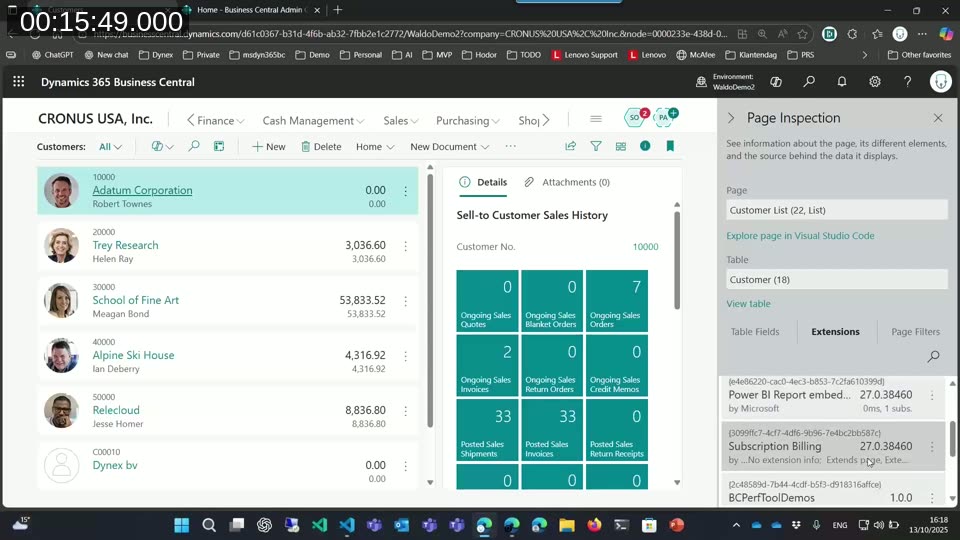
Waldo considers the Page Inspector (Ctrl+Alt+F1) to be the first tool to open when a page is slow to load. Switch to the Extensions tab and look for any extension with a load time measured in seconds — that immediately points to the responsible extension.
Database Locks
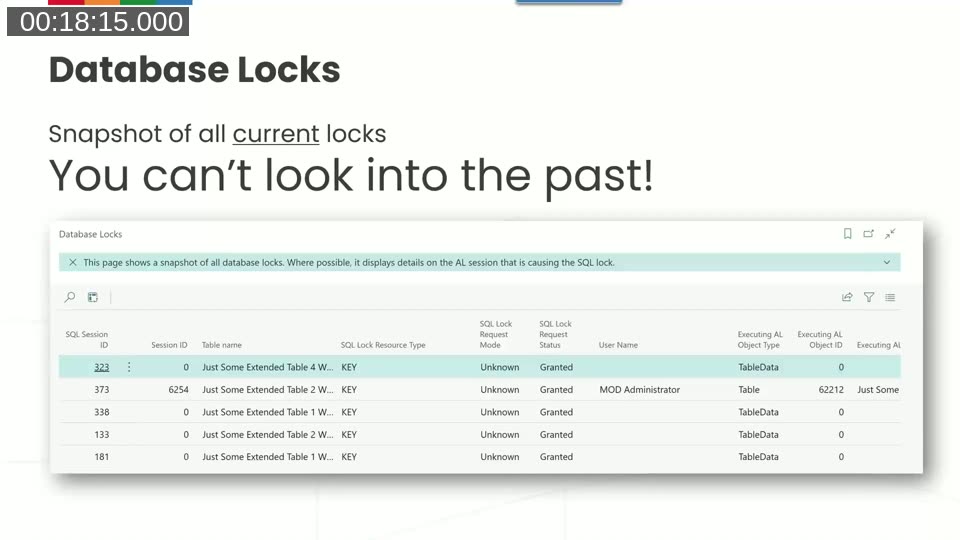
The Database Locks page is useful when you have a slow situation happening right now but cannot reproduce it in isolation. Open it immediately during the incident to see which SQL sessions are locking which resources. An important caveat: this is a current-state snapshot only — you cannot look into the past with this page. If you need historical lock data, you need telemetry (and only lock timeouts are recorded there, not all locks).
In-Client Performance Profiler
The in-client Performance Profiler is the most commonly used tool for investigating a reproducible slow process. The workflow is: prepare your scenario, start the profiler from Help & Support → Analyze performance, execute exactly the slow process, and stop. Keep the recorded scope as narrow as possible — any additional navigation after starting the profiler will add noise to the results.
A scheduled variant is also available if the slow process only occurs at a specific time, such as a nightly job at 3 AM.
📖 Docs: Performance Profiler overview – Business Central | Microsoft Learn — Full documentation on using the in-client profiler, including how to start, stop, and interpret results.
Sampling vs. Instrumentation
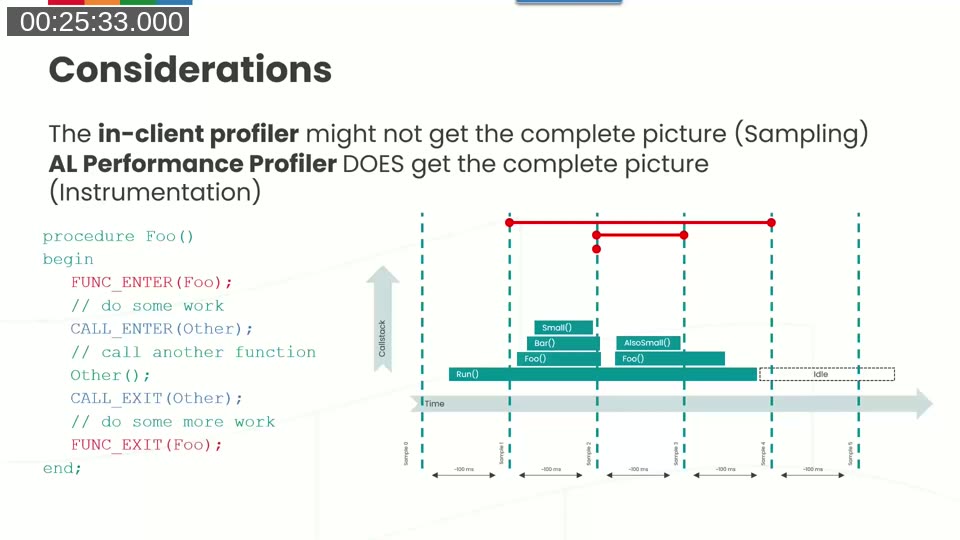
The in-client profiler uses sampling: every 50, 100, or 150 milliseconds it takes a snapshot of the current call stack. Short methods that complete between two samples will not appear in the results, and hit counts are not reliable. This is fast and practical but gives an incomplete picture.
The AL Performance Profiler (used by developers in VS Code) supports instrumentation: it records an enter and exit timestamp around every method call, giving exact timings and reliable hit counts. As of version 27, the in-client profiler also exposes SQL statement information when using the sampling mode.
📖 Docs: AL Profiler overview – Business Central | Microsoft Learn — Explains the difference between instrumentation and sampling profiling modes, and how to configure them in launch.json.
Telemetry
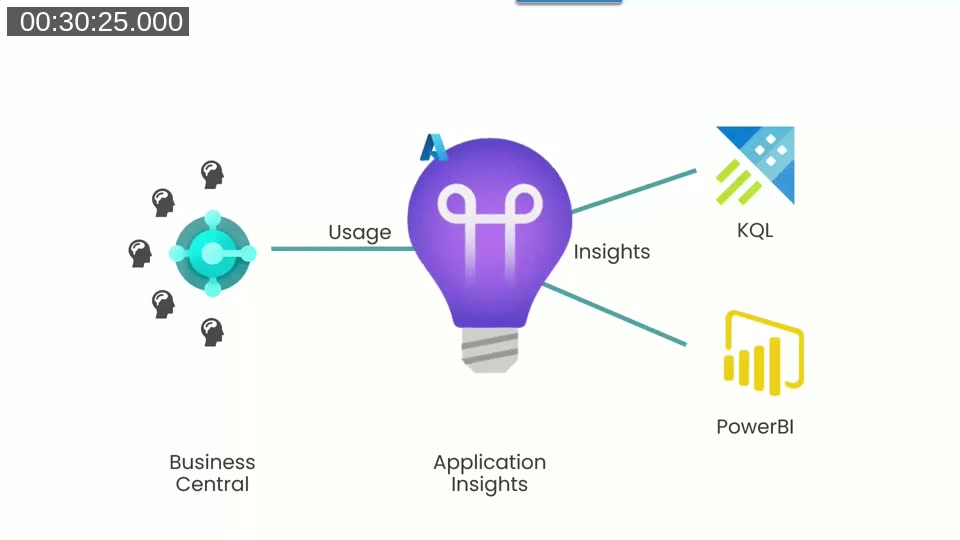
When you cannot reproduce a problem and have no real-time access to the environment, telemetry is often the only data source available. Business Central sends usage data — page views, slow SQL queries, slow AL methods, lock timeouts, API calls, job queue executions, and more — to Azure Application Insights. From there, data can be queried with KQL or visualized in Power BI.
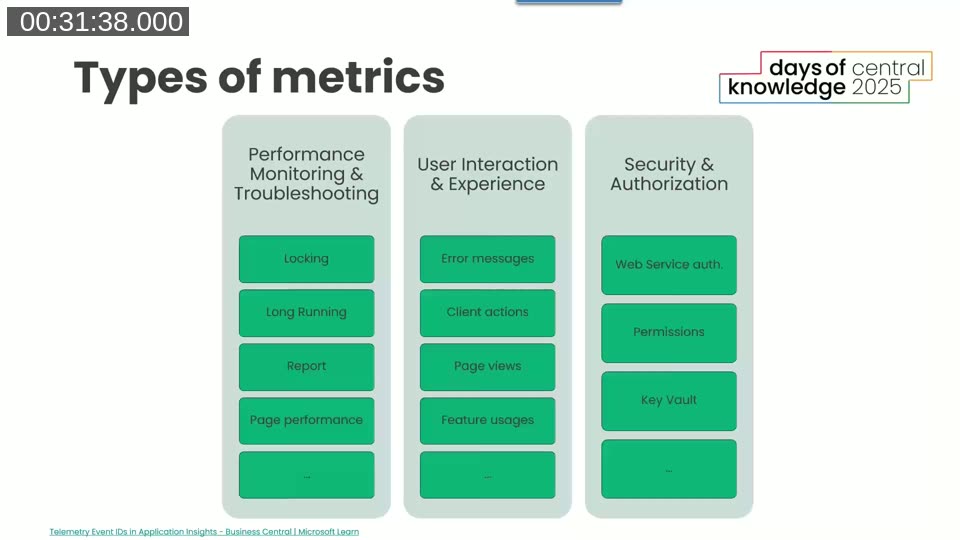
Telemetry covers three broad categories of metrics:
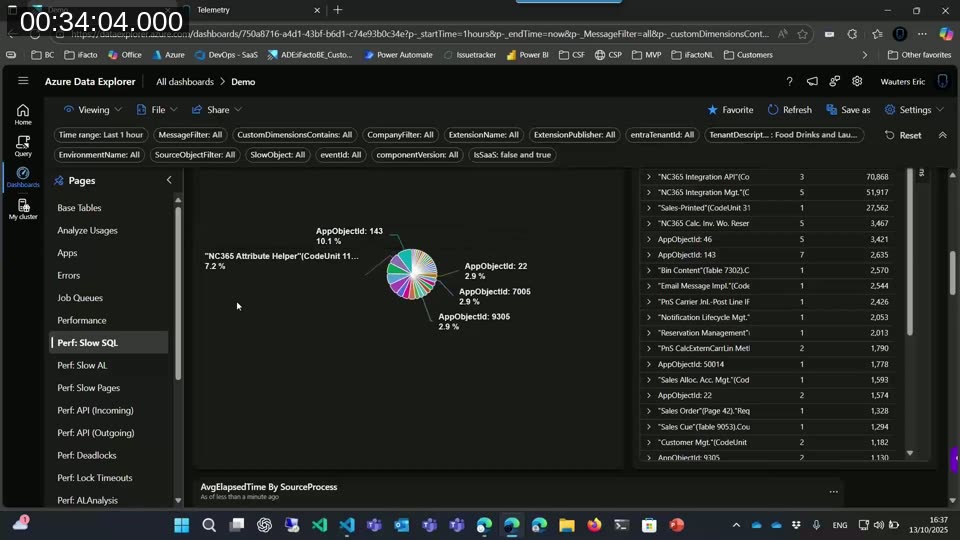
Waldo demonstrated his own Azure Data Explorer dashboard, which includes views for slow SQL queries, slow AL, lock timeouts, missing indexes, and API performance. He filters by customer (“Food Drinks and Laughs” in the demo), drills down to the slowest object, and spots outliers in elapsed time. This kind of analysis gives concrete numbers to act on.
📖 Docs: Monitoring and Analyzing Telemetry – Business Central | Microsoft Learn — Overview of all telemetry signals available in Business Central, and how to set up Azure Application Insights for your environments.
To get started with telemetry analysis, waldo recommends his blog series Handling Business Central Telemetry Like a Boss, which covers setup, his Azure Data Explorer dashboard, and the free iFacto Telemetry app from AppSource that provides additional daily telemetry including missing index reports across all customers.
Performance Prevention Program (PPP)
The second half of the session shifts from troubleshooting to prevention. Waldo calls this the “Performance Prevention Program.”
BC is a Transactional System, Not a Reporting System
According to telemetry data across more than 100 customers, the Item List and Item Card are consistently the slowest pages in Business Central. The reason is almost always the same: too many flow fields, calculations, and extra columns added by users or consultants who expect page performance equivalent to a reporting tool. If you want pages to stay fast, avoid calculations on list pages and push complex data to factboxes or page background tasks.
Keep Processes Short
Every additional step added to a posting routine — automatically posting a related document, sending an email, updating a record — makes the transaction longer and increases the chance of creating a bottleneck. The more users run that same long transaction simultaneously, the worse performance gets. Keep transactions short and focused.
Keep APIs Simple
Adding a calculation in OnAfterGetRecord in an API page turns a single SQL call into one SQL call plus (number of records × SQL calls needed for that calculation). For an unfiltered, unpaged API call returning thousands of records, this multiplier can make a simple API endpoint extremely slow. Where possible, use a second, separate API call for calculated data rather than computing it inline for every record.

Application Setup Has a Big Impact
Several built-in features, when enabled or used incorrectly, create significant performance overhead. Waldo’s list of things to avoid:
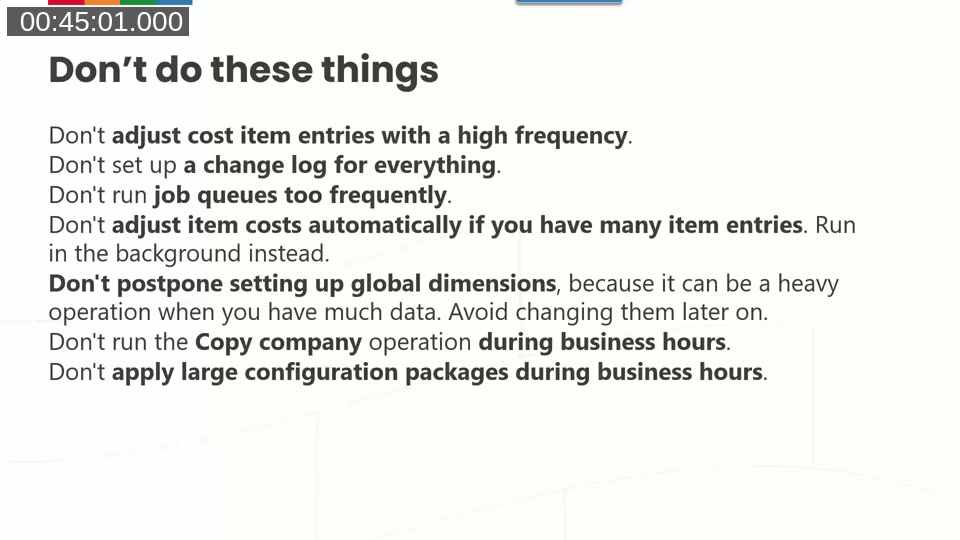
- Do not adjust cost item entries at high frequency — run it off-hours instead.
- Do not enable the change log for everything — it adds overhead to every tracked write operation.
- Do not run job queues too frequently — ask customers “what is the slowest interval you can tolerate?” rather than “how fast do you want it?”
- Do not run Copy Company during business hours — it locks the entire system.
- Enable Allow Gaps in Number Series — this setting dramatically reduces lock contention on number series tables.
- Do not apply large configuration packages during business hours.
- Do not postpone setting up global dimensions — changing them later on a large dataset is a heavy, long-running operation.
Use Background Processes and Job Queues Wisely
Background posting and page background tasks do not make processes faster — they improve the perception of speed. The user is not waiting for the result, so the system feels responsive even while work continues in the background. Page background tasks in particular are a feature worth asking for in implementations: a role center that loads instantly and calculates its cues in the background gives a far better experience than one that blocks on load.
Tips for Users
- Use a supported browser (Edge, Chrome, Firefox, Safari). Edge and Chrome are the only browsers that cache Business Central pages, which improves perceived performance. Keep browsers up to date.
- Check your network latency. Microsoft’s official guidance recommends a maximum of 250–300 ms, but waldo suggests treating 125 ms as a practical upper limit for acceptable performance. Use azurespeed.com to measure latency to Azure data centers.
- Use personalization to hide unused content. Fields and factboxes that are hidden via personalization are not calculated, which can meaningfully reduce page load time.
- Switch to Modern Search. The legacy search box (F3) scans every character in every field and is notoriously slow on large datasets. Modern Search scans fewer fields and looks for word beginnings, making it substantially faster. Note: after an upgrade, Modern Search can be temporarily slow while indexes are rebuilt — use legacy search in the meantime and try again after a few days.
- Block inactive records. Customers, vendors, and items that are blocked are automatically filtered out by the system, reducing result set sizes across all list pages.
- Keep attached pictures small. High-resolution images uploaded to the media table inflate database storage and slow down list pages that display those images. Reduce image quality before uploading, or store files externally.
This post was drafted with AI assistance based on the webinar transcript and video content.