
In this Areopa Academy webinar, Henrik Helgesen and Stefan Maron tackle a challenge every Business Central developer eventually faces: what to do when a process simply cannot be made faster. Originally presented at Directions EMEA 2025 in Poznan, this session shifts the focus from raw performance to perceived performance, and walks through the background processing tools available in Business Central.
The Problem: When Optimization Isn’t Enough
Stefan opens with a well-known anecdote from Houston Airport. Travelers complained about long waits at baggage claim. The airport’s first attempt was to hire more baggage handlers, but it barely helped. The real solution? They moved arrival gates farther away, so passengers spent more time walking and less time standing around waiting.

The complaints dropped, even though baggage handling speed stayed the same. The lesson: perception matters more than raw throughput when it comes to user satisfaction.
Real-World Example: Medical Device Manufacturing
Henrik shares a case from his earlier career at a medical device manufacturing company producing around 2,000-2,500 bespoke hearing aids per day. The order entry process involved releasing an order, planning a production order with a custom rules engine, and printing a production order traveler. With 20 users doing this simultaneously, they hit two-minute waits and deadlocks.
After exhausting traditional optimizations (indexes, keys, query tuning), the team borrowed an idea from warehouse management. In standard BC, releasing an order with warehouse handling doesn’t create the pick immediately. It creates a warehouse request, and a separate process handles the actual pick creation later.
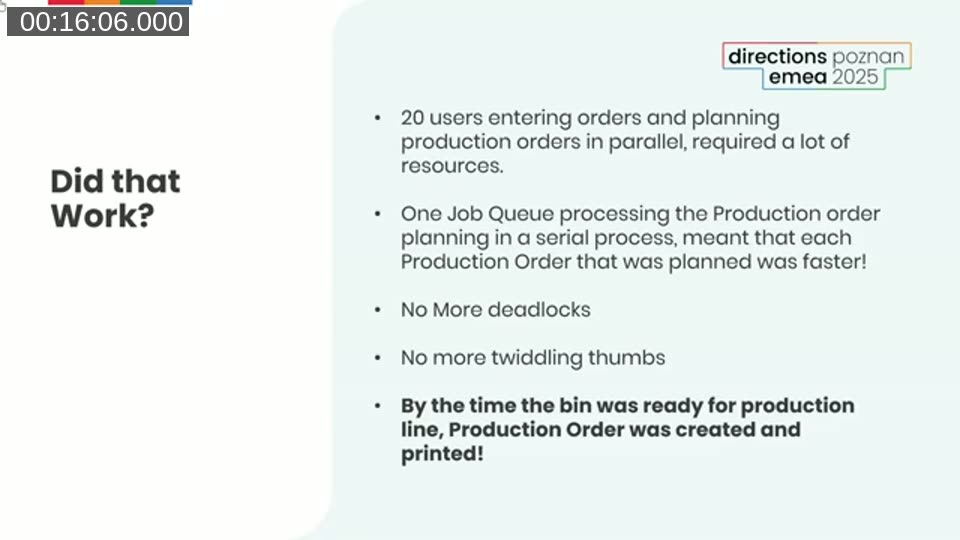
They applied the same pattern: on order release, the system validated data and wrote a production order planning request to a table. That was it for the user. The actual production order planning happened in the background via a job queue. The result: no more deadlocks, no more thumb-twiddling, and each production order was actually planned faster because the serial queue eliminated contention.
The Background Processing Toolkit
Stefan walks through the four background processing options available in Business Central, comparing them across several dimensions.
Page Background Tasks
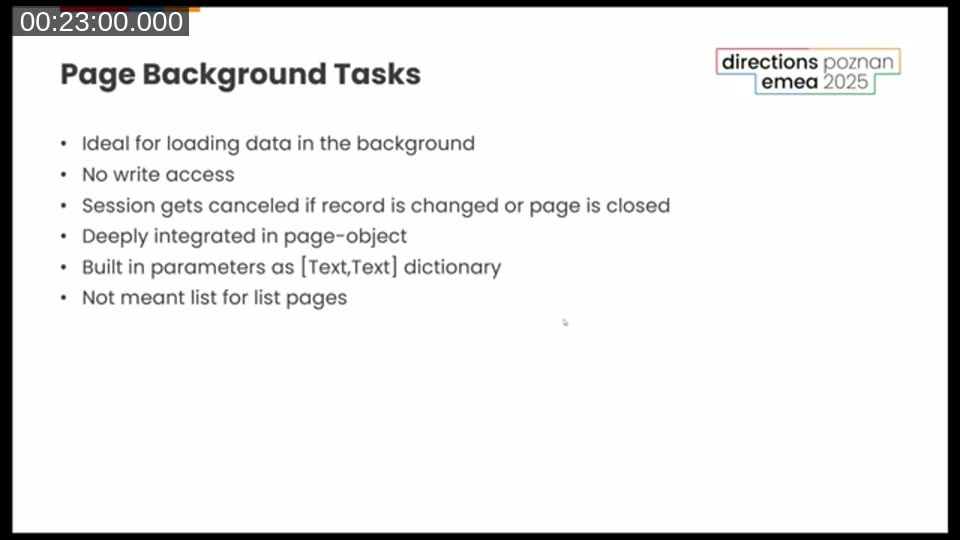
Page Background Tasks are designed for loading data in the background on page objects. They are read-only by design and get cancelled when the user navigates to a different record or closes the page. Parameters and return values use a Dictionary of [Text, Text]. They are not suited for list pages, since every record change spawns a new session and cancels the previous one.
In the demo, Stefan shows a page where an expensive calculation (simulated with a 5-second sleep) runs in the background. The page opens immediately and the calculated field populates after the background task completes. A second example demonstrates that a field using a direct expensive read operation delays the page from opening at all.
📖 Docs: Page Background Tasks — full reference including the API, error handling, and design considerations for part pages.
StartSession
StartSession is the most basic option and the foundation that the other tools build on. It can be called from anywhere in code (not just page objects), supports read and write operations, and runs a codeunit in a new session on the same server instance. There is no built-in error handling, scheduling, or logging. It runs in its own database transaction.
Stefan demos running three background tasks (5, 8, and 6 seconds) in parallel using StartSession. The total elapsed time is about 8 seconds (the duration of the longest task) rather than the 19+ seconds it would take sequentially.
TaskScheduler
Built on top of StartSession, the TaskScheduler adds persistence and reliability. Tasks are backed by a database table, which means they survive NST restarts and can run on any server instance in the cluster. A separate failure codeunit can be specified for error handling. Tasks can be scheduled for later execution using the NotBefore parameter.
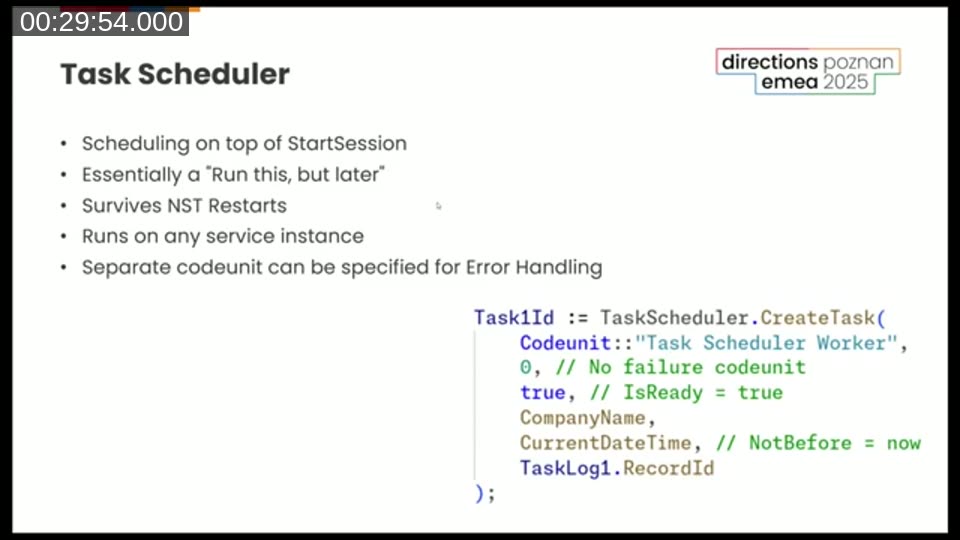
Stefan also highlights an interesting find from the base application: the Change Global Dimensions functionality uses the TaskScheduler with a failure handler that writes to the Job Queue Log Entry table, reusing Microsoft’s existing logging infrastructure.
📖 Docs: TaskScheduler Data Type — reference for all available methods including CreateTask, CancelTask, SetTaskReady, and TaskExists.
Job Queue
The Job Queue is built on top of the TaskScheduler and is the most feature-complete option. It supports recurring schedules, has built-in logging, and provides a user interface for configuration and monitoring.

Henrik emphasizes that recurring job queue entries should never produce errors. He recommends wrapping logic in Codeunit.Run with try-functions to prevent a single failure from stopping the entire queue. A common pattern he uses: a recurring job queue entry finds records to process and creates individual, one-time job queue entries for each record.
This way, if one record fails (for example, a customer missing an email address), it doesn’t block the others. The failed entry shows up in the log with an error message that can be investigated separately.
Henrik also demonstrates a multi-level chaining pattern used for a real-world nightly billing process: a recurring job finds storage contracts to renew, creates an invoice, posts the invoice, and charges the credit card, each as a separate chained job queue entry.

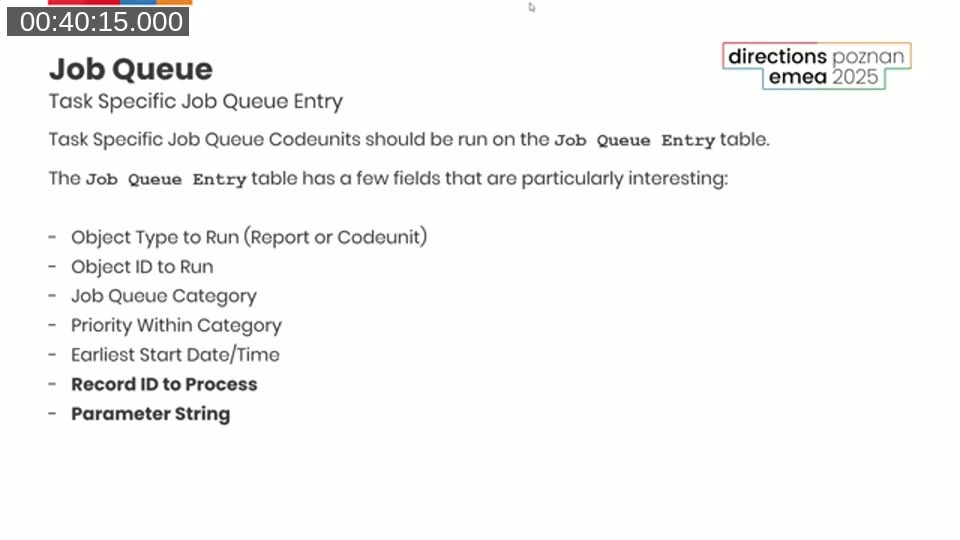
Two useful fields on the Job Queue Entry table worth noting: Record ID to Process lets the codeunit find the specific record to work on, and Parameter String can be used to pass additional context (like a notification type) to the processing codeunit. The Job Queue Category field helps group related entries so they don’t block other unrelated job queue processing.
📖 Docs: Developing for the Job Queue — covers dialog behavior suppression, error handling, and best practices for job queue codeunits.
Background Sessions and Auto-Scaling
Stefan explains how Business Central Online’s architecture rewards background processing. Page Background Tasks and StartSession run on the same NST as the user session. TaskScheduler and Job Queue entries, however, can run on any NST in the cluster, including compute-only nodes.

According to Microsoft’s documentation, 99.81% of background sessions run on compute-only nodes, which are dedicated servers that do not host user sessions. When load increases, Business Central Online automatically spins up additional NSTs to distribute the work. This means that offloading processing to background sessions not only frees up the UI, it also takes advantage of the platform’s auto-scaling capabilities.
📖 Docs: Asynchronous Processing Overview — Microsoft’s own guidance on offloading AL execution from the UI thread to background sessions.
Key Takeaways
- Perception over reality — Focus on what users experience, not just what happens behind the scenes. If users don’t wait, the system feels fast.
- Choose your battles — Not every process needs to complete in a split second. Prioritize user-facing interactions and defer the rest.
- Use the right tool — Page Background Tasks and StartSession run on the same server. TaskScheduler and Job Queue run on any server in the cluster and benefit from auto-scaling.
- Serial can be faster than parallel — Moving work from 20 concurrent users to a single serial queue can eliminate deadlocks and actually speed up each individual task.
The code examples from this session are available on GitHub: StefanMaron/BackgroundSessionDemo.
This post was drafted with AI assistance based on the webinar transcript and video content.
Leave a Reply